当前位置:网站首页>Linux (centos7.9) installation and deployment of MySQL Cluster 7.6
Linux (centos7.9) installation and deployment of MySQL Cluster 7.6
2022-06-24 09:01:00 【Procedural ape (siege lion)】
Catalog
1. Download installation package
2. Basic cluster configuration
3. Install management node (192.168.17.81)
4. Installing data nodes and sql node (192.168.17.83)
5. Installing data nodes and sql node (192.168.17.85)
6. Start the cluster and perform the test
7. Problems encountered during installation and deployment and solutions
7.1 The firewall blocks the communication between the data node and the management node
7.2 The firewall blocked sql Communication between the node and the management node
7.3 sql After the node is started , Password reset required
7.4 mysql Remote access authorization
7.5 Directory does not exist or does not have permission
mysql-cluster( colony ) Provide multi node read / write capability , For an application scenario with a large number of read and write requests , Select cluster deployment , It has obvious advantages over single node deployment , In particular, read / write requests will increase with the development of the business , Even more so , At the beginning , When the read / write request is not very large , You can use two nodes , When read / write requests increase , Nodes can be added to meet business requirements .
1. Download installation package
Download address :
MySQL :: Download MySQL Cluster
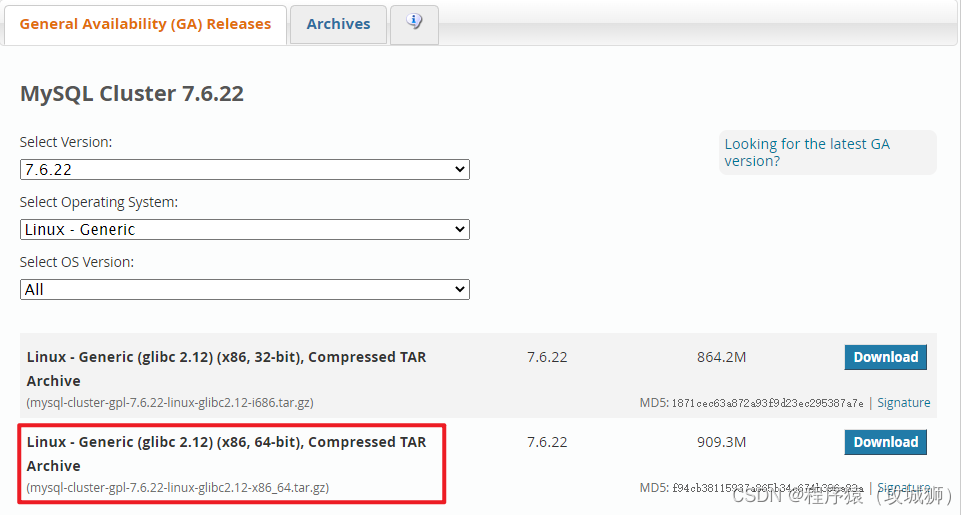
Download here 64 Bit compressed version .
2. Basic cluster configuration
operating system :CentOS Linux release 7.9
Package name :mysql-cluster-gpl-7.6.22-linux-glibc2.12-x86_64.tar.gz
The management node :192.168.17.81
Data nodes and sql node :192.168.17.83
Data nodes and sql node :192.168.17.85
3. Install management node (192.168.17.81)
3.1 Installation preparation
Upload the installation package to linux, Do the following .
groupadd mysql
useradd mysql -g mysql

tar xvf mysql-cluster-gpl-7.6.22-linux-glibc2.12-x86_64.tar.gz

mv mysql-cluster-gpl-7.6.22-linux-glibc2.12-x86_64 /usr/local/mysql
3.2 Configuration information
establish mysql-cluster Catalog , And configuration config.ini
mkdir -p /apps/mysql/mysql-cluster

cd /apps/mysql/mysql-cluster

vi config.ini
Profile contents :
[ndbd default]
NoOfReplicas=2
DataMemory=500M
IndexMemory=300M

[ndb_mgmd]
NodeId=11
hostname=192.168.17.81
datadir=/apps/mysql/mysql-cluster

[ndbd]
NodeId=12
hostname=192.168.17.83
datadir=/apps/mysql/data

[ndbd]
NodeId=22
hostname=192.168.17.85
datadir=/apps/mysql/data

[mysqld]
NodeId=13
hostname=192.168.17.83

[mysqld]
NodeId=23
hostname=192.168.17.85
Management node initialization :
./ndb_mgmd -f /apps/mysql/mysql-cluster/config.ini --initialView information from the management node :
# ./ndb_mgm -e show
Connected to Management Server at: localhost:1186
Cluster Configuration
---------------------
[ndbd(NDB)]     2 node(s)
id=12 (not connected, accepting connect from 192.168.17.83)
id=22 (not connected, accepting connect from 192.168.17.85)

[ndb_mgmd(MGM)] 1 node(s)
id=11   @192.168.17.81  (mysql-5.7.38 ndb-7.6.22)

[mysqld(API)]   2 node(s)
id=13 (not connected, accepting connect from 192.168.17.83)
id=23 (not connected, accepting connect from 192.168.17.85)
4. Installing data nodes and sql node (192.168.17.83)
stay 192.168.17.83 Deploy data nodes and sql node :
4.1 Installation preparation
Upload the installation package to linux, Do the following .
groupadd mysql
useradd mysql -g mysql

tar xvf mysql-cluster-gpl-7.6.22-linux-glibc2.12-x86_64.tar.gz

mv mysql-cluster-gpl-7.6.22-linux-glibc2.12-x86_64 /usr/local/mysql
4.2 Install the data node
vi /etc/my.cnf
The contents are as follows :
#  Data node configuration
[myqld]
basedir=/usr/local/mysql
datadir=/apps/mysql/data/ndbdata
user=mysql
socket=/apps/mysql/data/ndbsock/mysql.sock

symbolic-links=0

[mysql_safe]
log-error=/var/log/mysqld.log
pid-file=/var/run/mysqld/mysqld.pid

[mysql_cluster]
ndb-connectstring=192.168.17.81
Initialize and start ndb node :
./ndbd --initial
2022-06-21 16:44:09 [ndbd] INFO     -- Angel connected to '192.168.17.81:1186'
2022-06-21 16:44:09 [ndbd] INFO     -- Angel allocated nodeid: 12
You can see ndb The node is connected to the cluster .
4.3 install sql node
The configuration file my.cnf
# SQL Node configuration
[client]
socket=/apps/mysql/data/sqlsock/mysql.sock

[mysqld]
ndbcluster
datadir=/apps/mysql/data/sqldata
socket=/apps/mysql/data/sqlsock/mysql.sock
ndb-connectstring=192.168.17.81

[mysql_cluster]
ndb-connectstring=192.168.17.81
initialization mysql
# ./mysqld --user=root --initialize
2022-06-21T08:46:45.758523Z 0 [Warning] Ignoring user change to 'root' because the user was set to 'mysql' earlier on the command line

2022-06-21T08:46:45.765892Z 0 [Warning] TIMESTAMP with implicit DEFAULT value is deprecated. Please use --explicit_defaults_for_timestamp server option (see documentation for more details).
2022-06-21T08:46:45.765987Z 0 [ERROR] Can't find error-message file '/apps/mysql/data/share/errmsg.sys'. Check error-message file location and 'lc-messages-dir' configuration directive.
2022-06-21T08:46:47.892484Z 0 [Warning] InnoDB: New log files created, LSN=45790
2022-06-21T08:46:48.340240Z 0 [Warning] InnoDB: Creating foreign key constraint system tables.
2022-06-21T08:46:48.529587Z 0 [Warning] No existing UUID has been found, so we assume that this is the first time that this server has been started. Generating a new UUID: b0091a7a-f13e-11ec-88ab-f8bc127be655.
2022-06-21T08:46:48.553733Z 0 [Warning] Gtid table is not ready to be used. Table 'mysql.gtid_executed' cannot be opened.
2022-06-21T08:46:48.902557Z 0 [Warning]
2022-06-21T08:46:48.902576Z 0 [Warning]
2022-06-21T08:46:48.903104Z 0 [Warning] CA certificate ca.pem is self signed.
2022-06-21T08:46:49.000295Z 1 [Note] A temporary password is generated for [email protected]: 78nj;Ar
You can see mysql Successful initialization , And generate a temporary password .
start-up sql node , First, copy the startup script from the installation package to /etc/init.d/mysqld, And then use service mysqld start start-up mysql service .
cp support-files/mysql.server /etc/init.d/mysqld

#  Add to the self start service item
chkconfig --add mysqld

# Start the service
service mysqld start
5. Installing data nodes and sql node (192.168.17.85)
Refer to the previous section for installation and configuration methods .
5.1 Installation preparation
Upload the installation package to linux, Do the following .
groupadd mysql
useradd mysql -g mysql

tar xvf mysql-cluster-gpl-7.6.22-linux-glibc2.12-x86_64.tar.gz

mv mysql-cluster-gpl-7.6.22-linux-glibc2.12-x86_64 /usr/local/mysql
5.2 Install the data node
vi /etc/my.cnf
The contents are as follows :
#  Data node configuration
[myqld]
basedir=/usr/local/mysql
datadir=/apps/mysql/data/ndbdata
user=mysql
socket=/apps/mysql/data/ndbsock/mysql.sock

symbolic-links=0

[mysql_safe]
log-error=/var/log/mysqld.log
pid-file=/var/run/mysqld/mysqld.pid

[mysql_cluster]
ndb-connectstring=192.168.17.81
Initialize and start ndb node :
./ndbd --initial
2022-06-21 16:44:09 [ndbd] INFO     -- Angel connected to '192.168.17.81:1186'
2022-06-21 16:44:09 [ndbd] INFO     -- Angel allocated nodeid: 12
You can see ndb The node is connected to the cluster .
5.3 install sql node
The configuration file my.cnf
# SQL Node configuration
[client]
socket=/apps/mysql/data/sqlsock/mysql.sock

[mysqld]
ndbcluster
datadir=/apps/mysql/data/sqldata
socket=/apps/mysql/data/sqlsock/mysql.sock
ndb-connectstring=192.168.17.81

[mysql_cluster]
ndb-connectstring=192.168.17.81
initialization mysql
# ./mysqld --user=root --initialize
2022-06-21T08:46:45.758523Z 0 [Warning] Ignoring user change to 'root' because the user was set to 'mysql' earlier on the command line

2022-06-21T08:46:45.765892Z 0 [Warning] TIMESTAMP with implicit DEFAULT value is deprecated. Please use --explicit_defaults_for_timestamp server option (see documentation for more details).
2022-06-21T08:46:45.765987Z 0 [ERROR] Can't find error-message file '/apps/mysql/data/share/errmsg.sys'. Check error-message file location and 'lc-messages-dir' configuration directive.
2022-06-21T08:46:47.892484Z 0 [Warning] InnoDB: New log files created, LSN=45790
2022-06-21T08:46:48.340240Z 0 [Warning] InnoDB: Creating foreign key constraint system tables.
2022-06-21T08:46:48.529587Z 0 [Warning] No existing UUID has been found, so we assume that this is the first time that this server has been started. Generating a new UUID: b0091a7a-f13e-11ec-88ab-f8bc127be655.
2022-06-21T08:46:48.553733Z 0 [Warning] Gtid table is not ready to be used. Table 'mysql.gtid_executed' cannot be opened.
2022-06-21T08:46:48.902557Z 0 [Warning]
2022-06-21T08:46:48.902576Z 0 [Warning]
2022-06-21T08:46:48.903104Z 0 [Warning] CA certificate ca.pem is self signed.
2022-06-21T08:46:49.000295Z 1 [Note] A temporary password is generated for [email protected]: 78nj;Ar
You can see mysql Successful initialization , And generate a temporary password .
start-up sql node , First, copy the startup script from the installation package to /etc/init.d/mysqld, And then use service mysqld start start-up mysql service .
cp support-files/mysql.server /etc/init.d/mysqld

#  Add to the self start service item
chkconfig --add mysqld

# Start the service
service mysqld start
6. Start the cluster and perform the test
6.1 Start the test
Startup sequence : Start the management node , Start data node , start-up sql node .
After startup , View... In the management node :
# ./ndb_mgm -e show
Connected to Management Server at: localhost:1186
Cluster Configuration
---------------------
[ndbd(NDB)]     2 node(s)
id=12   @192.168.17.83  (mysql-5.7.38 ndb-7.6.22, Nodegroup: 0, *)
id=22   @192.168.17.85  (mysql-5.7.38 ndb-7.6.22, Nodegroup: 0)

[ndb_mgmd(MGM)] 1 node(s)
id=11   @192.168.17.81  (mysql-5.7.38 ndb-7.6.22)

[mysqld(API)]   2 node(s)
id=13   @192.168.17.83  (mysql-5.7.38 ndb-7.6.22)
id=23   @192.168.17.85  (mysql-5.7.38 ndb-7.6.22)
You can see , Two ndb Node and two sql node , Have been connected to the management node .
6.2 Create database test
stay 17.83 Node to create a database :
mysql> create database ndb_test;
Query OK, 1 row affected (0.01 sec)
stay 17.85 view the database :
mysql> show databases;
+--------------------+
| Database           |
+--------------------+
| information_schema |
| mysql              |
| ndb_test           |
It indicates that the creation of the database can be synchronized automatically .
6.3 Create table tests
stay 17.85 Create table ndb_table_test1:
mysql> use ndb_test
Database changed
mysql>
mysql> create table ndb_table_test1(id int);
Query OK, 0 rows affected (0.17 sec)
stay 17.83 See the table ndb_table_test1:
mysql> use ndb_test;
Database changed
mysql> show tables;
Empty set (0.00 sec)
Found in 17.85 Create a table , stay 17.83 It's invisible .
Again in 17.85 Create table ndb_table_test2, Specify the engine NDBCLUSTER:
mysql> create table ndb_table_test2(id int) ENGINE = NDBCLUSTER;
Query OK, 0 rows affected (0.39 sec)
stay 17.83 See the table :
mysql> show tables;
+--------------------+
| Tables_in_ndb_test |
+--------------------+
| ndb_table_test2    |
+--------------------+
1 row in set (0.00 sec)
This time you can see the created table , So only specified NDBCLUSTER The engine's table , Can be visible in other nodes .
6.4 Add data tests
stay 17.83 Add data :
mysql> insert into ndb_table_test2 values(1);
Query OK, 1 row affected (0.00 sec)
stay 17.85 View the data :
mysql> select * from ndb_table_test2
    -> ;
+------+
| id   |
+------+
|    1 |
+------+
1 row in set (0.01 sec)
You can see , Data written by a node , Another node can see the written data .
7. Problems encountered during installation and deployment and solutions
7.1 The firewall blocks the communication between the data node and the management node
The firewall open port of the management node is required 1186.
# firewall-cmd --zone=public --add-port=1186/tcp --permanent
success
# firewall-cmd --reload
success
7.2 The firewall blocked sql Communication between the node and the management node
to open up sql node 3306 port
# firewall-cmd --zone=public --add-port=3306/tcp --permanent
success
# firewall-cmd --reload
success
7.3 sql After the node is started , Password reset required
After logging in with a temporary password , You need to reset your password to access .
./bin/mysql -uroot -p

set password = password('newpassword');
7.4 mysql Remote access authorization
use mysql
update user set host='%' where user = 'root';
flush privileges;
7.5 Directory does not exist or does not have permission
Some configured directories need to be created manually , Creating a directory requires mysql Be able to access . When starting the error report , Please check the corresponding error message .
7.6 Data nodes and sql Nodes share configuration files
The configuration file /etc/my.cnf
[mysqld]
basedir=/usr/local/mysql
datadir=/apps/mysql/data/ndbdata
user=mysql
socket=/apps/mysql/data/ndbsock/mysql.sock

symbolic-links=0

[mysql_safe]
log-error=/var/log/mysqld.log
pid-file=/var/run/mysqld/mysqld.pid

[mysql_cluster]
ndb-connectstring=192.168.17.81

# SQL Node configuration
[client]
socket=/apps/mysql/data/sqlsock/mysql.sock

[mysqld]
ndbcluster
datadir=/apps/mysql/data/sqldata
socket=/apps/mysql/data/sqlsock/mysql.sock
ndb-connectstring=192.168.17.81

[mysql_cluster]
ndb-connectstring=192.168.17.81边栏推荐
- The form image uploaded in chorme cannot view the binary image information of the request body
- 【LeetCode】415. 字符串相加
- 华为路由器:ipsec技术
- MySQL | 存储《康师傅MySQL从入门到高级》笔记
- 【E325: ATTENTION】vim编辑时报错
- 2022 spring recruitment interview summary
- Data middle office: middle office architecture and overview
- 随笔-反思
- Liunx change the port number of vsftpd
- Matlab camera calibrator camera calibration
猜你喜欢

MBA-day25 最值问题-应用题

【牛客】把字符串转换成整数

Transplantation of xuantie e906 -- fanwai 0: Construction of xuantie c906 simulation environment

嵌入式 | 硬件转软件的几条建议

I heard that you are still spending money to buy ppt templates from the Internet?
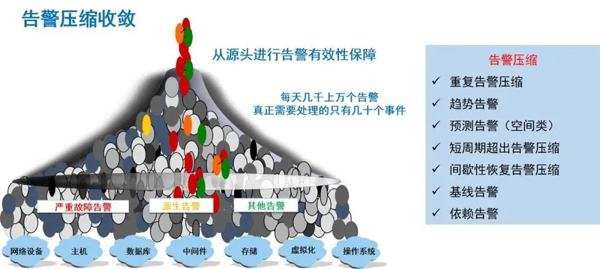
What is SRE? A detailed explanation of SRE operation and maintenance system
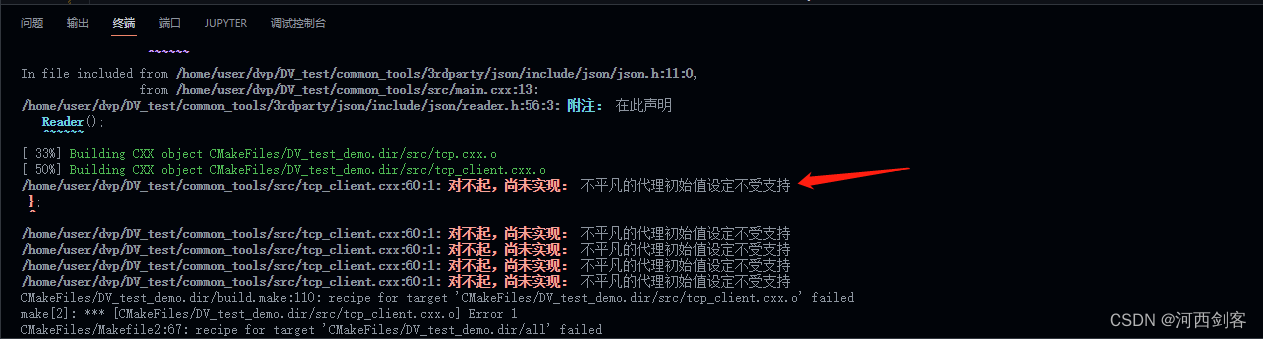
"Unusual proxy initial value setting is not supported", causes and Solutions
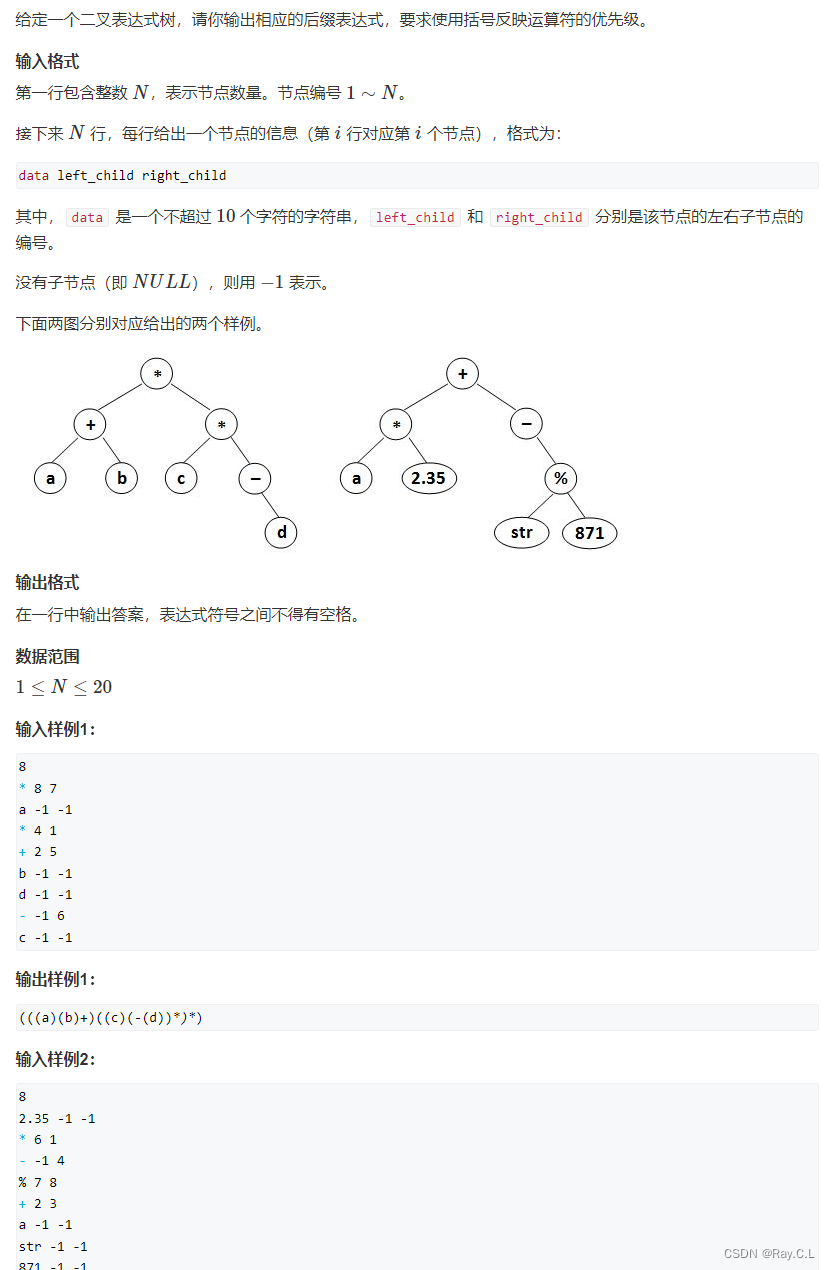
4274. 后缀表达式

Qingcloud based "real estate integration" cloud solution

【LeetCode】387. 字符串中的第一个唯一字符
随机推荐
【LeetCode】387. First unique character in string
uniapp 开发多端项目如何配置环境变量以及区分环境打包
目标检测系列——Fast R-CNN
"Unusual proxy initial value setting is not supported", causes and Solutions
玄铁E906移植----番外0:玄铁C906仿真环境搭建
MySQL | 视图《康师傅MySQL从入门到高级》笔记
PM2 deploy nuxt3 JS project
4274. 后缀表达式
Double pointer analog
1528. 重新排列字符串
Change SSH port number
[pytorch basic tutorial 30] code analysis of DSSM twin tower model
【LeetCode】541. Reverse string II
The list of open source summer winners has been publicized, and the field of basic software has become a hot application this year
Installation of sophus package in slam14 lecture
The form image uploaded in chorme cannot view the binary image information of the request body
JS to find and update the specified value in the object through the key
216. combined summation III enumeration method
“不平凡的代理初始值设定不受支持”,出现的原因及解决方法
不能改变虚拟机电源状态报错解决方案