当前位置:网站首页>Automated testing selenium
Automated testing selenium
2022-06-11 17:28:00 【Hua la la la la】
One 、selenium Environment building
1. Check python Environmental Science
2. stay cmd Command window , Input pip3 install selenium
3. Browser-driven installation : Because the executed script needs a browser driver to drive the browser , So you need to install the browser driver of the shadow
- WebDriver Browser driver download address :
http://chromedriver.storage.googleapis.com/index.html
4. Write the first selenium Script , Capable of lifting Chrome Browser and run through
# Guide pack
from selenium import webdriver
# Create a browser object
driver = webdriver.Chrome()
# Open Baidu home page
driver.get("https://www.baidu.com")
# Enter... In Baidu's text box selenium
# Target: Who to operate ? You can use their attributes to locate
# command: After finding it , What are you doing to her ? Input 、 type
# value: Type what ?abc
driver.find_element_by_id("kw").send_keys("selenium")
# Click the baidu button
driver.find_element_by_id("su").click()

# Close the browser
driver.quit()
Two 、selenium summary
1 Version history
- Selenium 1.0:Selenium IDE、Selenium Remote Control(RC)、Selenium Grid
- Selenium 1.0:Selenium IDE、Selenium Remote Control(RC)、Selenium Grid、Selenium WebDriver
- Selenium3.0:elenium IDE、Selenium Grid、Selenium WebDriver
2 Selenium IDE
- selenium IDE yes selenium The only entry-level tool in the family , By recording and playback , You can quickly create test cases , It doesn't take much effort to learn , Because it's very simple ,IDE It is mainly used to analyze the prototype of elements , Instead of creating a complete set of complex test cases .
- characteristic
- advantage : No programming logic is required to write its test scripts , Just use the tool to record the interaction with the browser 【 Manual test operation process of testers 】 Create test cases
Xiaobai, who doesn't know the programming language, can also get started quickly - shortcoming : Only in Firefox/Chrome The use of , It is not friendly to test system compatibility
Using recording and playback to execute test cases has limited stability
When a module with strong interaction needs to record multiple use cases, the processing capacity is limited
When dealing with more complex logic, it seems to be out of strength - selenium IDE Installation of tools
Firefox Install... In browser :
Select add ons from the menu in the upper right corner of the browser
Search for “selenium ide” Component and add to firefox
The browser will appear in the upper right corner selenium ide Shortcut buttons - selenium IDE Tool use
- Click on selenium ide After the button enters the tool , The first is the following four options .
- Record a new test in a new project: Record a new test in a new project ( Automated testing projects as engineering , A specific function can be used as a test )
- Open an existing project: It has been developed , Just open the corresponding project file
- Create a new project: Create a new empty project
- Close Selenium IDE: close selenium IDE Tools
- Record the test script in the following five steps
1. We choose the first option , Name of new project and base url Address ( Of the system under test URL Address ), You can start the recording script directly .
2. step02: stay selenium ide Click the red “ Stop recording ” Button , You can terminate the recording and save it as a test case .
The generated code is displayed and modified in the form of keywords : Subject predicate object grammar
Target: Who to operate ? You can use their attributes to locate
command: After finding it , What are you doing to her ? Click on 、 type …
value: Type what ?
After recording , You need to put the script steps in the list , Unnecessary steps can be deleted .
3. A complete test case , What should be included , step (command、target、value) And assertions ( The expected results are compared with the actual results ), Assertions don't need much , One is enough , You can assert the text displayed on the page as long as you can uniquely determine that your script passed :assert text
4. Click the run button , Check the log , See if all the steps are OK, Assert whether OK, Whether there is the final result “‘baidusearch’ completed successfully”, If it's all right , Then the script runs through .
5. step05: Select the test set or test case , Right click export Export scripts in different languages .
- Click on selenium ide After the button enters the tool , The first is the following four options .
3、 ... and 、WebDriver API Common element location methods
1. The steps of automated testing :
- Locate in some way what we want to do object 、 The goal is (Target)
- What to do with this object (command)
- Assign a value to the element located to the thing by operation (value)
- Add assertion operation
2. Element positioning operation
2.1 Page elements
All elements that can be displayed in the browser , Such as images 、 The text box 、 Button 、 The drop-down list 、 Video etc. .
2.2 How to position page elements
Selenium Webdriver Provided in 8 A way to locate pages at a constant speed .
1. id Attribute positioning --> find_element_by_id(“id Property value ”)
The most common way to locate elements , In general ID The attribute is not repeated ,
```python
# Guide pack 、 Create a browser object 、 Get it url Address
from selenium import webdriver
import time
#driver: It's a normal variable ,dr It's OK
driver = webdriver.Chrome()
driver.get("https://www.baidu.com")

# adopt ID To locate the text box and Baidu
driver.find_element_by_id("kw").send_keys("selenium")
time.sleep(2)
driver.find_element_by_id("su").click()
time.sleep(2)

# Exit browser object
driver.quit()
```
2. name attribute —> find_element_by_name(“name Property value ”)
```python
# Guide pack 、 Create a browser object 、 Get it url Address
from selenium import webdriver
import time
#driver: It's a normal variable ,dr It's OK
driver = webdriver.Chrome()
driver.get("https://www.baidu.com")

# adopt name Attribute positioning element
driver.find_element_by_name("wd").send_keys("selenium")
time.sleep(2)
driver.find_element_by_id("su").click()
time.sleep(2)
# Exit browser object
driver.quit()
```
- class Attribute positioning ->find_element_by_class_name(“class Property value ”)
A good way to catch all elements of the same class - tag name:->find_element_by_tag_name(“ Tag name ”)
High repetition rate , Low positioning efficiency , Basically not
5. link text:->find_element_by_link_text(“ The text of the link ”)
Display text information of hyperlinks , The more commonly used , Parameters are all text messages .
```python
# Guide pack 、 Create a browser object 、 Get it url Address
from selenium import webdriver
import time

#driver: It's a normal variable ,dr It's OK
driver = webdriver.Chrome()
driver.get("https://www.baidu.com")

# Use link text Attribute positioning ( The text information displayed by the element , The requirement is all information )
driver.find_element_by_link_text(" Journalism ").click()

# wait for 3s
time.sleep(3)

# Exit browser object
driver.quit()
```
- partial link text:->find_element_by_partial_link_text(“ Display text of some links ”)
Display text information of hyperlinks , The more commonly used , Parameters are part of text information
```python
# Guide pack 、 Create a browser object 、 Get it url Address
from selenium import webdriver
import time

#driver: It's a normal variable ,dr It's OK
driver = webdriver.Chrome()
driver.get("https://www.baidu.com")

# Use link text Attribute positioning ( The text information displayed by the element , The requirement is all information )
driver.find_element_by_link_text(" Journalism ").click()
time.sleep(5)
# Use partial link text Attribute positioning ( The text information displayed by the element , It can be partial information )
driver.find_element_by_partial_link_text(" The first online in China “ Reimbursement ” The Internet chronic disease consulting room was opened ").click()
# wait for 3s
time.sleep(3)

# Exit browser object
driver.quit()
```
- xpath:->find_element_by_xpath(“xpath”)
Xpath No selenium special , Just as a means of positioning , by selenium used .Xpath Is a door in xml The language in which information is found in a document .Xpath Can be used in xml Traversing elements and attributes in a document . because html The hierarchy and xml The hierarchy is naturally consistent , So use Xpath It can also be html Positioning of elements .
7.1 Absolute path
With / start , from HTML Tags start , Traverse in turn HTML Number of nodes in the structure , Until you find the page element you want to locate ,
>  Such as the absolute path of Baidu text box on baidu home page , Generally, it is not used as a last resort .
>  by :/html/body/div/div/div[3]/div/div/form/span/input
	>  The parent-child node uses / Connect , Traverse from top to bottom
	>  Brother node is [] Indicates the ranking of brothers , For example, there are 2 More than one input label ,input[2] It's the second one , The top rank can be written as :input Or is it input[1]
```python
# Guide pack 、 Create a browser object 、 Get it url Address
from selenium import webdriver
import time
#driver: It's a normal variable ,dr It's OK
driver = webdriver.Chrome()
driver.get("https://www.baidu.com")

# Use absolute path positioning
# driver.find_element_by_xpath("/html/body/div/div/div[3]/div/div/form/span/input").send_keys("selenium")
# time.sleep(2)
# driver.find_element_by_xpath("/html/body/div/div/div[3]/div/div/form/span[2]/input").click()
# time.sleep(2)
driver.quit()
```
7.2、 Locate... By attributes ( Relative paths )
 General with // start , Use attributes id、name、class combination xpath Positioning , Such as the positioning of Baidu text box :
> //input[@id='kw']
//input[@name='wd']
//input[@class='bg s_btn']

 When an attribute cannot be located on an element , You can use logical operators .
```python
# Guide pack 、 Create a browser object 、 Get it url Address
from selenium import webdriver
import time

#driver: It's a normal variable ,dr It's OK
driver = webdriver.Chrome()
driver.get("https://www.baidu.com")

# Use element attributes to locate
# driver.find_element_by_xpath("//input[@id='kw']").send_keys("selenium")
# time.sleep(2)
# driver.find_element_by_xpath("//input[@id='su']").click()
# time.sleep(2)

# Use logical operators
driver.find_element_by_xpath("//input[@id='kw' or @name = 'wd']").send_keys("selenium")
time.sleep(2)
driver.find_element_by_xpath("//input[@id='su']").click()
time.sleep(2)

driver.quit()
```
7.3  Locate through parent-child relationships and attributes
 Suppose a tag is just a tag name , None of the other properties ( Or there's a class name, And it is repeated )
 No problem using absolute path , It's just a little more complicated
 Use attributes to locate , It's not reliable , Can't locate
```python
# Guide pack 、 Create a browser object 、 Get it url Address
from selenium import webdriver
import time

#driver: It's a normal variable ,dr It's OK
driver = webdriver.Chrome()
driver.get("https://www.baidu.com")

#  Use parent-child relationship and attribute location :
# driver.find_element_by_xpath("//form[@id='form']/span/input").send_keys("selenium")
# time.sleep(2)
# driver.find_element_by_xpath("//form[@id='form']/span[2]/input").click()
# time.sleep(2)
driver.quit()
```
7.4  direct Chrome Browser copy
8. css:---->find_element_by_css_selector(“css”)( master )
```python
# Guide pack 、 Create a browser object 、 Get it url Address
from selenium import webdriver
import time
#driver: It's a normal variable ,dr It's OK
driver = webdriver.Chrome()
driver.get("https://www.baidu.com")

#css Class selector to locate Baidu text box , Use css Of id The selector locates the baidu button
# driver.find_element_by_css_selector(".s_ipt").send_keys("selenium")
# driver.find_element_by_css_selector("#su").click()

driver.find_element_by_css_selector("form#form > span > input#kw").send_keys("selenium")
driver.find_element_by_css_selector("#su").click()
time.sleep(3)
driver.quit()
```
Four 、WebDriver API Browser control method
1. Controls the size of the browser window
WebDriver There are three API Used to resize the window :
17. Set_window_size(): Method to set the size of the browser
18. minimize_window(): Maximize display
19. minimize_window(): Minimize display , In the case of minimization , You can also locate and operate elements
```python
# Guide pack 、 Create a browser object 、 Get it url Address
from selenium import webdriver
import time
#driver: It's a normal variable ,dr It's OK
driver = webdriver.Chrome()
driver.get("https://www.baidu.com")

# I prefer widescreen display , I also want to set the open window to :1920 * 600
#driver It's a browser object
# windowHandle: The logo of a page
# driver.set_window_size(1920,600)
# Maximize the display window
# driver.maximize_window()
#  To minimize the
# time.sleep(2)
# driver.minimize_window()
# time.sleep(2)
# driver.find_element_by_id("kw").send_keys("selenium")
# driver.maximize_window()

# Exit browser object
# driver.quit()
```
2 Control the browser back 、 Forward 、 Refresh
When browsing a web page with a browser , The browser provides back and forward buttons , You can easily switch back and forth between the pages you have browsed 、 Refresh etc ,WebDriver The corresponding :
20. back(): back off
21. forward(): Forward
22. refresh(): Refresh
```python
# Guide pack 、 Create a browser object 、 Get it url Address
from selenium import webdriver
import time

#driver: It's a normal variable ,dr It's OK
driver = webdriver.Chrome()
driver.get("https://www.baidu.com")

# Page forward and backward operation
# driver.find_element_by_link_text(" Journalism ").click()
# time.sleep(2)
# # Back to Baidu home page
# driver.back()
# time.sleep(2)
# # Then go to the news page
# driver.forward()
# time.sleep(2)
# # Perform another refresh operation
# driver.refresh()

# Exit browser object
# driver.quit()
```
3 Screen capture operation
Save the running page screenshot locally , Recommended png Format :
23. driver.save_screenshot(r"e:\abc.png")
24. driver.get_screenshot_as_file(“{}.{}”.format(“e:/aaa”,“png”))
25. driver.get_screenshot_as_file(r"e:\abc.png")
```python
# Guide pack 、 Create a browser object 、 Get it url Address
from selenium import webdriver
import time
#driver: It's a normal variable ,dr It's OK
driver = webdriver.Chrome()
driver.get("https://www.baidu.com")

# driver.save_screenshot(r"e:\sss.png")
# driver.get_screenshot_as_file("{}.{}".format("e:/aaa","png"))
# driver.get_screenshot_as_file(r"e:\sss.png")

# Exit browser object
# driver.quit()
```
4 The simulation browser closes
webdriver Provides two methods of closing :
26. quit(): Close the browser , No matter how many windows the page has , Turn it off
27. close(): Only one current window is closed , And it was the front one that was turned off
5 Multi window operation
Each page has a handle (handle) value , Is unique to a page , Is a logo of the page webdriver Conduct automated tests , Need to put driver Bind to page handle , Yours driver You can only control this page of your binding handle , So for different window page elements ,driver You can't operate , Here's how to solve this multi window problem .
How to get the handle :
1.driver.current_window_handle: Gets the handle to the current page
28. driver.window_handles: Get handles to all open windows
Implementation requirements : Taobao homepage -> Juhuasuan -> Women's wear
29. Get the poly cost-effective handle , It returns a list
handles = driver.window_handles
30. Bind handle to driver, Parameter is the handle to the cost-effective page in the list ,x by 0 Represents the first window in the browser ,1 Represents the second window ,-1 Represents the last window .
driver.switch_to_window(handles[x])
```python
# Guide pack 、 Create a browser object 、 Get the homepage of Taobao
from selenium import webdriver
import time
driver = webdriver.Chrome()
driver.get("https://www.taobao.com")
# Wait two seconds
time.sleep(2)

# Gets the handle to the current page
# CDwindow-AA8085746F56C04363172064996E1A52
handler1 = driver.current_window_handle
print(handler1)

# 2、 Click poly cost , Enter the poly cost-effective page .
driver.find_element_by_link_text(" Juhuasuan ").click()
# Wait two seconds
time.sleep(2)

# First step : Get handles to all open windows
handlers = driver.window_handles
# ['CDwindow-AA8085746F56C04363172064996E1A52', 'CDwindow-FD84D68BEFF3DBFFB64A5AC48E4F1703']
print(handlers)
# The second step : Bind the poly cost-effective handle to driver
driver.switch_to_window(handlers[1])

# 3、 choice “ Women's wear ”, Go to the women's wear page .
driver.find_element_by_link_text(" Women's wear ").click()
# Wait two seconds
time.sleep(2)

# 4、 Return to the poly cost-effective page .
driver.back()
# Wait two seconds
time.sleep(2)

# Close the current window (driver Which window is bound )
driver.close()
```
5、 ... and 、WebDriver API Mouse of 、 Keyboard operation method
Use Selenium WebDriver do web When automating tests , Will often simulate some behavior of mouse and keyboard :
Like using a mouse click 、 double-click 、 Right click 、 Drag and drop 、 Suspension, etc
Or keyboard input 、 Shortcut key use 、 Use of key combinations to simulate the operation of the keyboard
stay WebDeriver in , There are special classes responsible for implementing these test scenarios , That's it ActionChains and Keys class .
1. Mouse events
ActionChains Class encapsulates methods that operate on mouse events , Common methods are :
context_click() Right click --> This method simulates the right mouse button effect
double_click() double-click --> This method simulates the double click effect of the mouse
drag_and_drop() Drag the --> This method simulates the effect of mouse dragging
move_to_element() hover --> This method simulates the mouse over effect
perform() perform --> This method is used to perform encapsulation in ActionChains act
stay ActionChains All the mouse event methods provided in the class , When invoked, all actions are stored in ActionChains Class , Need to call perform() Method to really execute .Guide pack :rom selenium.webdriver.common.action_chains import ActionChains
Encapsulate mouse events to ActionChains in
perform ActionChains Behavior encapsulated in
1、 Mouse hover and click
# Guide pack 、 Create a browser object 、 Get the homepage of Baidu
from selenium import webdriver
# Import mouse events ActionChains class
from selenium.webdriver.common.action_chains import ActionChains
import time
driver = webdriver.Chrome()
driver.get("https://www.baidu.com")
driver.maximize_window()

#  Case study 1: Control the mouse hover to Baidu home page “ Set up ” On the button
# setButton = driver.find_element_by_xpath('//*[@id="s-usersetting-top"]')
#  Will be right “ Set up ” The operation behavior of the button is encapsulated in ActionChains
# element = ActionChains(driver).move_to_element(setButton)
#  And call perform Method to perform a levitation operation
# element.perform()

#  Case study 2: Right click in Baidu text box
webEdit = driver.find_element_by_id("kw")
element = ActionChains(driver).context_click(webEdit)
element.perform()

time.sleep(5)
driver.quit()
2、 Mouse drag action
The format of the method :drag_and_drop(source,target)
from selenium import webdriver
from selenium.webdriver.common.action_chains import ActionChains
from time import sleep

driver = webdriver.Firefox()
url = "http://www.runoob.com/try/try.php?filename=jqueryui-api-droppable"

driver.get(url)
# Switch to the... Where the target element is located frame
driver.switch_to.frame("iframeResult")
# Determine the starting point of the drag target
source = driver.find_element_by_id("draggable")
# Determine the end point of the drag target
target = driver.find_element_by_id("droppable")
# Executive action
actions = ActionChains(driver)
actions.drag_and_drop(source,target)

# perform
actions.perform()
sleep(5)
2. Keyboard event operations
Keys Field that encapsulates the keys or key combinations on the keyboard ,sendkeys() Method can be used to simulate keyboard input , Besides, you can also use sendkeys Method to send a file to the server ( Upload function to input Tag implementation ), Common keyboard event operations are :
- send_keys(Keys.Back_SPACE): Delete key
- send_keys(Keys.SPACE): Space bar
- send_keys(Keys.TAB): Tabulation key
- send_keys(Keys.ESCAPE):esc key
- send_keys(Keys.ENTER): Enter key
- send_keys(Keys.CONTROL,’a’): Future generations
- send_keys(Keys.CONTROL,’c’): Copy
- send_keys(Keys.CONTROL,’x’): shear
- send_keys(Keys.CONTROL,’v’): Paste
- send_keys(Keys.F1):F1 key
Keyboard event use steps :
- Guide pack :from selenium.webdriver.common.keys import keys
- Use send_keys() Method to send Keys Key defined in 、 Combination keys and function keys
## Guide pack 、 Create a browser object 、 Get it url Address
from selenium import webdriver
from selenium.webdriver.common.keys import Keys
import time

#driver: It's a normal variable ,dr It's OK
driver = webdriver.Chrome()
driver.get("https://www.baidu.com")

# 1、 Baidu “seleniumm”
driver.find_element_by_id("kw").send_keys("seleniumm")
time.sleep(1)
# 2、 Delete multiple input m
driver.find_element_by_id("kw").send_keys(Keys.BACK_SPACE)
time.sleep(1)
# 3、 Input again “ Space   course ”, Send the string again , It is spliced with the front
driver.find_element_by_id("kw").send_keys("  course ")
time.sleep(1)
# 4、ctrl+a, Select all text box contents
driver.find_element_by_id("kw").send_keys(Keys.CONTROL,"a")
time.sleep(1)
# 5、ctrl+x, Cut the selection
driver.find_element_by_id("kw").send_keys(Keys.CONTROL,"x")
time.sleep(1)
# 6、ctrl+v, Paste the copy
driver.find_element_by_id("kw").send_keys(Keys.CONTROL,"v")
time.sleep(1)
# 7、 Enter instead of clicking , Complete search
driver.find_element_by_id("kw").send_keys(Keys.ENTER)
time.sleep(1)
# 8、 Exit browser
driver.quit()
6、 ... and 、WebDriver API And iframe/frame Page nesting
You can nest another page in one page , Such as frame/iframe technology , This is now a lot of web A method used in applications ,webdriver Objects can only be on one page ( The outer layer is the default ) Positioning elements in , Need a way to driver Only when the object is switched from the outer layer to the inner layer can the inner layer object be processed .
The picture below is qq Email login page , The login box is an embedded frame page , Let's take him as an example .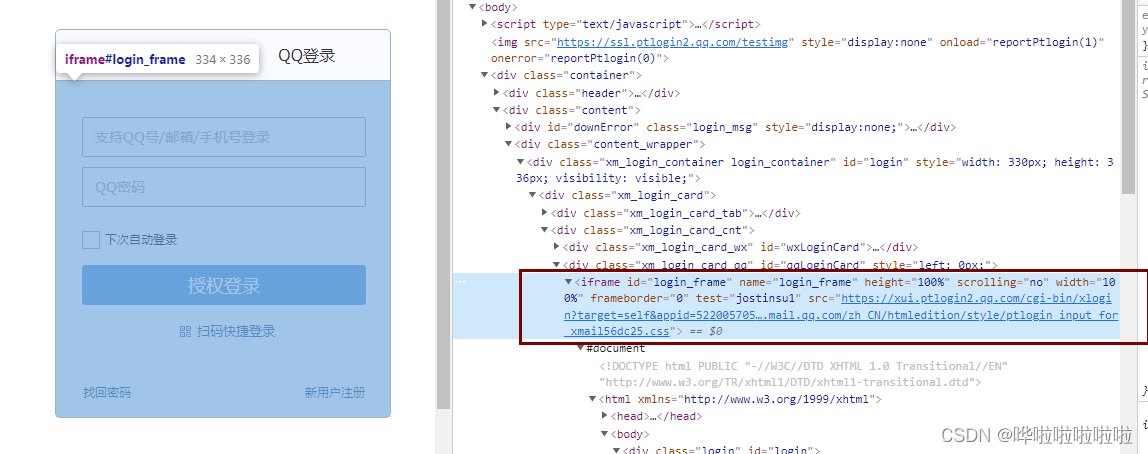
webdriver Pairs provided in iframe/frame operation API Often used to have :
- driver.switch_to.frame()
- driver.switch_to.default_content()
- driver.switch_to.parent_frame()
1. driver.switch_to.frame()
Cut in from the external page frame In the frame , The parameter can be id/name/index And page element objects .
The first way : The default is to give ID、name Of
- driver.switch_to.frame(“login_frame”)
The second way : Give the... Of the page iframe The index of index, According to the same layer frame Sequential positioning of - driver.switch_to.frame()
The third way : You can pass it on iframe The element object of - iframeObj = driver.find_element_by_xpath(‘//*[@id=“login_frame”]’)
- driver.switch_to.frame(iframeObj)
# Guide pack 、 Create a browser object 、 open qq home page
from selenium import webdriver
import time
driver = webdriver.Chrome()
# 1. Open Tencent homepage ;http://www.qq.com
driver.get("https://www.qq.com")

# 2. Click the email icon ;
driver.find_element_by_link_text("Qmail").click()
#  Jump to the email login interface ( window ), It involves multi window processing
handles = driver.window_handles
driver.switch_to.window(handles[1])
# Now verify whether the window jump is successful
# driver.find_element_by_link_text(" Basic Edition ").click()

# 3. enter one user name
#webdriver Provided in the API:driver.switch_to.frame() Realization frame Handoff
# The first way , The default is to give ID perhaps name Of
# driver.switch_to.frame("login_frame")
# The second way , You can pass it on iframe The element object of
# iframeObj = driver.find_element_by_xpath('//*[@id="login_frame"]')
# driver.switch_to.frame(iframeObj)
# The third way , You can give index numbers
driver.switch_to.frame(1)

driver.find_element_by_link_text(' Account password login ').click()
driver.find_element_by_xpath('//*[@id="u"]').send_keys("2572612580")
time.sleep(2)
# 4. Input password ;
driver.find_element_by_xpath('//*[@id="p"]').send_keys("123456789")
time.sleep(2)
# 5. Click login ;
driver.find_element_by_xpath('//*[@id="login_button"]').click()
time.sleep(2)
# 6. Close the browser .
driver.quit()
2. driver.switch_to.default_content()
Cut to frame In the following , We cannot continue to manipulate the elements of the main document , At this time, if you want to operate the contents of the main document , You need to switch back to the main document .
- driver.switch_to.default_content() # Directly from the inner layer frame The page switches back to the main document .
3. driver.switch_to.parent_frame()
If frame/iframe There are multiple , We can go through driver.switch_to.frame() Cut into the inner layer layer by layer , And can pass through driver.switch_to.parent_frame() One layer at a time , Equivalent to moving forward 、 back off .
relative driver.switch_to.default_content() Method , Is a layer by layer return , Instead of returning directly to the main page
driver.switch_to.frame(“frame1”) # From the main page to frame1, Equivalent to moving forward
driver.switch_to.frame(“frame2”) # from frame1 And cut back to frame2, Equivalent to moving forward
driver.switch_to.parent_frame() # Return to the superior frame1, It's equivalent to backing away
driver.switch_to.parent_frame() # Go back to the main page
7、 ... and 、WebDriver API Message box processing of
webdriver Handle javascript Generated alert、confirm、prompt The message box is very simple , They are all used in a unified way switch_to.alert take driver The control authority of is given to the message box , Then call the corresponding method to operate :
- text: return alert/confirm/prompt Text messages in
- accep(): Accept existing warning messages , It is equivalent to the confirm button
- dismiss(): Discard existing warning messages , Equivalent to cancel button
- send_keys(keysToSend): Send text to warning box
1. Warning message box alert
alert The warning message box generated by the method provides a “ determine ” The button lets the user close the message box , And the message box is a modal dialog , in other words , The user must close the message box before continuing .
Case study : Baidu search settings , A warning box pops up after saving , Confirm to receive the prompt message .
# Guide pack 、 Create a browser object 、 Get the homepage of Baidu
from selenium import webdriver
from selenium.webdriver.common.action_chains import ActionChains
import time

driver = webdriver.Chrome()
driver.get("https://www.baidu.com")

# Control the mouse hover to “ Set up ” On the button
setButton = driver.find_element_by_xpath('//*[@id="s-usersetting-top"]')
ActionChains(driver).move_to_element(setButton).perform()
driver.find_element_by_link_text(" Search settings ").click()
time.sleep(3)
# The role of time waiting , If it is not added, the element positioning may fail
# driver.find_element_by_xpath('//*[@id="SL_0"]').click()
# time.sleep(2)
# driver.find_element_by_xpath('//*[@id="nr"]/option[2]').click()
# time.sleep(2)
# Click the Save Settings button , Pop up a warning box
driver.find_element_by_link_text(" Save settings ").click()
time.sleep(2)
# You can operate on him , Due to version issues ,switch_to.alert
dd = driver.switch_to.alert
# obtain alert The text information inside
tt = dd.text
# Your preferences have been recorded
print(tt)
time.sleep(2)

# Accept window information ( Confirm this text box )
# dd.accept()
dd.dismiss()

# Exit browser object
driver.quit()
2. Confirmation message box confirm
Use the confirmation message box to ask the user “ yes - or - no ” problem , And the user can choose to click “ determine ” Button or click “ Cancel ” Button .confirm The return value of the method is true or false. The message box is also a modal dialog : The user must respond to the dialog ( Click a button ) Turn it off , To proceed to the next step .
Case study : Copy below html Code , Save in a local text file , And rename the file to :confirm.html, The file is kept in :e:\confirm.html
<html>
<head>
<script type="text/javascript"> function show_confirm() {
       var r=confirm("Press a button!"); if (r==true) {
       alert("You pressed OK!"); } else {
       alert("You pressed Cancel!"); } } </script>
</head>
<body>

<input type="button" onclick="show_confirm()" value="Show a confirm box" />

</body>
</html>
Write automated test scripts , Process the confirmation message box :
from selenium import webdriver
import time

driver = webdriver.Chrome()
driver.get("file:///E:/confirm.html")

# Click the :show a confirm box
driver.find_element_by_xpath('/html/body/input').click()
#driver Object switch to confirm Prompt box
aaa = driver.switch_to.alert
# Click OK or cancel in the confirmation message box
# aaa.accept()
aaa.dismiss()
time.sleep(5)

# Click the following pop-up alert The OK button in the window
aaa.accept()
time.sleep(5)

# Exit browser object
driver.quit()
3. Prompt message box prompt
The prompt message box provides a text field , Users can enter an answer in this field in response to your prompt . The message box has a “ determine ” Button and a “ Cancel ” Button .
Case study : Copy below html Code , Save in a local text file , And rename the file to :prompt.html, The file is kept in :e:\prompt.html
<html>
<head>
<script type="text/javascript"> function disp_prompt() {
       var name=prompt(" Please enter your name ","Bill Gates") if (name!=null && name!="") {
       document.write(" Hello ," + name + "! How are you today ?") } } </script>
</head>
<body>

<input type="button" onclick="disp_prompt()" value=" Display a prompt box " />

</body>
</html>
Write automated test scripts , Process the prompt message box prompt:
from selenium import webdriver
import time

driver = webdriver.Chrome()
driver.get("file:///E:/prompt.html")

# Click the button on the page : First, a prompt box
driver.find_element_by_xpath('/html/body/input').click()
#driver Object switch to prompt Prompt box
aaa = driver.switch_to.alert
# Using the prompt message box send_keys() Method
aaa.send_keys(" The insect catcher preacher ")
time.sleep(5)
# Use the confirmation in the prompt message box accept() Method and cancellation dismiss() Method
aaa.accept()
# aaa.dismiss()
time.sleep(3)
driver.quit()
8、 ... and 、WebDriver API Page element time waiting
Element to wait : Now a lot of web All in use AJAX technology , Software that uses this technique when a browser loads a page , The elements on the page may not be loaded synchronously , In this way , Difficulties arise in locating elements , We can improve the instability of test scripts caused by such problems by setting element waiting .
WebDriver There are three kinds of element waiting modes that can be used in script development :
1 Mandatory waiting
time.sleep(5), The unit is s, Just let the thread sleep , You don't have to do anything for a few seconds
import time    # Import the time module
time.sleep(5)  # Sleep 5s The clock
2. An implicit wait
Create in script driver After object , to driver Set a global wait time , Yes driver The entire life cycle ( Create to close ) All work . If you are setting the waiting time ( Timeout time ) Inside , Navigate to the page element , No more waiting , Continue to execute the following code if the wait time is exceeded , Throw an exception TimeoutException.
driver.implicity_wait(10): The default is 0s wait for , The value after setting is the maximum timeout
from selenium import webdriver
driver = webdriver.Chrome()
driver.get('http://www.baidu.com')
#  An implicit wait , Set up 10s Timeout for
driver.implicitly_wait(10)
Be careful : When using implicit waiting , In fact, the browser will constantly refresh the page within the time you set to find the elements we need , In the use of AJAX Technology page automation testing , It is recommended to use .
3. Explicit waiting
It is clear to wait for the appearance of an element or the clickable condition of an element , Wait until you can return the element object ; After the timeout period has expired, you still haven't waited , So throw out TimeoutException.( In short , You don't operate until the element appears , If timeout occurs, an exception will be reported ).
Let's first look at the syntax of explicit waiting , And then we are analyzing :
element = WebDriverWait(driver,10,0.5,ignored_exceptions=None).until(EC.presence_of_element_located((By.ID,“kw”)),“ Can't find ”)
- WebDriverWait(driver, timeout, poll_frequency=0.5, ignored_exceptions=None)
The pilot package is required for use :from selenium.webdriver.support.ui import WebDriverWait- driver: Browser driven
- timeout: Maximum timeout , Default in seconds
- poll_frequency: Test interval ( step ) Time , The default is 0.5S
- ignored_exceptions: Exception information after timeout , Throw... By default NoSuchElementException abnormal
The WebDriverWait Class provides two methods to handle waiting conditions :
- until(method, message=’ '): Call the driver provided by this method as a parameter , Until the return value is True
- until_not(method, message=’ '): Call the driver provided by this method as a parameter , Until the return value is False
- until(method, message=’ ')
Until a certain condition is met method, return method The result returned , Otherwise throw TimeoutException.
The method Parameters , We use Expected Conditions The expected condition judgment method provided by class . - Expected Conditions()
Pilot package required :from selenium.webdriver.support import expected_conditions as EC
The expected condition judgment method provided by this class , Common are :- title_is: Determine the... Of the current page title Is it equal to the expectation
- title_contains: Determine the... Of the current page title Whether to include the expected string
- presence_of_element_located: Determine whether an element has been added to dom In the tree , Does not mean that the element must be visible
- visibility_of_element_located: Determine whether an element is visible . Visible representative elements are not hidden , And the width and height of the elements are not equal to 0
- alert_is_present: Determine if there is... On the page alert
- text_to_be_present_in_element: Judge... In an element text Whether the expected string is included
- text_to_be_present_in_element_value: Judge... In an element value Property contains the expected string
- element_to_be_selected: Determine whether an element is selected , Usually used in drop-down list
- By()
Need to guide package :from selenium.webdriver.common.by import By
Cases of implicit waiting
demand , Wait for Baidu home page to see if Baidu is loaded ( Load into DOM), If successful, the element object is returned and the click operation is performed , Otherwise, throw an exception .
from selenium import webdriver
#ui-- modular ,WebDriverWait It's a class
from selenium.webdriver.support.ui import WebDriverWait
from selenium.webdriver.support import expected_conditions as EC
from selenium.webdriver.common.by import By
import time

driver = webdriver.Chrome()
# driver.implicitly_wait(10)
driver.get("http://www.baidu.com")

try:
    driver.find_element_by_id("kw").send_keys("selenium")
    element = WebDriverWait(driver,10,0.5,ignored_exceptions=None).until(EC.presence_of_element_located((By.ID,"su"))," Can't find ")

    element.click()
    time.sleep(3)
except Exception as e:
    print(e)

driver.quit()
summary
If implicit waiting and display waiting are set at the same time , Implicit waiting is the first priority , in other words , If the implicit wait time is greater than the display wait time , The display wait time setting is invalid , because driver If the element cannot be found , Will wait for the implicit waiting time first
time.sleep() Is forced hibernation , Just execute this code , Will wait
边栏推荐
- 拜登下令强制推行零信任架构
- 10 times faster than 5g. Are you ready for 10 Gigabit communication?
- TypeScript学习笔记(二)
- Classification and method of feature fusion
- 子类继承了什么、多态、 向上转型
- From a "trendsetter" to a "wind chaser", can master Kang still lead the market?
- 信息安全数学基础 Chapter 2——同余
- Authing 双周动态:应用市场上线(5 .10 —5 .22 )
- MATLAB中histogram函数的使用
- Semaphore PV operation of process interaction and its code implementation
猜你喜欢

Docker安装mysql5.7(开启binlog功能、修改字符)

Analyze which should be tested in PMP and ACP with actual cases? Which is more useful?

DFS和BFS笔记(一)基于C语言的广度优先搜索
ffmpeg硬编解码 Inter QSV

【Mysql】redo log,undo log 和binlog详解(四)

《DAMA数据管理知识体系指南》:章节分值占比
![[Clickhouse column] create a new library, user and role](/img/e5/d11493a37e25b7dde6cc43b3828749.png)
[Clickhouse column] create a new library, user and role
DFS and BFS notes (I) breadth first search based on C language

Don't you understand the design and principle of thread pool? Break it up and crush it. I'll teach you how to design the thread pool

如何成为一个乐观派组织?
随机推荐
Is the second-class cost engineer worth the exam? What is the development prospect?
6-5 统计单词数量(文件)(*)
从制造到“智造”,探索制造企业破局之道
Create database instance
What problems are exposed when all Sohu employees are cheated?
Authing Share|理解 SAML2 协议
Connect the server with springboard / fortress through xshell
Pychart tips - how to set up a background picture
Docker安装mysql5.7(开启binlog功能、修改字符)
我的CのERROR们
Authing 背后的计算哲学
“is-a”,“has-a”,“like-a”
Vscode configures eslint to automatically format with an error "the setting is deprecated. use editor.codeactionsonsave instead with a source“
Go path: goroot & gopath
Hands on deep learning - multiple input and output channels in the convolution layer
[Clickhouse column] create a new library, user and role
API management artifact that allows you to call wow directly
C语言:使用.h和.c文件遇到的问题总结
RecyclerView缓存复用解析,源码解读
Connection and difference of network streaming media protocol (RTP RTCP RTMP HLS)