当前位置:网站首页>Method of realizing program startup and self startup through registry
Method of realizing program startup and self startup through registry
2022-07-26 23:55:00 【Red blue red】
List of articles
One 、 Preface
generally speaking , After the Trojan or virus runs successfully on the server , One thing I will do is to add myself to the boot item , To achieve persistent residence on the target server .
To achieve self startup , There are several ways , Have a task plan 、 service 、 Registration Form . Task planning is relatively , More obvious , It is easy to be found by the administrator , And service , It's not universal , For example win10 and win8 Services that can be generated directly on , stay win7 And the following operating systems are often not used . And the safest way is to realize self startup by modifying the registry . The advantage of this method is , Applicable to the full version windows System , So the most stable .
Some people may have questions , I'm not a hacker , Why learn this ? It's very simple , As a penetration tester , It is a necessary skill to check the existence of viruses and Trojans in the system , Many virus Trojans are made immune , It's difficult to identify by anti-virus software alone , Therefore, you need to check manually , The startup item is one of the items to be checked , Therefore, only to understand its attack methods , To know how to clean it up and take defensive measures .
Two 、 There are two ways to modify the registry
There are two main ways to modify the registry , One is to modify manually in the graphical interface , The other is to use the command line to operate , This requires a certain understanding of the relevant commands . Next, demonstrate one by one as follows .
( One ) Manually modify the registry
First enter... On the command line :
regedit
After opening the registry , Locate in the following position :
HKEY_LOCAL_MACHINE\SOFTWARE\Microsoft\Windows\CurrentVersion\Run
On the desktop 1.exe File as an example , stay run Create a new one on the right A string value , Take any name , I'm going to set it to zero aaa. First of all to see 1.exe Path to file :
C:\Users\ASUS\Desktop\1.exe
Then double click. aaa And change its value to :
"C:\Users\ASUS\Desktop\1.exe" /start
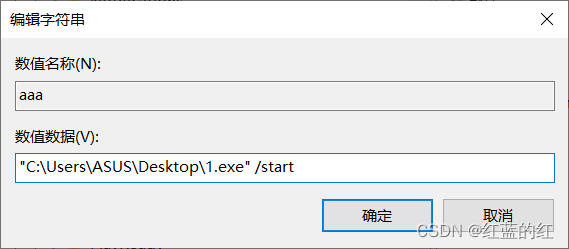
Then open the task manager , stay start-up You can see in the module ,1.exe Has been added to the startup item .
( Two ) The command line modifies the registry
The main way to modify the registry through the command line is to use reg Command to change .
You can enter the following commands on the command line to view help :
reg /?

One of the parameters we need to use is :
reg add
This means adding or modifying . If there is nothing, it will increase , The existing ones cover ( Name and type ). The syntax of this command and the meaning of its parameters can be entered on the command line :
reg add /?

Here are two things we need to pay attention to , First , The path should be enclosed in double quotation marks , secondly , There is a space after the double quotation marks , After the space /start Parameters .
The construction statement is as follows :
reg add HKEY_LOCAL_MACHINE\SOFTWARE\Microsoft\Windows\CurrentVersion\Run /v bbb /t REG_SZ /d "\"C:\Users\ASUS\Desktop\1.exe\" /start" /f
Be careful ,/d All the contents in the double quotation marks after the parameter indicate that you want to write bbb Key content , Because this parameter will recognize double quotation marks , So escape is used here . meanwhile , Spaces are also enclosed in double quotes , Therefore, there is no need to deal with it separately .
Note that it is best to run the command prompt as an administrator when modifying the registry , In order to avoid the situation of insufficient authority .
Check the registry :
Command executed successfully !
3、 ... and 、 Query registry key value
Use the following command :
reg query
I don't know the syntax of this command , No problem , Use the following command to query help :
reg query /?
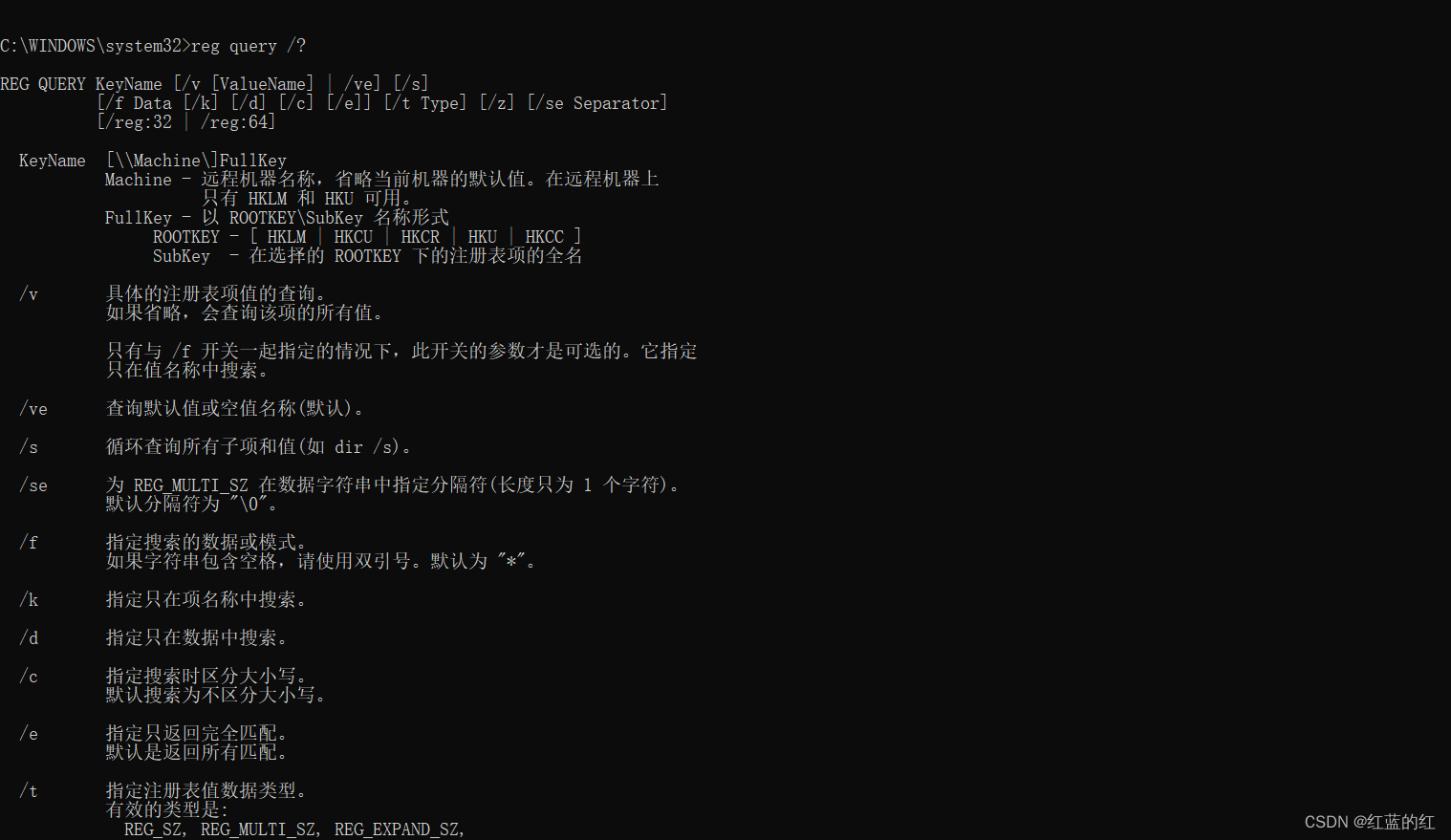
Use this syntax , We can query the key value just generated :
reg query HKEY_LOCAL_MACHINE\SOFTWARE\Microsoft\Windows\CurrentVersion\Run /v bbb

Four 、 Summary
This article shares two ways to modify the registry to realize the automatic operation of the specified program , At the same time, we share the query methods of registry keys , I hope it is helpful for everyone to learn penetration testing .
边栏推荐
- [interview: concurrency 26: multithreading: two-phase termination mode] volatile version
- Add an article ----- scanf usage
- 大疆智图、CC生产了多份数据,如何合并为一份在图新地球进行加载
- Pre research of data quality management tools Griffin vs deequ vs great expectations vs quality
- An online accident, I suddenly realized the essence of asynchrony
- Dajiang Zhitu and CC have produced multiple copies of data. How to combine them into one and load them in the new earth map
- Silicon Valley class lesson 6 - Tencent cloud on demand management module (I)
- Part II - C language improvement_ 10. Function pointer and callback function
- Sign up now | frontier technology exploration: how to make spark stronger and more flexible
- 2022.7.18-----leetcode.749
猜你喜欢

Everything you should know about wearable NFT!

Add an article ----- scanf usage
![[shader realizes swaying effect _shader effect Chapter 4]](/img/ab/bdbc4a0f297541b532af81a49e2633.png)
[shader realizes swaying effect _shader effect Chapter 4]

C language array

At 12:00 on July 17, 2022, the departure of love life on June 28 was basically completed, and it needs to rebound

Chapter 1 requirements analysis and SSM environment preparation

Sign up now | frontier technology exploration: how to make spark stronger and more flexible
C语言数组

第二部分—C语言提高篇_11. 预处理

Thousands of tiles' tilt model browsing speeds up, saying goodbye to the embarrassment of jumping out one by one
随机推荐
04 traditional synchronized lock
Last week's hot review (7.11-7.17)
Hcip day 2_ HCIA review comprehensive experiment
Part II - C language improvement_ 6. Multidimensional array
11_ Weather case - monitoring properties
使用AW9523B芯片驱动16路LED时,LED出现误点亮的问题
简单的SQL优化
第二部分—C语言提高篇_9. 链表
Problems and solutions encountered in using nextline(), nextint() and next() in scanner
百度网址收录
Tensorflow2.0 深度学习运行代码简单教程
Application of workflow engine in vivo marketing automation | engine 03
[shader realizes swaying effect _shader effect Chapter 4]
Part II - C language improvement_ 7. Structure
30、 Modern storage system (management database and distributed storage system)
Part II - C language improvement_ 11. Pretreatment
Pre research of data quality management tools Griffin vs deequ vs great expectations vs quality
MVC三层架构
【2016】【论文笔记】差频可调谐THz技术——
10_ Name Case - Calculation attribute