当前位置:网站首页>Custom view: levitation ball and accelerator ball
Custom view: levitation ball and accelerator ball
2022-07-23 07:33:00 【biyezuopinvip】
Let's first look at a dynamic graph
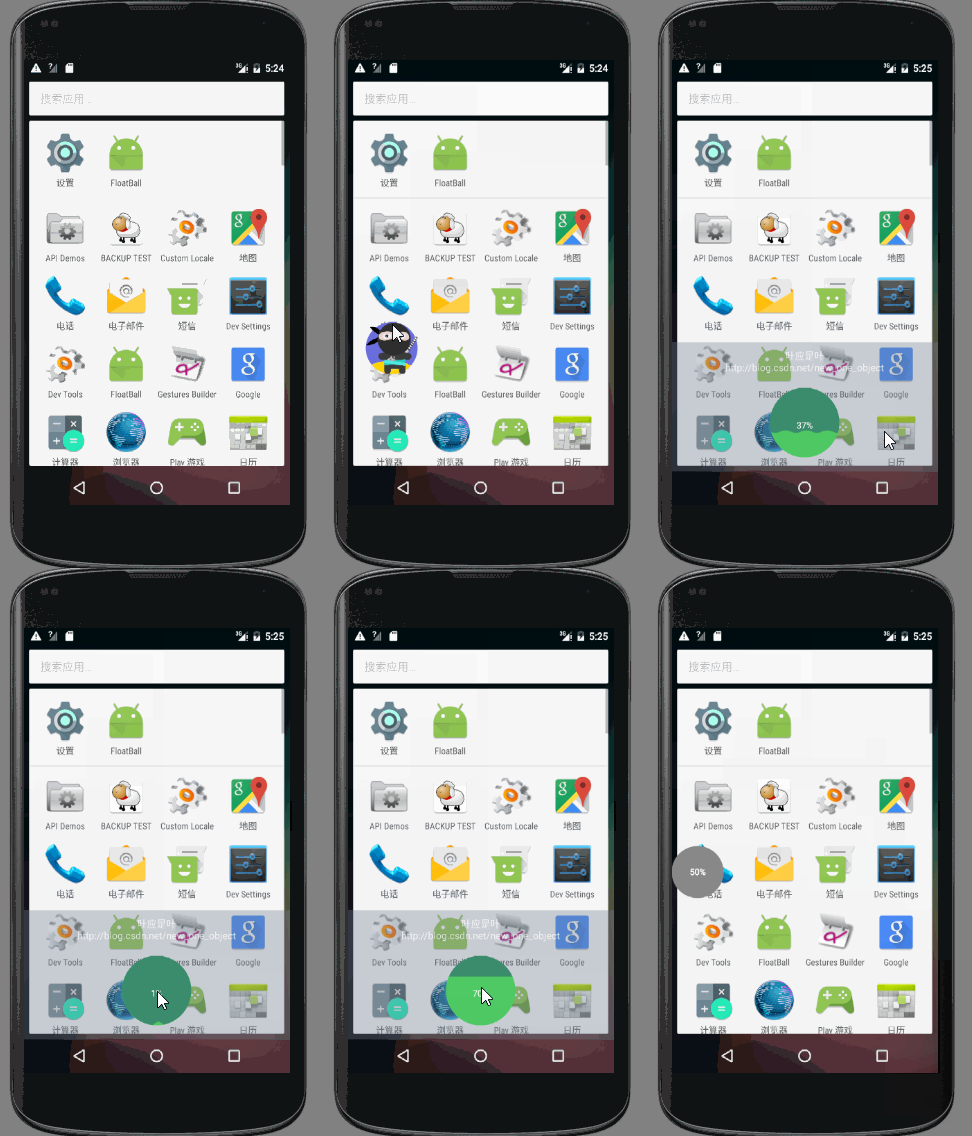
I learned how to customize from the video yesterday View And made into imitation 360 The style of levitation ball and acceleration ball
You can see it , The effect is :
- Click the button and exit Activity, Present a round floating ball , You can drag it at will and it will automatically depend on the side of the screen , And when you drag, it will become a picture
- When you click on the levitation ball , Floating ball hidden , An acceleration ball appears at the bottom , Double click the accelerator , It shows the effect that the water volume gradually increases and the fluctuation range is small , When clicking, the wave fluctuates up and down and the amplitude decreases
- Click on the part of the screen that does not contain the bottom accelerator , The accelerator ball will hide , The levitation ball reappears
To make such an effect , You need two customizations View With a custom ViewGroup

First , You need to design the suspension ball first View——FloatBall
Simplicity , by FloatBall Specify a default width and height ——150 Pixels
And then in onDraw(Canvas canvas) In the method , Judge FloatBall Whether it is being dragged isDrag, If it is , Then draw a default picture bitmap, Otherwise, draw circular and centered text according to the drawing function
/** * Created by ZY on 2016/8/10. *  Suspension ball  */
public class FloatBall extends View {


    public int width = 150;

    public int height = 150;
    // The default displayed text
    private String text = "50%";
    // Whether you are dragging
    private boolean isDrag;

    private Paint ballPaint;

    private Paint textPaint;

    private Bitmap bitmap;

    public FloatBall(Context context) {

        super(context);
        init();
    }

    public FloatBall(Context context, AttributeSet attrs) {

        super(context, attrs);
        init();
    }

    public FloatBall(Context context, AttributeSet attrs, int defStyleAttr) {

        super(context, attrs, defStyleAttr);
        init();
    }

    public void init() {

        ballPaint = new Paint();
        ballPaint.setColor(Color.GRAY);
        ballPaint.setAntiAlias(true);

        textPaint = new Paint();
        textPaint.setTextSize(25);
        textPaint.setColor(Color.WHITE);
        textPaint.setAntiAlias(true);
        textPaint.setFakeBoldText(true);

        Bitmap src = BitmapFactory.decodeResource(getResources(), R.drawable.ninja);
        // Crop the picture to the specified size
        bitmap = Bitmap.createScaledBitmap(src, width, height, true);
    }

    @Override
    protected void onMeasure(int widthMeasureSpec, int heightMeasureSpec) {

        setMeasuredDimension(width, height);
    }

    @Override
    protected void onDraw(Canvas canvas) {

        if (!isDrag) {

            canvas.drawCircle(width / 2, height / 2, width / 2, ballPaint);
            float textWidth = textPaint.measureText(text);
            Paint.FontMetrics fontMetrics = textPaint.getFontMetrics();
            float dy = -(fontMetrics.descent + fontMetrics.ascent) / 2;
            canvas.drawText(text, width / 2 - textWidth / 2, height / 2 + dy, textPaint);
        } else {

            // When being dragged, the specified picture is displayed
            canvas.drawBitmap(bitmap, 0, 0, null);
        }
    }

    // Set the current movement status
    public void setDragState(boolean isDrag) {

        this.isDrag = isDrag;
        invalidate();
    }
}
because FloatBall It doesn't exist in Activity Medium and separately displayed on the screen , So we need to use WindowManager To add View And display
Create a new class , Name it ViewManager, For general management View Display and deletion of
Privatize the constructor and adopt the singleton mode
    private static ViewManager manager;

    // Privatization constructor
    private ViewManager(Context context) {

        this.context = context;
        init();
    }

    // obtain ViewManager example
    public static ViewManager getInstance(Context context) {

        if (manager == null) {

            manager = new ViewManager(context);
        }
        return manager;
    }
ViewManager Contains functions to show and hide levitation balls and acceleration balls
// Display floating ball
    public void showFloatBall() {

        if (floatBallParams == null) {

            floatBallParams = new LayoutParams();
            floatBallParams.width = floatBall.width;
            floatBallParams.height = floatBall.height - getStatusHeight();
            floatBallParams.gravity = Gravity.TOP | Gravity.LEFT;
            floatBallParams.type = LayoutParams.TYPE_TOAST;
            floatBallParams.flags = LayoutParams.FLAG_NOT_FOCUSABLE | LayoutParams.FLAG_NOT_TOUCH_MODAL;
            floatBallParams.format = PixelFormat.RGBA_8888;
        }
        windowManager.addView(floatBall, floatBallParams);
    }

    // Show bottom menu
    private void showFloatMenu() {

        if (floatMenuParams == null) {

            floatMenuParams = new LayoutParams();
            floatMenuParams.width = getScreenWidth();
            floatMenuParams.height = getScreenHeight() - getStatusHeight();
            floatMenuParams.gravity = Gravity.BOTTOM;
            floatMenuParams.type = LayoutParams.TYPE_TOAST;
            floatMenuParams.flags = LayoutParams.FLAG_NOT_FOCUSABLE | LayoutParams.FLAG_NOT_TOUCH_MODAL;
            floatMenuParams.format = PixelFormat.RGBA_8888;
        }
        windowManager.addView(floatMenu, floatMenuParams);
    }

    // Hide the bottom menu
    public void hideFloatMenu() {

        if (floatMenu != null) {

            windowManager.removeView(floatMenu);
        }
    }
Place the suspension ball in Service In the open , In this way, the suspended ball is not so easy to be removed by the system
stay onCreate() Call in method showFloatBall()
public class StartFloatBallService extends Service {


    public StartFloatBallService() {

    }

    @Override
    public IBinder onBind(Intent intent) {

        // TODO: Return the communication channel to the service.
        throw new UnsupportedOperationException("Not yet implemented");
    }

    @Override
    public void onCreate() {

        ViewManager manager = ViewManager.getInstance(this);
        manager.showFloatBall();
        super.onCreate();
    }
}
here , Just for MainActivity Add a button , And set it to open when you click the button Service, At this point, you can see that a floating ball is displayed on the screen
    public void startService(View view) {

        Intent intent = new Intent(this, StartFloatBallService.class);
        startService(intent);
        finish();
    }
However, at this time, the floating ball does not support dragging and clicking , You also need to add OnTouchListener And OnClickListener
View.OnTouchListener touchListener = new View.OnTouchListener() {

            float startX;
            float startY;
            float tempX;
            float tempY;

            @Override
            public boolean onTouch(View v, MotionEvent event) {

                switch (event.getAction()) {

                    case MotionEvent.ACTION_DOWN:
                        startX = event.getRawX();
                        startY = event.getRawY();

                        tempX = event.getRawX();
                        tempY = event.getRawY();
                        break;
                    case MotionEvent.ACTION_MOVE:
                        float x = event.getRawX() - startX;
                        float y = event.getRawY() - startY;
                        // Calculate the offset , refresh the view
                        floatBallParams.x += x;
                        floatBallParams.y += y;
                        floatBall.setDragState(true);
                        windowManager.updateViewLayout(floatBall, floatBallParams);
                        startX = event.getRawX();
                        startY = event.getRawY();
                        break;
                    case MotionEvent.ACTION_UP:
                        // When judging to let go View Which side of the screen is the abscissa of , take View Move to rely on the screen
                        float endX = event.getRawX();
                        float endY = event.getRawY();
                        if (endX < getScreenWidth() / 2) {

                            endX = 0;
                        } else {

                            endX = getScreenWidth() - floatBall.width;
                        }
                        floatBallParams.x = (int) endX;
                        floatBall.setDragState(false);
                        windowManager.updateViewLayout(floatBall, floatBallParams);
                        // If the coordinate difference between the initial landing point and the release landing point exceeds 6 Pixel , Then block the click event
                        // Otherwise, continue to deliver , Give the matter to OnClickListener Function processing
                        if (Math.abs(endX - tempX) > 6 && Math.abs(endY - tempY) > 6) {

                            return true;
                        }
                        break;
                }
                return false;
            }
        };
        OnClickListener clickListener = new OnClickListener() {


            @Override
            public void onClick(View v) {

                windowManager.removeView(floatBall);
                showFloatMenu();
                floatMenu.startAnimation();
            }
        };
        floatBall.setOnTouchListener(touchListener);
        floatBall.setOnClickListener(clickListener);
Speed up the ball ProgressBall The design is more complex , Bessel curve is needed to present wave effect , And the effect of double clicking also needs to be presented separately
The same is to let ProgressBall Inherited from View
The significance of the progress value is to limit the height to which the water surface will eventually rise , That is, the water surface height is determined according to the ratio of the target progress value to the maximum progress value
Total fluctuation times of waves Count Used when clicking the accelerator ball , The number of fluctuations up and down the water
    //view Width
    private int width = 200;
    //view Height
    private int height = 200;
    // Maximum progress value
    private final int maxProgress = 100;
    // Current progress value
    private int currentProgress = 0;
    // Target progress value
    private final int targetProgress = 70;
    // Whether to click
    private boolean isSingleTop;
    // Set the total number of waves
    private final int Count = 20;
    // Current fluctuation times
    private int currentCount;
    // Initial amplitude
    private final int startAmplitude = 15;
    // The number of periodic waves
    private final int cycleCount = width / (startAmplitude * 4) + 1;
边栏推荐
猜你喜欢


随机推荐
对比学习下的跨模态语义对齐是最优的吗?---自适应稀疏化注意力对齐机制 IEEE Trans. MultiMedia
小程序毕设作品之微信酒店预订小程序毕业设计(5)任务书
C语言 程序环境
Interface Fiddler introduction and installation
初识Flutter中的Layer
标签平滑(label smoothing)
常用机械设备安全虚拟仿真系统的应用场景及方案
小程序毕设作品之微信酒店预订小程序毕业设计(7)中期检查报告
便利贴--46{HbuildX连接夜神模拟器}
Persistence of redis
电子招标采购商城系统:优化传统采购业务,提速企业数字化升级
小程序毕设作品之微信酒店预订小程序毕业设计(8)毕业设计论文模板
VR全景动物园,成就不一样的动物园名片
Countermeasure and defense method based on softmax activation transformation
深度学习模型的版权保护研究综述
一个浏览器用户访问服务器文件的WEB服务器
uTools 推荐
ES6 solves asynchronous problems
小程序毕设作品之微信酒店预订小程序毕业设计(6)开题答辩PPT
LaTeX编写中文实验进展汇报