当前位置:网站首页>tkinter使用wpf控件
tkinter使用wpf控件
2022-07-26 19:38:00 【Smart-Space】
引言
wpf作为一种先进的Windows UI框架,有着丰富的控件与功能,以及超快的渲染速度。
在此之前,我已经实现了在tkinter中使用WinFroms控件,但是WinFroms更像是传统win32,而且wpf可以使用xaml设计界面。那么我们能否在tkinter中使用wpf控件呢?
答案是可以的。
因为wpf控件众多,将其一一绑定不太现实。因此本篇文章只实现允许在tkinter中使用wpf,然后由编写者自己在其中添加WPF控件。
为了方便编写,一个tkWPF只提供一个wpf控件,毕竟并不是要创建一个wpf窗口,我们只是希望使用其中几种控件。
当然,如果编写者在里面添加一个Window控件来显示xaml内容,那我也不强求。
提前申明
我们需要有wpf库的核心支持以及pythonnet。
程序需要在STA线程模式下运行。
可以显示wpf的tkinter控件
wpf嵌入WinFroms
这里,首先我们需要将wpf控件嵌入到WinFroms中,接下来的事就好办了。
先导入所需的东西:
import clr
clr.AddReference('System.Windows.Forms')
clr.AddReference("PresentationFramework.Classic, Version=3.0.0.0, Culture=neutral, PublicKeyToken=31bf3856ad364e35")
clr.AddReference("PresentationCore, Version=3.0.0.0, Culture=neutral, PublicKeyToken=31bf3856ad364e35")
clr.AddReference('WindowsFormsIntegration, Version=3.0.0.0, Culture=neutral, PublicKeyToken=31bf3856ad364e35')#?
clr.AddReference('System.Threading')
from clr import System
from System import Uri
from System.Windows.Controls import ContentControl,Button as wpfButton,MediaElement
from System.Windows.Forms.Integration import ElementHost
from System.Windows.Forms import Control
from System.Threading import Thread,ApartmentState,ThreadStart
from tkinter import Frame,Tk
from tkinter import ttk
import ctypes
user32=ctypes.windll.user32
创建类:
class tkWPF(Frame):
    """在tkinter中显示一个wpf控件"""

    def __init__(self,parent,width=500,height=500):
        Frame.__init__(self,parent,width=width,height=height)
        #...
创建WinFroms载体:
        wf=Control()#WinForm载体
        wf.Width=width
        wf.Height=height
创建wpf载体并嵌入WinFroms载体中:
        el=ElementHost()#WPF载体
        el.Width,el.Height=width,height
        wf.Controls.Add(el)
        el.Visible=True
        uc=ContentControl()#WPF控件
        el.Child=uc
        self.wf=wf
        self.el=el
        self.uc=uc
使用这个WinFroms控件
这个之前讲过,直接给代码。
        self.wfhwnd=int(str(self.wf.Handle))
        user32.SetParent(self.wfhwnd,self.winfo_id())
        user32.MoveWindow(self.wfhwnd,0,0,width,height,True)
        self.bind('<Configure>',self.__resize)

    def __resize(self,event):
        width=self.winfo_width()
        height=self.winfo_height()
        self.wf.Width,self.el.Width=width,width
        self.wf.Height,self.el.Height=height,height
创建一个wpf控件
这个过程由编写者决定,tkWPF提供一个control方法。
    def control(self,control):#确定新的wpf控件
        self.uc.AddChild(control)
这里ContentControl类只能使用一个wpf控件
完整类代码
class tkWPF(Frame):
    """在tkinter中显示一个wpf控件"""

    def __init__(self,parent,width=500,height=500):
        Frame.__init__(self,parent,width=width,height=height)
        wf=Control()#WinForm载体
        wf.Width=width
        wf.Height=height
        el=ElementHost()#WPF载体
        el.Width,el.Height=width,height
        wf.Controls.Add(el)
        el.Visible=True
        uc=ContentControl()#WPF控件
        el.Child=uc
        self.wf=wf
        self.el=el
        self.uc=uc
        self.wfhwnd=int(str(self.wf.Handle))
        user32.SetParent(self.wfhwnd,self.winfo_id())
        user32.MoveWindow(self.wfhwnd,0,0,width,height,True)
        self.bind('<Configure>',self.__resize)

    def __resize(self,event):
        width=self.winfo_width()
        height=self.winfo_height()
        self.wf.Width,self.el.Width=width,width
        self.wf.Height,self.el.Height=height,height

    def control(self,control):#确定新的wpf控件
        self.uc.AddChild(control)
简单示例
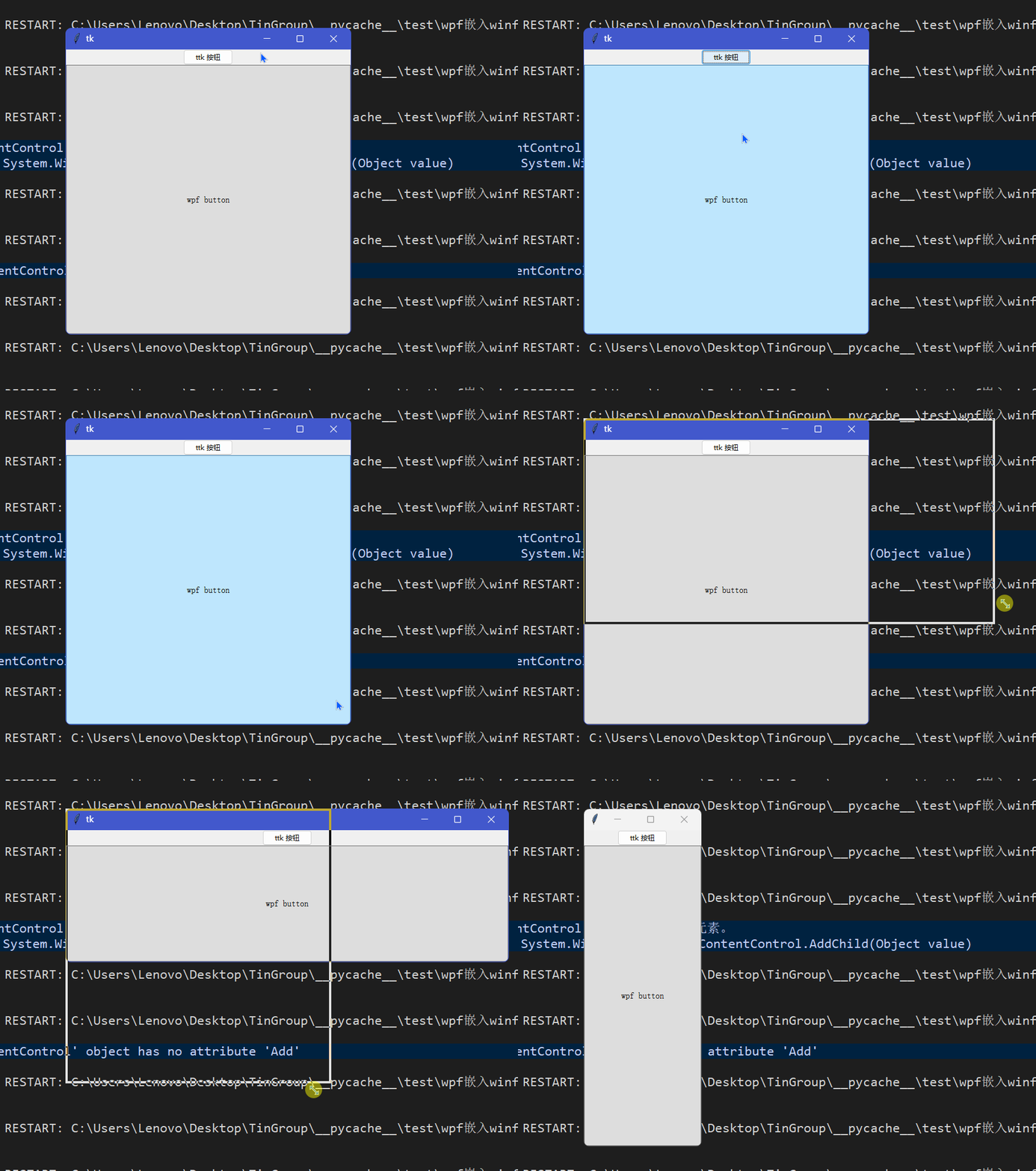
这里,我们将同时使用wpf的按钮和ttk的按钮。这里的wpf按钮大小随tkWPF控件的改变而改变。
def STAMain():
    global media
    try:
        a=Tk()
        a.geometry('500x500')
        ttk.Button(a,text='播放',command=play).pack()
        f=tkWPF(a)
        f.pack(fill='both',expand=True)

        btn=wpfButton()
        btn.Content='wpf button'
        f.control(btn)

        a.mainloop()
    except Exception as err:
        print(err)

def main():
    t = Thread(ThreadStart(STAMain))
    t.ApartmentState = ApartmentState.STA
    t.Start()
    t.Join()

if __name__ == "__main__":
    main()
一定要使用STA线程。
try语句中的第三段代码块就是确定显示的wpf控件是什么。
效果如下:
结语
wow,tkinter又有了一个十分强大的功能。
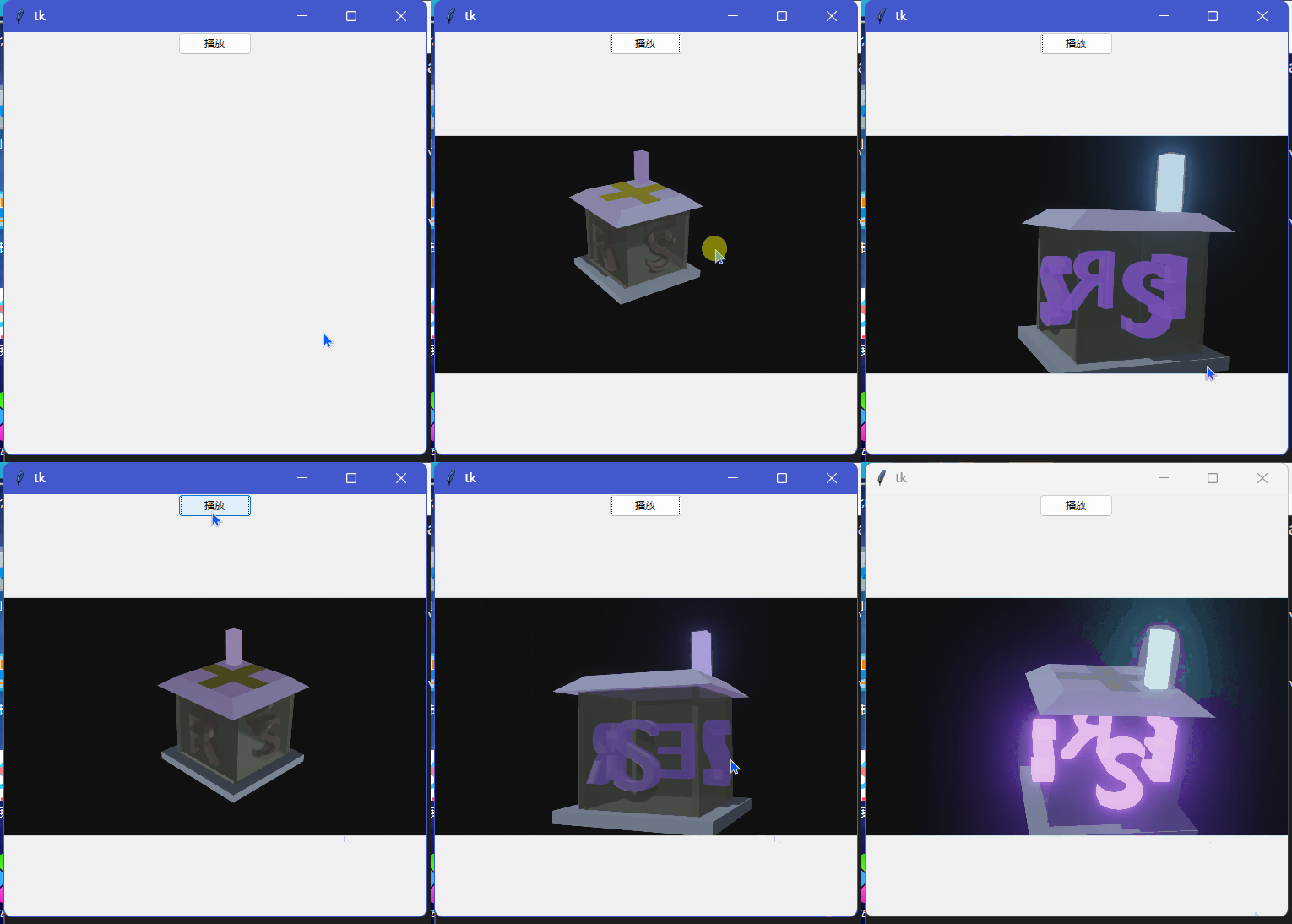
有了wpf,tkinter可以做很多事,比如播放常见格式视频(MPEG-4)等。通常tkinter播放视频还需要OpenCV、PIL这些杂七杂八的东西,效果还很不好。现在tkinter只靠pythonnet(以及wpf核心支持)就可以播放有声视频以及音频。下面是一个十分简单的示例:
tkinter正在变得更强大,爱好者团队也更多。
tkinter创新
边栏推荐
- Fasttunnel open source intranet penetration framework
- 为什么 ThreadLocal 可以做到线程隔离?
- 一文读懂 Kubernetes的四种服务类型!
- YGG 与 AMGI 的旗舰 NFT 项目 My Pet Hooligan 合作进入 The Rabbit Hole
- three.js 制作地球标注的两种方法
- 7岁男童因下棋太快?机器人竟夹断其手指
- Kingbasees SQL language reference manual of Jincang database (20. SQL statements: merge to values)
- Shell script basic programming commands
- Dio problem summary
- How to implement an asynchronous task queue system that can handle massive data (supreme Collection Edition)
猜你喜欢


随机推荐
解决AttributeError: module ‘win32com.gen_py.00020813-0000-0000-C000-000000000046x0x1x9‘ has no attribu
Introduction to component functions of blueprism process business object Chapter 3 of RPA
How to build a super interface collaboration platform: count the six weapons of apifox
cv2.resize()
密室逃脱、剧本杀加强监管 重点加强消防安全和未成年人保护
ES6 method & Class array into real array & method of judging array
Servlet
three.js 制作地球标注的两种方法
QT信号与槽连接(松耦合)
一维数组定义与使用
EtherCAT synchronization mode
消息队列知识点总结
numpy.newaxis
URL格式
破题数据中心绿色可持续发展
使用百度飞桨 EasyDL 完成垃圾分类
numpy.put()
Principle and application of one click login of local number (glory Collection Edition)
I hope some suggestions on SQL optimization can help you who are tortured by SQL like me
文件上传的方式和下载