当前位置:网站首页>Canvas drawing -- how to place the drawing in the center of the canvas
Canvas drawing -- how to place the drawing in the center of the canvas
2022-06-11 03:23:00 【~ climber ~】
Case study : Use canvas Draw a red square in the page
1、 Insert canvas Elements
<body>
    <canvas width="512" height="512"></canvas>
</body>
What to pay attention to :canvas Elemental width and height It refers to the width and height of the canvas , This property is Canvas width and height . and css The width and height of the attribute , It's a response canvas The size rendered on the page , namely Style width height .
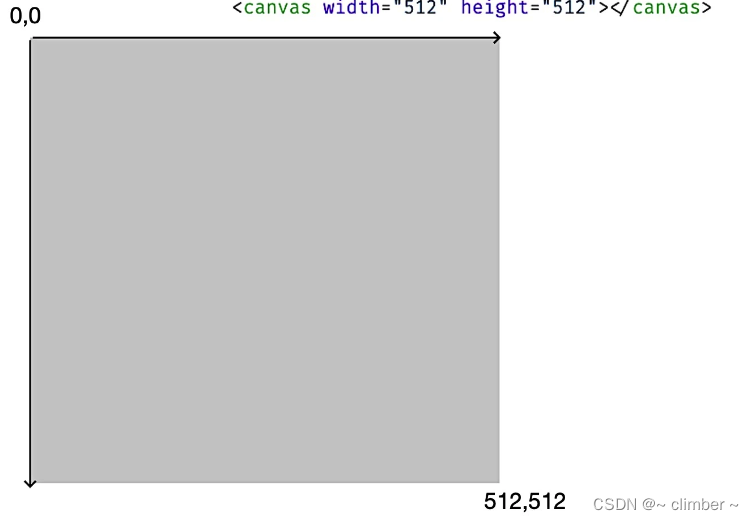
2、canvas The coordinate system of
3、 Use canvas Draw Geometry
//  obtain camvas Context
const canvas = document.querySelector('canvas');
//  obtain 2d Context
const context = canvas.getContext('2d');
// Draw at the center of the canvas 100*100 The square of , Because the coordinate system in the upper left corner is (0,0), The lower right corner is canvas Canvas coordinates of ,
//(canvas.width,canvas.hegiht ), So the coordinates of the center point are (context.rect(0.5*canvas.width, // 0.5*canvas.hegiht, 100, 100)

const rectSize = [100, 100];
context.fillStyle = 'red';
context.beginPath();
context.rect(0.5 * canvas.width, 0.5 * canvas.height, ...rectSize);
context.fill();
The effect is as follows :

You can see , The small square is not in the center of the canvas , as a result of , When setting coordinate points , The parameter x and y Set to half the width and height of the canvas . and rect The directive x、y Value , It means , The coordinates of the upper left corner of the rectangle to be drawn instead of the coordinates of the center point . Solution ;
Method 1 : Recalculate rect Of x、y Parameters , Equal to half of the width and height of the canvas minus half of the width and height of the rectangle itself , The code is as follows :
context.rect(0.5 * (canvas.width - rectSize[0]), 0.5 * (canvas.height - rectSize[1]), ...rectSize);Method 2 : Set the translation change for the canvas , In the process of drawing , The code is as follows :
context.translate(-0.5 * rectSize[0], -0.5 * rectSize[1]);
Compare the two methods :
The first method : It's easy to operate , Easy to understand , disadvantages : If it's an irregular shape , It's going to be a lot of trouble
The second method : Yes canvas The whole canvas is panned , such , Just get the offset between the center point and the upper left corner , Then set the canvas translate Just transform , There is no need to change the vertex position of the graph . however , Doing so will change the state of the canvas , Therefore, the canvas state should be restored .
How to restore the canvas , Translation in the first direction , The code is as follows :
//  translation
context.translate(-0.5 * rectSize[0], -0.5 * rectSize[1]);

...  Perform drawing

//  recovery
context.translate(0.5 * rectSize[0], 0.5 * rectSize[1]);
The second method :canvas Context provides save and restore Method , You can temporarily save and restore the state of the canvas at a certain time .save Instructions , Not only can you save the current translate state , You can also save other information , such as ,fillstyle etc. , and restore Command can restore the state command to save Previous instructions . The code is as follows :
context.save(); //  Staging status
//  translation
context.translate(-0.5 * rectSize[0], -0.5 * rectSize[1]);

...  Perform drawing

context.restore(); // Restore the state 边栏推荐
猜你喜欢

PostgreSQL source code learning (18) -- mvcc ③ - creating (obtaining) snapshots

iQOO 8实测上手体验:王者归来,从不高调

【ELT.ZIP】OpenHarmony啃论文俱乐部——电子设备软件更新压缩

In June, 2022, China Database ranking: tidb made a comeback to win the crown, and Dameng was dormant and won the flowers in May

Troubleshooting of single chip microcomputer communication data delay

SQL | 游戏行业部分指标

Harris corner detection opencv

HQChart钉钉小程序教程1-创建K线图
【安全科普】挖矿技术,从一个理工男的爱情故事讲起

B_ QuRT_ User_ Guide(18)
随机推荐
Pyqt5: basic usage of label control
postgresql源码学习(二十)—— 故障恢复①-事务日志格式
單片機通信數據延遲問題排查
Checkbox beautify button selected style
window10安装keras
Windows10 installing keras
postgresql 函数的参数为自定义类型时传参格式
C language array and pointer exercises
In June, 2022, China Database ranking: tidb made a comeback to win the crown, and Dameng was dormant and won the flowers in May
Detailed explanation of unity project optimization (continuous supplement)
ASLR
postgresql copy语句
Dépannage du problème de retard des données de communication du micro - ordinateur à puce unique
Deep parsing of question mark expressions
has been blocked by CORS policy: No ‘Access-Control-Allow-Origin‘ header is present on the requested
突破中国品牌创新技术实力,TCL做对了什么?
postgresql源码学习(21)—— 故障恢复②-事务日志初始化
SQL | 游戏行业部分指标
LaTex环境下在TexStudio中使用minted插入高亮代码
A simple understanding of C language array