当前位置:网站首页>5. Xuecheng project Alipay payment
5. Xuecheng project Alipay payment
2022-06-11 22:34:00 【Python_ twenty-one】
1. Alipay API file
* 1.  Official documents
      Address : https://opendocs.alipay.com/common/02fwvj/

* 2.  Alipay API: Six interfaces
      Address : https://docs.open.alipay.com/270/105900/

* 3.  Alipay workflow
      Address : https://docs.open.alipay.com/270/105898/

* 4.  Alipay 8 Secondary asynchronous notification mechanism ( Alipay sends to our server. POST request ,  Ask for  success 7 Characters )
      Address : https://docs.open.alipay.com/270/105902/
2. Test payment in sandbox environment
2.1 testing procedure
Sandbox environment is a simulation environment to assist developers in interface development and joint commissioning of main functions .
* 1.  Payment by computer website API: https://docs.open.alipay.com/270/105900/

* 2.  Real name authentication in sandbox environment
	  Address : https://openhome.alipay.com/platform/appDaily.htm?tab=info

* 3.  complete RSA Key generation :https://docs.open.alipay.com/291/105971

* 4.  Set the application public key under the sandbox application of the development center : Fill in the contents of the generated public key file

* 5. Python Alipay open source third-party framework :https://github.com/fzlee/alipay

* 6. pip install python-alipay-sdk --upgrade

* 7.  The key configuration format of the code

    alipay_public_key.pem = """-----BEGIN PUBLIC KEY-----
     Alipay public key
    -----END PUBLIC KEY-----"""

    app_private_key.pem = """-----BEGIN RSA PRIVATE KEY-----
     User private key
    -----END RSA PRIVATE KEY-----"""

* 8.  Alipay gateway

     real :https://openapi.alipay.com/gateway.do
     The sandbox :https://openapi.alipaydev.com/gateway.do  #  belt dev
2.2 Sandbox environment configuration
* 1.  authentication
https://developers.alipay.com/dev/workspace/register?from=http%3A%2F%2Fopenhome.alipay.com%2Fplatform%2FappDaily.html



* 2.  Configure sandbox application
     1.  Select web page & Mobile application
     2.  Select the user-defined key for the interface signing method
     3.  Public key mode -> Set up and view

* 3.  download & install   Alipay key generator
      Download address : https://gw.alipayobjects.com/os/bmw-prod/02b946e1-9faf-4394-8004-d241443c874e.exe



* 4. Generate the key

* 5. Copy public key

* 6. Fill the application public key into the sandbox

* 7. Generating Alipay public key

* 8. Sandbox account

* 9. Download the sandbox version of Alipay client


* 10.  Install the sandbox version of Alipay on the mobile terminal
	   Buyer account number  aijatb2766@sandbox.com
       The login password  111111
       Payment password  111111

2.3 Test code
* 1.  install python-alipay-sdk modular
     pip install python-alipay-sdk

      If throw ssl Related errors ,  It's missing pyopenssl modular
     pip install pyopenssl
* 2. Test code ( There should be no extra space when setting the key )
from alipay import AliPay

#  Application private key
app_private_key_string = """-----BEGIN RSA PRIVATE KEY----- MIIEpAIBAAKCAQEAhe3/9BI+qAaoRprc1f3liRA9v9WYL/n9Xp9Cc+PPcbkfrI/pN7q/GOaaYf521wbCEXmZYW4qQVX4mP4i2S05FwRu2B1/7Ux4oREyM+0vazHrBCNyE7erqGV2+8GsLDJRnyQXApbN79FR40+chrlc5Dt29mGCtv1DKz1l/mnNJKj0srP55joxXfLmDwfeLcNcTEblJsxpgi1TKlnEG0b/0RtkFhGGOsUrClNiLxBK5iZJBUt+QX2P97MDHj8BIqLqKITBe+aSbwHcDzl587S9cq1142y41NVhEjlC20+2iHsESA82HQo8iH7i1A6BzHvRlvk7HoUqeYb8p91ZLI0d7QIDAQABAoIBAAuppQ9RA2nIYqD7XV25JWLhKi9pXz5WS60Qu02yOd9SWqLBSXLT7U4yzqDX8utYqE+zQhsM59sWrHZOMySsXntVpH1nXDuC3EJSaAfDkMyJ5UhP+eAjr2wTod/chqy2mQr9ro9IKJjIppPf2+aTf7ZUQ1DDPwnGVjIOv7H+7qFRf/XBUVyyW1j4uwFlN/ZporDa7B6lwqWgH9+Yvo7w3/Pmjo78z2BKZzPQJa2sq3WxolcphDImflycHzno8jIn+QnB3XmlCu7yxsx4HYXMQMKY8i3gzPejdOdWsjbAuxI3mfyyELN2W8ZCpaZKWfKEhpxR4DA56byZtESWN+s1HmECgYEA7WFD1vhO2gwWyiFBzyu9yHOTpmcH6mBJ30Km7mErPHD3yHOiaCv59Ba4XTD629073m3Q2z6EXpmv7Fwz+uezac12BCBeg7AU9WfBJPiSHBRvwR4qXbZzbU91tElWDFYlwCmjd3Sp5oTGWSpWU/BW3hkxx6KYIwnYUIDIhTChCQUCgYEAkG9j4pp/XisOCUM3cQmTaUzDWZfOILDQUjrWCnLEHfPJPrX5qjtkSkZ8Z6Q4GjGNVg5m4i98VRGkt3rY0wsnsuCDFrws7TzlvDVP9fo0DgTalO4JCQ4gE9fGZypbjRYtbHobTEsGnGmeE3eRrlY5cfNfcwfrr1vKceo7slJzNckCgYAd+8kr4BVlqV0/js/XMTk5lo+x1xXC3wK1tp+LQK7LZaGGqkR7UAK0eCI1czhciSdEwy48YzspD9SO0F6odJfO52revo/xpk4faUmWN+eMsHAlPoAvchpGVmERsqmxyTffe+Lv9cZ4HZFINfbNh3ARgbEt/DWnR1kRYhLx7+CHWQKBgQCNWGTwkm9IsWu4Bs6P0WYwK04VNGklNsN3ZVqnuO5RvYxY0W71d8/KnDYMmvnIMGv3JnrqqLvM6EpAwHjF92mvNOU0b4yr0eelCqsoteURPxDFpDi1YtxjbssblKkpZeWn/csPG3DpyrZGqMGpUXpAGIJ1KPAtmO+CEU7AUM2seQKBgQDmPWXLUXx6FKRVUYLgALEY+PkIc3feRw1gdhSa7Q8/sQw8jugD92YnZ9gdBkZxIlPHqiMpvba+adbFTcTIPx6Myoy8X8mfWFTHU0su+tiwiUXGWkxAvYU/8ebSABs6HRgFGkbJEDU7TqPOvDCLFjAFdTQJ/LKGwbI+E7XfR0f4Sw== -----END RSA PRIVATE KEY-----"""

#  Alipay public key
alipay_public_key_string = """-----BEGIN PUBLIC KEY----- MIIBIjANBgkqhkiG9w0BAQEFAAOCAQ8AMIIBCgKCAQEAtfLBZtfSKJ3mwThLuRnLO1eEh5jf2fXDlC06VLH/lmFFJrZBfkJqzE9T41k5JoGpluI6r03vo6Vx29UYOP0bf531UUr9Bpg2TLBwmUVQYoY15plsUjKkqTqDYq55m3cYJpn0TBROMyurbGs4i0TcNq35zjC2wbl0DWmxmOhWyg3NhUu9uqWUJGbfxTuowKQxaK/3XDoOLx+mQCytz0JvNevUhBhOu6eZLCh3hNOswu8gMf3a5kCReya24uXOd26SKd5HYlwFHk4ndSSjwIYulQs9hnlSbkJn+zykjc6qdDQLMWuqkSKlb5Snu7TCh5FNUO4KsFqk2bEXgysJy23lhwIDAQAB -----END PUBLIC KEY-----"""
alipay = AliPay(
    #  application id
    appid="2021000120612450",
    #  Default callback
    app_notify_url=None,
    #  Apply private key string
    app_private_key_string=app_private_key_string,
    #  Alipay public key string
    alipay_public_key_string=alipay_public_key_string,
    #  encryption
    sign_type="RSA2",  # RSA or RSA2
    #  Open the debug ( Online close )
    debug=True
)

#  default gateway ( It needs to be modified after going online )
alipay_url = 'https://openapi.alipaydev.com/gateway.do?'
#  Generating objects ( Transaction page )
order_string = alipay.api_alipay_trade_page_pay(
    #  The order number uniquely identifies
    out_trade_no="202206041111",
    #  Price
    total_amount=9.9,
    #  Name of commodity
    subject='<< Shenbao >> A man should have a good kidney , You should drink kidney treasure . After drinking , Faster than Liu Xiang , Taller than Yao Ming . A bottle of refreshing , Two bottles never tire , Three bottles of immortality . Oh yeah ...',
    #  Successful payment  get Synchronous callback ,  Front desk display page ,
    # return_url="",
    #  Successful payment  post Asynchronous callback ,  Send a request back   Modify order status ( To pay for )
    # notify_url=""
)

#  Generate payment link  ( gateway  +  Transaction page )
print(alipay_url + order_string)
* 3. Run the program , Get a commodity payment address :
https://openapi.alipaydev.com/gateway.do?app_id=2021000120612450&biz_content=%7B%22subject%22%3A%22%5Cu7537%5Cu4eba%5Cu8981%5Cu80be%5Cu597d%5Cuff0c%5Cu5c31%5Cu8981%5Cu559d%5Cu80be%5Cu5b9d%5Cu3002%5Cu559d%5Cu4e86%5Cu4e4b%5Cu540e%5Cuff0c%5Cu6bd4%5Cu5218%5Cu7fd4%5Cu5feb%5Cuff0c%5Cu6bd4%5Cu59da%5Cu660e%5Cu9ad8%5Cu3002%5Cu4e00%5Cu74f6%5Cu63d0%5Cu795e%5Cu9192%5Cu8111%5Cuff0c%5Cu4e24%5Cu74f6%5Cu6c38%5Cu4e0d%5Cu75b2%5Cu52b3%5Cuff0c%5Cu4e09%5Cu74f6%5Cu957f%5Cu751f%5Cu4e0d%5Cu8001%5Cu3002%5Cu5662%5Cu8036...%22%2C%22out_trade_no%22%3A%22%5Cu80be%5Cu5b9d%22%2C%22total_amount%22%3A9.9%2C%22product_code%22%3A%22FAST_INSTANT_TRADE_PAY%22%7D&charset=utf-8&method=alipay.trade.page.pay¬ify_url=https%3A%2F%2Fwww.luffycity.com%2Ffree-course&return_url=https%3A%2F%2Fwww.luffycity.com%2Ffree-course&sign_type=RSA2×tamp=2022-06-03+23%3A26%3A25&version=1.0&sign=BttMCJX7M6PGFNq1ldnaxR0HM1zLcVRbCeC7xmM3NDceOvs2U8tnRHmZb1gKlbozH2T8arQfPHrtJQ4dkjpptQHJMGWD6AU0cQzSi%2F4dI3m5GKEK4Y96w9OC1UNTjp80TXwZ1OlPCTzpHB4SAkjHeRSbxPXGJpvsvt7TjKOhEIbZ02xNAfawLa%2F2ptv6FXtplSb1ckmo1aV2k%2Fa8rQxRUVA52eeM9XNoH7GpoUiDAi47NZalgm1bcsrvrHfDizR83AU39hddA8EkqxFFAlFAOpVCRH6ZWSFgxJfTap4b6KkViYkaee74eELMgvG9qcuV9b04DB3JdFfbctl1VXyqrQ%3D%3D
* 4. Use the browser to open the address ( If the browser opens too many websites , You may be prompted with tips like phishing sites .)
* 5. Use the sandbox version of Alipay to pay

* 6. Check the balance in the sandbox account

3. Secondary packaging Alipay
 In the project lib Reseal Alipay under the directory
 The configuration can be written in iPay Under the settings.py Of a document or project dev.py In profile .
lib
    ├── iPay  						  # aliapy Secondary package
    │   ├── __init__.py 			   #  Package file
    │   ├── pem						  #  Public and private key folder
    │   │   ├── alipay_public_key.pem	#  Alipay public key file
    │   │   ├── app_private_key.pem		#  Apply private key file
    │   ├── pay.py					   #  Payment documents
    └── └── settings.py | dev.py         #  Application configuration
* 1. In the project lib New under the directory iPay Catalog , Then create other files and directories according to the directory structure .
* 2. stay app_private_key.pem Write Alipay public key in
-----BEGIN RSA PRIVATE KEY-----
MIIEpAIBAAKCAQEAhe3/9BI+qAaoRprc1f3liRA9v9WYL/n9Xp9Cc+PPcbkfrI/pN7q/GOaaYf521wbCEXmZYW4qQVX4mP4i2S05FwRu2B1/7Ux4oREyM+0vazHrBCNyE7erqGV2+8GsLDJRnyQXApbN79FR40+chrlc5Dt29mGCtv1DKz1l/mnNJKj0srP55joxXfLmDwfeLcNcTEblJsxpgi1TKlnEG0b/0RtkFhGGOsUrClNiLxBK5iZJBUt+QX2P97MDHj8BIqLqKITBe+aSbwHcDzl587S9cq1142y41NVhEjlC20+2iHsESA82HQo8iH7i1A6BzHvRlvk7HoUqeYb8p91ZLI0d7QIDAQABAoIBAAuppQ9RA2nIYqD7XV25JWLhKi9pXz5WS60Qu02yOd9SWqLBSXLT7U4yzqDX8utYqE+zQhsM59sWrHZOMySsXntVpH1nXDuC3EJSaAfDkMyJ5UhP+eAjr2wTod/chqy2mQr9ro9IKJjIppPf2+aTf7ZUQ1DDPwnGVjIOv7H+7qFRf/XBUVyyW1j4uwFlN/ZporDa7B6lwqWgH9+Yvo7w3/Pmjo78z2BKZzPQJa2sq3WxolcphDImflycHzno8jIn+QnB3XmlCu7yxsx4HYXMQMKY8i3gzPejdOdWsjbAuxI3mfyyELN2W8ZCpaZKWfKEhpxR4DA56byZtESWN+s1HmECgYEA7WFD1vhO2gwWyiFBzyu9yHOTpmcH6mBJ30Km7mErPHD3yHOiaCv59Ba4XTD629073m3Q2z6EXpmv7Fwz+uezac12BCBeg7AU9WfBJPiSHBRvwR4qXbZzbU91tElWDFYlwCmjd3Sp5oTGWSpWU/BW3hkxx6KYIwnYUIDIhTChCQUCgYEAkG9j4pp/XisOCUM3cQmTaUzDWZfOILDQUjrWCnLEHfPJPrX5qjtkSkZ8Z6Q4GjGNVg5m4i98VRGkt3rY0wsnsuCDFrws7TzlvDVP9fo0DgTalO4JCQ4gE9fGZypbjRYtbHobTEsGnGmeE3eRrlY5cfNfcwfrr1vKceo7slJzNckCgYAd+8kr4BVlqV0/js/XMTk5lo+x1xXC3wK1tp+LQK7LZaGGqkR7UAK0eCI1czhciSdEwy48YzspD9SO0F6odJfO52revo/xpk4faUmWN+eMsHAlPoAvchpGVmERsqmxyTffe+Lv9cZ4HZFINfbNh3ARgbEt/DWnR1kRYhLx7+CHWQKBgQCNWGTwkm9IsWu4Bs6P0WYwK04VNGklNsN3ZVqnuO5RvYxY0W71d8/KnDYMmvnIMGv3JnrqqLvM6EpAwHjF92mvNOU0b4yr0eelCqsoteURPxDFpDi1YtxjbssblKkpZeWn/csPG3DpyrZGqMGpUXpAGIJ1KPAtmO+CEU7AUM2seQKBgQDmPWXLUXx6FKRVUYLgALEY+PkIc3feRw1gdhSa7Q8/sQw8jugD92YnZ9gdBkZxIlPHqiMpvba+adbFTcTIPx6Myoy8X8mfWFTHU0su+tiwiUXGWkxAvYU/8ebSABs6HRgFGkbJEDU7TqPOvDCLFjAFdTQJ/LKGwbI+E7XfR0f4Sw==
-----END RSA PRIVATE KEY-----
* 3. stay alipay_public_key.pem Write the application private key to the file
-----BEGIN PUBLIC KEY-----
MIIBIjANBgkqhkiG9w0BAQEFAAOCAQ8AMIIBCgKCAQEAtfLBZtfSKJ3mwThLuRnLO1eEh5jf2fXDlC06VLH/lmFFJrZBfkJqzE9T41k5JoGpluI6r03vo6Vx29UYOP0bf531UUr9Bpg2TLBwmUVQYoY15plsUjKkqTqDYq55m3cYJpn0TBROMyurbGs4i0TcNq35zjC2wbl0DWmxmOhWyg3NhUu9uqWUJGbfxTuowKQxaK/3XDoOLx+mQCytz0JvNevUhBhOu6eZLCh3hNOswu8gMf3a5kCReya24uXOd26SKd5HYlwFHk4ndSSjwIYulQs9hnlSbkJn+zykjc6qdDQLMWuqkSKlb5Snu7TCh5FNUO4KsFqk2bEXgysJy23lhwIDAQAB
-----END PUBLIC KEY-----
* 4. settings.py Fill in the parameters in the configuration file
import os

#  Get iPay The path of
BASE_DIR = os.path.dirname(__file__)
print(BASE_DIR)
#  obtain iPay Under the pem Directory path
PEM_DIR = os.path.join(BASE_DIR, 'pem')
#  Application private key address
APP_PRIVATE_KEY_URL = os.path.join(PEM_DIR, 'app_private_key.pem')
#  Alipay public key address
ALIPAY_PUBLIC_KEY_URL = os.path.join(PEM_DIR, 'alipay_public_key.pem')

#  application id
APPID = '2021000120612450'

#  Default callback
APP_NOTIFY_URL = None

#  Apply private key string
with open(APP_PRIVATE_KEY_URL, mode='r', encoding='utf8') as rf1:
    APP_PRIVATE_KEY_STRING = rf1.read()

#  Alipay public key string
with open(ALIPAY_PUBLIC_KEY_URL, mode='r', encoding='utf8') as rf2:
    ALIPAY_PUBLIC_KEY_STRING = rf2.read()

#  encryption
SIGN_TYPE = "RSA2"

# BUG Pattern
DEBUG = True

#  Sandbox gateway  ( DEBUG = True )
dev = 'https://openapi.alipaydev.com/gateway.do?'

#  Real gateway  ( DEBUG = False )
master = 'https://openapi.alipay.com/gateway.do?'

#  gateway
ALIPAY_URL = dev if DEBUG else master
* 5. stay pay.py Generate alipay Payment object
#  Import configuration parameters
from .settings import *

#  Import AliPay modular
from alipay import AliPay

#  Generate alipay object
alipay = AliPay(
    #  application id
    appid=APPID,
    #  Default callback
    app_notify_url=APP_NOTIFY_URL,
    #  Apply private key string
    app_private_key_string=APP_PRIVATE_KEY_STRING,
    #  Alipay public key string
    alipay_public_key_string=ALIPAY_PUBLIC_KEY_STRING,
    #  encryption
    sign_type=SIGN_TYPE,
    #  Commissioning switch ( Online settings False)
    debug=False,

)
* 6. __init__.py  Import alipay object   And   gateway
      In the import iPay Will automatically trigger __init__.py, Then import alipay object   And   gateway
#  Import alipay object   And   gateway
from .pay import alipay
from .settings import ALIPAY_URL

"""  In the import iPay Import when alipay object   And   gateway  from luffy/lib import iPay iPay.alipay ... iPay.ALIPAY_URL ... """
4. Order interface
4.1 establish app
* 1. New order app
cd luffy/apps/
python ../../manage.py startapp order
* 2. register app
INSTALLED_APPS = [
    ...
    'order'
* 3. Total routing configuration
path('order/', include('order.urls')),
* 4.  Sub route
      First in order New under the directory urls.py
from django.urls import re_path, include

from . import views
#  Import SimpleRouter
from rest_framework.routers import SimpleRouter

#  Generating objects
router = SimpleRouter()
#  Registered routing
router.register('pay', views.PayView, 'pay')

#  The routing list
urlpatterns = [
    re_path('', include(router.urls)),
]
4.2 Table settings
1.  The order sheet
2.  The third table of the order form and the curriculum
from django.db import models

#  Import user table
from user.models import User
#  Import the curriculum
from course.models import Course


#  The order sheet
class Order(models.Model):
    """  User table ( One )  Yes  ( many ) The order sheet   A user can have multiple orders ,  An order can only have one user .  One-to-many relation ,  The associated field is written on the more side . """
    #  Payment status
    status_choices = (
        (0, ' Did not pay '),
        (1, ' Paid '),
        (2, ' With timeout '),
        (3, ' Time out cancellation ')
    )

    #  Payment status
    pay_choices = (
        (0, ' Alipay '),
        (1, ' WeChat ')
    )

    #  Order label
    subject = models.CharField(max_length=150, verbose_name=' Order title ')
    #  The order price
    total_amount = models.DecimalField(max_digits=10, decimal_places=2, verbose_name=' The order price ', default=0)
    #  The order number   only
    out_trade_no = models.CharField(max_length=64, verbose_name=' The order number ', unique=True)
    #  The order status
    order_status = models.SmallIntegerField(choices=status_choices, default=0, verbose_name=' The order status ')
    #  Method of payment
    pay_type = models.SmallIntegerField(choices=pay_choices, default=0, verbose_name=' Method of payment ')
    #  Time of payment
    pay_time = models.DateTimeField(null=True, verbose_name=' Time of payment ')
    #  Foreign keys
    user = models.ForeignKey(to=User, related_name='order_user', on_delete=models.DO_NOTHING, db_constraint=False,
                             verbose_name=' Order user ')
    #  Creation time
    created_time = models.DateTimeField(auto_now_add=True, verbose_name=' Creation time ')
    #  Last update time
    updated_time = models.DateTimeField(auto_now=True, verbose_name=' Last update time ')

    #  Define metaclass
    class Meta:
        #  Table name
        db_table = 'luffy_order'
        #  Define a variable
        verbose_name = ' Order records '
        #  Table name displayed in the background
        verbose_name_plural = verbose_name

    #  Display the name and price of the product when printing the object
    def __str__(self):
        return f'{
      self.subject} - ¥:{
      self.total_amount}'


#  Order details
class OrderDetail(models.Model):
    """  The order sheet ( many )  Yes  ( many ) The curriculum   One order can have multiple courses ,  A course can be in pairs of orders   The third table is the foreign key associated order table ,  Associated curriculum ,  Create additional fields  """
    #  Foreign keys   Associated order table
    order = models.ForeignKey(to=Order, related_name='order_courses', on_delete=models.CASCADE, db_constraint=False,
                              verbose_name=' Order foreign key ')
    #  Foreign keys   Associate associate curriculum
    course = models.ForeignKey(to=Course, related_name='course_orders', on_delete=models.CASCADE, db_constraint=False,
                               verbose_name=' Course foreign key ')
    #  The original price
    price = models.DecimalField(max_digits=6, decimal_places=2, verbose_name=' Course the original price ')
    #  Firm price
    real_price = models.DecimalField(max_digits=6, decimal_places=2, verbose_name=' The course is real ')

    #  Define metaclass
    class Meta:
        #  Table name
        db_table = 'luffy_order_detail'
        #  Define a variable
        verbose_name = ' Order details '
        #  Orientation details
        verbose_name_plural = verbose_name

    #  Show when printing objects   Course name : Price of course
    def __str__(self):
        try:
            return f'{
      self.course.name} The order of : {
      self.order.out_trade_no}'
        #  No error will be reported if no data is recorded
        except:
            return super().__str__()
 Database migration :
python manage.py makemigrations
python manage.py migrate
#  modify order In the catalog admin.py  File to register the table in the background
import xadmin

from . import models
#  Transfer the conditions on the order table and order details table to the background management
xadmin.site.register(models.Order)
xadmin.site.register(models.OrderDetail)
#  The Chinese menu is displayed in the background
#  modify order Under the __init__.py
default_app_config = "order.apps.OrderConfig"

#  modify order Under the apps.py
from django.apps import AppConfig


class OrderConfig(AppConfig):
    name = 'order'
    verbose_name = ' Order '
4.3 Interface
 Payment interface analysis
1.  Payment interface
    Generate order ,  Generate payment connection ,  Return to the payment link

2.  When payment is successful :  Asynchronous callback of Alipay post Interface
    Verify the signature ,  Modify order status

3.  When payment is successful :  Alipay sync get Callback  ( Page displayed after successful payment )
   vue When creating a page   The life cycle hook function sends a request to the backend to query the order status ( not essential )
1.  Order total price verification
    Get the corresponding course object from the database ,  The course price is taken out and accumulated ,  Then compare with the value passed by the front end to see if it is equal .
2.  Generate order number
    Use one uuid Generate a random string
3.  Payment link generation
    Use your own encapsulated Alipay module to generate payment connections ,  Store the payment link in the... Of the serialized object context Properties of the .
4. request.user  Get user object in
    View class create Method ,  by context The parameter setting value is request,  Get the user object from the serialization
5.  Put in storage ( Two tables ) Information preparation for
    Save user objects to attrs In the dictionary
6.  Override serialized create Method
    Change the course from validated_data In the dictionary pop come out ...
    First create the data of the payment table ,  After traversing the data that creates the payment details table
* 1. Model serializer
#  Import model serialization
from rest_framework import serializers

#  Import model layer
from . import models

#  Import exception module
from rest_framework.exceptions import ValidationError


class OrderModelSerializer(serializers.ModelSerializer):
    course_obj = models.Course.objects.all()
    """ PrimaryKeyRelatedField  take  {'course': [ Course id1,  Course id2, ...]}  To  {'course': [ Course 1_obj,  Course 2_obj, ...]} queryset Parameter for conversion table queryset object ,  The submitted value is a list ,  Set up many=True,  Write only mode  Course Table and  Order Yes, it doesn't matter , Just set queryset The parameter value of is the data of a table   adopt id Get the data object corresponding to the table  """
    course = serializers.PrimaryKeyRelatedField(queryset=course_obj, many=True, write_only=True)

    class Meta:
        model = models.Order

        #  Converted fields   Order label   Price   Method of payment   Purchased courses
        fields = ['subject', 'total_amount', 'pay_type', 'course']
        # ( Set the default value ,  The price will not be indicated   The payment method field is required ,  Use require Prompt field must be filled in )
        extra_kwargs = {

            'total_amount': {
    'required': True},
            'pay_type': {
    'required': True},
        }

    #  Global verification
    def validate(self, attrs):
        # 1.  Check the price ,  If the verification fails, an exception will be thrown directly ,  Price returned after successful verification
        total_amount = self._check_price(attrs)
        # 2.  Generate order number
        out_trade_no = self._gen_out_trade_no()
        # 3.  Generate a payment link and save it to context Parameters in
        self._gen_pay_url(attrs, out_trade_no, total_amount)
        # 4.  Get user object   Override... In the view class create Method ,  When the model serialization object is generated request adopt context Parameter passing
        user_obj = self._get_user()
        # 5.  Prepare before writing to the database
        self._before_create(attrs, user_obj, out_trade_no)

        return attrs

    #  Price check
    @staticmethod
    def _check_price(attrs):
        #  Get the price submitted
        total_amount = attrs.get('total_amount')
        #  Get the course object
        course_list = attrs.get('course')
        #  Calculate the price in the database
        total_price = 0
        for course_obj in course_list:
            total_price += course_obj.price
        #  The judgment values are all equal
        if total_amount != total_price:
            #  The prices are not the same ,  Throw an exception directly
            raise ValidationError(' The price is illegal ')
        return total_amount

    #  Generate order number
    @staticmethod
    def _gen_out_trade_no():
        #  The order number is a unique string ,  Use uuid that will do
        from uuid import uuid4
        # uuid The format of the type value of  bce5eed9-8985-42ab-b37a-51bf8909c1c5  The type is  <class 'uuid.UUID'>
        #  Change the class type to str type ,  then - Remove  bce5eed9898542abb37a51bf8909c1c5
        return str(uuid4()).replace('-', '')

    #  Generate payment link
    def _gen_pay_url(self, attrs, out_trade_no, total_amount):
        #  Import payment module
        from luffy.lib import iPay
        #  Get the product name ( Front end incoming )
        subject = attrs.get('subject')
        #  Import callback address
        from django.conf import settings
        #  default gateway
        alipay_url = iPay.ALIPAY_URL

        # total_amount yes Decimal type ,  Alipay cannot recognize ,  To float The type is enough
        print(total_amount, type(total_amount))  # 138.00 <class 'decimal.Decimal'>
        total_amount = float(total_amount)
        #  Generating objects
        order_string = iPay.alipay.api_alipay_trade_page_pay(
            #  The order number uniquely identifies
            out_trade_no=out_trade_no,
            #  Price
            total_amount=total_amount,
            #  Name of commodity
            subject=subject,
            #  Successful payment  get Synchronous callback ,  Front desk display page ,
            return_url=settings.NOTIFY_URL,
            #  Successful payment  post Asynchronous callback ,  Send a request back   Modify order status ( To pay for )
            notify_url=settings.RETURN_URL
        )
        #  Generate payment address
        pay_url = alipay_url + order_string
        #  Save the payment link to context in
        self.context['pay_url'] = pay_url

    #  Get users
    def _get_user(self):
        #  from context In order to get request object
        request = self.context.get('request')
        #  Put back user object ( After successful login request.user There will be user data objects )
        return request.user

    #  Prepare before writing data
    @staticmethod
    def _before_create(attrs, user_obj, out_trade_no):
        #  Write the user object to the serialization Dictionary
        attrs['user'] = user_obj
        #  Write the order number to the serialization Dictionary
        attrs['out_trade_no'] = out_trade_no

    def create(self, validated_data):
        #  Make the course list a virtual field pop fall
        course_list = validated_data.pop('course')

        #  Payment table data writing ( Data required , 'subject', 'total_amount', 'course', 'user')
        order_obj = models.Order.objects.create(**validated_data)

        #  Write in the payment details table ,  Data required (order, course, price, real_price)
        for course_obj in course_list:
            models.OrderDetail.objects.create(order=order_obj, course=course_obj, price=course_obj.price,
                                              real_price=course_obj.price)

        #  Return the payment object to ,  It doesn't need to be returned
        return order_obj
#  Alipay callback address
#  backstage URL
BASE_URL = 'http://127.0.0.1:8000'
#  The front desk URL
LUFFY_URL = 'http://127.0.0.1:8080'

#  Background asynchronous callback address
RETURN_URL = BASE_URL + '/order/success/'
#  Foreground synchronous callback address ( No, / ending )
NOTIFY_URL = LUFFY_URL + '/pay/success'
* 2.  View class
     Use alone rest_framework_jwt.authentication.JSONWebTokenAuthentication All tourists can visit ,
    request.user  yes AnonymousUser  Anonymous users ,  Use rest_framework Built in permission class ,  Verify the logged in user ,
     Anonymous users are forbidden to access !
from rest_framework.viewsets import GenericViewSet
from rest_framework.mixins import CreateModelMixin
from . import models
from .serializer import OrderModelSerializer
from rest_framework.response import Response
from rest_framework_jwt.authentication import JSONWebTokenAuthentication
from rest_framework.permissions import IsAuthenticated


#  Generate payment order
class PayView(GenericViewSet, CreateModelMixin):
    #  Login authentication class  +  Restricted class   It is now restricted to only logged in users
    authentication_classes = [JSONWebTokenAuthentication]  #  No user login returned
    permission_classes = [IsAuthenticated]
    #  Table data used
    queryset = models.Order.objects.all()
    #  Model serialization class used
    serializer_class = OrderModelSerializer

    #  Override the view class  create Method  ( Copy CreateModelMixin Of create Method to modify )
    def create(self, request, *args, **kwargs):
        #  When generating serializer ,  take request Object is created to the model serializer   adopt context Parameters
        serializer = self.get_serializer(data=request.data, context=request)
        #  Check the data
        serializer.is_valid(raise_exception=True)
        #  Save the data
        self.perform_create(serializer)
        headers = self.get_success_headers(serializer.data)
        return Response(serializer.context.get('pay_url'))
4.4 The interface test
* 1. Address of the interface : http://127.0.0.1:8000/order/pay/

* 2.  You need to log in first (post request )
      Login address : http://127.0.0.1:8000/user/login/?username=root&password=zxc123456

* 3. carry token Access the payment interface
key: Authorization
value: jwt eyJ0eXAiOiJKV1QiLCJhbGciOiJIUzI1NiJ9.eyJ1c2VyX2lkIjoxLCJ1c2VybmFtZSI6InJvb3QiLCJleHAiOjE2NTUyOTg4NTYsImVtYWlsIjoiMTM2QHFxLmNvbSJ9.7vHsFCMCM-8_Uc5-bOvEFMvUf4d5fBtCGayQG53mb2c
* token Carry in front  jwt Space

* 4.  Illegal price test
	  All three courses are now ,  price is 138,  Now fill in a wrong price

* 5. Price normal test , Return the payment address

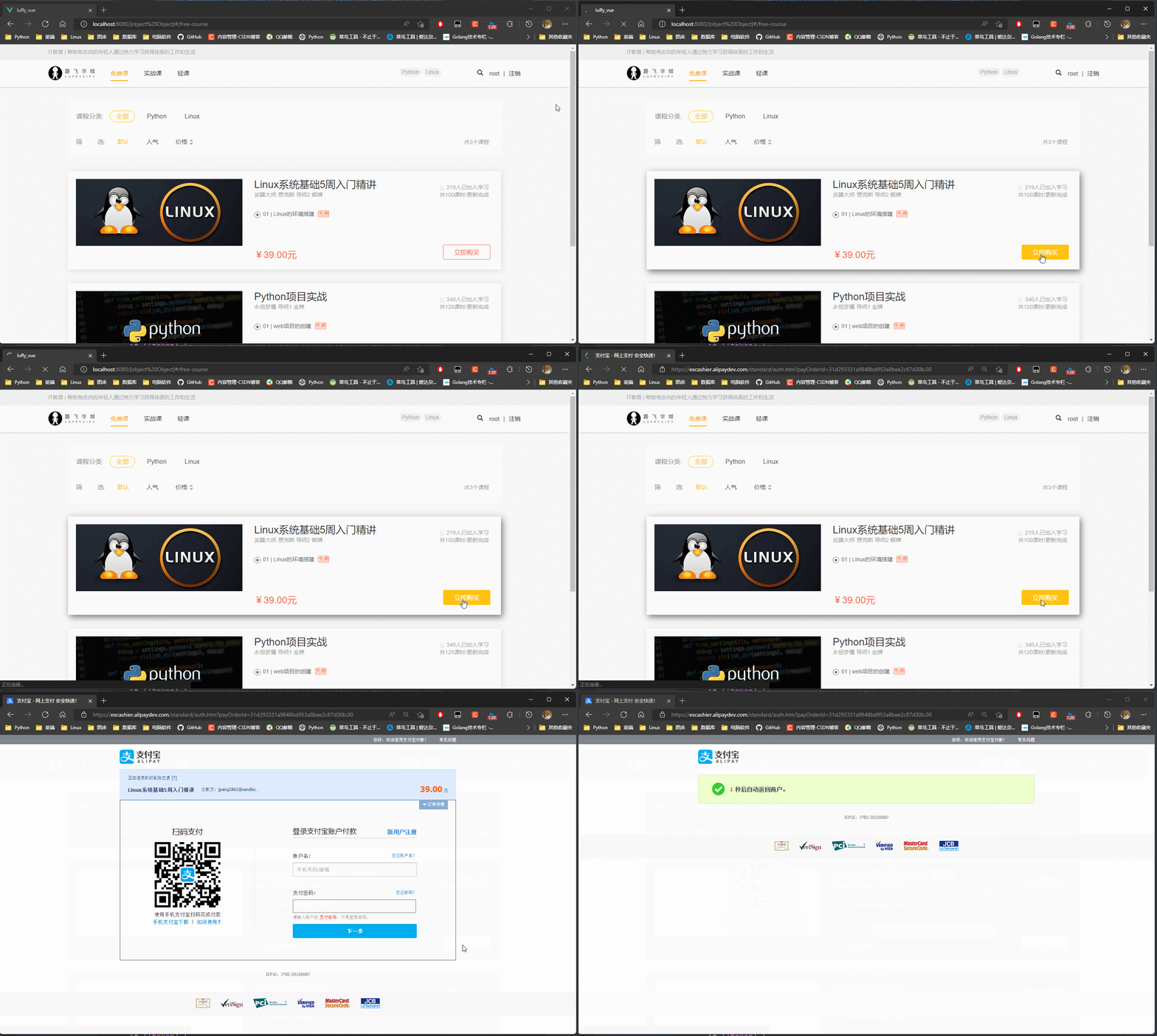
4.5 Click the purchase event at the front desk
 Bind events for click to buy ,  Free course page ,  Page details ,  Search page ,  Three places .
 Only when there are users can they buy :
 After successful login  this.$cookies.set('token', response.data.token)  take token Saved to scookies in
 First from cokkies In order to get token,  If there is a value, you can send a request ,  If there is no value, the user will be prompted to log in .

 Get the payment address and jump to the payment page ( New page )
window.open(url)  Abbreviation  open(url)
 Open the URL on the current page
open(url, '_self')
<span class="buy-now" @click="buy_now(course)"> Buy now </span>
//  Purchase course
buy_now(course) {

    //  from cookies In order to get token
    let token = this.$cookies.get('token')
    //  Determine whether it is in login status
    if (!token) {

        //  Prompt the user to log in
        this.$message({

            message: ' Please log in first !'
        })
        return false
    }
    //  The user has logged in and sent a request to the background
    this.$axios({

        method: 'post', url: this.$settings.base_url + '/order/pay/',
            headers: {
    Authorization: 'jwt ' + token}, data: {

                //  The name of the course serves as the title of the product
                "subject": course.name,
                //  The price of the course
                "total_amount": course.price,
                //  Method of payment
                "pay_type": 1,
                //  Curriculum id
                "course": [
                course.id
                ]
        }
    }).then(response => {

        //  Visit successfully to get the payment link   Directly from response.data Get data in ( The back end directly returns the link ,  Not return request.data)
        //  An error is reported in the view serializer   Need from response.data.dat Get error information in
        // console.log(response.data)
        //  Jump to the payment address
        if (response.data.data) {

            this.$message({

                message: response.data.data  //  Very new   for example  { "total_amount": [ " This field is required ." ] }
            })
            return false
        }
        //  If the error message is not returned, it is the payment link
        let pay_url = response.data

        // console.log(pay_url)
        //  Jump to payment link
        open(pay_url, '_self')

    }).catch(error => {

        this.$message({

            message: ' Unknown error ,  Please contact the Administrator !'
        })
    })
}
4.6 Synchronous callback page
 Two parts :
1.  Analyze the Alipay callback parameters to display the payment status of the order
2.  To the back end get request ,  Query whether the backend modifies the order status
* 1. Create a new page for successful payment presentation PayCourse.vue
<template>
  <div class="pay-success">
    <!-- If it is a separate page , There's no need to show the navigation bar ( User with login )-->
    <Header/>
    <div class="main">
      <div class="title">
        <div class="success-tips">
          <p class="tips"> You have successfully purchased  1  Courses !</p>
        </div>
      </div>
      <div class="order-info">
        <p class="info"><b> The order number :</b><span>{
   { result.out_trade_no }}</span></p>
        <p class="info"><b> Transaction No :</b><span>{
   { result.trade_no }}</span></p>
        <p class="info"><b> Time of payment :</b><span><span>{
   { result.timestamp }}</span></span></p>
      </div>
      <div class="study">
        <span> Learn now </span>
      </div>
    </div>
  </div>
</template>

<script> import Header from "@/components/Head" export default {
       name: "PayCourse", data() {
       return {
       result: {
      }, }; }, created() {
       // location.search  obtain  url Parameters of rear splicing :? And all subsequent parameters  => ?a=1&b=2 // console.log(location.search); //  Analysis of Alipay callbacks url Parameters  let params = location.search.substring(1); //  Remove ?  Retain  a=1&b=2 //  Press & Shard to get a tuple ,  There must be an empty tuple  let items = params.length ? params.split('&') : []; // console.log(items) /* 0: "charset=utf-8" 1: "out_trade_no=1c6bd7ee950842249a7cb0b6956224d2" ... */ //  Add each item to... One by one args In the object  for (let i = 0; i < items.length; i++) {
       //  First cycle a=1, The second time b=2 //  Press = Cut to get  k = v let k_v = items[i].split('='); // ['a', '1'] //  List elements are less than 2 Direct to ignore ,  There are key missing values  if (k_v.length >= 2) {
       // url Coded inverse solution   Decoding operation , Because the query string is encoded  //  decode k let k = decodeURIComponent(k_v[0]); //  decode value  And save to result In the object  this.result[k] = decodeURIComponent(k_v[1]); } } //  Results after analysis  // console.log(this.result); /* app_id: "2021000120612450" auth_app_id: "2021000120612450" charset: "utf-8" */ //  Put the payment result on the address bar , Again get Forward request to backend  this.$axios({
       method: 'get', //  Access the backend with parameters of synchronous callback  url: this.$settings.base_url + '/order/success/' + location.search, }).then(response => {
       console.log(response.data) if (response.data) {
       this.$message({
       message: ' Payment results synchronized successfully ' }) } else {
       this.$message({
       message: ' Payment result synchronization failed ' }) } }).catch(() => {
       this.$message({
       message: ' Failed to query order payment status ' }) }) }, components: {
       Header, } } </script>

<style scoped> .main {
       padding: 60px 0; margin: 0 auto; width: 1200px; background: #fff; } .main .title {
       display: flex; -ms-flex-align: center; align-items: center; padding: 25px 40px; border-bottom: 1px solid #f2f2f2; } .main .title .success-tips {
       box-sizing: border-box; } .title img {
       vertical-align: middle; width: 60px; height: 60px; margin-right: 40px; } .title .success-tips {
       box-sizing: border-box; } .title .tips {
       font-size: 26px; color: #000; } .info span {
       color: #ec6730; } .order-info {
       padding: 25px 48px; padding-bottom: 15px; border-bottom: 1px solid #f2f2f2; } .order-info p {
       display: -ms-flexbox; display: flex; margin-bottom: 10px; font-size: 16px; } .order-info p b {
       font-weight: 400; color: #9d9d9d; white-space: nowrap; } .study {
       padding: 25px 40px; } .study span {
       display: block; width: 140px; height: 42px; text-align: center; line-height: 42px; cursor: pointer; background: #ffc210; border-radius: 6px; font-size: 16px; color: #fff; } </style>
* 2. Set up PayCourse The routing
//  Import payment success prompt page  import PayCourse from "@/views/PayCourse" //  Payment success prompt page  ( It is consistent with the configuration in the background )
{

    path: '/pay/success',
    name: 'PayCourse',
    component: PayCourse
},
#  Foreground synchronous callback address ( No, / ending )
RETURN_URL = LUFFY_URL + '/pay/success'
* 3. vue in url Extra in the address /#/
      If it is not deleted, the callback address route matching will not succeed
     http://127.0.0.1:8080/pay/success  Route matching failed
//  Set in the route  mode: "history",  Delete url The superfluous /#/
const router = new VueRouter({

    mode: "history",
    routes
})
* 4.  Buy course tests ,  After successful purchase
      The callback address carries parameters
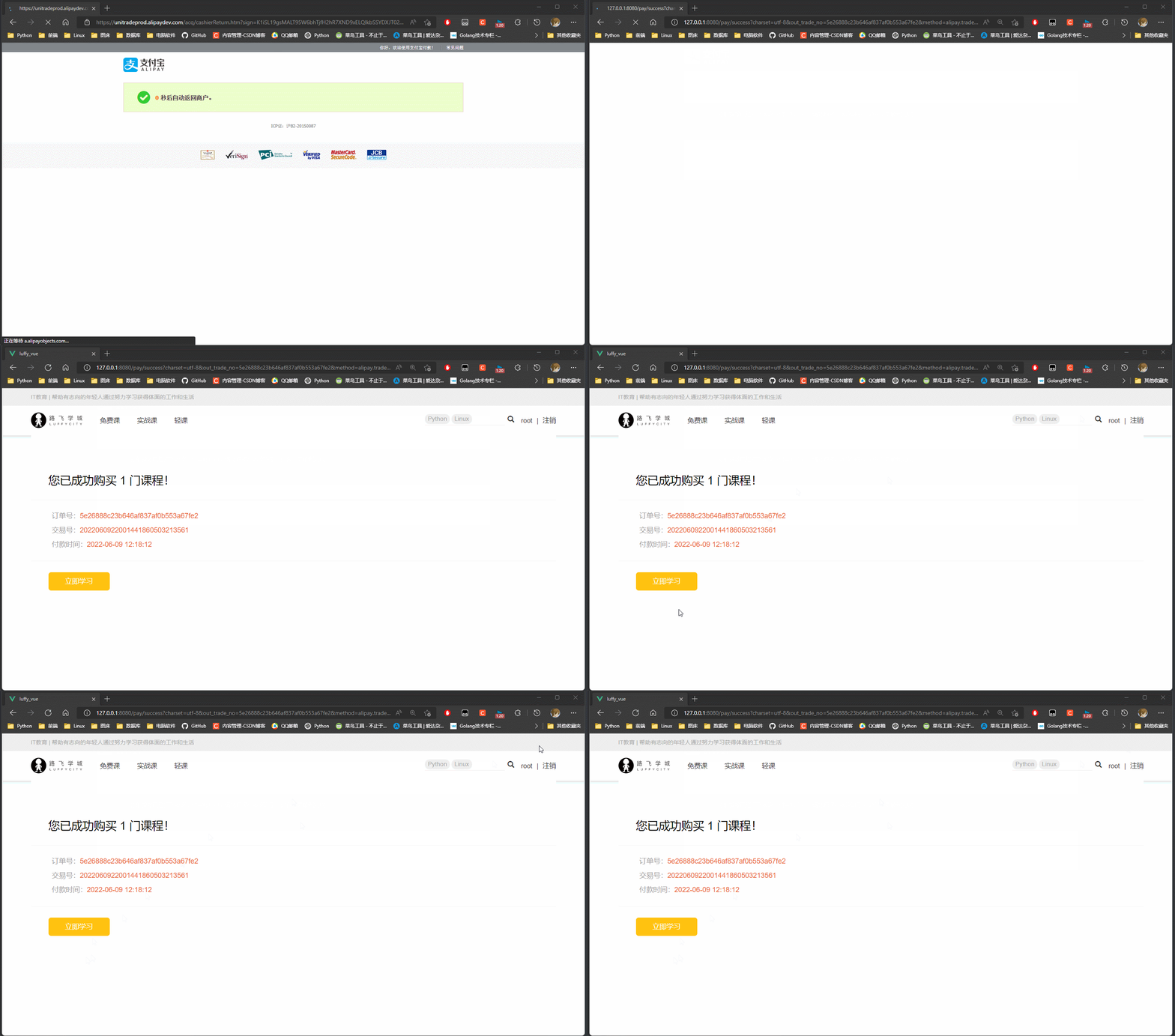
token url + Parameters
http://127.0.0.1:8080/pay/success?
// Coding format
charset=utf8
// The order number
&out_trade_no=ffb82dd39bf043808c311b4ae983d9ec&method=alipay.trade.page.pay.return
// Price
&total_amount=39.00
// Signature
&sign=KFPDpjwAGuUa73qsBctb0m9Nj0514PoQnxcMyH%2Fzw1rPmzY%2F1%2BTwH2v4BB1hSyc5%2BRV6TIc%2Bvz1SrchxtND20HU%2BOjLuT%2BxSlGK034OFUDpxtiy4ofkYWWqcvxz84sQ8BUifdGKWDFoH1cgagbJVGl3DO1Lce5HbsvNZY2GeYQTC%2BTIWCUMKCcWYP375%2FQFCFoMUWj6LNcIQk3rrKMNJm9B%2F%2BwryrcRMJT1cNZnuLhKiYTzcIFRWnDyVu4aVfKa3xJtIEbTKAqIVHK9LuV%2BkrkBqD1GAwOy1gwIlrkB4VJ%2BvwPuyRpmVzGK7zVq6JIVzZNVawjFBhduwuoG0eUH7oA%3D%3D
// Alipay serial number
&trade_no=2022060922001441860503213387
// Authorized merchant App id
&auth_app_id=2021000120612450
// edition
&version=1.0
// application id
&app_id=2021000120612450
// Signature type
&sign_type=RSA2
// seller id
&seller_id=2088621959339670
// Time stamp
×tamp=2022-06-09+11%3A50%3A44#/
location.search  obtain  url Parameters of rear splicing
 Remove first ?  Press & Partition to get tuples ,  Elements of tuples 'k=v',
 In traversing elements ,  Press = Shard to get a tuple  ['k', 'v']
 Yes k, v To decode and save the characters in an object

4.7 Order status interface
1.  Query order status interface  get request
2.  Modify the order status interface  post request
* 1. route order.py Of urls.py
#  Order status interface
re_path('success', views.SuccessView.as_view())
#  Payment status
class SuccessView(APIView):
    @staticmethod
    def get(request):
        #  Get the order number from the parameter and query the order status in the database
        out_trade_no = request.query_params.get('out_trade_no')
        order_obj = models.Order.objects.filter(out_trade_no=out_trade_no).first()
        #  The order status
        order_status = order_obj.order_status
        #  Judge the order status
        if order_status != 1:  # 1  Payment success status
            return Response(False)
        return Response(True)

    #  Alipay asynchronous callback ( Can only be accessed after online ,  Alipay can't access the local address of my computer )
    @staticmethod
    def post(request):
        #  Import payment class
        from lib.iPay import alipay
        from utils.logger import log

        #  Get the order number
        out_trade_no = request.data.get('out_trade_no')
        #  Get payment time
        pay_time = request.data.get('gmt_payment')

        #  Verify the signature   Returned by Alipay urlencode The format is changed to queryset_dict
        data = request.data.dict()  #  Set as normal field
        sign = data.pop('sign')
        success = alipay.verify(data, sign)
        #  Verify success ,  also  data in trade_status The value of must be TRADE_SUCCESS or TRADE_FINISHED
        if success and data['trade_status'] in ('TRADE_SUCCESS', 'TRADE_FINISHED'):
            #  Update order status and payment time
            models.Order.objects.filter(out_trade_no=out_trade_no).update(order_status=1, pay_time=pay_time)

            #  Log
            log.info(f'{
      out_trade_no} Successful payment ')

            return Response('success')  #  If the verification is successful, you must return success

        log.info(f'{
      out_trade_no} Failure to pay ')
        return Response('error')  #  Validation failed
5. Upload to remote warehouse
stay Terminai Input in git command
5.1 front end
#  Add to the staging area
PS D:\vue\luffy_vue> git add .
#  Commit to the repository
PS D:\vue\luffy_vue> git commit -m ' Complete the payment page '
#  The drop-down
PS F:\synchro\Project\luffy> git pull origin dev
#  Upload to remote warehouse
PS F:\synchro\Project\luffy> git push origin dev
5.2 Back end
#  Add to the staging area
PS F:\synchro\Project\luffy> git add .
#  Commit to the repository
PS F:\synchro\Project\luffy> git commit -m ' Complete the payment function '
#  The drop-down
PS F:\synchro\Project\luffy> git pull origin dev
#  Upload to remote warehouse
PS F:\synchro\Project\luffy> git push origin dev
边栏推荐
- PHP+MYSQL图书管理系统(课设)
- 16 | 浮点数和定点数(下):深入理解浮点数到底有什么用?
- A simple example of linear regression in machine learning
- Basic operation of graph (C language)
- 利用SecureCRTPortable脚本功能完成网络设备的数据读取
- SVN本地部署server和cleint 并用阿里云盘自动备份
- 判断链表是否为回文结构
- Is the securities account recommended by qiniu safe? Is it reliable
- astra pro双目相机ros下启动笔记
- [Yu Yue education] General English of Shenyang Institute of Engineering (4) reference materials
猜你喜欢

电脑强制关机 oracle登录不上

Tkinter study notes (II)

astra pro双目相机ros下启动笔记

Glory earbud 3 Pro with three global first strong breakdowns flagship earphone Market

Php+mysql library management system (course design)

Explain asynchronous tasks in detail: the task of function calculation triggers de duplication

leetcode 257. Binary Tree Paths 二叉树的所有路径(简单)

Precision twist jitter

SVN本地部署server和cleint 并用阿里云盘自动备份

inner join执行计划变了
随机推荐
批改网高分短语&句型
[uniapp native plug-in] shangmi cashbox plug-in
机器学习之线性回归简单实例
Exercise 8-2 finding a specified element in an array (15 points)
判断链表是否为回文结构
习题6-2 使用函数求特殊a串数列和 (20 分)
链表基本操作与题型总结
Start notes under the Astro Pro binocular camera ROS
Exercise 9-1 time conversion (15 points)
Tkinter学习笔记(二)
Fastapi 5 - common requests and use of postman and curl (parameters, x-www-form-urlencoded, raw)
【JS】1347- localStorage 的高阶用法
Learn to crawl for a month and earn 6000 a month? Don't be fooled. The teacher told you the truth about the reptile
[Chongqing Guangdong education] college physics of Xiangtan University: mechanical and thermal reference materials
Regular execution of shell scripts in crontab
leetcode 中的位运算
完好性简要介绍
消息队列入门MQ
Exercise 8-8 moving letters (10 points)
R7-1 sum of numeric elements of a list or tuple