当前位置:网站首页>Introduction and configuration method of wireless 802.1x authentication
Introduction and configuration method of wireless 802.1x authentication
2022-06-22 10:39:00 【yaodo】
wireless 802.1x Certification introduction and configuration method
brief introduction :
XX University wireless network ECUST.1x( With ECUST.1x For example ,ECUST-dorm.1x identical ) use 802.1x Access mode , This is a safe and convenient access method . After the first configuration , As long as ECUST.1x Within the scope of , The system will automatically connect and authenticate , Very convenient , Only when you change unified identity authentication (UIS) After the account password , Just need to arrive Wi-Fi Change the login password in the settings . adopt 802.1x Access to wireless network , All data is securely encrypted , It ensures that the privacy of users will not be stolen
ECUST.1x Use PEAP-MSCHAPv2 encryption , Support most mainstream computer and mobile operating systems , Include :Windows XP SP3/Vista/7/8,Windows Phone,Mac iOS,Android 2.1+,Symbian,Mac OSX 10.5+,Linux etc. .
Important note :
1、ECUST.1x Signal coverage ECUST Signal coverage area (),ECUST-dorm.1x Cover ECUST-dorm-web Signal coverage area ().
2、6M Enter student ID in the account ( Job number ) Successfully connected with password ECUST.1x after , The account will be automatically reconnected , It will remain online in areas covered by signals ; To make the terminal ( mobile phone /pad etc. ) It can be automatically reconnected every time ECUST.1x The signal , Please put ECUST Equal signal “ Ignore ” or “ Do not save the network ”.
3、6M and 15M All accounts can be connected ECUST.1x The signal ; The account can also be connected ECUST The signal .
4、 Staff Dormitories ECUST-dorm.1x Signal only 15M Account usage .
5、 Teachers and students can log in to the self-service platform of Huali authentication and billing management (http://account.ecust.edu.cn) Check account status 、 Manage online clients .
Special reminder :
Windows 8/10 Manual configuration is recommended , Skip Certificate Validation .
stay Windows 8/10、iPhone/iPad、MacOSX In the system, click... By default ECUST.1x Automatic configuration after , The certificate confirmation window may pop up many times during initial use , The reason is that there are multiple certificate servers in the background , Corresponding to different certificates RADIUS1、RADIUS2、RADIUS3、RADIUS4, Once accepted, they will not appear again .
1、Android Mobile phones and tablets
1) open “ Set up ”->“Wi-Fi”, start-up “WiFi”, Wait to find ECUST.1x The signal ;
2)Android 2.6 Version above can be directly found by clicking ECUST.1x To configure , and 2.6 Manual operation is required for versions below “ add to Wi-Fi The Internet ”, When adding manually ,“ The Internet SSID” Fill in ECUST.1x, Safety setting selection “802.1x EAP” or “802.1x Enterprises ”;
3)“EAP Method ” choice “PEAP”,“ Stage 2 authentication ” choice “ nothing ” or “MSCHAPV2”,“CA certificate ” or “ User certificate ” choice “ Don't verify ”,“ identity ” and “ password ” Enter the wireless network user account information in two columns ,“ Anonymous identity ” No need to fill in ;
4) After filling in the information , Click on “ Storage ” or “ Connect ”, Will be automatically connected ECUST.1x authentication , If the certificate confirmation window pops up , choice “ yes ”;
5) Wait for the display “ Connected ”, Start using the wireless network .
2、iPhone/iPad(Mac iOS )
1) open “ Set up ”->“Wi-Fi”, start-up Wi-Fi, Wait to find ECUST.1x The signal ;
3、Mac OSX 10.5+ ( With 10.8 For example ) 1) open “AirPort”, Wait to find ECUST.1x The signal ;
2) Click on ECUST.1x, Enter the wireless network account information in the pop-up window ,802.1x Choose Auto , And check the “ Remember the network ”, Click on “ Join in ” The settings will be saved and automatically connected ;
3) You may be prompted to verify the certificate in a pop-up window during the connection process , Here's the picture , At this time, you can choose “ Always trust ”, then “ continue ”;
4、Windows Vista/7
Windows Vista/7 You need to add the connection manually
1) open “ Control panel ”->“ View network status and tasks ”->“ Manage wireless networks ”, Click on “ add to ”, choice “ Manually create a network profile (M)”;
2) Enter the network name “ECUST.1x, The security type is “WPA2- Enterprises ”, Others are default , Click on “ next step ”;
3) Wait for the display “ Successfully added ECUST.1x”, Click on “ Change connection settings (H)”; choice “ Security ”, Select the network authentication method as “Microsoft: The protected EAP(PEAP)”;
4) Click on “ Set up ” Get into “ The protected EAP attribute ” Set up , Don't check “ Verify the server certificate ”; Click on “ To configure ” Get into “EAP MSCHAPv2 attribute ” Set up , Don't check “ Automatic use Windows Login and password ”;
5) Click Security -> Advanced settings ->802.1x Set up ->( tick ) Specify the authentication mode : User authentication -> determine .
6) Click three times “ determine ”, The system will automatically connect ECUST.1x, The login box will pop up when you connect for the first time , Enter your wireless network account information , Click on “ determine ”;
7) Wait for the display ECUST.1x Connected , Start using the wireless network .
5、Windows XP SP3 1) Click the wireless network icon in the lower right corner , choice “ Check out the wireless network ”, Wait to find ECUST.1x The signal , Select and click “ Connect ”; And then click “ Change advanced settings ”;
2) Click on “ Wireless network configuration ”, choice “ECUST.1x” Click on “ attribute ”, stay “ relation ” page , Check “ Even if this network does not broadcast , Also connect ”;
3) stay “ verification ” page , choice “ The protected EAP(PEAP)”, Click on “ attribute ”, Check “ Verify the server certificate ”; Click on “ To configure ” Get into “EAP MSCHAPv2 attribute ” Set up , Don't check “ Automatic use Windows Login and password ”;
4) Click three times “ determine ” after , The system will automatically connect ECUST.1x, The login box will pop up when you connect for the first time , Enter your wireless network account information , Click on “ determine ”;
5) Wait for the display ECUST.1x Connected , Start using the wireless network .
6、Windows 8( Automatic configuration )
1) Click the network icon in the lower right corner to open the network selection list , Wait to find ECUST.1x The signal , Select and click “ Connect ”; Enter the wireless network account information , Click on “ determine ”;
2) If it pops up “Windows Unable to verify the identity of this server ”, Click on “ Connect ”;
3) Wait for the display ECUST.1x Connected , Start using the wireless network .
7、Windows 10( Automatic configuration )
1) Click the network icon in the lower right corner to open the network selection list , Wait to find ECUST.1x The signal , Select and click “ Connect ”, Enter the wireless network account information in the pop-up window , Click on “ determine ”;
2) If the certificate verification window pops up , Click on “ Connect ”;
3) Wait for the display ECUST.1x Connected , Start using the wireless network .
8、Windows 8/10( Manual configuration ) 1) Right click the bottom right corner of the desktop “Internet visit ” Icon or , Click on “ Open the network and Sharing Center ”; Click on “ Set up a new connection or network ”, Re selection “ Manually connect to the wireless network ”, Click on “ next step ”;
2) Enter the network name “ECUST.1x”, The security type is “WPA2- Enterprises ”, Others are default , Click on “ next step ”;
3) Wait for the display “ Successfully added ECUST.1x”, Click on “ Change connection settings (H)”;
4) choice “ Security ”, Select the network authentication method as “Microsoft: The protected EAP(PEAP)”;
5) Click on “ Set up ” Get into “ The protected EAP attribute ” Set up , Don't check “ Verify the identity of the server by verifying the certificate ”, Others are default , Then click twice “ determine ”, Click on “ close ”.
6) Select... From the wireless network list “ECUST.1x”, Click on “ Connect ”, The login box will pop up when you connect for the first time , Enter your wireless network account information , Click on “ determine ”;
7) Wait for the display ECUST.1x Connected , Start using the wireless network .
9、Windows Phone
1) Get into “ Set up ”->“ System ”->“Wi-Fi”, Wait to find ECUST.1x The signal ;
2) Click on ECUST.1x, Enter the wireless network user account information in the pop-up login box , Click on “ Connect ”;
3) Wait for the display “ Connected ”, Start using the wireless network .
10、Linux
1) Turn on the wireless network , Wait to find ECUST.1x The signal ;
2) Click on ECUST.1x, The configuration window will pop up , Safety type selection “WPA2 Enterprises ”, Authentication mode selection “PEAP”,PEAP Version is “ Automatically ”, Internal two-stage certification selection “MSCHAPv2”, Enter the wireless network account information at the user name and password , Click on “ Connect ” Save the settings and connect automatically .
边栏推荐
- 中坚力量!优炫软件入选2022年中国数字安全百强
- 今天,SysAK 是如何实现业务抖动监控及诊断?&手把手带你体验Anolis OS|第25-26期
- On the routing tree of gin
- 代碼簽名證書一旦泄露 危害有多大
- Solend abolishes the proposal to "take over the giant whale" and liquidates the "bomb"
- It was exposed that more than 170million pieces of private data had been leaked, and Xuetong responded that no clear evidence had been found
- Pule frog 5D flying cinema 5D dynamic cinema experience hall equipment 7d multi person interactive cinema
- 力扣 1108. IP 地址无效化
- 牛客网——华为题库(31~40)
- PowerDesigner tip 2 trigger template
猜你喜欢

追更这个做嵌入式的大佬

Pule frog 5D flying cinema 5D dynamic cinema experience hall equipment 7d multi person interactive cinema

Byte 3: do you know what Eureka is?

Don't be silly enough to distinguish hash, chunkhash and contenthash
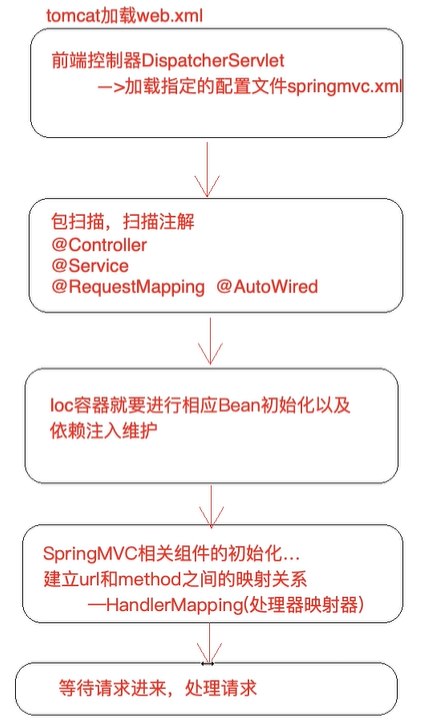
Start from the principle of MVC and knock on an MVC framework to bring you the pleasure of being a great God

It was exposed that more than 170million pieces of private data had been leaked, and Xuetong responded that no clear evidence had been found

Web Configuration of Visual Studio Code
![[this tool, combined with JMeter, will increase your work efficiency by at least 80%, which is highly recommended]](/img/44/600d886a5dedd7a27ed923f6ffef53.png)
[this tool, combined with JMeter, will increase your work efficiency by at least 80%, which is highly recommended]

Summary of neural network training trick
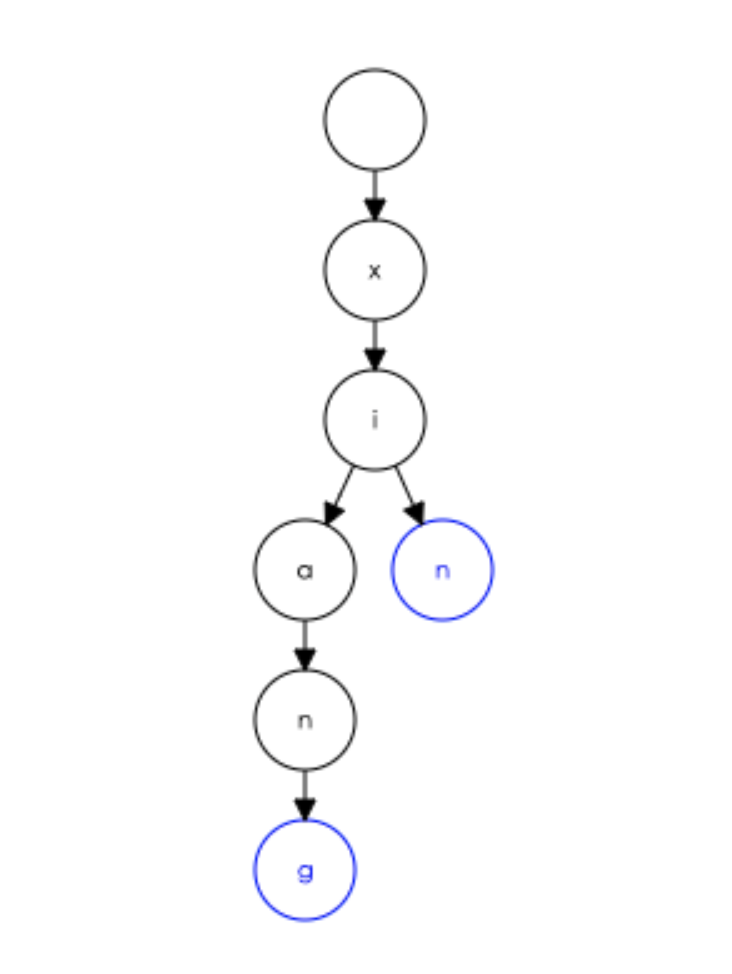
关于 GIN 的路由树
随机推荐
【jenkins】shell脚本调jenkins api接口
It is said that the price of the iPhone 14 will rise; TikTok US user data is transferred to Oracle, and bytes cannot be accessed; Seatunnel 2.1.2 releases geek headlines
学会用VisualStudio开发人员工具查看对象模型
jg_使用easyexcel读取excel_20220619
thinkphp3.2.3日志包含分析
Analysis of thinkphp5.0.24 deserialization vulnerability
scrapy.Request() 的 meta参数 数据的传递
字节三面:到底知不知道什么是Eureka?
Laravel 中类似 WordPress 的钩子和过滤器
超简单的C语言贪吃蛇 不闪屏 双缓冲
Gartner表示:云数据库发展强劲,但本地数据库仍然充满活力
Using computed columns in laravel
Pule frog VR typhoon escape experience VR disaster self rescue simulation system VR popular science knowledge equipment
信号完整性(SI)电源完整性(PI)学习笔记(二十四)差分对与差分阻抗(四)
Niuke.com Huawei question bank (31~40)
thinkphp5.0.24反序列化漏洞分析
Pycharm调试卡住,出现connected
牛客网——华为题库(31~40)
Kirin software and Geer software focus on the development of network data security
Path Join() and path The difference between resolve()