当前位置:网站首页>Server deployment and instructions
Server deployment and instructions
2022-06-23 16:14:00 【Growth of code Xiaobai】
Supercomputing portal of Wuhan University : http://hpc.whu.edu.cn
Relevant software required
link :https://pan.baidu.com/s/1HklkpOJaWkbnPtH16q2VwA
Extraction code :jrzn
1. Deploy VPN Environmental Science
- In order to use supercomputing resources off campus , The Supercomputing Center established VPN, Please visit http://hpc.whu.edu.cn/tools download openVPN Client and install ( Because there are related software in the network disk link I gave , You don't have to visit the link ),windows Version is openvpn-install-2.3.10-I602-x86_64.rar

- After installation , Please attach wangping.tar.gz Copy all the extracted files to the installed openVPN Client's config Directory
- function openVPN GUI

- In the lower right corner of the screen openVPN GUI Icon . Click... In the icon connect, Waiting for the connection . Successful connection ( adopt ping 172.29.0.1 Test success ), How to use ping Test reference link https://jingyan.baidu.com/article/4ae03de3fe35ed3eff9e6b91.html
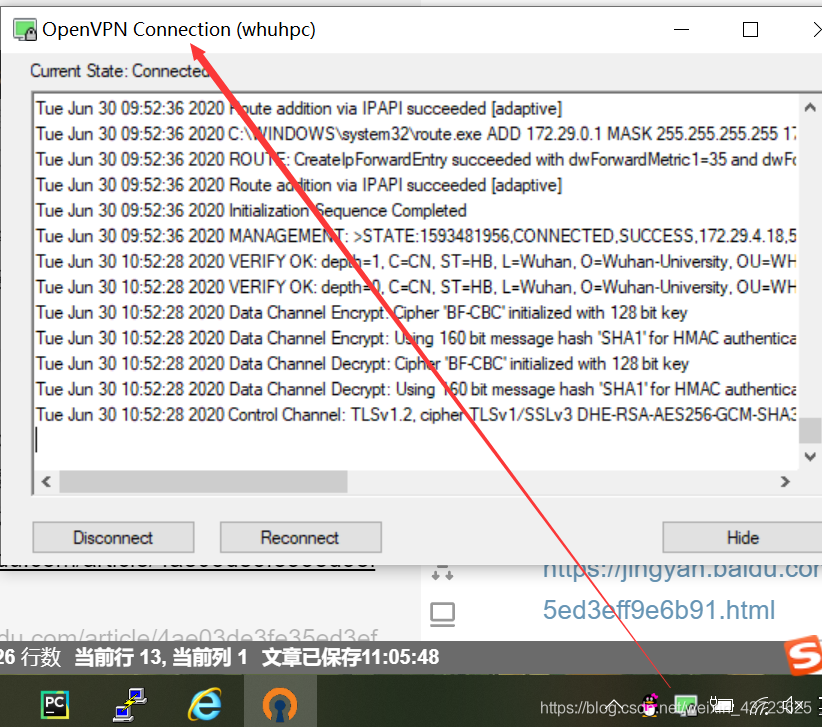
2. Log in to the node server
- The login address :202.114.96.180 ( This is the campus network used outside the network VPN)
- use SSH and SFTP To log in to the node and the remote transmission software , Recommended software putty and filezilla.putty Software use reference links https://jingyan.baidu.com/article/90bc8fc8b9bca1f653640ca5.html

Indicate the : The user name and password should be applied for by yourself , I can't disclose this
3. Submit the assignment
Reference resources :http://hpc.whu.edu.cn/info/1025/1133.htm
File transfer :
The file system of Wuhan University high performance computing platform is divided into /home 、/project and /workfs Three zones :
- /home Partition : The user's home directory under this partition is the user's default home directory , It is only used to store the user's environment variables and other information . Use... In scripts “/home/ System account number ” Reference the user's home directory under this partition . The disk capacity of this partition is small , Its disk quota is per user 1GB, Long term preservation . All login service nodes and computing nodes can access the files under this partition .
- /project Partition (2019 year 12 month 31 Users opened on or before ) /project Partition is the data storage area , It is mainly used for project files and running jobs . Use... In scripts “/project/ System account number ” Reference the user's home directory under this partition . At the same time, users can also use “/home/ System account number /project” Access the partition . This partition has a large disk capacity , Fast data reading and writing . Its disk quota is per user 1TB, Long term preservation . All login service nodes and computing nodes can access the files under this partition .
- /dat01 Partition (2020 year 1 month 1 Users who open in the future ): /dat01 Partition is the data storage area , It is mainly used for project files and running jobs . Use... In scripts “/dat01/ System account number ” Reference the user's home directory under this partition . At the same time, users can also use “/home/ System account number /dat01” Access the partition . This partition has a large disk capacity , Fast data reading and writing . Its disk quota is per user 1TB, Long term preservation . All login service nodes and computing nodes can access the files under this partition .
- /workfs Partition : /workfs Partition is the data storage area , Mainly used for data files . Use... In scripts “/workfs/ System account number ” Reference the user's home directory under this partition . At the same time, users can also use "/home/ System account number /workfs" Access the partition . This partition has a large disk capacity , Fast data reading and writing . Its disk quota is per user 3TB, exceed 3 Months of data will be automatically cleaned up . All login service nodes and computing nodes can access the files under this partition .
The data transfer : Upload or download files from external machines to the computing platform , have access to sftp client .
FileZilla How to upload your own project , Reference link http://www.360doc.com/content/14/0404/11/10454742_366320479.shtml
But before uploading, you need to know where your project is uploaded , This requires disk quota query .
Disk quota query :
stay putty Enter the disk quota query command in , This command will determine that the user is home, workfs perhaps dat01 Next , Output corresponding quota :
/bin/myDiskQuota

Results show , Current /home The partition quota has exceeded , If the project is uploaded to this partition , Transmission failure may occur . therefore , Consider another 2 Zones . adopt cd … Backtracking found dat01 Partition , After entering, I found that there were many users , And successfully found my user name . And the other partition workfs, I also checked , But there is no my user name , Other people's users , You can't get in without a password .

Because every time I log in /home/ user name , Reverse search is also inconvenient . so , I need to create dat01 To the current path .
Create connection file :
Link file creation command : ln -s Source file Lu Jin Objective document Lu Jin
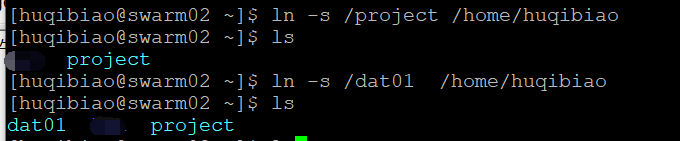
Get into dat01 My users in the partition huqibiao, And upload the project to project Under the table of contents 
Using software FileZilla Put my test project SSNGAN Import to project Under the table of contents 
The next step is how to execute the project , Refer to the link
https://www.cnblogs.com/huchong/p/9159887.html
perform python The project :
To execute the project , Then we should consider whether there is an operating environment . Reference link
https://blog.csdn.net/sowhatgavin/article/details/81878245
Not imported anaconda Module before ,python The default is 2.7 Of 
Command module avail View the current user's environment , See the familiar anaconda and cuda modular , Import them into 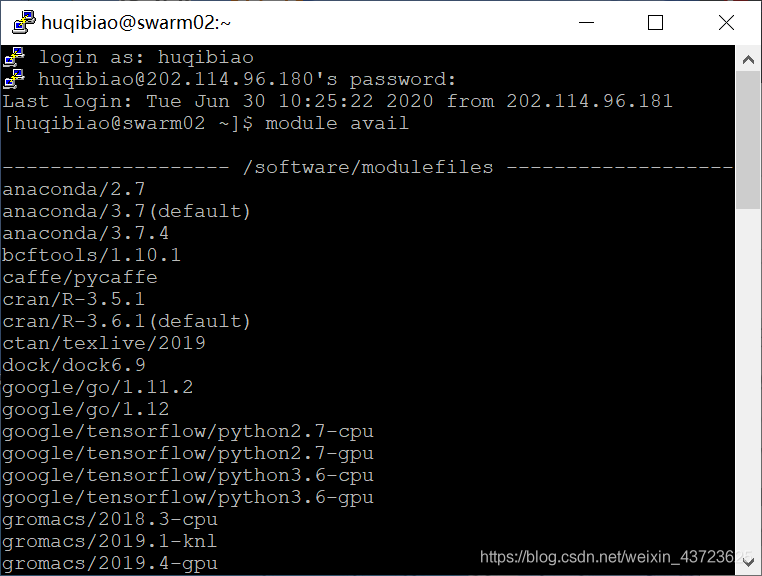

anaconda It comes with you python3.7 Compiler , If you want to train the model , function Tran_GAN.py Just file it
python Tran_GAN.py
Display after running ImportError: No module named torchvision error 
This is because our program calls torchvision package , However, we have not installed this dependency package , The program can run normally only after installation , Direct input " pip install Package name –user " that will do
When installing the library , I came out [Errno 122] Disk quota exceeded error , Because the disk quota is insufficient , That is, the disk is full or exceeds the maximum quota that users can use . A lot of ways have been tried , No solution . I hope I can succeed in my later work , Let me know .
Users view the status of their nodes :sinfo
among ,PARTITION Represents a partition ,NODES Represents the number of nodes ,NODELIST For the node list ,STATE Indicates the node running status . among ,idle Indicates that the node is idle ,alloc Indicates that the node has been assigned one or more jobs .
** Batch job submission command **: sbatch
             -n, –ntasks=number
     Specify the number of tasks to run . Request for  number  Task allocation resources , The default is one processor core per task .
             -c, –cpus-per-task=ncpus
     Inform the resource management system to control the process , Each task of the job requires  ncpus  A processor core . If this option is not specified , The control process assigns a processor core to each task by default .
            -N, –nodes=minnodes[-maxnodes]
     Request that at least... Be assigned to the job  minnodes  Nodes . The scheduler may feel more than  minnodes  Jobs run on nodes . Can pass  maxnodes  Limit the maximum number of nodes allocated ( for example “-N 2-4” or “–nodes=2-4”). The minimum and maximum number of nodes can be the same to specify a specific number of nodes ( for example , “-N 2” or “–nodes=2-2”  Two and only two nodes will be requested ). The limit on the number of nodes in the partition will override the job request . If the node limit of the job exceeds the number of nodes configured in the partition , The job will be rejected .  If not specified -N, The default behavior is to allocate enough nodes to satisfy -n  and -c  Parameter requirements . Within the allowable limits and without delaying the start of the job , Jobs will be assigned as many nodes as possible .
            -p, –partition=partition name
     Allocate resources in the specified partition . Please use  -p [hpxg|hpib|debug]  Specify the partition to use .
            -w, –nodelist=node name list
     Request the specified node name list . The job allocation resource will contain at least these nodes . The list can be comma separated node names or node ranges ( Such as  n[0001-0005,0007,…]) Appoint , Or specify with a file name . If the parameter contains  “/”  character , Will be treated as the file name . If the maximum number of nodes is specified, such as -N 1-2, But there is redundancy in the file  2  Nodes , Then only the first... Is used in the request list  2  Nodes .
            -x, –exclude=node name list
     Do not assign the specified node to the job . If you include  “/”  character , Parameters will be treated as file names .srun  The job request will be submitted to the control process , Then start all the processes on the remote node . If the resource request cannot be satisfied immediately ,srun  Will block waiting , Until resources are available to run jobs . If it means   Set the –immediate  Options , be  srun  Will terminate when the resource is not immediately available .
            -h, –help
     If you need to use  srun  More options , It can be done by  “srun –h”  or  “srun –help”  see .
Check the operation of the job :squeue
among ,JOBID It means task ID,Name Indicates the task name ,USER For the user ,TIME Is the elapsed time ,NODES Indicates the number of occupied nodes ,NODELIST List of nodes to run for the task .
边栏推荐
- 线上交流丨可信机器学习之机器学习与知识推理相结合(青源Talk第20期 李博)
- golang写文件代码示例
- matlab: 如何从一些数据里知道是由哪些数据相加得出一个已知数
- 再突破!阿里云进入Gartner云AI开发者服务挑战者象限
- Quartz
- stylegan1: a style-based henerator architecture for gemerative adversarial networks
- R语言使用yardstick包的rmse函数评估回归模型的性能、评估回归模型在每个交叉验证(或者重采样)的每一折fold上的RMSE、以及整体的均值RMSE(其他指标mae、mape等计算方式类似)
- Memory consistency and cache consistency
- 医学影像分割的网站
- Tableau comparatif du nom de la clé ADB, du numéro du Code de la clé et de la description de la clé
猜你喜欢

Sleuth + Zipkin

A tour of gRPC:01 - 基础理论
A tour of grpc:01 - Basic Theory

安全舒适,全新一代奇骏用心诠释老父亲的爱

SaaS 云工具,产业互联网下的变革利器

npm install 问题解决(nvm安装与使用)

How did Tencent's technology bulls complete the overall cloud launch?

英特尔Arc A380显卡消息汇总:跑分亮眼驱动拉胯 入门性价产品亟待优化

js 递归json树 根据 子id 查 父id
![[tcapulusdb knowledge base] Introduction to tmonitor background one click installation (I)](/img/d7/3a514fb75b3df487914a8db245ab89.png)
[tcapulusdb knowledge base] Introduction to tmonitor background one click installation (I)
随机推荐
AsyncContext简介
线程池
Object
如何让销售管理更高效?
基金开户是有什么风险?开户安全吗
《ThreadLocal》
513. Find Bottom Left Tree Value
npm install 问题解决(nvm安装与使用)
openGauss数据库源码解析系列文章—— 密态等值查询技术详解(上)
多年亿级流量下的高并发经验总结,都毫无保留地写在了这本书中
安全舒适,全新一代奇骏用心诠释老父亲的爱
【TcaplusDB知识库】TcaplusDB新增机型介绍
Batch registration component
JSON in MySQL_ Extract function description
XML
Innovation strength is recognized again! Tencent security MSS was the pioneer of cloud native security guard in 2022
R语言使用tidyquant包的tq_transmute函数计算持有某只股票的天、月、周收益率、ggplot2使用条形图(bar plot)可视化股票月收益率数据、使用百分比显示Y轴坐标数据
创新实力再获认可!腾讯安全MSS获2022年度云原生安全守护先锋
Asynclistener interface of servlet 3.0
[tcapulusdb knowledge base] Introduction to tmonitor background one click installation (I)