当前位置:网站首页>Realization of online shopping mall system based on JSP
Realization of online shopping mall system based on JSP
2022-07-26 03:40:00 【Programming thousand paper cranes】
Author URI : Programming compass
Author's brief introduction :Java Quality creators in the field 、CSDN Blogger 、 Nuggets guest author 、 Years of architect design experience 、 Tencent classroom resident lecturer
primary coverage :Java project 、 Graduation project 、 The resume template 、 Learning materials 、 Interview question bank 、 Technical assistance
Get the source code at the end of the article
Item number :BS-SC-009
Yimai.com
Easy buy online sales system sells daily necessities to the public .
The system mainly realizes two basic functions: the function of purchasing goods by members and the background management of administrators .
Membership operations include : User registration 、 Sign in 、 Shopping cart management 、 Personal data management 、 Personal order query management 、 Leaving a message. .
Administrator background management includes : Modify personal data 、 User information management 、 Commodity information management 、 Order management 、 Guestbook management 、 News management .
Users and roles related to this system include :
System administrator : Manage system users
The user account : Ordinary users
Other accounts : tourists
The homepage includes login , Navigation , news information , List of best selling items 、 Recently browse products, etc .
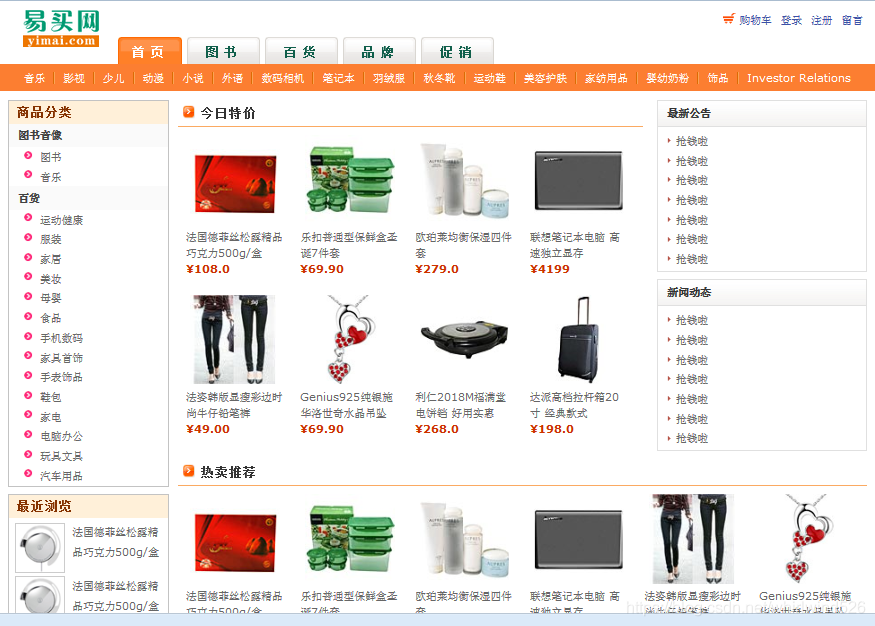
( chart 1 Home page layout )
- Commodity classification list page and details page
1. Display all the goods under its classification by a single classification .
The list page shows pictures of the goods 、 Product title and price .“ Browse recently ” You can display the products you have browsed in the past ( Record the five items that the user has browsed recently ).

( chart 2 Product list page )
2. When a user clicks a product icon or a product name hyperlink , Enter the product details page . There are pictures on the details page , And product title 、 Mall price 、 Inventory and product details .

( chart 3 Product details page )
At this time, you can add goods to the shopping cart , You can also buy directly . If an unlisted person clicks “ Buy ” Prompt to log in .
( chart 4 Product operation activity diagram )
- news information , Latest announcement
1. Hot news and latest announcements are in an area of the bulletin board on the right side of the home page , In this area, the front 10 News ( Show news headlines ).
( chart 5 News dynamic list page )
2. Users can click the news title to view the news / Announcement details .
( chart 6 News details page )
- User center
- Registered users
Easy buy provides all users with the function of browsing products , If users want to buy goods , To post messages, you must first register as a member of e-buy .
( chart 7 Register activity diagram )
User name can only be numbers and letters , Do not use other characters , E-mail 、 Both ID card and mobile phone number should be verified for validity , The date of birth uses the calendar control . Except for the date of birth 、 Besides ID card and email , Other information cannot be empty . If the member is registered successfully, you will jump to the login page .
( chart 8 Member registration page )
- Sign in
Members can enter the corresponding account name and password on the login page , And verification code before login .
( chart 9 Log in to the activity map )
( chart 10 Member login page )
Users can see “ Leaving a message. ”、“ Background management ”、“ Cancellation ” Hyperlinks for , Please refer to the drawing for the effect drawing 11.
When tourists or members browse products , While preparing to buy this product, there may be other products to buy , And intend to pay together , At this time, you can add the goods to the shopping cart . Membership login is not required to join the shopping cart .
The default quantity added to the shopping cart is 1, If you repeatedly add the same item to the shopping cart , Then the item in the shopping cart will be automatically added 1. Items in the shopping cart can be clicked “ Delete ” Button to delete from the shopping cart . meanwhile , The quantity in the shopping cart can also be increased 、 Press the minus button to adjust , If the quantity is greater than the inventory, it indicates that the inventory quantity is insufficient . The price and total of goods will also change with the change of the quantity of goods . Tourists click in the shopping cart “ Settlement ”, Then go to the login page , After successful login , Jump back to the shopping cart page , You can continue to settle . Members click in the shopping cart “ Settlement ”, You don't need to log in again .
( chart 11 The shopping cart page )
If the user clicks on the product details page “ Buy ” Button or click in the shopping cart “ Settlement ”, Will enter the receiving address page . You can choose the receiving address , You can also click “ Add a new address ” Add a new shipping address . After successful addition , The newly added address will be displayed in the form of radio boxes for users to choose . Click on “ Settlement ” Button , Then the purchase is successful , At this time, the shopping cart is empty , Is shown as “ The shopping cart 0 Pieces of ”.
( chart 12 Shipping address page )
Guestbook
After the user logs in, click “ Leaving a message. ” Hyperlinks , Then jump to the message board page . You can not only check the message , It can also be used for goods 、 Service, etc . The message information is arranged in descending order according to the message time and displayed on pages , The content includes the message content 、 Message name and message time .
( chart 13 Guestbook page )
- Background functions
- User information management
- Administrator user
1. After the administrator logs in , Click on “ Background management ” Hyperlinks can enter the background management page . The background management page includes operation navigation , Administrators can 、 goods 、 Order 、 Leaving a message. 、 News management . among , You can add new products 、 Commodity classification and news .
Click on “ User management ” Hyperlinks , You can view all user information . Display the user name in pagination 、 Real name 、 Gender 、Email And mobile phone . Administrators can delete non login users ( In addition to itself ), And you can modify your own user information .
( chart 14 Administrator background user management page )
2. Administrators can click “ modify ” Hyperlink to the modify user page . You can modify your own information . Administrator click “ Delete ” Hyperlinks , Delete the registered and currently non logged in user , After user deletion , Keep the information purchased by users . You need to give a friendly prompt when deleting . After the update or deletion is successful, return to the user management page , Display the updated user information .
( chart 15 The administrator modifies his own information page )
- Ordinary users
1. After the user logs in , Click on “ Background management ” Hyperlinks can enter the background management page . Click on “ User management ” Hyperlinks , You can view your own user information .
( chart 16 General user background user management page )
2. Click on “ modify ” Hyperlink to the modify user page , Modify your own information . After the update is successful, return to the user management page , Display the updated user information .
Commodity information management includes commodity category management and commodity management .
- Category management
1. After the administrator logs in to the background , Click on “ Classification management ” Hyperlinks , Enter the classification management page . The content includes number and classification name . Classification name distinguishes primary classification and secondary classification . for example , Books are first-class classification , And children's books 、 Youth books belong to the secondary classification , And belongs to book classification .
( chart 17 Commodity classification management page )
2. Administrators can manage by category , Click on “ modify ” Hyperlinks , Enter the modify classification page . If you click the first level classification “ modify ” Hyperlinks , Then only the classification name can be modified .
( chart 18 Modify the primary commodity classification page )
3. If you click on the secondary classification “ modify ” Hyperlinks , You can modify the first level classification or change it to the first level classification . The parent category drop-down list box displays “ Root column ” And all primary classifications .
( chart 19 Modify the secondary commodity classification page )
3. Click on “ Delete ” Hyperlinks , You can delete the category and all goods under the category . There should be friendly prompt when deleting .
4. Click on “ newly added ” Hyperlinks , Enter the new category page , You can add primary and secondary classifications . If you want to add a new level classification, select “ Root column ”. If you add a secondary classification , Then select the name belonging to the first level classification , Such as daily necessities .
( chart 20 New product classification page )
- Commodity management
1. Click on “ Commodity management ” Hyperlinks , Enter the commodity management page . The content is based on each page 8 Products are displayed in pages , The display content includes the product number 、 Commodity images 、 Name of commodity . You can filter and query by classification and commodity name . The category drop-down list box displays all primary and secondary categories .
( chart 21 Commodity management page )
2. Click on “ modify ” Hyperlinks , Enter the modify product page , You can modify the product information , In addition to the description , Other attributes cannot be empty . Which belongs to the classification , Only secondary classification can be selected , The first level is classified as unavailable .
( chart 22 Modify the product page )
3. Click on “ Delete ” Hyperlinks , You can delete the specified product , There should be friendly prompt when deleting .
4. Click on “ newly added ” Hyperlinks , Enter the new product page to add new products . The content of the new page is the same as that of the modified product page .
- Order management
- Administrator order management
Administrator click “ Order management ” after , Enter the order management page . The order information is arranged in descending order according to the time of placing the order and displayed in pages . The content includes the order number 、 Order time 、 The order status 、 Commodity images 、 Name of commodity 、 item pricing 、 Quantity and total of goods . You can filter and query order information according to order number and orderer . The execution status of the order is pending review 、 Approved by 、 Distribution 、 Seller has shipped . When the order status is non “ Seller has shipped ” when , The drop-down list box of order status can appear .
( chart 23 Administrator order management page )
- User order management
Ordinary users click “ Order management ” after , Enter the personal order management page . The order information is arranged in descending order according to the time of placing the order and displayed in pages . The content includes the order number 、 Order time 、 The order status 、 Commodity images 、 Name of commodity 、 item pricing 、 Quantity and total of goods . You can filter and query the order information according to the order number . The execution status of the order, such as pending approval 、 Audit pass 、 Seller has shipped 、 Received goods . When the order status is “ Seller has shipped ”, Can be displayed “ Receipt confirmation ” Button is used to confirm receipt , After confirming the receipt, modify the order status to “ Received goods ”.
( chart 24 User order management page )
1. Administrator click “ message management ” Hyperlinks , Enter the message management page . The content includes number 、 Message name 、 Message content and message status , And display in descending order of message time . Unanswered messages can be replied and deleted , And the status is empty . The reply message can be modified and deleted , And the state is “ Has replied to ”.
( chart 25 Message management page )
2. Click on “ reply ” Hyperlinks , Enter the reply message page . After a successful reply , Modify the status of the message , And jump back to the message management page .
( chart 26 Reply to the message page )
3. Click on the message management page “ modify ” Hyperlinks , Enter the modify message page . After modifying the message reply content , And jump back to the message management page .
( chart 27 Modify the message page )
1. Administrator click “ News management ” Hyperlinks , Enter the news management page . The news is displayed in descending order of release time , The content includes number , News headlines .
( chart 28 News management page )
2. When you click “ modify ” Hyperlinks , Enter the modify news page , You can modify the news title and news content . After the update is successful, jump to the news management page .
( chart 29 Modify the news page )
边栏推荐
- Mbr3045ct Schottky diode, mbr0100, mbr2060ct diode parameters
- Configuration and use of virtualservice, gateway and destinationrule of istio III
- Div setting height does not take effect
- Offline data warehouse from 0 to 1 - phase I resource purchase configuration
- Dominate the salary list! What industry has a "money" path?
- DDD落地的那叫一个高级
- Portable power fast charging scheme 30W automatic pressure rise and fall PD fast charging
- Can UDP and TCP use the same port?
- oracle 11g “密码延迟验证”特性
- 网络模型及协议
猜你喜欢

HCIP第十四天

Use Anaconda to configure the tensorflow of GPU Version (less than 30 series graphics cards)

Uncaught TypeError: $(...).onmouseenter is not a function js错误,解决办法:

Matlab paper illustration drawing template issue 39 - stairs

Configuration and use of virtualservice, gateway and destinationrule of istio III

通用测试用例写作规范

Moco V2: further upgrade of Moco series

Bing(必应)搜索,为什么用户越来越多?

Offline data warehouse from 0 to 1 - phase I resource purchase configuration
WAF details
随机推荐
[experience sharing] strong recommendation - screenshot gadget FastStone capture (FSC)
Multi merchant mall system function disassembly lecture 15 - platform side member label
[MySQL project practical optimization] complex trigger case sharing
JS base64编码和解码
Docker installs redis!!! (including detailed illustration of each step) actual combat
Apply for SSL certificate, configure SSL certificate for domain name, and deploy server; Download and installation of SSL certificate
Completion report of communication software development and Application
申请SSL证书,并给域名配置SSL证书,并部署服务器;SSL证书的下载和安装
Why did Mr. Cao, a productionist in the field of high-end tea, choose Ruifeng L6 max?
Zkevm: summary of zkevm and L1 by Mina's CEO
离线数据仓库从0到1-阶段二软件安装
6年从零开始的自动化测试之路,开发转测试我不后悔...
Sentinel vs Hystrix 到底怎么选?
基于SSM选课信息管理系统
What are you interviewing for in a big factory? It's worth watching (I)
Why are more and more users of Bing search?
Div setting height does not take effect
Leetcode-462. make the array elements equal with the minimum number of moves
Dominate the salary list! What industry has a "money" path?
tf.truncated_ Normal() usage