当前位置:网站首页>In Section 5 of bramble pie project practice, Nokia 5110 LCD is used to display Hello World
In Section 5 of bramble pie project practice, Nokia 5110 LCD is used to display Hello World
2022-06-25 08:41:00 【la_ vie_ est_ belle】
Section 5 Use Nokia 5110 LCD display Hello World
5.1 Nokia 5110 Pin Introduction
5.2 Start raspberry pie SPI Interface
5.3 download LCD Driver library
Nokia 5110 The LCD screen is a slave type Nokia 5110 From your Nokia phone , Is a monochrome LCD screen , The size is 84*48 Pixels , with 4 star LED The lamp bead is used as a backlight device . It has a small size 、 Cheapness 、 Easy to use, etc . In this section , We will learn how to use Nokia 5110 LCD screen , And use it to display a “Hello World” character string . The materials involved in this project are :
- Raspberry pie * 1
- Breadboard * 1
- DuPont line ( Male to female ) * 8
- Nokia 5510 LCD screen * 1

5.1 Nokia 5110 Pin Introduction
The image below shows Nokia 5110 Each pin of LCD screen , Let's explain the function of each pin and the raspberry pie pin they should be connected to .

- RST: Reset pin , We can reset the screen by setting it to a low level .
- CE: Chip enable (Chip Enable) Pin . When the electricity is low , Raspberry pie can read and write to this device , When the power is high, the communication with this device will be suspended .
- D/C: data (Data) And instructions (Command) Control pin . This pin will tell the display whether it is currently receiving displayable data or commands .
- DIN:SPI Serial data pin of the interface .
- CLK:SPI Serial clock pin of the interface .
- VCC: Power pin , The input voltage range is 3.3v-5v.
- BL: Screen backlight pin , This pin illuminates LED Lamp beads .
- GND: Ground pin .
In this tutorial ,Nokia 5110 The raspberry pie pins corresponding to each pin are listed below :
| Nokia5110 | Raspberry pie |
| RST | 16 Number GPIO 23 |
| CE | 24 Number GPIO 8 (CE0) |
| D/C | 18 Number GPIO 24 |
| DIN | 19 Number GPIO 10 (MOSI) |
| CLK | 23 Number GPIO 11 (SCLK) |
| VCC | 17 Number 3V3 power |
| BL | 22 Number GPIO 25 |
| GND | 20 Number Ground |


5.2 Start raspberry pie SPI Interface
Nokia 5110 It's through SPI ( Serial peripheral interface ) Controlled by agreement , So we need to open it on raspberry pie SPI Interface . First enter the following on the command line :
sudo raspi-config
Then choose Advanced Options.

choice Interface Options.

The final choice SPI, Press enter to select ” yes ”.
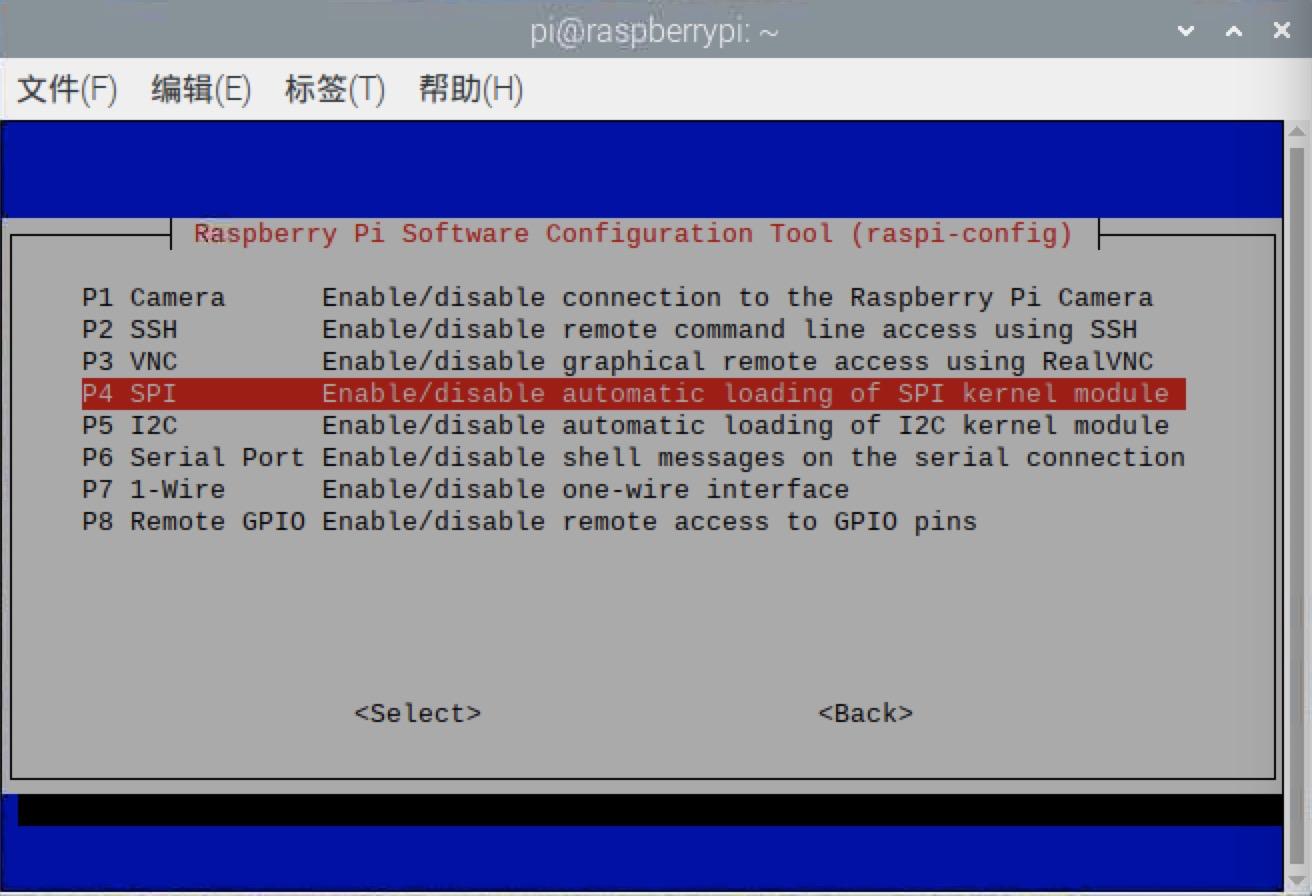

5.3 download LCD Driver library
Nokia 5110 use PCD8544 Master chip , So we need to use a device that can drive this kind of chip Python library , What I choose here is luma.lcd, This is its Document address .
Enter the following command on the command line to install :
pip3 install luma.lcd -i https://pypi.tuna.tsinghua.edu.cn/simple
5.4 Write code
from luma.core.interface.serial import spi
from luma.core.render import canvas
from luma.lcd.device import pcd8544

#  initialization SPI Interface , Pass in D/C and RST Pin number
serial = spi(port=0, device=0, gpio_DC=24, gpio_RST=23)

#  Initialization equipment , Incoming backlight pin , And set the active low level
# rotate Parameter is used to rotate the screen , Can be introduced into 0, 1, 2, 3.0 Indicates no rotation ,1 Indicates clockwise rotation 90°, And so on
device = pcd8544(serial, rotate=0, gpio_LIGHT=25, active_low=False)
device.backlight(True)  #  Turn on the backlight

#  Draw rectangle and text
with canvas(device) as draw:
    draw.rectangle(device.bounding_box, outline="white", fill="black")
    draw.text((10, 20), "Hello World", fill="red")


input(" Press any key to exit ")
The above code will draw a rectangular border on the screen , And draw a... In the border “Hello World” Text , The backlight will also turn on . The details of the API The interface description can be viewed through the following links , I will not repeat .Python Usage — Luma.LCD: Display drivers for PCD8544, ST7735, ST7789, HT1621, UC1701X, ST7567, ILI9341, ILI9486, HD44780 2.9.0 documentation https://luma-lcd.readthedocs.io/en/latest/python-usage.html#backlight-controlAPI Documentation — Luma.LCD: Display drivers for PCD8544, ST7735, ST7789, HT1621, UC1701X, ST7567, ILI9341, ILI9486, HD44780 2.9.0 documentationhttps://luma-lcd.readthedocs.io/en/latest/api-documentation.html#luma.lcd.device.pcd8544
The running results are as follows ( After the backlight is turned on , Text can't be captured by mobile phone ):


边栏推荐
- 浏览器查看当前页面所有的监听事件
- rosbag
- UEFI: repair efi/gpt bootloader
- Home server portal easy gate
- Unity addressable batch management
- How to calculate the D value and W value of statistics in normality test?
- How to calculate the information entropy and utility value of entropy method?
- How to do factor analysis? Why should data be standardized?
- 初识生成对抗网络(11)——利用Pytorch搭建WGAN生成手写数字
- Retrieval model rough hnsw
猜你喜欢

City Chain technology platform, really Realizing value Internet reconstruction!

C language: count the number of characters, numbers and spaces

atguigu----17-生命周期

How to calculate critical weight indicators?

物联网毕设(智能灌溉系统 -- Android端)

紧急行政中止令下达 Juul暂时可以继续在美国销售电子烟产品

How is the ISM model analyzed?

Various synchronous learning notes

InfluxDB时序数据库

Meaning of Jieba participle part of speech tagging
随机推荐
家庭服务器门户Easy-Gate
Exchange:管理日历权限
Nodehandle common member functions
Common SRV types
Index analysis of DEMATEL model
Go语言学习教程(十三)
What is the difference between TP5 and tp6?
Is the securities account given by Qiantang education business school safe? Can I open an account?
With the beauty of technology enabled design, vivo cooperates with well-known art institutes to create the "industry university research" plan
What is the file that tp6 automatically executes? What does the tp6 core class library do?
Can I grant database tables permission to delete column objects? Why?
Word2vec, phrases, phraser, keyedvectors commonly used in gensim
Unit conversion - mm to pixel - pixel to MM
[reinforcement learning notes] common symbols in reinforcement learning
在网上股票开户安全吗?证券账户可以给别人用吗?
What is the role of software validation testing? What is the price of the confirmation test report?
第五天 脚本与UI系统
linux中的mysql有10061错误怎么解决
View all listening events on the current page by browser
打新债的安全性 有风险吗