当前位置:网站首页>Pyqt5 rapid development and practice 5.2 container: load more controls
Pyqt5 rapid development and practice 5.2 container: load more controls
2022-07-28 15:51:00 【Ding Jiaxiong】
PyQt5 Rapid development and actual combat
List of articles
5. The first 5 Chapter PyQt5 Advanced interface controls
5.2 Containers : Load more controls
How to load more controls in the existing window space .
5.2.1 QTabWidget
QTabWidget Control provides a tab and a page area , The first tab page is displayed by default . You can view the corresponding page by clicking each tab . If there are many input fields displayed in one window , You can split these fields , Placed in tabs on different pages .
QTabWidget Common methods in class
| Method | describe |
|---|---|
| addTab() | Add a control to Tab Control |
| insertTab() | Will a Tab The tab of the control is inserted into the specified location |
| removeTab() | Divide according to the specified index Tab Control |
| setCurrentIndex() | Set the index of the currently visible tab |
| setCurrentWidget() | Set the currently visible page |
| setTabBar() | Set the gizmo of the tab bar |
| setTabPosition() | Set the location of the tab :QTabWidgct.North, Displayed at the top of the page ;QTabWidget.South, Displayed at the bottom of the page ;QTabWidget.West, Displayed on the left side of the page ;QTabWidget.East, Displayed on the right side of the page |
| setTabText() | Definition Tab Display value of tab |
QTabWidget Class
| The signal | describe |
|---|---|
| currentChanged | Transmit this signal when switching the current page |
Case study ——QTabWidget Use
import sys
from PyQt5.QtCore import *
from PyQt5.QtGui import *
from PyQt5.QtWidgets import *


class TabDemo(QTabWidget):
    def __init__(self, parent=None):
        super(TabDemo, self).__init__(parent)
        self.tab1 = QWidget()
        self.tab2 = QWidget()
        self.tab3 = QWidget()
        self.addTab(self.tab1, "Tab 1")
        self.addTab(self.tab2, "Tab 2")
        self.addTab(self.tab3, "Tab 3")
        self.tab1UI()
        self.tab2UI()
        self.tab3UI()
        self.setWindowTitle("Tab  Example ")

    def tab1UI(self):
        layout = QFormLayout()
        layout.addRow(" full name ", QLineEdit())
        layout.addRow(" Address ", QLineEdit())
        self.setTabText(0, " Contact information ")
        self.tab1.setLayout(layout)

    def tab2UI(self):
        layout = QFormLayout()
        sex = QHBoxLayout()
        sex.addWidget(QRadioButton(" male "))
        sex.addWidget(QRadioButton(" Woman "))
        layout.addRow(QLabel(" Gender "), sex)
        layout.addRow(" Birthday ", QLineEdit())
        self.setTabText(1, " Personal details ")
        self.tab2.setLayout(layout)

    def tab3UI(self):
        layout = QHBoxLayout()
        layout.addWidget(QLabel(" subject "))
        layout.addWidget(QCheckBox(" Physics "))
        layout.addWidget(QCheckBox(" Advanced Mathematics "))
        self.setTabText(2, " Education level ")
        self.tab3.setLayout(layout)

if __name__ == '__main__':
    from pyqt5_plugins.examples.exampleqmlitem import QtCore
    QtCore.QCoreApplication.setAttribute(QtCore.Qt.AA_EnableHighDpiScaling)
    app = QApplication(sys.argv)
    win = TabDemo()
    win.show()
    sys.exit(app.exec_())
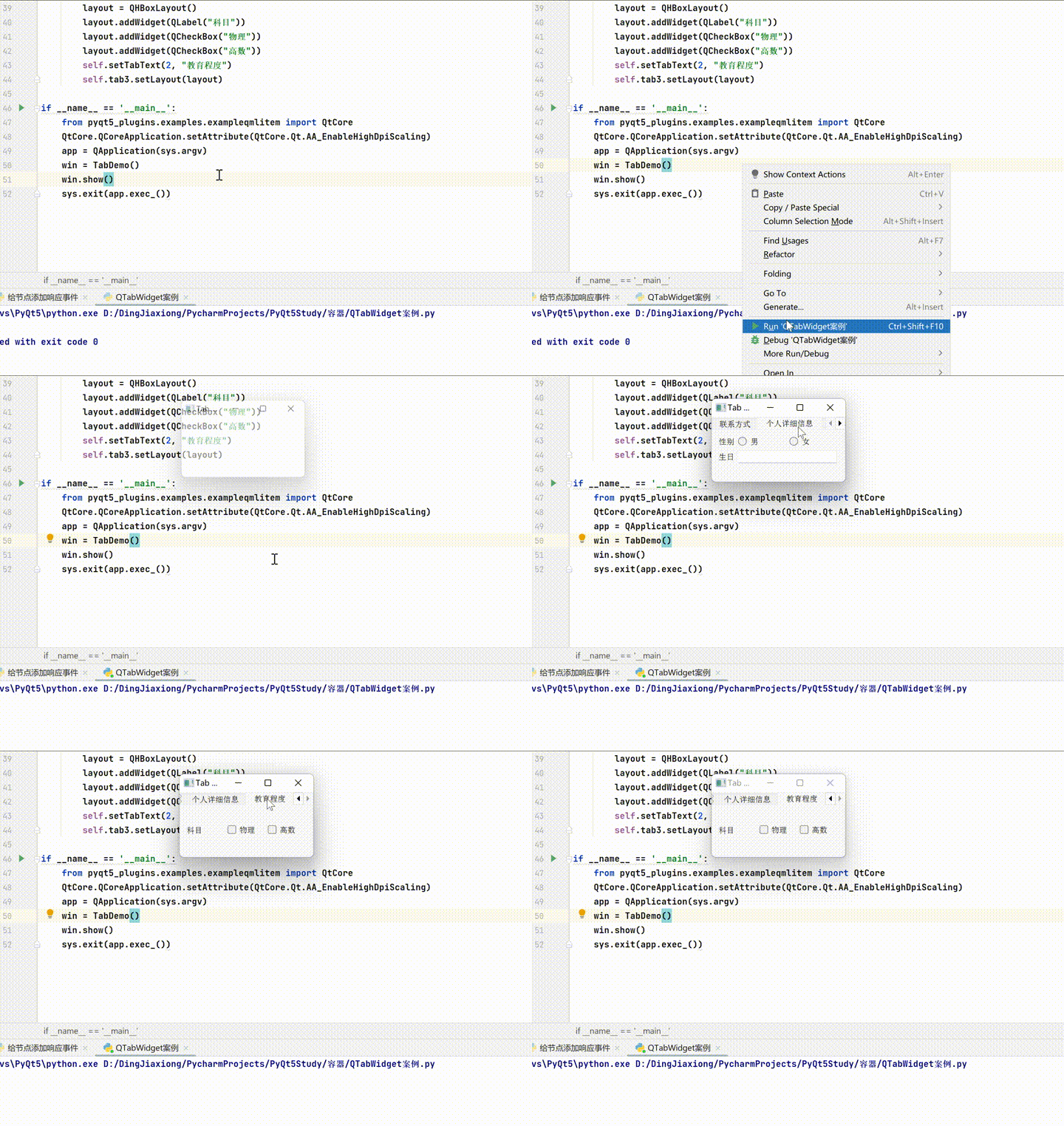
5.2.2 QStackedWidget
QStackedWidget Is a stack window control , You can fill in some widgets , But only one widget can be displayed at a time .OStackedWidget Use QStackedLayout Layout .QStackedWidget Control and QTabWidget similar , It can effectively display the controls in the window .
Case study ——QTabWidget Use
import sys
from PyQt5.QtCore import *
from PyQt5.QtGui import *
from PyQt5.QtWidgets import *


class StackedExample(QWidget):
    def __init__(self):
        super(StackedExample, self).__init__()
        self.setGeometry(300, 50, 10, 10)
        self.setWindowTitle('StackedWidget  Example ')

        self.leftlist = QListWidget()
        self.leftlist.insertItem(0, ' Contact information ')
        self.leftlist.insertItem(1, ' Personal information ')
        self.leftlist.insertItem(2, ' Education level ')
        self.stack1 = QWidget()
        self.stack2 = QWidget()
        self.stack3 = QWidget()
        self.stack1UI()
        self.stack2UI()
        self.stack3UI()
        self.Stack = QStackedWidget(self)
        self.Stack.addWidget(self.stack1)
        self.Stack.addWidget(self.stack2)
        self.Stack.addWidget(self.stack3)
        hbox = QHBoxLayout(self)
        hbox.addWidget(self.leftlist)
        hbox.addWidget(self.Stack)
        self.setLayout(hbox)
        self.leftlist.currentRowChanged.connect(self.display)

    def stack1UI(self):
        layout = QFormLayout()
        layout.addRow(" full name ", QLineEdit())
        layout.addRow(" Address ", QLineEdit())
        self.stack1.setLayout(layout)

    def stack2UI(self):
        layout = QFormLayout()
        sex = QHBoxLayout()
        sex.addWidget(QRadioButton(" male "))
        sex.addWidget(QRadioButton(" Woman "))
        layout.addRow(QLabel(" Gender "), sex)
        layout.addRow(" Birthday ", QLineEdit())
        self.stack2.setLayout(layout)

    def stack3UI(self):
        layout = QHBoxLayout()
        layout.addWidget(QLabel(" subject "))
        layout.addWidget(QCheckBox(" Physics "))
        layout.addWidget(QCheckBox(" Advanced Mathematics "))
        self.stack3.setLayout(layout)

    def display(self, i):
        self.Stack.setCurrentIndex(i)

if __name__ == '__main__':
    from pyqt5_plugins.examples.exampleqmlitem import QtCore
    QtCore.QCoreApplication.setAttribute(QtCore.Qt.AA_EnableHighDpiScaling)
    app = QApplication(sys.argv)
    win = StackedExample()
    win.show()
    sys.exit(app.exec_())
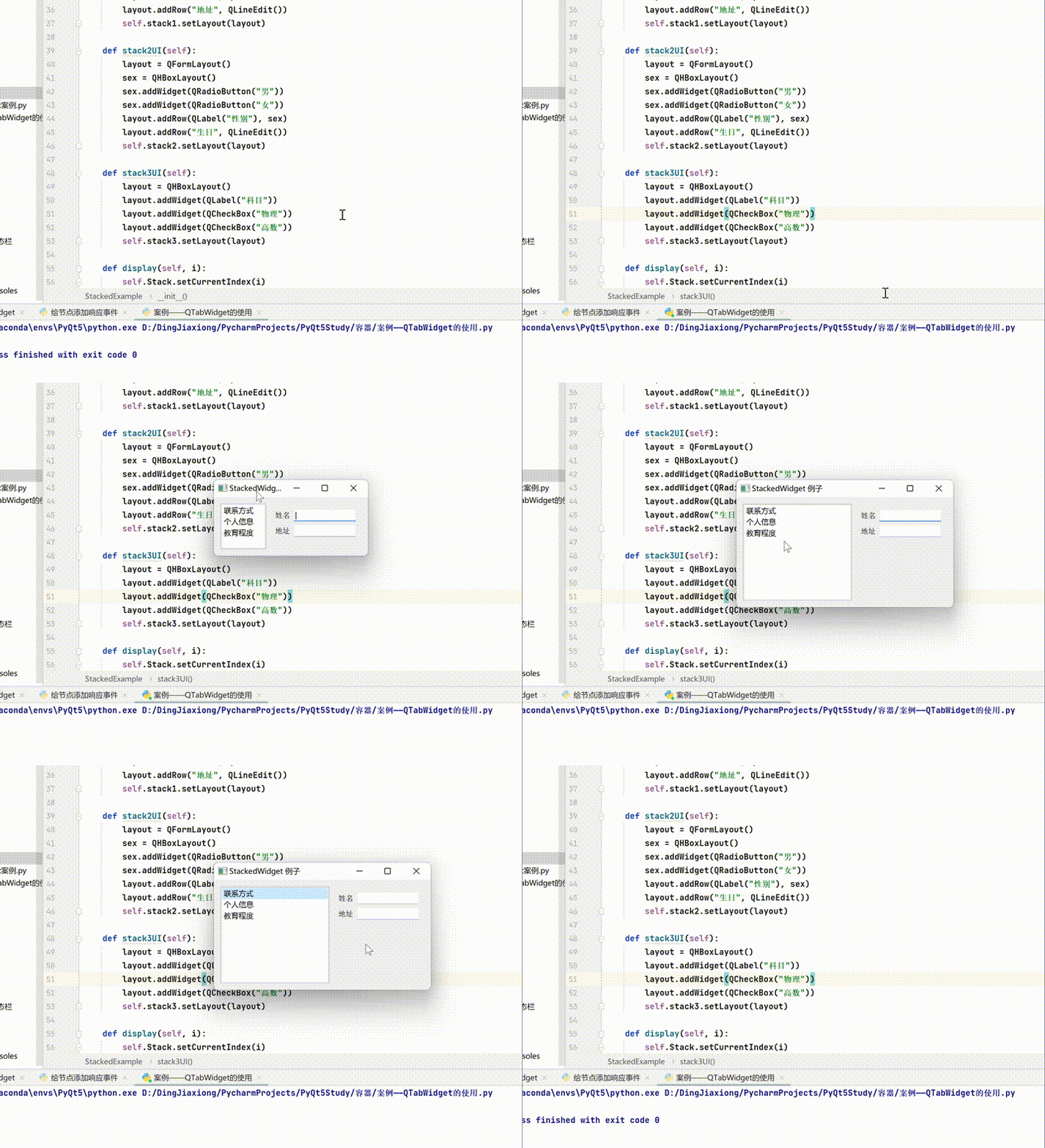
5.2.3 QDockWidget
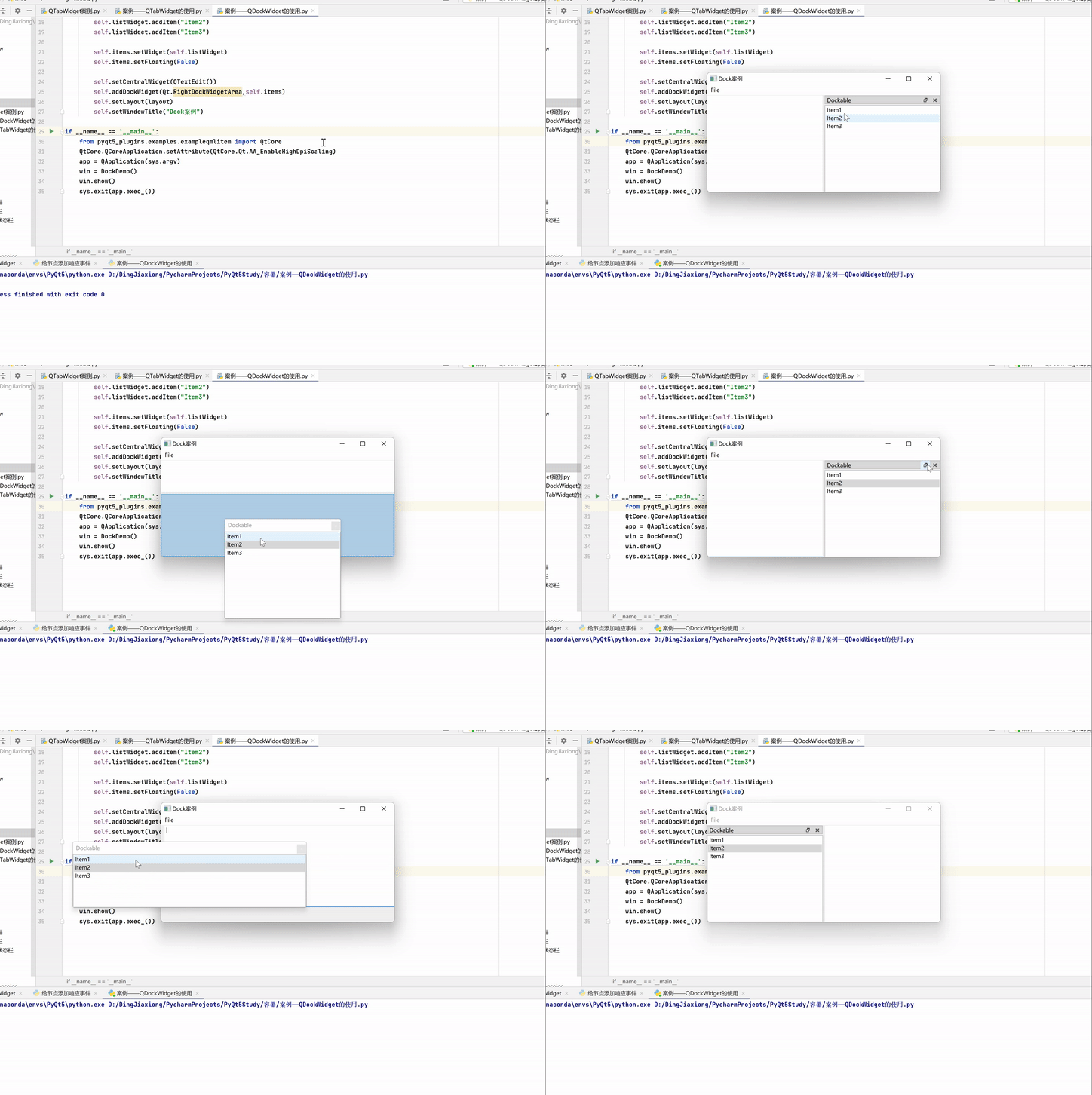
QDock Widget Is one that can dock at QMainWindow Window controls in , It can be kept floating or attached to the main window as a child window at a specified position .QMainWindow The main window object of class retains an area for docking the window , This area is around the center of the control .
QDockWidget Control can be moved to a new area in the main window .
QDockWidget Common methods in class :
| Method | describe |
|---|---|
| setWidget() | stay Dock Window locale QWidget |
| setFloating() | Set up Dock Whether the window can float , If set to True, It means that it can float |
| setAllowedAreas() | Set the area where the window can dock ;LeftDockWidget.Area, Left docking area ;RightDockWidgetArea, Right docking area ;TopDockWidgetArea, Top docking area ;BottomDockWidgetArea, Bottom docking area ;NoDockWidgetArea, No display Widget; |
| setFeatures() | Set the function properties of the docked window ;DockWidgetClosable, Can be turned off ;DockWidgetMovable, Movable ;DockWidgetFloatable, Floatable ;DockWidget VerticalTitleBar, Display the vertical tab bar on the left ;AllDockWidgetFeatures, All functions with the first three attributes ;NoDockWidgetFeatures, Unable to close , Can't move , Can't float ; |
Case study ——QDockWidget Use
import sys
from PyQt5.QtCore import *
from PyQt5.QtGui import *
from PyQt5.QtWidgets import *

class DockDemo(QMainWindow):
    def __init__(self,parent = None):
        super(DockDemo, self).__init__(parent)
        layout = QHBoxLayout()
        bar = self.menuBar()
        file = bar.addMenu("File")
        file.addAction("New")
        file.addAction("save")
        file.addAction("quit")
        self.items = QDockWidget("Dockable",self)
        self.listWidget = QListWidget()
        self.listWidget.addItem("Item1")
        self.listWidget.addItem("Item2")
        self.listWidget.addItem("Item3")

        self.items.setWidget(self.listWidget)
        self.items.setFloating(False)

        self.setCentralWidget(QTextEdit())
        self.addDockWidget(Qt.RightDockWidgetArea,self.items)
        self.setLayout(layout)
        self.setWindowTitle("Dock Case study ")

if __name__ == '__main__':
    from pyqt5_plugins.examples.exampleqmlitem import QtCore
    QtCore.QCoreApplication.setAttribute(QtCore.Qt.AA_EnableHighDpiScaling)
    app = QApplication(sys.argv)
    win = DockDemo()
    win.show()
    sys.exit(app.exec_())
5.2.4 Multi document interface
A typical GUI The application may have multiple windows , Tab controls and stack window controls allow you to use one of them at a time . However , Many times this method is not very useful , Because the views of other windows are hidden .
One way to display multiple windows at the same time is , Create multiple independent windows , These separate windows are called SDI (Single Document Interface, Single document interface ), Each window can have its own menu system 、 Toolbars, etc . This requires more memory resources .
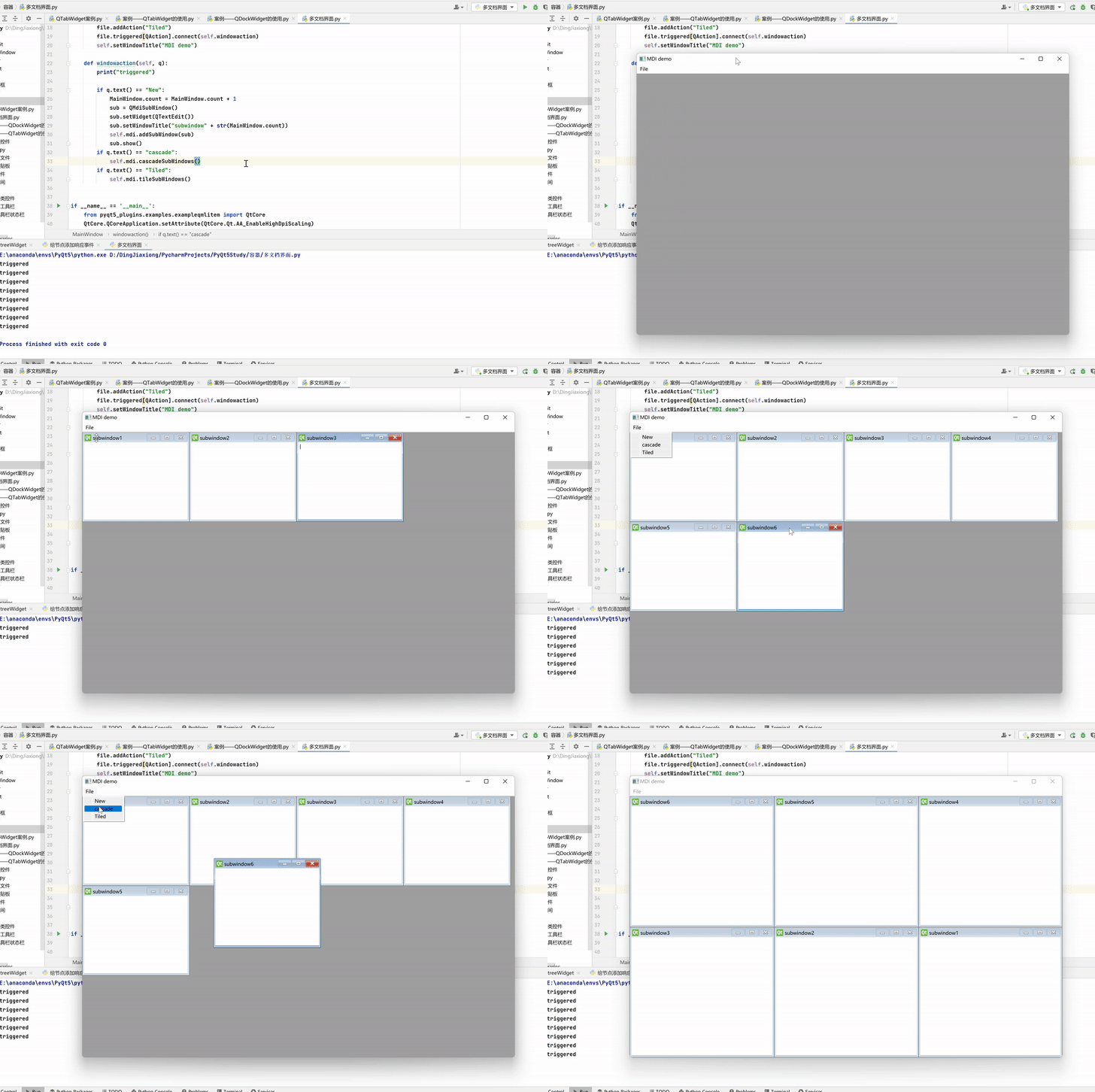
MDI (Multiple Document Interface, Multi document interface ) Applications use less memory resources , Child windows can be placed in the main window container , This container control is called QMdiArea.
QMidArea Controls usually occupy QMainWindow The central position of the object , The child window in this area is QMdiSubWindow Class , You can set any QWidget Internal controls as child window objects , Child window in MDI Areas are arranged in cascading arrangement .
QMdiArea Classes and QMdiSubWindow Common methods in class :
| Method | describe |
|---|---|
| addSubWindow() | Add a widget to MDI Area as a new sub window |
| removeSubWindow() | Delete a widget in a child window |
| setActiveSubWindow() | Activate a child window |
| cascadeSubWindow() | Schedule child windows in MDI Area cascading display |
| tileSubWindows() | Schedule child windows in MDI Area tile |
| closeActiveSubWindow() | Close the active child window |
| subWindowList() | return MDI A list of child windows of the area |
| setWidget() | Set a widget as QMdiSubwindow Internal control of instance object |
Case study —— Multi document interface
import sys
from PyQt5.QtCore import *
from PyQt5.QtGui import *
from PyQt5.QtWidgets import *


class MainWindow(QMainWindow):
    count = 0

    def __init__(self, parent=None):
        super(MainWindow, self).__init__(parent)
        self.mdi = QMdiArea()
        self.setCentralWidget(self.mdi)
        bar = self.menuBar()
        file = bar.addMenu("File")
        file.addAction("New")
        file.addAction("cascade")
        file.addAction("Tiled")
        file.triggered[QAction].connect(self.windowaction)
        self.setWindowTitle("MDI demo")

    def windowaction(self, q):
        print("triggered")

        if q.text() == "New":
            MainWindow.count = MainWindow.count + 1
            sub = QMdiSubWindow()
            sub.setWidget(QTextEdit())
            sub.setWindowTitle("subwindow" + str(MainWindow.count))
            self.mdi.addSubWindow(sub)
            sub.show()
        if q.text() == "cascade":
            self.mdi.cascadeSubWindows()
        if q.text() == "Tiled":
            self.mdi.tileSubWindows()


if __name__ == '__main__':
    from pyqt5_plugins.examples.exampleqmlitem import QtCore
    QtCore.QCoreApplication.setAttribute(QtCore.Qt.AA_EnableHighDpiScaling)
    app = QApplication(sys.argv)
    win = MainWindow()
    win.show()
    sys.exit(app.exec_())
5.2.5 QScrollBar
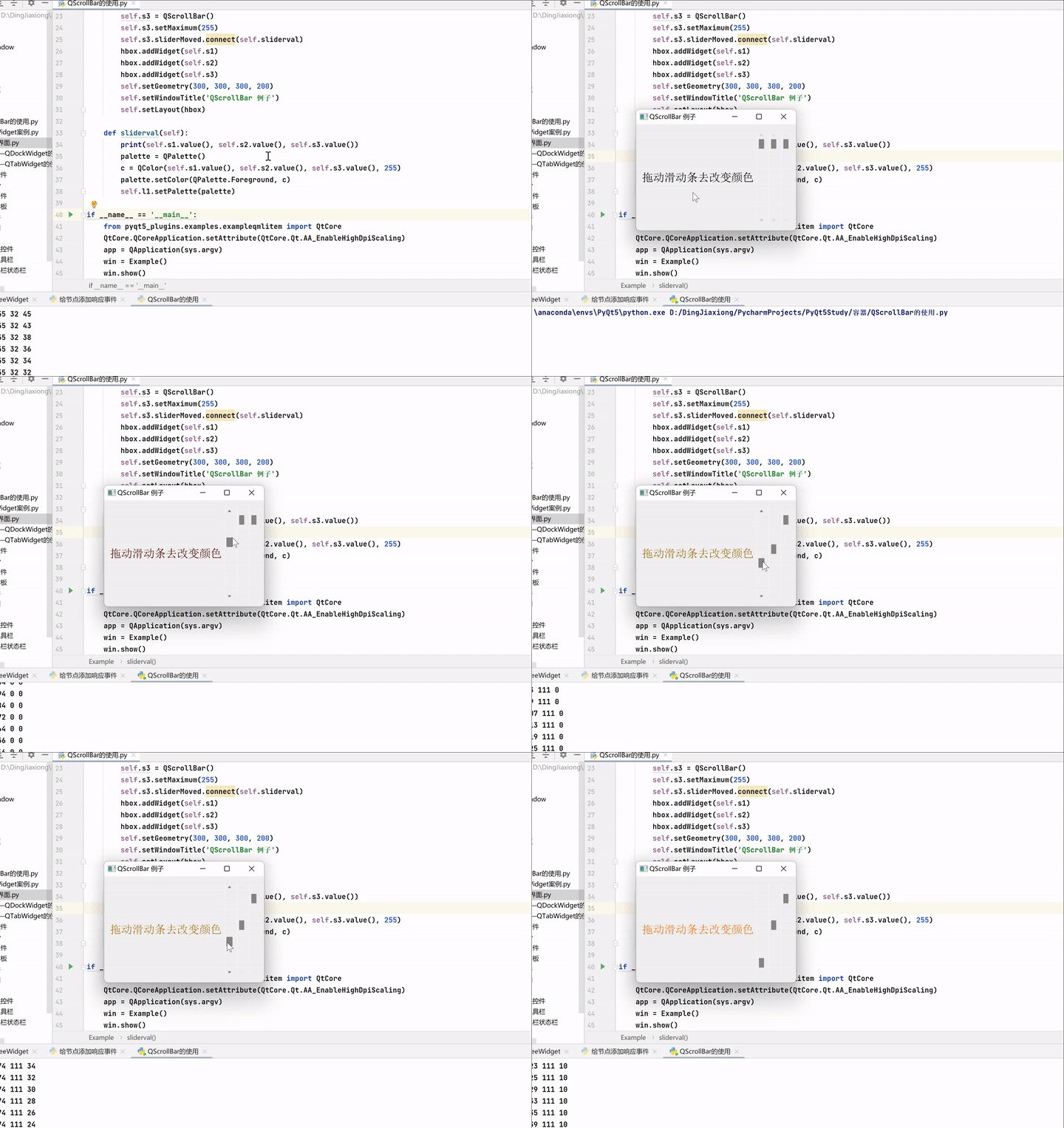
You can see , What the previous window controls have in common is to create new windows to load more controls , and QScrollBar Provides another way of thinking : This window control provides a horizontal or vertical scroll bar , This can expand the effective loading area of the current window , To load more controls .
QScrollBar Class :
| The signal | meaning |
|---|---|
| valueChanged | This signal is emitted when the value of the slider changes |
| sliderMoved | This signal is sent when the user drags the slider |
Case study ——QScrollBar
import sys
from PyQt5.QtCore import *
from PyQt5.QtGui import *
from PyQt5.QtWidgets import *


class Example(QWidget):
    def __init__(self):
        super(Example, self).__init__()
        self.initUI()

    def initUI(self):
        hbox = QHBoxLayout()
        self.l1 = QLabel(" Drag the slider to change the color ")
        self.l1.setFont(QFont("Arial", 16))
        hbox.addWidget(self.l1)
        self.s1 = QScrollBar()
        self.s1.setMaximum(255)
        self.s1.sliderMoved.connect(self.sliderval)
        self.s2 = QScrollBar()
        self.s2.setMaximum(255)
        self.s2.sliderMoved.connect(self.sliderval)
        self.s3 = QScrollBar()
        self.s3.setMaximum(255)
        self.s3.sliderMoved.connect(self.sliderval)
        hbox.addWidget(self.s1)
        hbox.addWidget(self.s2)
        hbox.addWidget(self.s3)
        self.setGeometry(300, 300, 300, 200)
        self.setWindowTitle('QScrollBar  Example ')
        self.setLayout(hbox)

    def sliderval(self):
        print(self.s1.value(), self.s2.value(), self.s3.value())
        palette = QPalette()
        c = QColor(self.s1.value(), self.s2.value(), self.s3.value(), 255)
        palette.setColor(QPalette.Foreground, c)
        self.l1.setPalette(palette)

if __name__ == '__main__':
    from pyqt5_plugins.examples.exampleqmlitem import QtCore
    QtCore.QCoreApplication.setAttribute(QtCore.Qt.AA_EnableHighDpiScaling)
    app = QApplication(sys.argv)
    win = Example()
    win.show()
    sys.exit(app.exec_())
边栏推荐
- A wave of operation to solve the error problem of Laya scene editor
- Software architecture and design (x) -- Architecture Technology
- DNS域名解析协议
- 9. Related data accumulation task definition
- A tour of gRPC:05 - gRPC server straming 服务端流
- MySQL add and delete indexes
- The price war of off screen fingerprints has resumed, and second-line manufacturers are expected to win 30% of the market this year?
- Easyexcel complex header export (one to many)
- Virturalbox solves the problem of kernel driver
- VirturalBox解决kernel driver问题
猜你喜欢

Thermistor PT100, NTC to 0-10v/4-20ma converter

Software architecture and design (VI) -- hierarchy

NTC,PT100热电阻转4-20mA温度信号转换器

Software architecture and design (I) -- key principles

软件架构与设计(十)-----架构技术

0-75mv/0-100mv to rs485/232 communication interface Modbus RTU acquisition module ibf8

【直播预约】数据架构演进下的新挑战——上海站

800V high voltage system

Perception of life

MIT pointed out that the public pre training model should not be used indiscriminately
随机推荐
5-channel di/do relay output remote IO acquisition module Modbus tcp/ibf95
电压转电流/电流转电压模块
【直播预约】数据架构演进下的新挑战——上海站
Give you a linked list, delete the penultimate node of the linked list, and return the head node of the linked list.
Camera连拍自动化测试shell脚本
软件架构与设计(二)-----架构模型
Rongyun real-time community solution
Minimum heap improves the efficiency of each sort
9. Related data accumulation task definition
Using SYSTEMd to manage services
阿里云的rds mysql 只读实例在哪里创建
Easyexcel complex header export (one to many)
Software architecture and design (VIII) -- distributed architecture
已拿下华为85亿元屏幕订单?维信诺回应:客户要求保密,无法回复!
Docker实现Redis Cluster(集群)模式 哈希槽分区进行亿级数据存储
[live broadcast reservation] a new challenge under the evolution of data architecture - Shanghai railway station
How to configure Samba server
Software architecture and design (V) -- data centric architecture
PXE网络装机
The advanced path of programmers