当前位置:网站首页>[Android studio] batch data import to Android local database
[Android studio] batch data import to Android local database
2022-07-25 09:52:00 【Happy play rabbit】
There is a problem in the project , Now I need to import a large amount of data into the local original database for data simulation ,app Used in litepal To operate the database , Now let's talk about how I can import a lot of data and record some problems encountered in the process without using one line of code
preparation
- The computer has sql Data visualization tools , I'm using navicat 15 , Yes wps To operate excel
- stay Device File Explore( stay android studio There is usually a quick open window in the lower right corner of ) Find the location of the database in , Usually in data/data/ Package name /database/ Next , You will see three files
 ps: Why should we find the original database because , What you want to operate is this database , If there is a database import with the same class name and structure, it will prompt that the version number of the database is inconsistent ( If the version number is the same , I don't know whether other problems will be introduced )
Operation steps
1. Original database export
Right click the package name of the project where the original database is located , Click on save as Save the database to the directory you know on your computer
2. Use navicat Open the exported database
open navicat Tools , It will be an empty , Drag and drop the exported file directly , It will turn on automatically
** 3. from navicat The format of exported data in is excel Format **
Double click the table you want to export data , After opening, you can view , Local original data of the project ( Of course, you are actually usb Connect the phone , When opening a project Android studio Bottom APP inspection You can see ), And then click navicat Export at the top of the middle table , choice excel Data format , Follow the prompts , Just keep clicking next , At the last step, click start to see the green progress bar ,( Remember to record the directory you exported )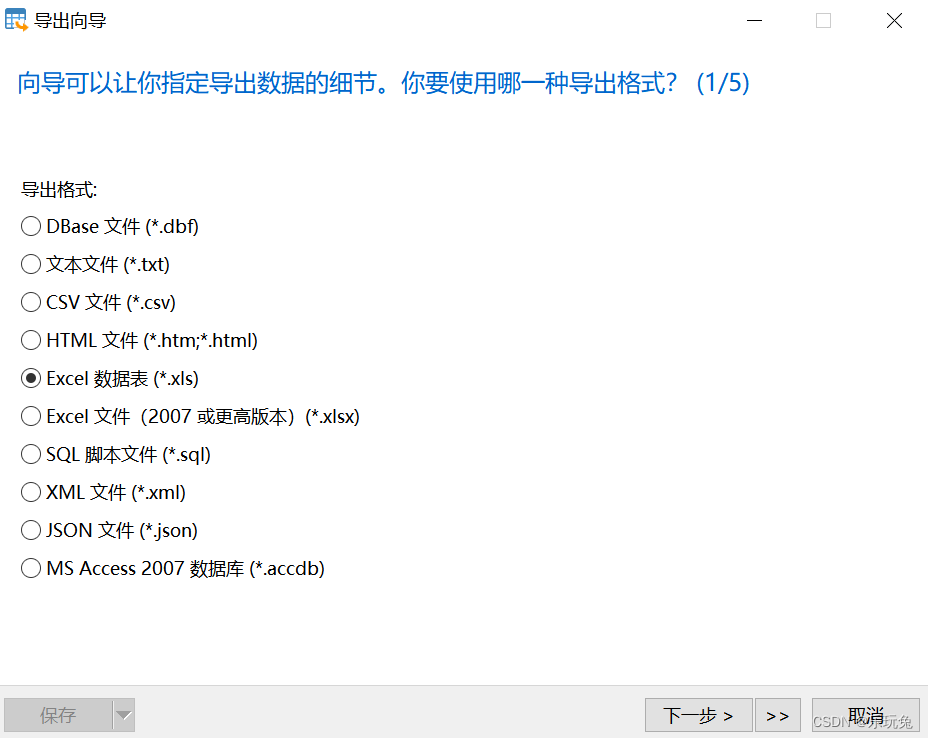
4.excel Open the file to add data
4.1 When adding data, remember to match the field type in the table you defined ,
4.2 Pay attention to inspection char Data of type , Give a default initial value , Otherwise, it will appear when importing into the project Caused by: java.lang.StringIndexOutOfBoundsException: length=5; regionStart=0; regionLength=0 Error of
4.3 Note the... Defined in the table key value , Column de duplication is required ,id The value needs to be incremented
4.4 navicat A column will be added at the end of the export , You can check that you can delete
4.4 Remember to save when operating
5. take excel Import the table into the original database table
open navicat( step 2), Click Import , choice excel Import ,
Click next , Select the of the operation excel Next , Default is good , Click next , Choice mode , Select append or update , Because we are adding data , If you just modify, you can choose to update 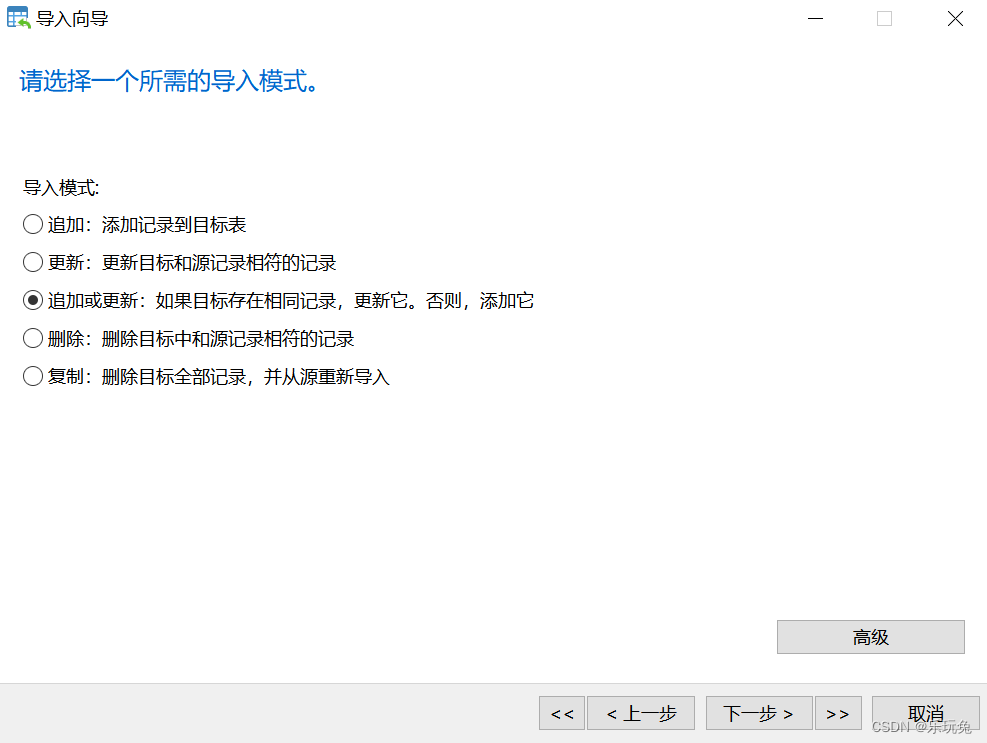 Click next , Click Start , When the progress bar is over, you can go to navicat Data related inspection in , Is there any blank , If there is , You need to check the following , If gray nul It is normal that there is no data ( The last column under my data is char Type of , I gave him default 0, Because this field is not really used in the project )
 6. Import into the project database
stay Android studio Open in device file exlore, Click the directory of the original database database( step 1 Reverse operation in , This choice upload), Click on upload, choice navicat Location of the database in ( In fact, you are in step 1 Export location in ,) Click on shift Choose three files , Click on ok that will do , There will be a progress bar prompt , Note the size of the three files 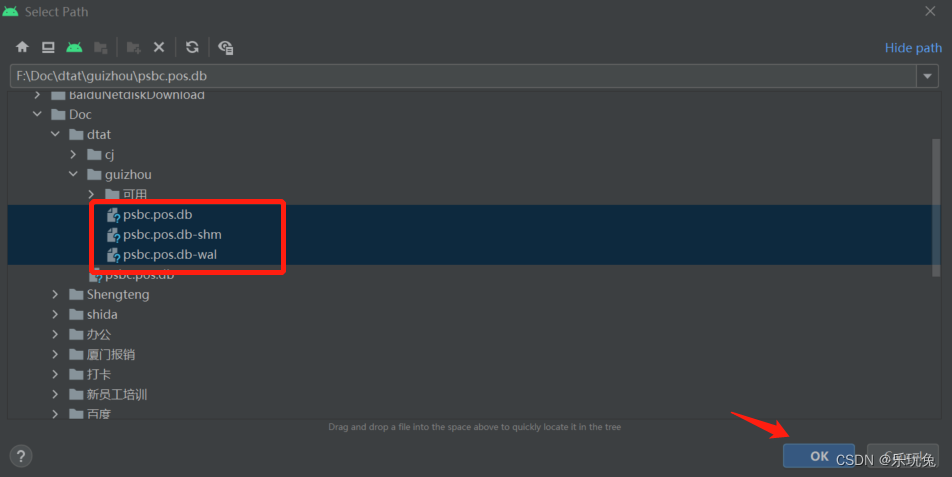 And still database Right click to select , Conduct synchronize Refresh of , You can do it in AS Bottom app inspect Check whether the data is imported successfully ,
Then you can happily carry out project related tests and troubleshooting
The end of this paper ~
If you know how to navicat 15 Please tell me the specific operation in the comment area step
If you need to navicat 15 Related installation packages of the software , Please confide in me
边栏推荐
- Learning new technology language process
- 深度估计自监督模型monodepth2论文总结和源码分析【理论部分】
- Some usages of Matlab's find() function (quickly find qualified values)
- chmod和chown对挂载的分区的文件失效
- How to import a large amount of data in MATLAB
- CCF 201509-3 模板生成系统
- ARM GIC简介
- MLX90640 红外热成像传感器测温模块开发笔记(三)
- matlab如何导入大量数据
- 从Anaconda到TensorFlow到Jupyter一路踩坑一路填平
猜你喜欢

First knowledge of opencv4.x --- drawing shapes on images

CDA LEVELⅠ2021新版模拟题一(附答案)
![[dimension reduction strike] Hilbert curve](/img/bb/c2488f29721bdc413d709ee4bfaddf.png)
[dimension reduction strike] Hilbert curve

matlab如何导入大量数据

T5论文总结

Solve the problem that esp8266 cannot connect mobile phones and computer hotspots

低功耗和UPF介绍

从Anaconda到TensorFlow到Jupyter一路踩坑一路填平

初识Opencv4.X----为图像添加椒盐噪声

First knowledge of opencv4.x --- image template matching
随机推荐
预测2021年:加速实现RPA以外的超自动化成果
Constant power wireless charging based on stm32
CCF 201509-3 模板生成系统
MLX90640 红外热成像传感器测温模块开发笔记(二)
First knowledge of opencv4.x --- image histogram matching
深度学习 段错误(Segment Core/ Exit code 139)情况记录
Some usages of Matlab's find() function (quickly find qualified values)
ARMV8体系结构简介
无向连通图邻接矩阵的创建输出广度深度遍历
A number converted from a decimal integer to another base
单目深度估计基础理论和论文学习总结
初识Opencv4.X----为图像添加椒盐噪声
First knowledge of opencv4.x --- image histogram drawing
C语言基础
*7-2 CCF 2015-09-2 date calculation
matlab如何导入大量数据
CCF 201604-2 俄罗斯方块
从鱼眼到环视到多任务王炸——盘点Valeo视觉深度估计经典文章(从FisheyeDistanceNet到OmniDet)(上)
MLX90640 红外热成像仪测温模块开发笔记(四)
MLX90640 红外热成像传感器测温模块开发笔记(三)