当前位置:网站首页>《快速掌握QML》第六章 动画
《快速掌握QML》第六章 动画
2022-07-30 20:23:00 【la_vie_est_belle】
目录
QML提供了一个强大的动画框架,其中包含很多动画元素,我们可以使用这些动画元素让界面拥有酷炫的动态效果。
6.1 各种动画元素
QML提供了各种动画元素用来实现不同的动画效果,笔者这里列举一些常用的元素:
- PropertyAnimation:属性动画,通过改变某个元素属性来实现动画效果。
- NumberAnimation:数字动画,是PropertyAnimation的派生元素,专门用来改变数字类型的属性。
- ColorAnimation:颜色动画,是PropertyAnimation的派生元素,专门用来改变color类型的属性。
- RotationAnimation:旋转动画,是PropertyAnimation的派生元素,专门用来改变rotation属性。
- PauseAnimation:暂定动画,用于执行一段暂定动画。
- PathAnimation:路径动画,让某个元素沿着自定义的路径运动。
- SpringAnimation:弹簧动画,用于执行一段弹簧动画。
- AnchorAnimation:锚定动画,通过改变锚点属性的值来实现移动动画。
所有动画元素的基类都是Animation,我们来看下它内置的一些属性、信号和方法。
属性
- alwaysRunToEnd:属性值为true或者false,当设置为true时,即便主动调用stop()或者将running值设置为false,动画也会运行完毕。
- loops:该属性值用来设置动画的循环次数,默认值是1,可以设置为Animation.Infinite表示无限循环动画。
- paused:属性值为true或者false,表示动画是否处于暂停状态。true则为暂停。
- running:属性值为true或者false,默认是false。如果设置为true,动画就会启动,反之则停止动画。我们可以在脚本中读取该属性的值,并通过该值判断动画是否正在运行。
信号
- finished():该信号会在动画播放结束后发射。
- started():该信号会在动画开始时发射。
- stopped():该信号会在动画停止时发射(手动调用stop()方法或者播放完毕后都会发射)。
方法
- complete():让动画结束,并跳到最后一帧。
- pause():暂停动画。
- restart():重新运行动画。
- resume():继续播放动画。
- start():开始动画。
- stop():停止动画。
我们现在拿PropertyAnimation举个例子,请看以下示例代码。
import QtQuick 2.0
import QtQuick.Controls 2.0

Rectangle {
    id: root
    width: 300
    height: 200
    color: "black"

    PropertyAnimation {
        id: anim
        target: root                // 1
        property: "color"           // 2
        to: "white"                 // 3
        duration: 1000              // 4
    }

    Button {
        id: btn
        text: "运行"
        anchors.centerIn: root
        onClicked: {
            anim.running = true     // 5
        }
    }
}
运行结果:

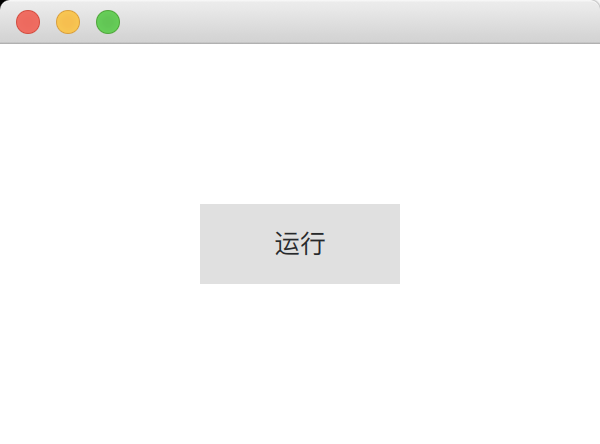
代码解释:
1. target属性填写要应用动画的目标元素。
2. property属性填写要修改的目标元素属性。
3. to属性填写动画运行时的目标值。
4. duration属性填写动画执行所需时间,单位是毫秒。
5. 将PropertyAnimation元素的running属性修改为true,运行动画。我们也可以将这行代码替换成anim.start(),这样点击按钮后,动画也会执行。
有时候会看到这种Animation on <property>的写法,用这种写法的话我们可以把动画元素直接写进目标元素花括号内,不需要再编写target属性。我们把上面的代码修改下。
import QtQuick 2.0
import QtQuick.Controls 2.0

Rectangle {
    id: root
    width: 300
    height: 200
    color: "black"

    PropertyAnimation on color{
        id: anim
        to: "white"
        duration: 1000
        running: false              // 1
    }

    Button {
        id: btn
        text: "运行"
        anchors.centerIn: root
        onClicked: {
            anim.running = true
        }
    }
}
代码解释:
1. 使用Animation on <property>这种写法时,running属性默认是true,也就是说程序运行后动画会立即执行,所以我们这里先将running设置为false。
到目前为止,示例代码只是修改了一个元素的一种属性,如果我们要想修改多个元素的多种属性,只用将target和property属性写成英文复数形式:targets和properties。如下方代码所示。
import QtQuick 2.0

Rectangle {
    id: root
    width: 300
    height: 200
    color: "white"

    Rectangle {
        id: rect1
        x: 20
        y: 20
        width: 50
        height: 50
        color: "green"
    }

    Rectangle {
        id: rect2
        x: 150
        y: 20
        width: 50
        height: 50
        color: "blue"
    }

    PropertyAnimation {
        id: anim
        targets: [rect1, rect2]         // 1
        properties: "width,height"      // 2
        to: 80
        duration: 1000
        running: true
    }
}
运行结果:
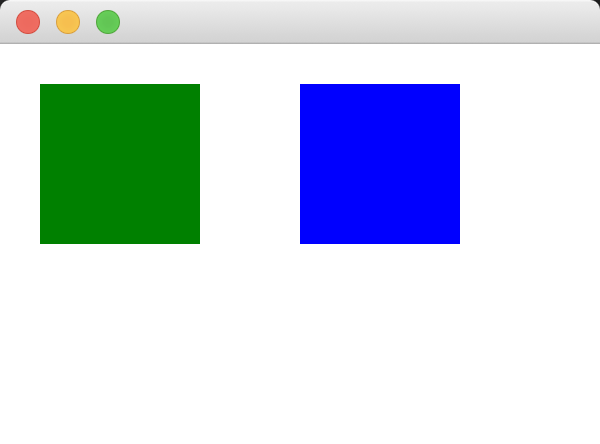
代码解释:
1. targets属性设置为rect1和rect2,表示要将动画应用到这两个元素上。
2. properties属性设置为"width,height",表示要修改width和height这两个属性,多个属性之间用逗号隔开。
注:这种写法虽然能够改变多个属性的值,不过被修改的属性的最终值只能是一样的,因为to只能设置成一个值。
6.2 缓动曲线
不同的缓动曲线可以让同一种动画在运行时产生不同的效果,我们可以通过修改动画元素的easing.type(缓动种类)属性来改变动画的缓动值。动画的默认缓动值是Easing.Linear,其他可选值请访问该链接。我们现在通过一个示例来了解下缓动曲线,请看下方示例代码。
import QtQuick 2.0

Rectangle {
    id: root
    width: 300
    height: 200
    color: "white"

    Rectangle {
        id: rect
        x: 0
        y: 75
        width: 50
        height: 50
        color: "red"
    }

    NumberAnimation {            // 1
        id: anim
        target: rect
        property: "x"
        to: 250
        duration: 1000
    }

    MouseArea {
        anchors.fill: root
        onClicked: {
            anim.start()
        }
    }
}
运行结果:


代码解释:
1. 用NumberAnimation动画元素修改rect1矩形元素的位置。此时NumberAnimation的easing.type属性的值是Easing.Linear,所以矩形元素会从左到右匀速运动。如果我们往NumberAnimation代码块中添加如下代码,那矩形就会先快后慢再快地向右移动了。
easing.type: Easing.OutInQuad除了easing.type,很多动画还有easing.amplitude(缓冲幅度)、easing.overshoot(缓冲溢出)、easing.period(缓冲周期)这些属性,我们可以通过这些属性来对缓冲曲线进行微调。
不过这些微调属性都有使用的缓动曲线,easing.amplitude适用于弹跳或弹性曲线:
- Easing.InBounce
- Easing.OutBounce
- Easing.InOutBounce
- Easing.OutInBounce
- Easing.InElastic
- Easing.OutElastic
- Easing.InOutElastic
- Easing.OutInElastic
easing.overshoot适用于:
- Easing.InBack
- Easing.OutBack
- Easing.InOutBack
- Easing.OutInBack
easing.period适用于:
- Easing.InElastic
- Easing.OutElastic
- Easing.InOutElastic
- Easing.OutInElastic
下方示例代码使用了Easing.InBounce这种缓动曲线,其中一个NumberAnimation使用了easing.amplitude属性对缓动进行微调。通过对比两个矩形元素的动画效果我们就可以看出这些微调属性的作用了。
import QtQuick 2.0

Rectangle {
    id: root
    width: 300
    height: 200
    color: "white"

    Rectangle {
        id: rect1
        x: 0
        y: 0
        width: 50
        height: 50
        color: "red"
    }

    Rectangle {
        id: rect2
        x: 0
        y: 150
        width: 50
        height: 50
        color: "blue"
    }

    NumberAnimation {
        id: anim1
        target: rect1
        property: "x"
        to: 250
        duration: 3000
        easing.type: Easing.InElastic
    }

    NumberAnimation {
        id: anim2
        target: rect2
        property: "x"
        to: 250
        duration: 3000
        easing.type: Easing.InBounce
        easing.amplitude: 2.0
    }

    MouseArea {
        anchors.fill: root
        onClicked: {
            anim1.start()
            anim2.start()
        }
    }
}
运行结果:

6.3 动画分组
动画分组有两个:SequentialAnimation串行动画分组和ParallelAnimation并行动画分组。它们同样是Animation的派生元素,前者会按照动画添加顺序依次执行各个动画,而后者会同时执行所有动画。请看下方示例代码。
import QtQuick 2.0

Rectangle {
    id: root
    width: 300
    height: 200
    color: "white"

    Rectangle {
        id: rect
        x: 0
        y: 75
        width: 50
        height: 50
        color: "red"
    }

    SequentialAnimation {               // 1
        id: sequentialAnim
        NumberAnimation {
            target: rect
            property: "x"
            to: 250
            duration: 2000
        }

        ColorAnimation {
            target: rect
            property: "color"
            to: "blue"
            duration: 2000
        }

        RotationAnimation {
            target: rect
            property: "rotation"
            to: 360
            duration: 2000
        }

        NumberAnimation {
            target: rect
            property: "radius"
            to: 25
            duration: 2000
        }
    }

    MouseArea {
        anchors.fill: root
        onClicked: {
            sequentialAnim.start()      // 2
        }
    }
}
运行结果:

代码解释:
1. SequentialAnimation串行动画分组元素中包含四个动画元素,分别是:修改x属性的NumberAnimation、修改color属性的ColorAnimation、修改rotation属性的RotationAnimation以及修改radius属性的NumberAnimation。矩形元素会先运动到窗口右边,再从红色编程蓝色,再旋转360度,再从矩形变成圆形。
2. 当点击窗口后,四个动画就会按照顺序依次执行。
现在我们使用ParallelAnimation并行动画分组元素让四个动画同时执行,请看下方代码。
import QtQuick 2.0

Rectangle {
    id: root
    width: 300
    height: 200
    color: "white"

    Rectangle {
        id: rect
        x: 0
        y: 75
        width: 50
        height: 50
        color: "red"
    }

    ParallelAnimation {
        id: parallelAnim
        NumberAnimation {
            target: rect
            property: "x"
            to: 250
            duration: 2000
        }

        ColorAnimation {
            target: rect
            property: "color"
            to: "blue"
            duration: 2000
        }

        RotationAnimation {
            target: rect
            property: "rotation"
            to: 360
            duration: 2000
        }

        NumberAnimation {
            target: rect
            property: "radius"
            to: 25
            duration: 2000
        }
    }

    MouseArea {
        anchors.fill: root
        onClicked: {
            parallelAnim.start()
        }
    }
}
运行结果:
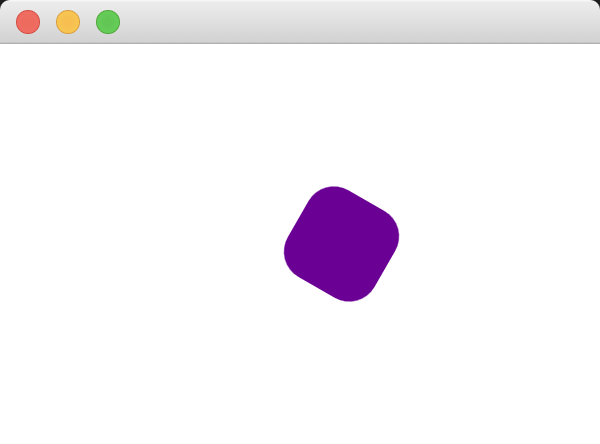
代码解释:
将SequentialAnimation改成ParallelAnimation,然后再修改下id名称就可以了。此时矩形元素会在向窗口右侧移动的同时改变颜色、旋转以及变成圆形。
6.4 本章小结
1. 动画元素的种类有很多,不过它们的用法是相似的,很多属性也一样。
2. 缓动曲线可以让同种动画表现出不同效果,可以通过easing.type属性修改缓动类型。
3. 如果想让一些动画按照顺序或者同时执行,可以将它们添加到SequentialAnimation或者ParallelAnimation动画分组中。
边栏推荐
猜你喜欢







随机推荐
idea plugins搜索不到插件
啊?现在初级测试招聘都要求会自动化了?
vookloop函数怎么用?vlookup函数的使用方法介绍
flyway的快速入门教程
MySQL----多表查询
无法正常访问服务器
是对称矩阵的对角化
FFmpeg —— 裁剪视频(含音视频),不需编解码(附完整源码)
MySQL的on duplicate key update 的使用
明解C语言第七章习题
[Ask] SQL statement to calculate the sum of column 2 by deduplicating column 1?
【请教】SQL语句按列1去重来计算列2之和?
Day31 LeetCode
多线程的互斥锁应用RAII机制
利用go制作微信机器人
MySQL database master-slave configuration
推荐系统:开源项目/工具【谷歌:TensorFlow Recommenders】【Facebook:TorchRec】【百度:Graph4Rec】【阿里:DeepRec和EasyRec】
Difference Between Concurrency and Parallelism
JUnit 5测试中的临时目录(附实例及代码)
推荐系统-排序层-模型(一):Embedding + MLP(多层感知机)模型【Deep Crossing模型:经典的Embedding+MLP模型结构】