当前位置:网站首页>Network remote access using raspberry pie
Network remote access using raspberry pie
2022-06-25 13:44:00 【dedsec0x】
One 、 Software preparation
1. Raspberry pie mirror image
Official website :Raspberry Pi OS – Raspberry Pi
2.SDCardFormatterv5
SD Memory Card Formatter | SD Association (sdcard.org)
3. Burning tools Raspberry Pi
4.putty
Download PuTTY: latest release (0.77) (greenend.org.uk)
Two 、 operation
SD Card format
Open it up and download okay SDCardFormatter Take us SD Format the card

Format successful


burn
Open our burning tool , Select the image we want to burn and the SD Click burn on the card

Burning succeeded after waiting for a period of time

The network configuration
open SD card , stay boot Create a directory SSH file
Create an empty text file wpa_supplicant.conf
Enter... In the text
country=CN
ctrl_interface=DIR=/var/run/wpa_supplicant GROUP=netdev
update_config=1

network={
	ssid=" Your wireless network name "
	psk=" Your wireless password "
	key_mgmt=WPA-PSK
	priority=1
}

take SD Unplug the card, insert the raspberry pie and connect the power to the raspberry pie , You can see on your phone that raspberry pie has been connected , Check out the raspberry pie ip Address , You can download one Advanced IP Scanner, Open terminal input ipconfig, View the wireless hotspot IP Address , And then in IP Scanner Mid search


Make sure that our computers are also connected to mobile phone hotspots , notice ip The address is 192.168.79.57, Search while searching 192.168.79.1-255
That's how we found our raspberry pie IP Address

putty Remote connection
open putty, stay putty Enter the just ip, Then establish a connection , Enter the default user password
Default user :pi
The default password :raspberry
If the default account password is incorrect , Can be in boot Create a userconf.txt file , This file is a single line of text , from username: User name content -password: password form —— That is, the desired user name , Follow a colon , Followed by an encrypted representation of the password to be used .
Or configure the account and password when writing the image

Then enter our account and password again to enter the system

Configure raspberry pie sudo raspi-config 
And then choose interface options

open VNC service

Then open the VNC Viewer
Type in the raspberry pie ip, Then enter the account and password

And it worked .
3、 ... and 、 Create an account and create... In your personal folder assert Assertion c Program
Create user
Open the terminal and input the command
su -
useradd -m -s /bin/bash  user name

// password
passwd user name 
When the permission is not enough, you can su prefix sudo that will do
Then go to the created folder /home/ user name / in
create a file assert.c, Enter in file
#include <assert.h>
#include <stdio.h>

int main()
{
   int a;
   char str[50];

   printf(" Please enter an integer value : ");
   scanf("%d", &a);
   assert(a >= 10);

   printf(" The integer entered is : %d\n", a);

   printf(" Please enter the string : ");
   scanf("%s", str);
   assert(str != NULL);

   printf(" The input string is : %s\n", str);

   return(0);
}
If you cannot create a file, you can use the command
sudo chmod -R 777 / working directory
touch assert.c
vim asssert.c
And then you can edit

And then use gcc Compile the

Four 、 Use scp The command is on two Linux Data transmission between systems
scp
scp yes secure copy Abbreviation , yes linux Based on ssh Log in for secure remote file copy command .scp It's encrypted. ,rcp It's not encrypted ,scp yes rcp The enhanced .
because scp The transmission is encrypted , It may affect the speed a little . in addition ,scp It doesn't take up resources , It will not increase the system load much , At this point ,rsync It's far less than that . although rsync Than scp It will be faster , But when there are lots of small files ,rsync It will cause the hard disk I/O Very high , and scp Basically does not affect the normal use of the system .
Basic grammar shi
scp [-1246BCpqrv] [-c cipher] [-F ssh_config] [-i identity_file]
[-l limit] [-o ssh_option] [-P port] [-S program]
[[[email protected]]host1:]file1 [...] [[[email protected]]host2:]file2


// Parameter description
-1:  mandatory scp Command usage protocol ssh1
-2:  mandatory scp Command usage protocol ssh2
-4:  mandatory scp The command only uses IPv4 Addressing
-6:  mandatory scp The command only uses IPv6 Addressing
-B:  Use batch mode ( Do not ask for transmission password or phrase during transmission )
-C:  Allow compression .( take -C The sign is passed on to ssh, To turn on compression )
-p:  Keep the modification time of the original document , Access time and access rights .
-q:  Do not show transfer progress bar .
-r:  Recursively copy the entire directory .
-v:  Detailed display output .scp and ssh(1) The debugging information of the whole process will be displayed . This information is used to debug connections , Validation and configuration issues .
-c cipher:         With cipher Encrypt the data transmission , This option will be passed directly to ssh.
-F ssh_config:     Designate an alternative ssh The configuration file , This parameter is passed directly to ssh.
-i identity_file:  The key file used to read the transfer from the specified file , This parameter is passed directly to ssh.
-l limit:          Limit the bandwidth that users can use , With Kbit/s In units of .
-o ssh_option:     If you are used to using ssh_config(5) Parameter passing method in ,
-P port:           Notice that it's capital P, port Is the port number used for data transmission
-S program:        Specify the program to use when encrypting the transmission . This procedure must be able to understand ssh(1) The option to .
example
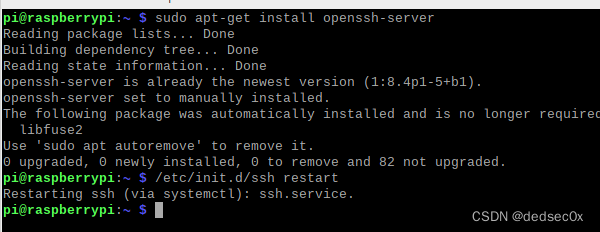
Download on virtual machine and raspberry pie respectively ssh

Put the raspberries in the pie you practiced before assert.c Upload the file to the virtual machine
scp -r [email protected]:/home/lm/assert.c ./
complete

5、 ... and 、 Reference resources
边栏推荐
- Discuz仿今日头条模板/Discuz新闻资讯商业版GBK模板
- 多台云服务器的 Kubernetes 集群搭建
- Gorm---- Association query
- Stockage des données en mémoire
- AGCO AI frontier promotion (6.25)
- 关于三子棋游戏的简易实现与N子棋胜利判断方法
- Three lines of code to simply modify the project code of the jar package
- Which Chinese virtual human is better? Sullivan, IDC: Xiaobing Baidu Shangtang ranks in the first echelon
- untiy强制刷新UI
- Deep parsing and implementation of redis stream advanced message queue [10000 words]
猜你喜欢




随机推荐
Leetcode: Sword finger offer II 091 Painting house [2D DP]
leetcode:456. 132 模式【单调栈】
Regular match the phone number and replace the fourth to seventh digits of the phone number with****
权益NFT开创者Hash Eagle如何重新定义NFT,用权益赋能长续价值?
“移动云杯”算力网络应用创新大赛火热报名中!
關於一道教材題的講解
阻止深度神经网络过拟合(Mysteries of Neural Networks Part II)
Syntax 'trap'
Use of bind() in JS and handwritten bind()
Is it safe to open an account with tongdaxin stock?
Is it safe for Guosen Securities to open an account?
BACnet gateway bl103 for building automation
指针,它那些不得不说的题目
Is it safe for Guosen Securities to open a stock account? Excuse me?
Which Chinese virtual human is better? Sullivan, IDC: Xiaobing Baidu Shangtang ranks in the first echelon
Simple realization of mine sweeping
KVM script management - the road to dream
Solve the problem that yarn cannot load files in vs Code
The starting point for learning programming.
Nr-arfcn and channel grid, synchronous grid and GSCN