当前位置:网站首页>Pyqt5 rapid development and practice 4.13 menu bar, toolbar and status bar and 4.14 qprinter
Pyqt5 rapid development and practice 4.13 menu bar, toolbar and status bar and 4.14 qprinter
2022-07-28 10:45:00 【Ding Jiaxiong】
PyQt5 Rapid development and actual combat
List of articles
4. The first 4 Chapter PyQt5 Basic window control
4.13 menu bar 、 Toolbar and status bar
4.13.1 menu bar
stay QMainWindow Under the title bar of the object , Horizontal QMenuBar Reserved display QMenu object .
QMenu Class provides a widget that can be added to the menu bar , It is also used to create context menus and pop-up menus . Every QMenu Objects can contain one or more QAction Object or cascading QMenu object .·
To create a pop-up menu ,PyQt API Provides createPopupMenu() function ;menuBar() The function returns the of the main window QMenuBar object ;addMenu() Function to add a menu to the menu bar ; adopt addAction() Functions can be added in the menu .
Some important methods in designing menu system :
| Method | describe |
|---|---|
| menuBar() | Return to the main window QMenuBar object |
| addMenu() | Add a new... In the menu bar QMenu object |
| addAction() | towards QMenu Add an action button to the widget , It contains text or icons |
| setEnabled() | Set the operation button status to enabled / Ban |
| addSeperator() | Add a split line to the menu |
| clear() | Delete menu / Contents of the menu bar |
| setShortcut() | Associate shortcut keys to action buttons |
| setText() | Set the text of the menu item |
| setTitle() | Set up QMenu The title of the widget |
| text() | Return and QAction Object associated text |
| title() | return QMenu The title of the widget |
Click any QAction Button ,QMenu Objects emit triggered The signal .
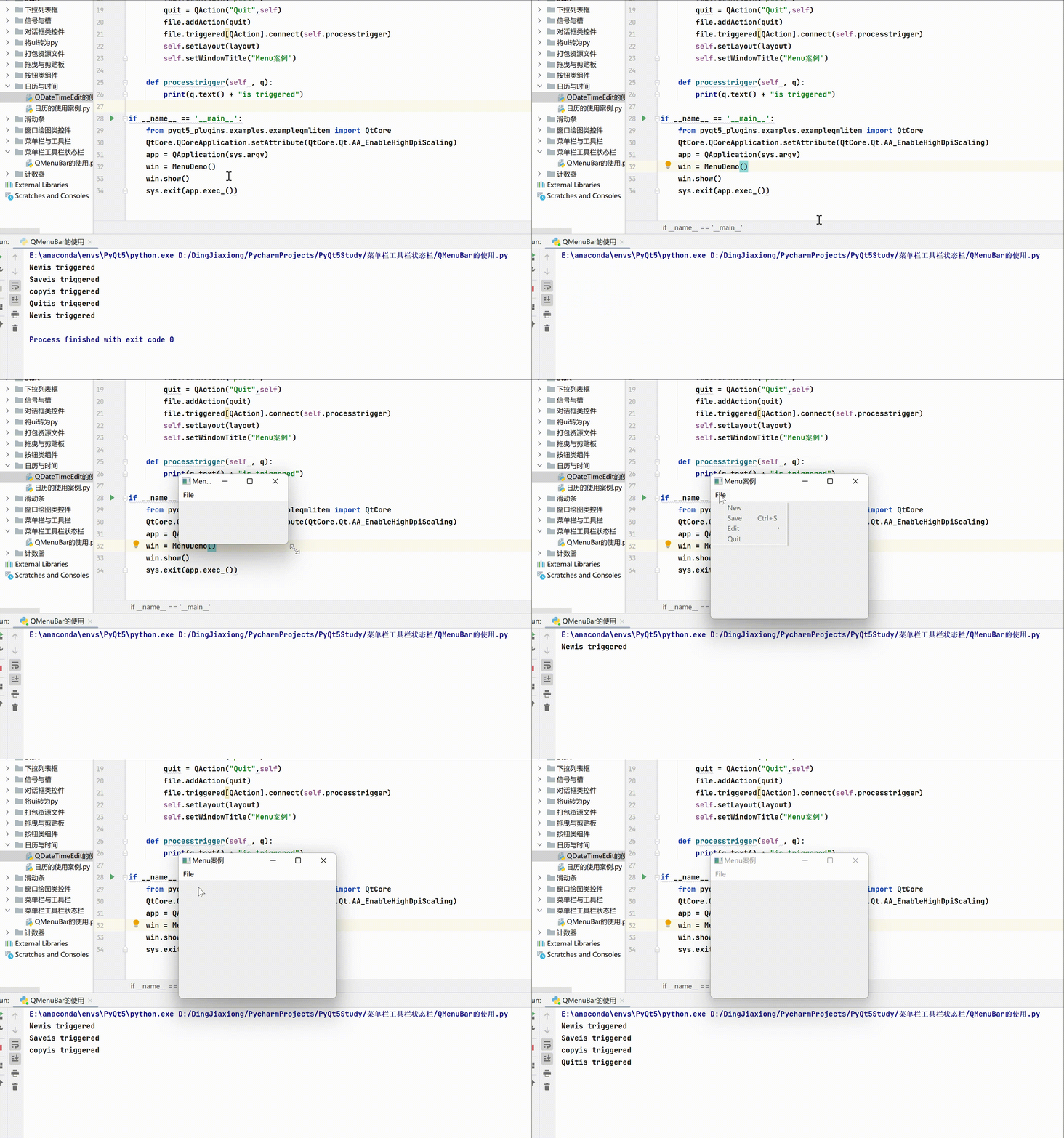
Case study ——QMenuBar Use
import sys
from PyQt5.QtCore import *
from PyQt5.QtGui import *
from PyQt5.QtWidgets import *

class MenuDemo(QMainWindow):
    def __init__(self,parent = None):
        super(MenuDemo, self).__init__(parent)
        layout = QHBoxLayout()
        bar = self.menuBar()
        file = bar.addMenu("File")
        file.addAction("New")
        save = QAction("Save",self)
        save.setShortcut("Ctrl+S")
        file.addAction(save)
        edit = file.addMenu("Edit")
        edit.addAction("copy")
        edit.addAction("paste")
        quit = QAction("Quit",self)
        file.addAction(quit)
        file.triggered[QAction].connect(self.processtrigger)
        self.setLayout(layout)
        self.setWindowTitle("Menu Case study ")

    def processtrigger(self , q):
        print(q.text() + "is triggered")

if __name__ == '__main__':
    from pyqt5_plugins.examples.exampleqmlitem import QtCore
    QtCore.QCoreApplication.setAttribute(QtCore.Qt.AA_EnableHighDpiScaling)
    app = QApplication(sys.argv)
    win = MenuDemo()
    win.show()
    sys.exit(app.exec_())
4.13.2 QToolBar
QToolBar Control consists of a text button 、 A movable panel composed of icons or other gizmo buttons , Usually located below the menu bar .
QToolBar Common methods in class
| Method | describe |
|---|---|
| addAction() | Add a tool button with text or icon |
| addSeperator() | Group display tool buttons |
| addWidget() | Add controls other than buttons in the toolbar |
| addToolBar() | Use QMainWindow Class to add a new toolbar |
| setMovable() | The toolbar becomes movable |
| setOrientation() | The direction of the toolbar can be set to Qt.Horizaontal or Qt.vertical |
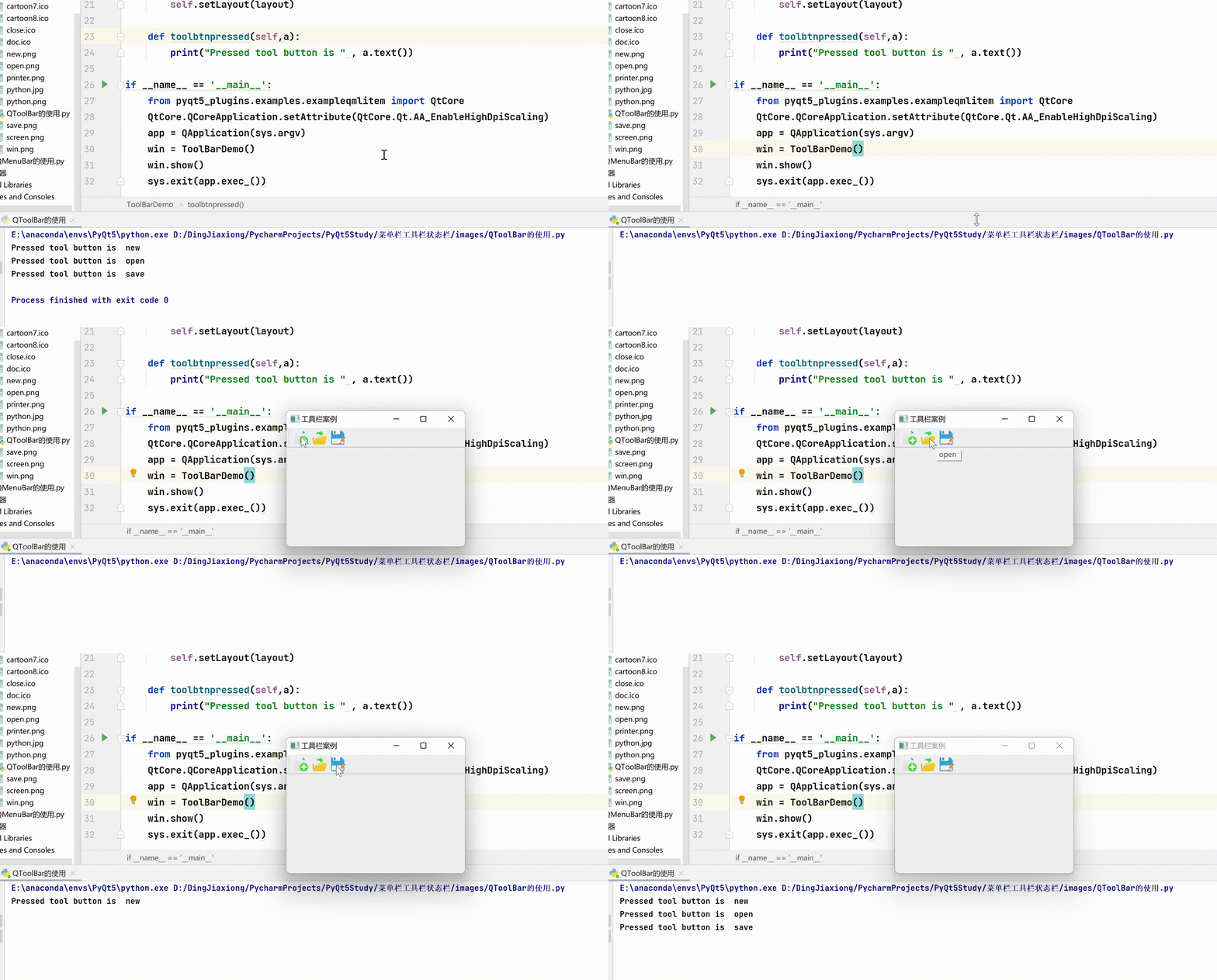
Whenever you click a button in the toolbar , Will launch actionTriggered The signal . in addition , This signal will be associated with QAction Object is sent to the connected slot function .
Case study ——QToolBar Use
import sys
from PyQt5.QtCore import *
from PyQt5.QtGui import *
from PyQt5.QtWidgets import *

class ToolBarDemo(QMainWindow):
    def __init__(self,parent = None):
        super(ToolBarDemo, self).__init__(parent)
        self.setWindowTitle(" Toolbar case ")
        self.resize(300 , 200)

        layout = QVBoxLayout()
        tb = self.addToolBar("File")
        new = QAction(QIcon("new.png"),"new",self)
        tb.addAction(new)
        open = QAction(QIcon("open.png"),"open",self)
        tb.addAction(open)
        save = QAction(QIcon("save.png"),"save",self)
        tb.addAction(save)
        tb.actionTriggered[QAction].connect(self.toolbtnpressed)
        self.setLayout(layout)

    def toolbtnpressed(self,a):
        print("Pressed tool button is " , a.text())

if __name__ == '__main__':
    from pyqt5_plugins.examples.exampleqmlitem import QtCore
    QtCore.QCoreApplication.setAttribute(QtCore.Qt.AA_EnableHighDpiScaling)
    app = QApplication(sys.argv)
    win = ToolBarDemo()
    win.show()
    sys.exit(app.exec_())
4.13.3 QStatusBar
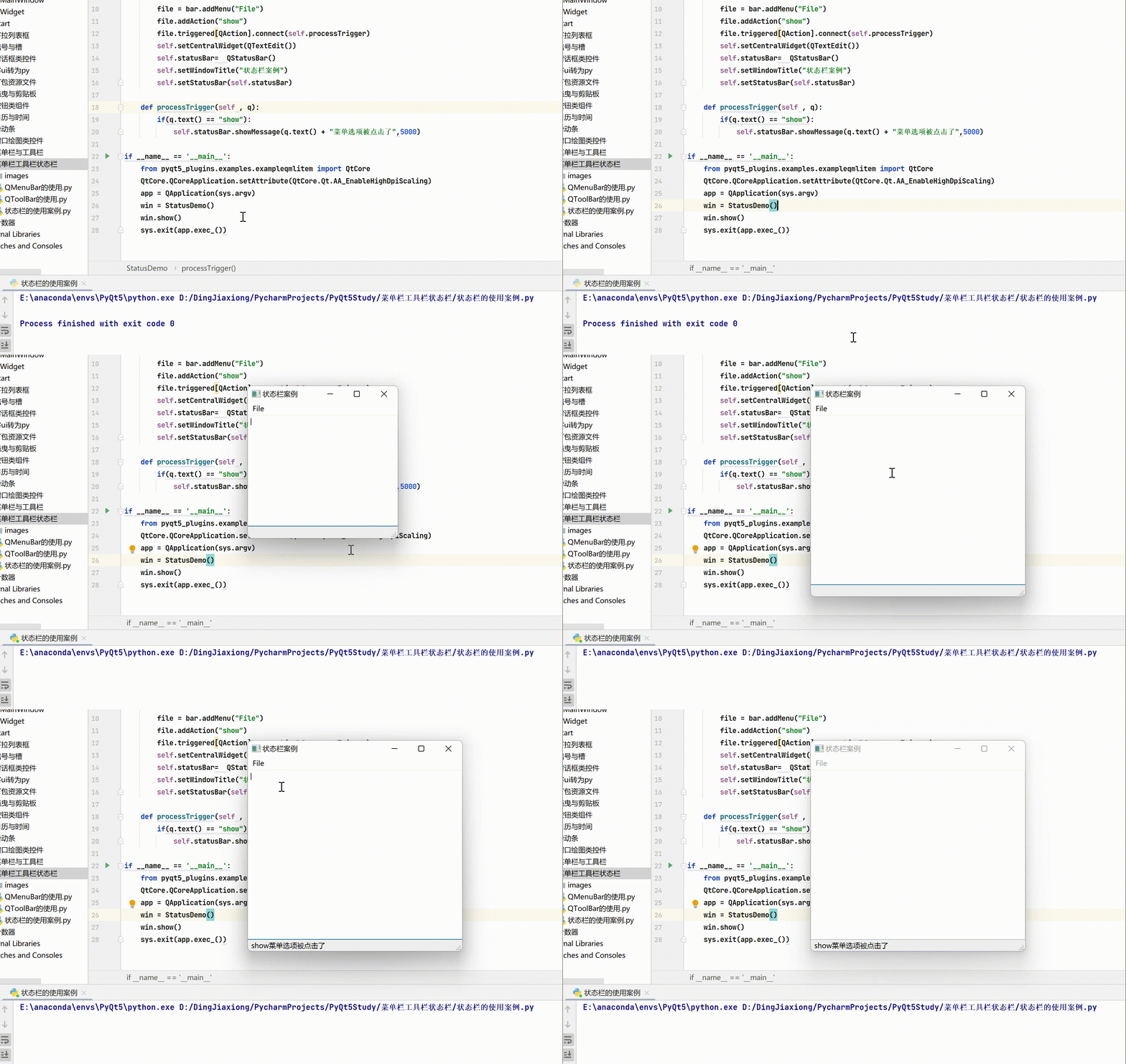
MainWindow The object has a horizontal bar at the bottom , As a status bar (QStatusBar), Used to display permanent or temporary status information . Through the main window QMainWindow Of setStatusBar() Function setting status bar :
self.statusBar = QStatusBar()
self.setStatusBar(self.statusBar)
QStatusBar Common methods in class
| Method | describe |
|---|---|
| addWidget() | Add the given widget object to the status bar |
| addPermanentWidget() | Permanently add the given widget object in the status bar |
| showMessage() | Display a temporary message in the status bar to specify the time interval |
| clearMessage() | Delete the temporary information being displayed |
| removeWidget() | Delete the specified gizmo from the status bar |
Case study ——QStatusBar Use
import sys
from PyQt5.QtCore import *
from PyQt5.QtGui import *
from PyQt5.QtWidgets import *

class StatusDemo(QMainWindow):
    def __init__(self,parent = None):
        super(StatusDemo, self).__init__(parent)
        bar = self.menuBar()
        file = bar.addMenu("File")
        file.addAction("show")
        file.triggered[QAction].connect(self.processTrigger)
        self.setCentralWidget(QTextEdit())
        self.statusBar=  QStatusBar()
        self.setWindowTitle(" Status bar case ")
        self.setStatusBar(self.statusBar)

    def processTrigger(self , q):
        if(q.text() == "show"):
            self.statusBar.showMessage(q.text() + " The menu option was clicked ",5000)

if __name__ == '__main__':
    from pyqt5_plugins.examples.exampleqmlitem import QtCore
    QtCore.QCoreApplication.setAttribute(QtCore.Qt.AA_EnableHighDpiScaling)
    app = QApplication(sys.argv)
    win = StatusDemo()
    win.show()
    sys.exit(app.exec_())
4.14 QPrinter
Printing image is a common function in image processing software . Printing an image is actually QPaintDevice Chinese painting , As usual QWidget、QPixmap and QImage It's the same as drawing in , Is to create a QPainter Object for drawing , Just print using QPrinter, It is also essentially a QPaintDevice( Drawing equipment ).
4.14.1 QPrinter Use
from PyQt5.QtCore import Qt
from PyQt5.QtGui import QImage, QIcon, QPixmap, QPainter
from PyQt5.QtWidgets import QApplication, QMainWindow, QLabel, QSizePolicy, QAction
from PyQt5.QtPrintSupport import QPrinter, QPrintDialog
import sys


class MainWindow(QMainWindow):
    def __init__(self, parent=None):
        super(MainWindow, self).__init__(parent)
        self.setWindowTitle(self.tr(" Print pictures "))
        #  Create a place for the image QLabel object imageLabel, And put the QLabel Object as the central form .
        self.imageLabel = QLabel()
        self.imageLabel.setSizePolicy(QSizePolicy.Ignored, QSizePolicy.Ignored)
        self.setCentralWidget(self.imageLabel)

        self.image = QImage()

        #  Create a menu , Toolbar and other parts
        self.createActions()
        self.createMenus()
        self.createToolBars()

        #  stay imageLabel Object
        if self.image.load("./images/screen.png"):
            self.imageLabel.setPixmap(QPixmap.fromImage(self.image))
            self.resize(self.image.width(), self.image.height())

    def createActions(self):
        self.PrintAction = QAction(QIcon("images/screen.png"), self.tr(" Print "), self)
        self.PrintAction.setShortcut("Ctrl+P")
        self.PrintAction.setStatusTip(self.tr(" Print "))
        self.PrintAction.triggered.connect(self.slotPrint)

    def createMenus(self):
        PrintMenu = self.menuBar().addMenu(self.tr(" Print "))
        PrintMenu.addAction(self.PrintAction)

    def createToolBars(self):
        fileToolBar = self.addToolBar("Print")
        fileToolBar.addAction(self.PrintAction)

    def slotPrint(self):
        #  Create a new one QPrinter object
        printer = QPrinter()
        #  Create a QPrintDialog object , Parameter is QPrinter object
        printDialog = QPrintDialog(printer, self)

        '''  Judge whether the user clicks... After the print dialog box is displayed “ Print ” Button , If you click “ Print ” Button ,  Then the related print attributes can be created by QPrintDialog Object QPrinter Object to obtain ,  If the user clicks “ Cancel ” Button , Then no subsequent printing operation will be performed . '''
        if printDialog.exec_():
            #  Create a QPainter object , And specify the drawing device as a QPrinter object .
            painter = QPainter(printer)
            #  get QPainter The viewport rectangle of the object
            rect = painter.viewport()
            #  Get the size of the image
            size = self.image.size()
            #  Resets the viewport rectangle to the scale of the drawing
            size.scale(rect.size(), Qt.KeepAspectRatio)
            painter.setViewport(rect.x(), rect.y(), size.width(), size.height())
            #  Set up QPainter The window size is the size of the image
            painter.setWindow(self.image.rect())
            #  Print
            painter.drawImage(0, 0, self.image)

if __name__ == '__main__':
    from pyqt5_plugins.examples.exampleqmlitem import QtCore
    QtCore.QCoreApplication.setAttribute(QtCore.Qt.AA_EnableHighDpiScaling)
    app = QApplication(sys.argv)
    win = MainWindow()
    win.show()
    sys.exit(app.exec_())


边栏推荐
- ACM winter vacation training 6
- Test question discovery ring of previous test questions
- 【栈的应用】--- 中缀表达式转后缀表达式
- GKLinearCongruentialRandomSource
- GKCircleObstacle
- Ueeditor v1.4.3 control file compression
- 20200229训练赛 L1 - 2 删除字符串中的子串 (20分)
- AP AUTOSAR platform design 3 architecture
- Go json. Decoder Considered Harmful
- 粒子群实现最优解的求解
猜你喜欢


随机推荐
GKRidgedNoiseSource
Database security - create login user + configure permissions [notes]
Advanced C language: pointer (1)
How to write Ogg with multiple filter syntax?
Characteristics and installation of non relational database mongodb
Tensorflow knowledge points
GKSpheresNoiseSource
SDUT Round 9 2020 Spring Festival campaign
Markdown to word or PDF
机器人技术(RoboCup 2D)如何进行一场球赛
Qt生成.exe文件 并 在无Qt环境下运行(Enigma Virtual Box进行绿色可执行软件封装)图文教程
GKRandom
Sleeping barber problem
Machine learning -- handwritten English alphabet 3 -- engineering features
C语言 输入带空格的字符串
Redis-day01-常识补充及redis介绍
ACM winter vacation training 5
markdown转成word或者pdf
Powerful and unique! Yingzhong technology 2020 10th generation core unique product launch
Inverse element & combinatorial number & fast power