当前位置:网站首页>BottomSheetDialog 使用详解,设置圆角、固定高度、默认全屏等
BottomSheetDialog 使用详解,设置圆角、固定高度、默认全屏等
2022-06-11 18:27:00 【InfoQ】
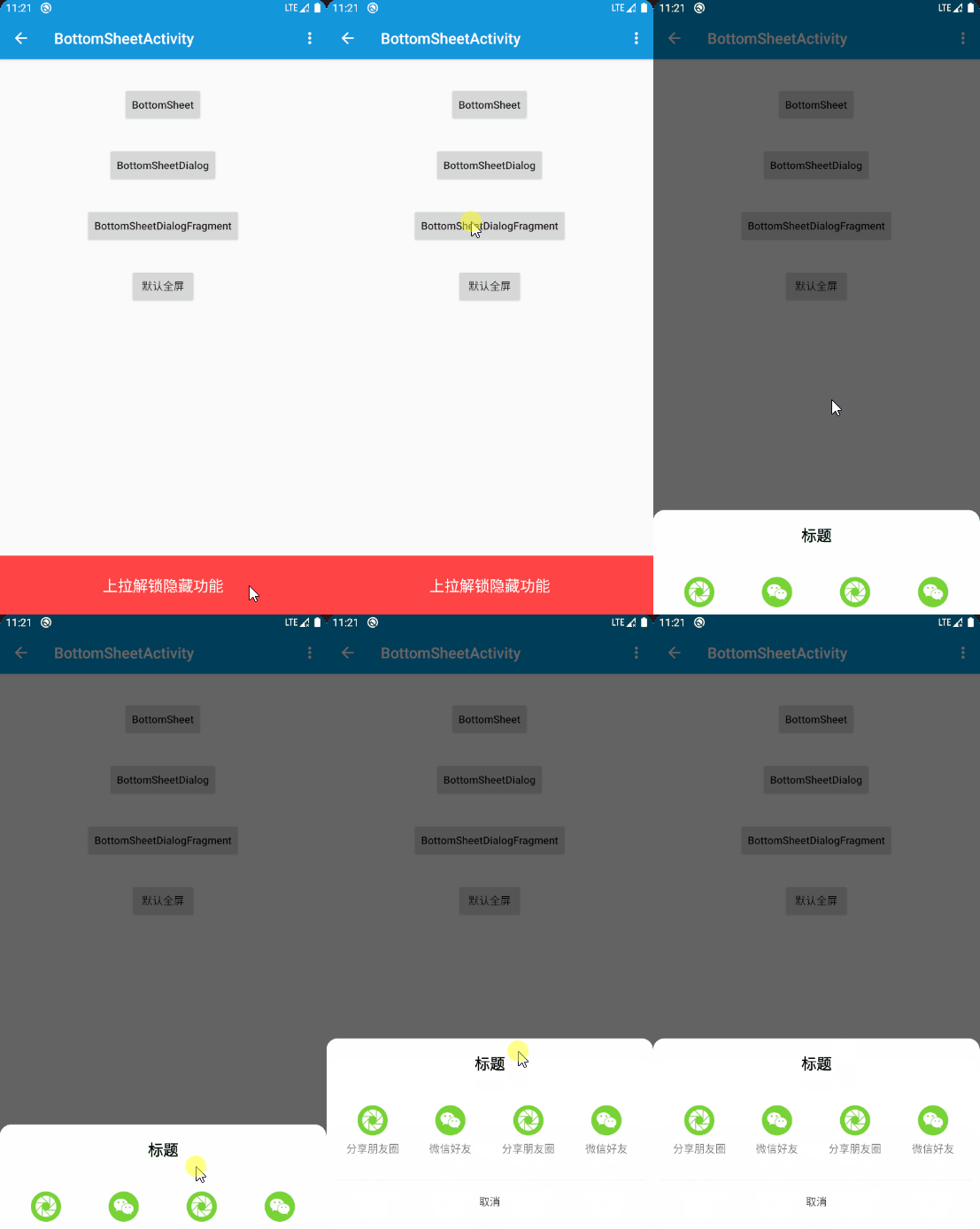
1.效果
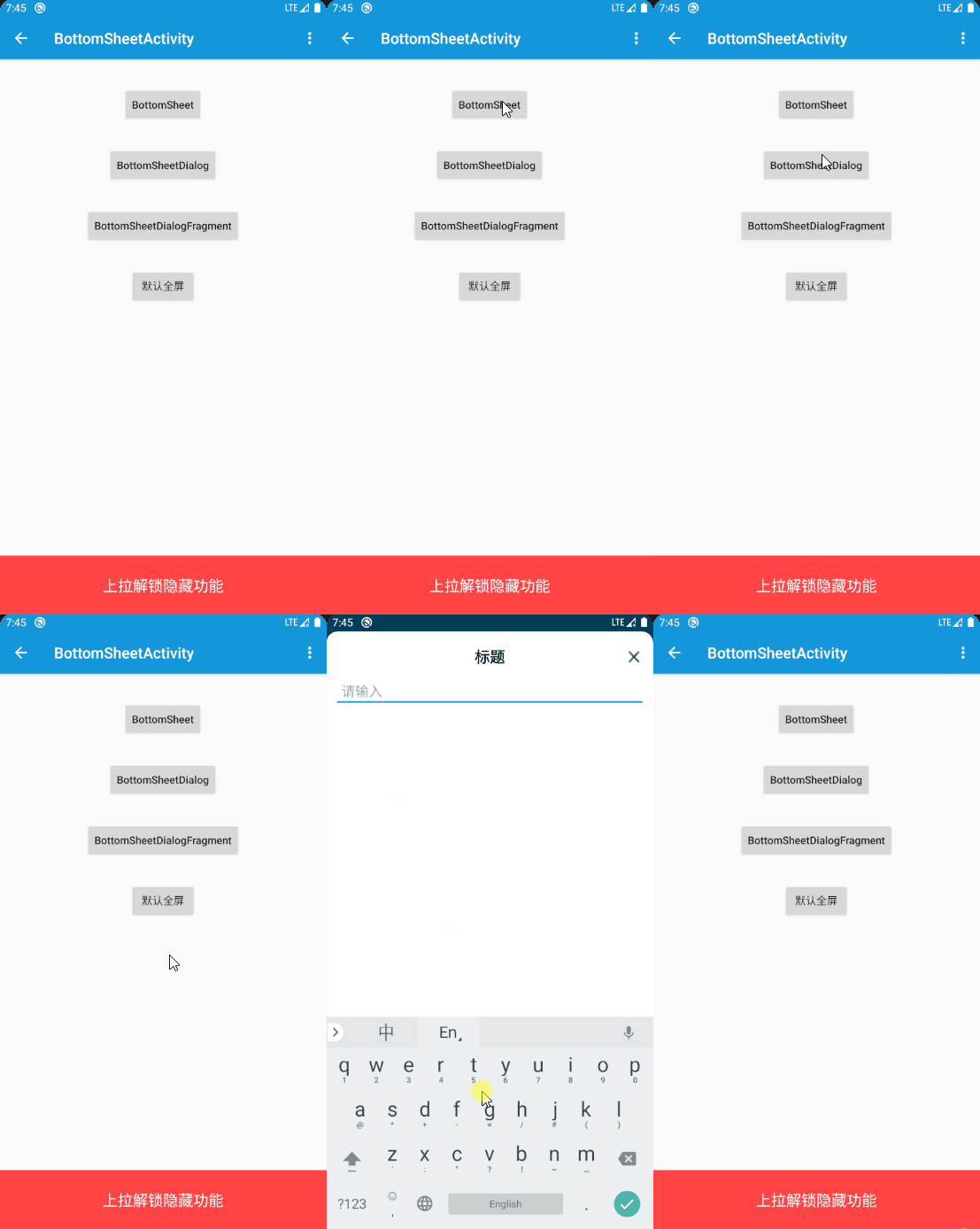
底部弹窗dialogpopupwindowBottomSheetBottomSheetDialogBottomSheetDialogFragment2.BottomSheet

同层级高度拉出来XML
<?xml version="1.0" encoding="utf-8"?>
<androidx.coordinatorlayout.widget.CoordinatorLayout xmlns:android="http://schemas.android.com/apk/res/android"
xmlns:app="http://schemas.android.com/apk/res-auto"
xmlns:tools="http://schemas.android.com/tools"
android:layout_width="match_parent"
android:layout_height="match_parent"
tools:context="com.yechaoa.materialdesign.activity.BottomSheetActivity">
<include
android:id="@+id/include"
layout="@layout/layout_toolbar" />
<LinearLayout
android:layout_width="match_parent"
android:layout_height="wrap_content"
android:layout_marginTop="60dp"
android:gravity="center"
android:orientation="vertical">
<Button
android:id="@+id/btn_bottom_sheet"
android:layout_width="wrap_content"
android:layout_height="wrap_content"
android:layout_marginTop="32dp"
android:text="BottomSheet"
android:textAllCaps="false" />
...
</LinearLayout>
<LinearLayout
android:id="@+id/ll_bottom_sheet"
android:layout_width="match_parent"
android:layout_height="wrap_content"
android:orientation="vertical"
app:behavior_peekHeight="80dp"
app:layout_behavior="@string/bottom_sheet_behavior"
app:layout_constraintBottom_toBottomOf="parent"
app:layout_constraintLeft_toLeftOf="parent">
<TextView
android:layout_width="match_parent"
android:layout_height="80dp"
android:background="@android:color/holo_red_light"
android:gravity="center"
android:text="上拉解锁隐藏功能"
android:textColor="@color/white"
android:textSize="20sp" />
<TextView
android:layout_width="match_parent"
android:layout_height="80dp"
android:background="@android:color/holo_blue_light"
android:gravity="center"
android:text="a"
android:textSize="20sp" />
<TextView
android:layout_width="match_parent"
android:layout_height="80dp"
android:background="@android:color/holo_orange_dark"
android:gravity="center"
android:text="b"
android:textSize="20sp" />
<TextView
android:layout_width="match_parent"
android:layout_height="80dp"
android:background="@android:color/holo_green_light"
android:gravity="center"
android:text="c"
android:textSize="20sp" />
</LinearLayout>
</androidx.coordinatorlayout.widget.CoordinatorLayout>
- 注意,这里需要协调布局
CoordinatorLayout包裹才行
app:behavior_peekHeight显示高度,不显示的话设置为0即可
app:layout_behavior标示这是一个bottom_sheet
必须代码
 btn_bottom_sheet.setOnClickListener {
 val behavior = BottomSheetBehavior.from(ll_bottom_sheet)
 if (behavior.state == BottomSheetBehavior.STATE_EXPANDED) {
 //如果是展开状态,则关闭,反之亦然
 behavior.state = BottomSheetBehavior.STATE_COLLAPSED
 } else {
 behavior.state = BottomSheetBehavior.STATE_EXPANDED
 }
 }
- STATE_COLLAPSED: 折叠状态
- STATE_EXPANDED: 展开状态
- STATE_DRAGGING : 过渡状态
- STATE_SETTLING: 视图从脱离手指自由滑动到最终停下的这一小段时间
- STATE_HIDDEN : 默认无此状态(可通过app:behavior_hideable 启用此状态),启用后用户将能通过向下滑动完全隐藏 bottom sheet
3.BottomSheetDialog
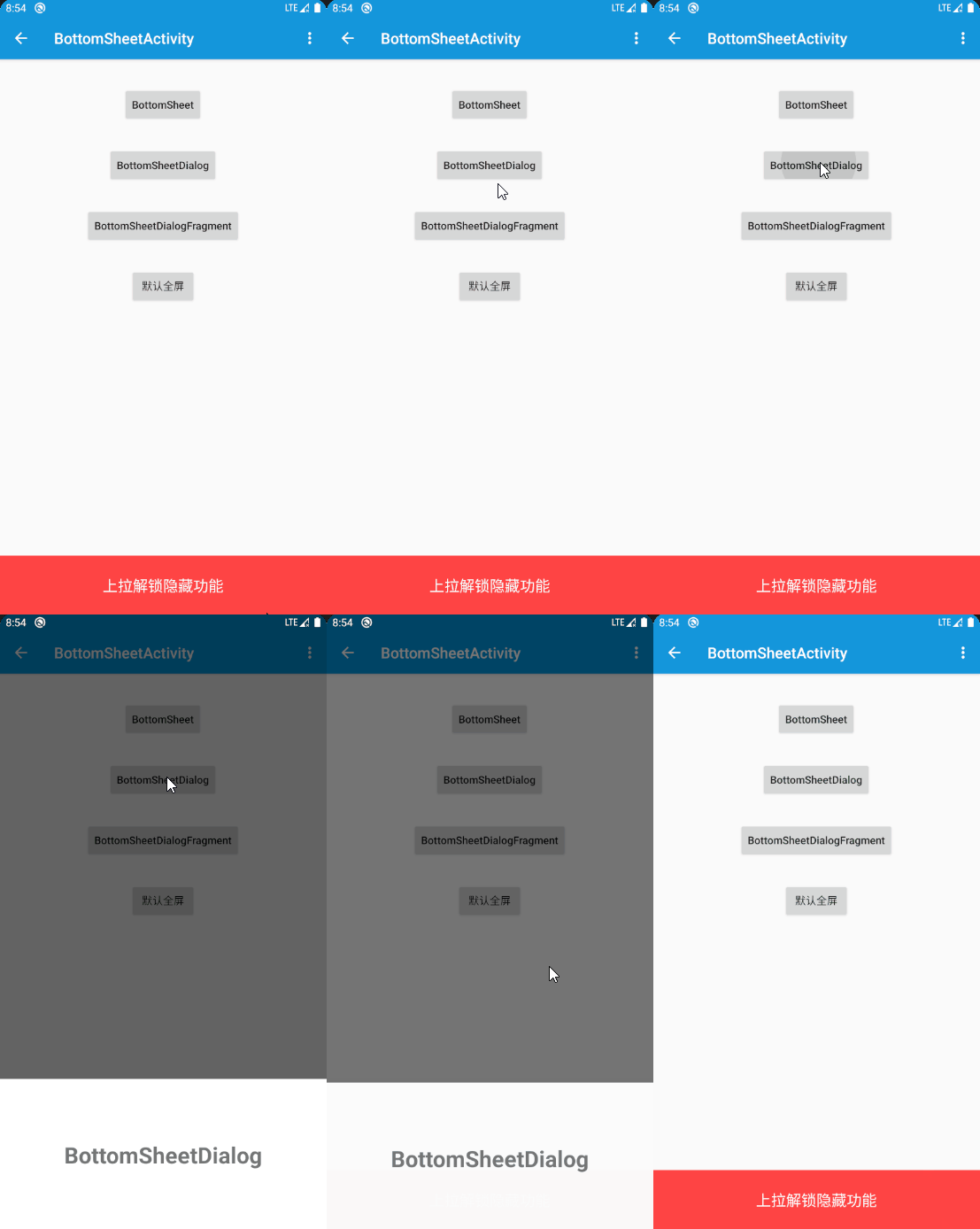
半透明BottomSheetDialog代码
 val bottomSheetDialog = BottomSheetDialog(this)
 bottomSheetDialog.setContentView(R.layout.dialog_bottom_sheet)
 bottomSheetDialog.show()
<?xml version="1.0" encoding="utf-8"?>
<TextView xmlns:android="http://schemas.android.com/apk/res/android"
android:layout_width="match_parent"
android:layout_height="wrap_content"
android:gravity="center"
android:paddingTop="80dp"
android:paddingBottom="80dp"
android:text="BottomSheetDialog"
android:textSize="30sp"
android:textStyle="bold" />
setContentViewshowclass MyDialog(context: Context) : BottomSheetDialog(context) {
override fun onCreate(savedInstanceState: Bundle?) {
super.onCreate(savedInstanceState)
}
}
4.BottomSheetDialogFragment
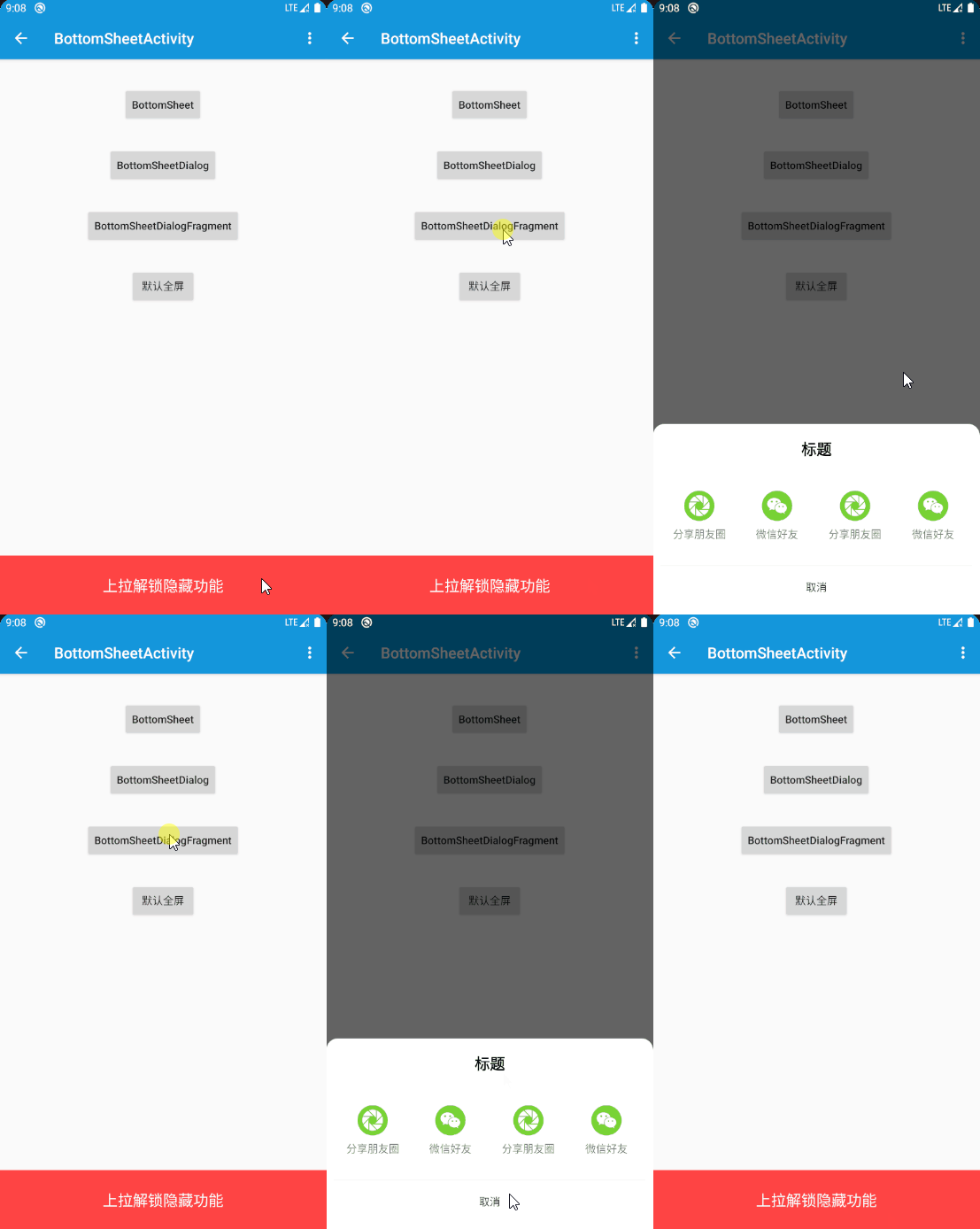
BottomSheetDialogDialogFragment代码
class MyBottomSheetDialog : BottomSheetDialogFragment() {

 override fun onCreateDialog(savedInstanceState: Bundle?): Dialog {
 val dialog = super.onCreateDialog(savedInstanceState)
 val view = LayoutInflater.from(context).inflate(R.layout.dialog_my_bottom_sheet, null)
 dialog.setContentView(view)
 initView(view)
 return dialog
 }

 private fun initView(rootView: View) {
 //do something
 rootView.tv_cancel.setOnClickListener { dismiss() }

 }
}
dialogsetContentViewMyBottomSheetDialog().show(supportFragmentManager, "MyBottomSheetDialog")
- FragmentManager
- tag
圆角效果指定高度5.圆角效果
- 先设置原有背景透明
<!--实现BottomSheetDialog圆角效果-->
<style name="BottomSheetDialog" parent="Theme.Design.Light.BottomSheetDialog">
<item name="bottomSheetStyle">@style/bottomSheetStyleWrapper</item>
</style>
<style name="bottomSheetStyleWrapper" parent="Widget.Design.BottomSheet.Modal">
<item name="android:background">@android:color/transparent</item>
</style>
- onCreate中设置style
 override fun onCreate(savedInstanceState: Bundle?) {
 super.onCreate(savedInstanceState)
 setStyle(STYLE_NORMAL, R.style.BottomSheetDialog)
 }
- 设置我们自己的style
根布局的viewbackgroundandroid:background="@drawable/shape_sheet_dialog_bg"
<?xml version="1.0" encoding="utf-8"?>
<shape xmlns:android="http://schemas.android.com/apk/res/android">
<corners
android:topLeftRadius="15dp"
android:topRightRadius="15dp" />
<solid android:color="@color/white" />
</shape>
6.去掉背景阴影
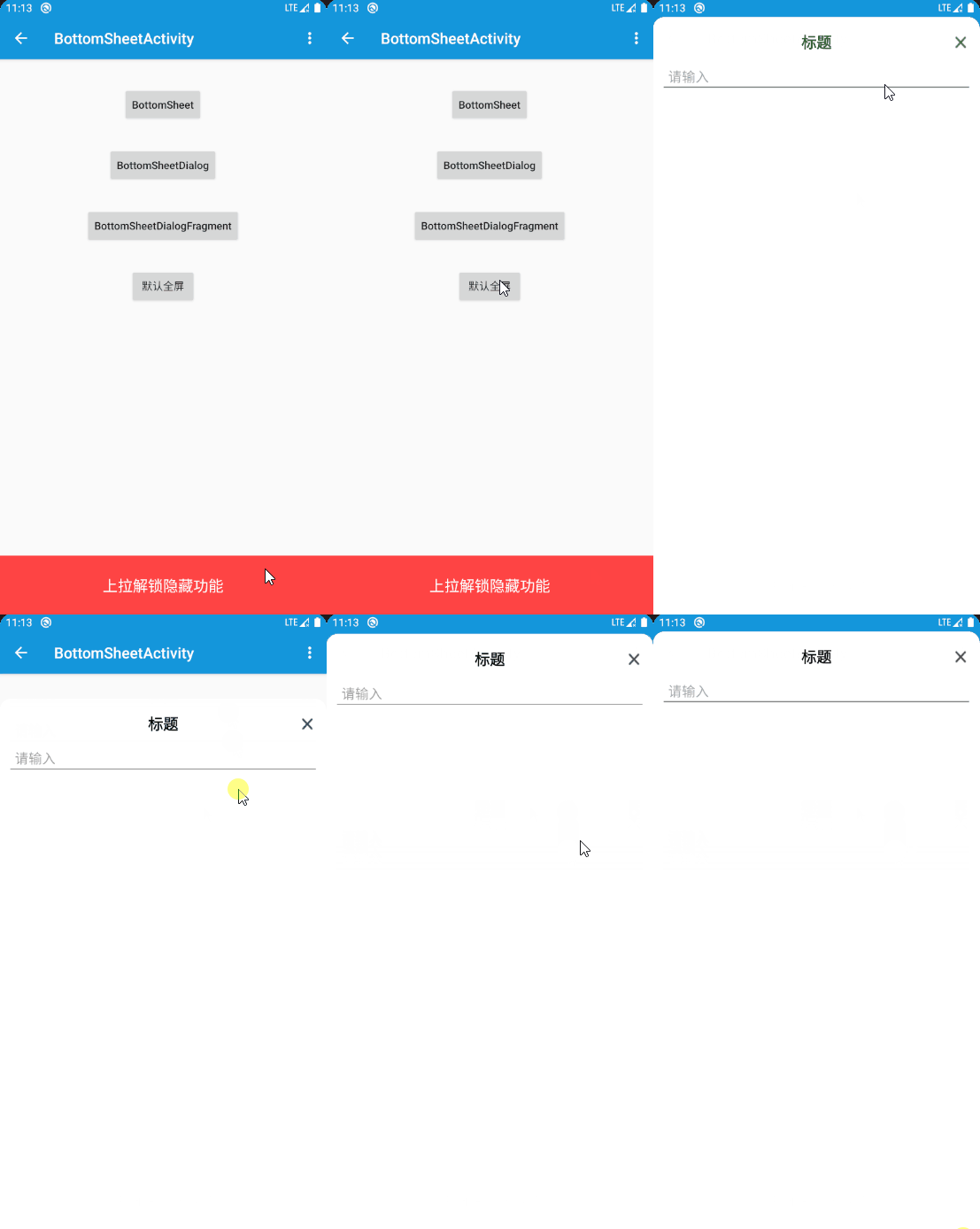
backgroundDimEnabledfalse <!--实现BottomSheetDialog圆角效果 且无背景阴影-->
<style name="BottomSheetDialogBg" parent="Theme.Design.Light.BottomSheetDialog">
<item name="bottomSheetStyle">@style/bottomSheetStyleWrapper</item>
<item name="android:backgroundDimEnabled">false</item>
</style>
<style name="bottomSheetStyleWrapper" parent="Widget.Design.BottomSheet.Modal">
<item name="android:background">@android:color/transparent</item>
</style>
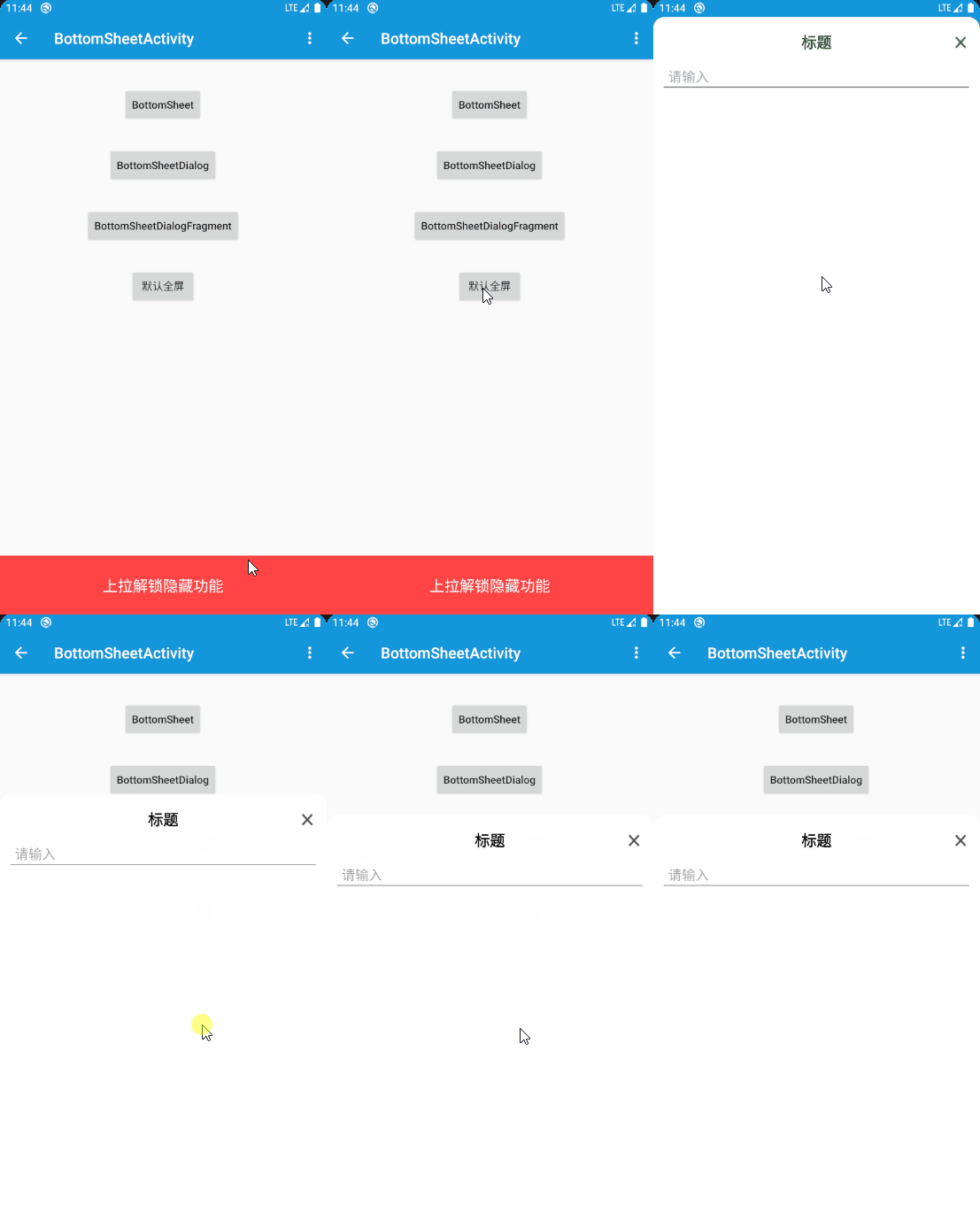
7.设置固定高度
代码
 override fun onStart() {
 super.onStart()
 //拿到系统的 bottom_sheet
 val view: FrameLayout = dialog?.findViewById(R.id.design_bottom_sheet)!!
 //获取behavior
 val behavior = BottomSheetBehavior.from(view)
 //设置弹出高度
 behavior.peekHeight = 350
 }
peekHeight setContentView @Override
public void setContentView(@LayoutRes int layoutResId) {
super.setContentView(wrapInBottomSheet(layoutResId, null, null));
}
wrapInBottomSheet private View wrapInBottomSheet(int layoutResId, @Nullable View view, @Nullable ViewGroup.LayoutParams params) {
ensureContainerAndBehavior();
...
return container;
}
ensureContainerAndBehavior(); /** Creates the container layout which must exist to find the behavior */
private FrameLayout ensureContainerAndBehavior() {
if (container == null) {
container =
(FrameLayout) View.inflate(getContext(), R.layout.design_bottom_sheet_dialog, null);
FrameLayout bottomSheet = (FrameLayout) container.findViewById(R.id.design_bottom_sheet);
behavior = BottomSheetBehavior.from(bottomSheet);
behavior.addBottomSheetCallback(bottomSheetCallback);
behavior.setHideable(cancelable);
}
return container;
}
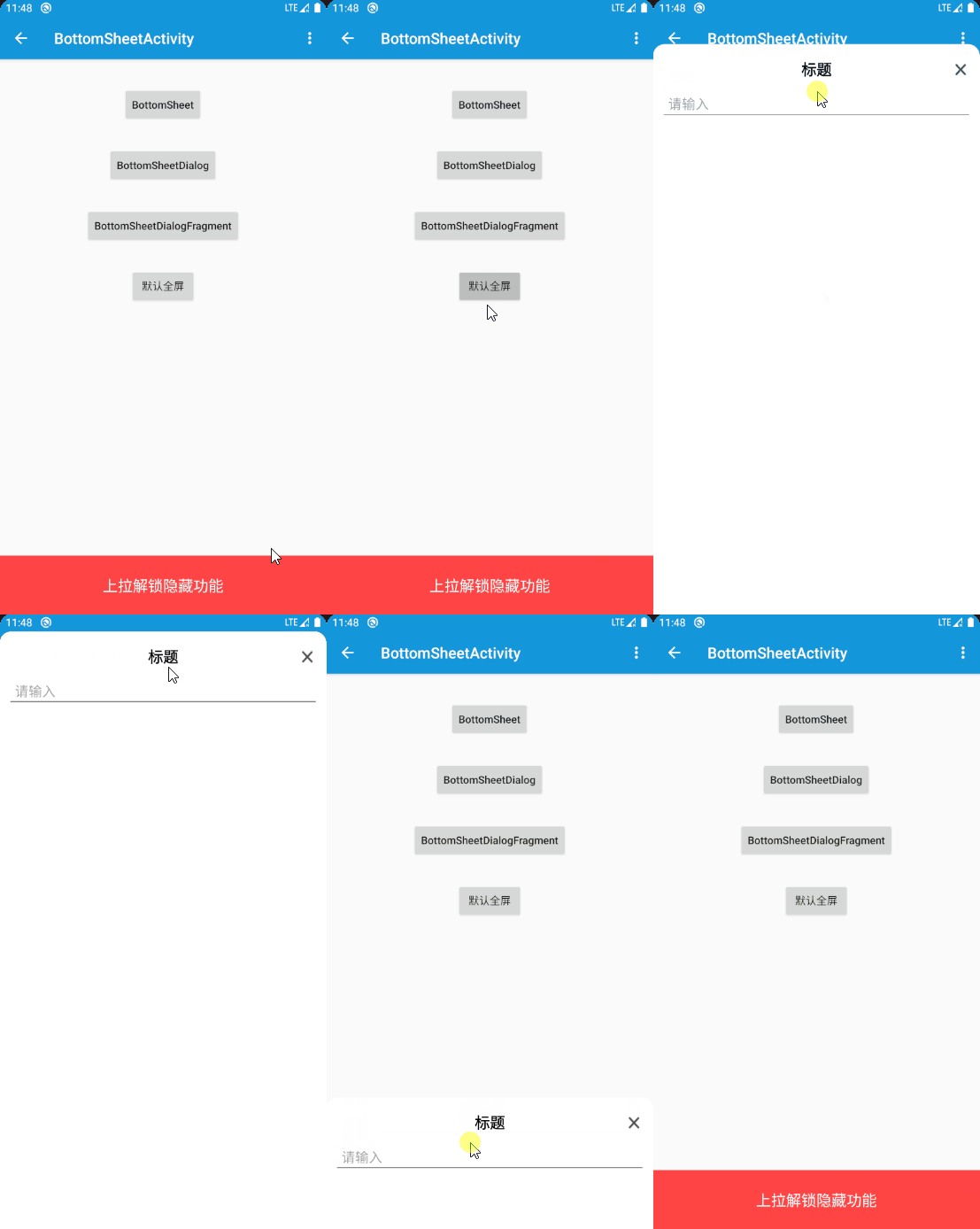
behaviorbehaviorpeekHeight8.设置默认全屏显示
BottomSheetDialogFragment有效高度match_parentdialog?.findViewById(R.id.design_bottom_sheet)!!view.layoutParams.height = ViewGroup.LayoutParams.MATCH_PARENT

statebehavior.state = BottomSheetBehavior.STATE_EXPANDED
默认位置behavior.peekHeight = 3000
 override fun onStart() {
 super.onStart()
 //拿到系统的 bottom_sheet
 val view: FrameLayout = dialog?.findViewById(R.id.design_bottom_sheet)!!
 //设置view高度
 view.layoutParams.height = ViewGroup.LayoutParams.MATCH_PARENT
 //获取behavior
 val behavior = BottomSheetBehavior.from(view)
 //设置弹出高度
 behavior.peekHeight = 3000
 //设置展开状态
 behavior.state = BottomSheetBehavior.STATE_EXPANDED
 }
9.监听展开收起
 behavior.addBottomSheetCallback(object : BottomSheetBehavior.BottomSheetCallback() {

 override fun onStateChanged(bottomSheet: View, newState: Int) {
 when(newState){
 BottomSheetBehavior.STATE_EXPANDED->{}
 BottomSheetBehavior.STATE_COLLAPSED->{}
 BottomSheetBehavior.STATE_DRAGGING->{}
 BottomSheetBehavior.STATE_SETTLING->{}
 BottomSheetBehavior.STATE_HIDDEN->{}
 }
 }

 override fun onSlide(bottomSheet: View, slideOffset: Float) {

 }

 })
10.Github
BottomSheetDialog边栏推荐
猜你喜欢

牛客刷题——两种排序方法

全国院校MBA、EMBA、MPA、MEM、提前面试(预面试)时间批次已出(持续更新中)-文都管联院

2023年西安交通大学管理学院MPAcc提前批面试网报通知

Niu Ke's question -- finding the least common multiple
![[c language] shift elements after sorting elements of an array](/img/5b/3e74fc40787d94f6d0ab93332140ba.png)
[c language] shift elements after sorting elements of an array

全志T3开发板(4核ARM Cortex-A7)——系统启动阶段LOGO显示详解

使用Visdom对损失函数进行监控
Complete in-depth learning of MySQL from 0 to 1 -- phase 2 -- basics
Niu Ke brushes the question - no two
牛客刷题——不要二

随机推荐
HashSet collection
SAP UI5 里 XML 视图根节点运行时实例化的分析
力扣刷题——二叉树的层序遍历
Two methods for matlab to save imshow drawing pictures to a specified folder
全志T3开发板(4核ARM Cortex-A7)——系统启动阶段LOGO显示详解
牛客刷题——part8
下载代码,并编译环境的问题
牛客刷题——两种排序方法
[c language] output the average score and the student data below or equal to the average score with the structure
用户组的操作
新项目 搭建环境方法
Labelme for image data annotation
User group actions
[c language] shift elements after sorting elements of an array
Async leads to unexpected function results and changes the intention of the original code; await is only valid in async functions and the top level bodies of modules
制造出静态坦克
防止敌方坦克重叠
Mysql深入完全学习---阶段1---学习总述
【无标题】
On the sequence traversal of binary tree Ⅱ