当前位置:网站首页>Setup instance of layout manager login interface
Setup instance of layout manager login interface
2022-06-26 14:17:00 【Wind clearing】
The so-called graphical user interface (GUI ), It is essentially a stack of components . Create a window , Put the button on it , Put the icon on it , So it's an interface . therefore , The placement of components is particularly important , Specify where the component is placed , So that the window can be rendered in the desired way . This involves the mechanism of component localization .
Qt Two component localization mechanisms are provided : Absolute positioning and Layout orientation .
- Absolute positioning : Give the coordinates and length and width values of the components . such Qt You can know the location of components and set the size of components . But there's a problem : If user changes window size , For example, click the maximize button or drag the edge of the window with the mouse , Components with absolute positioning will not have any response . This is because I didn't tell Qt When the window changes , Whether the component wants to update itself and how .
- Layout orientation : Put components into a layout , The layout is managed by a dedicated layout manager . When you need to adjust the size or position ,Qt Use the corresponding layout manager to adjust .
Components with absolute positioning can prevent users from changing the window size to solve this problem , But this is also inappropriate . Layout positioning perfectly solves the defect caused by absolute positioning .
Qt The three most commonly used layouts provided :
- QHBoxLayout: Layout horizontally from left to right ;
- QVBoxLayout: Layout vertically from top to bottom ;
- QGridLayout: Lay out in a grid , Be similar to HTML Of table;
The layout control provided by the system
The system provides 4 A layout control , But it's not very flexible to use , I won't go into details here .

utilize widget Layout
The second layout is to use the widget To make the layout , stay Containers in

Can be in widget The control can be horizontally 、 vertical 、 Grid layout and other operations . Flexible use of the characteristics of the spring can make the step more beautiful , Here's a login window , utilize widget You can build the following login interface :

The following is a demonstration of the steps to build the login interface in the above figure :
- New project ——> open ui file :
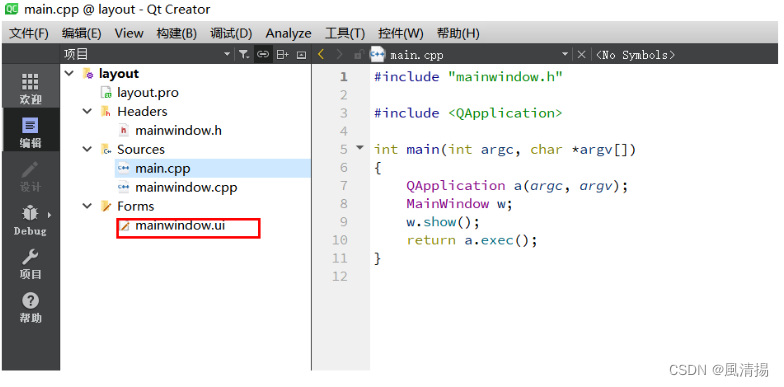
- Break the layout , Otherwise, the control layout cannot be customized :

- add to label and line Edit:

- modify label after , Create a new one widget, And as shown in the figure, the label and line Edit All dragged in widget in , Then click grid layout :
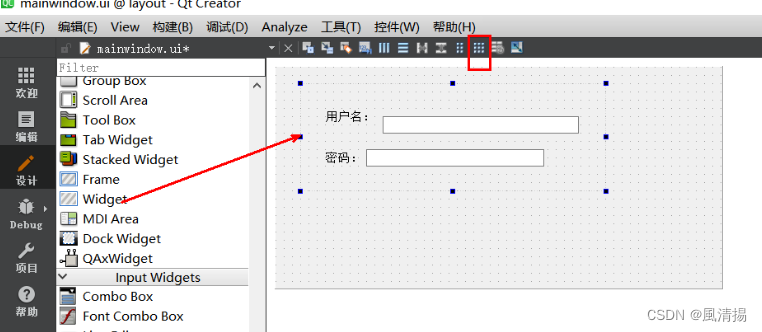
- After clicking the grid layout , Will find widget Box size and labe The two controls do not match in size ,

It needs to be selected widget box , Set... In the property bar sizePOlicy The vertical strategy is fixed. The effect is as follows :


- Add two buttons , Double click to change to login and exit , Also create a new one widget, And drag both buttons into widget in , Then click grid layout . And select widget box , Set... In the property bar sizePOlicy The vertical strategy is fixed.:

- Choose the big one widget box , Set it to vertical layout ( This is an important step , Otherwise, adding springs in the next step will not work ) :

- Add spring , And set the width of the spring between some controls :
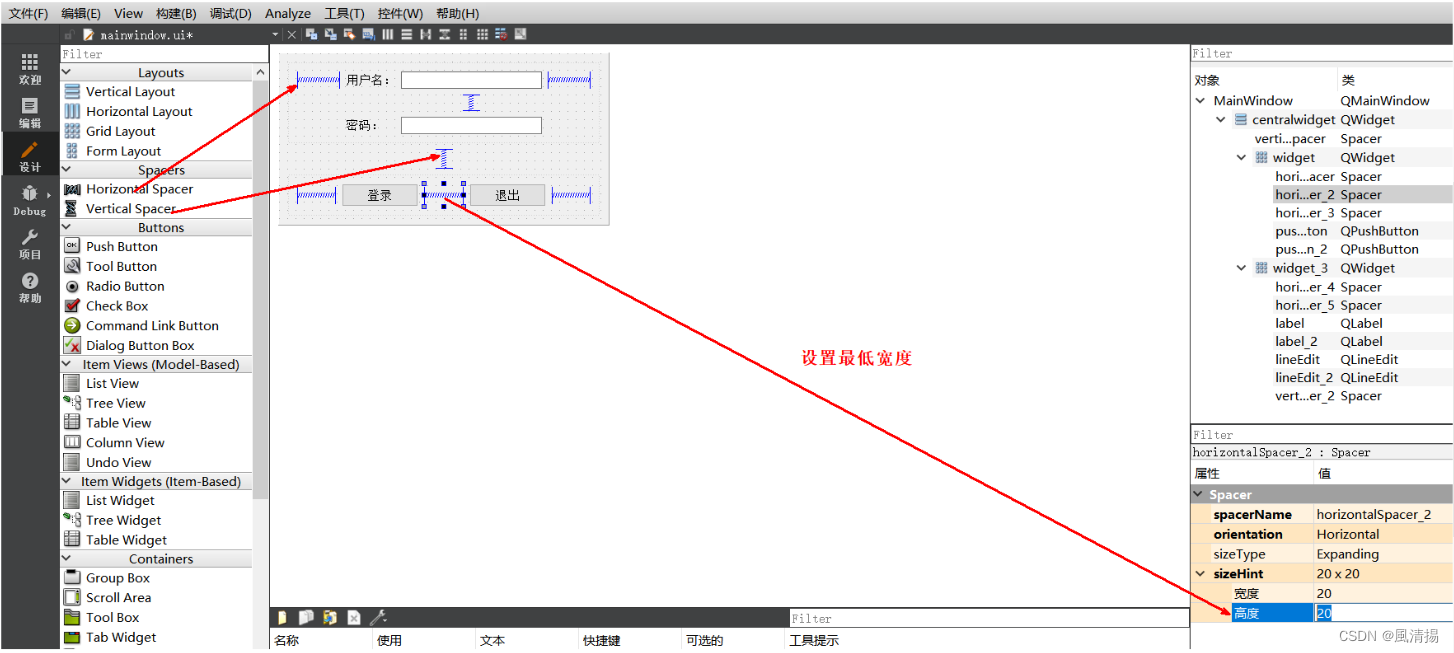
- The final effect is as follows :
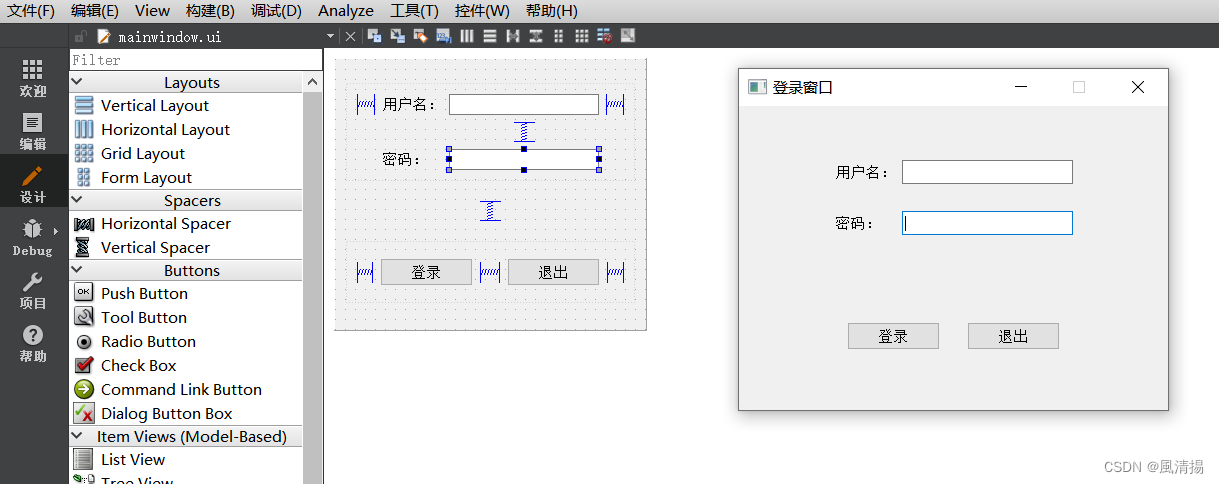
Add
You can set the size of the login dialog to fixed in the dialog properties ( Just set the maximum and minimum to the same ). You can also set the input password box to secret input , Just check the password input box , Return the schema in the property echoMode Set to Password that will do .

边栏推荐
- GEE——全球人类居住区网格数据 1975-1990-2000-2014
- Logical operation
- 8.Ribbon负载均衡服务调用
- A must for programmers, an artifact utools that can improve your work efficiency n times
- Embedded virlog code running process
- 虫子 STL string上
- Codeforces Round #765 (Div. 2) D. Binary Spiders
- Gartner 2022年顶级战略技术趋势报告
- array
- 33. Use rgbd camera for target detection and depth information output
猜你喜欢

C language | Consortium

Calculate the distance between two points (2D, 3D)

FreeFileSync 文件夹比较与同步软件

Generation and rendering of VTK cylinder

Embedded virlog code running process

windows版MySQL软件的安装与卸载
How to call self written functions in MATLAB

微信小程序注册指引

Jianzhi offer 43.47.46.48 dynamic planning (medium)

Relevant knowledge of information entropy
随机推荐
Is expression of D
ICML 2022 | limo: a new method for rapid generation of targeted molecules
Assert and constd13
CF676C Vasya and String
Introduction to granular computing
character constants
Logical operation
虫子 STL string 下 练习题
Sword finger offer 06.24.35 Linked list
GC is not used in D
Eigen(3):error: ‘Eigen’ has not been declared
Stream常用操作以及原理探索
Bug STL string
永远不要使用Redis过期监听实现定时任务!
Comparison of disk partition modes (MBR and GPT)
Wechat applet - bind and prevent event bubble catch
Installation and uninstallation of MySQL software for windows
Memory considerations under bug memory management
Generation and rendering of VTK cylinder
Installation tutorial about origin2019