当前位置:网站首页>C#应用程序界面开发基础——窗体控制
C#应用程序界面开发基础——窗体控制
2022-06-28 19:29:00 【DXB2021】
From窗体
创建WinForm程序
创建WinForm程序的步骤
打开Visual Studio,点击“创建新项目”,使用快捷键Ctrl+Shift+N可以快速地打开“新建项目”对话框。

在拉下菜单中选择“C#”、“Windows”、“桌面”中,在列表框选择“Windows窗体应用(.NET Framework)”。
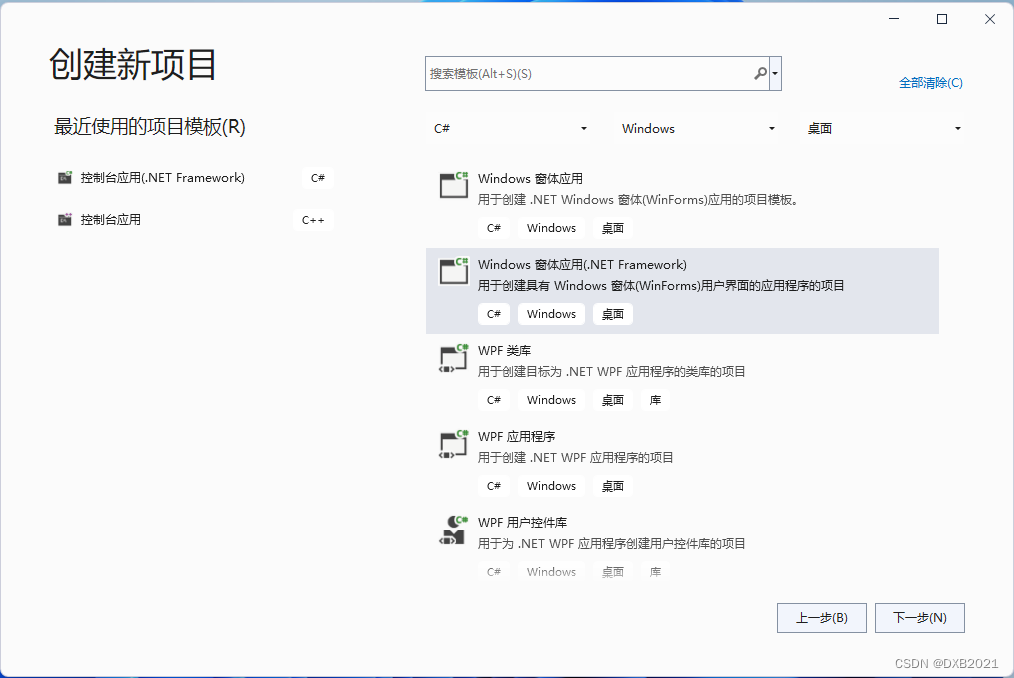
点击“下一步”。
 点击“创建”。
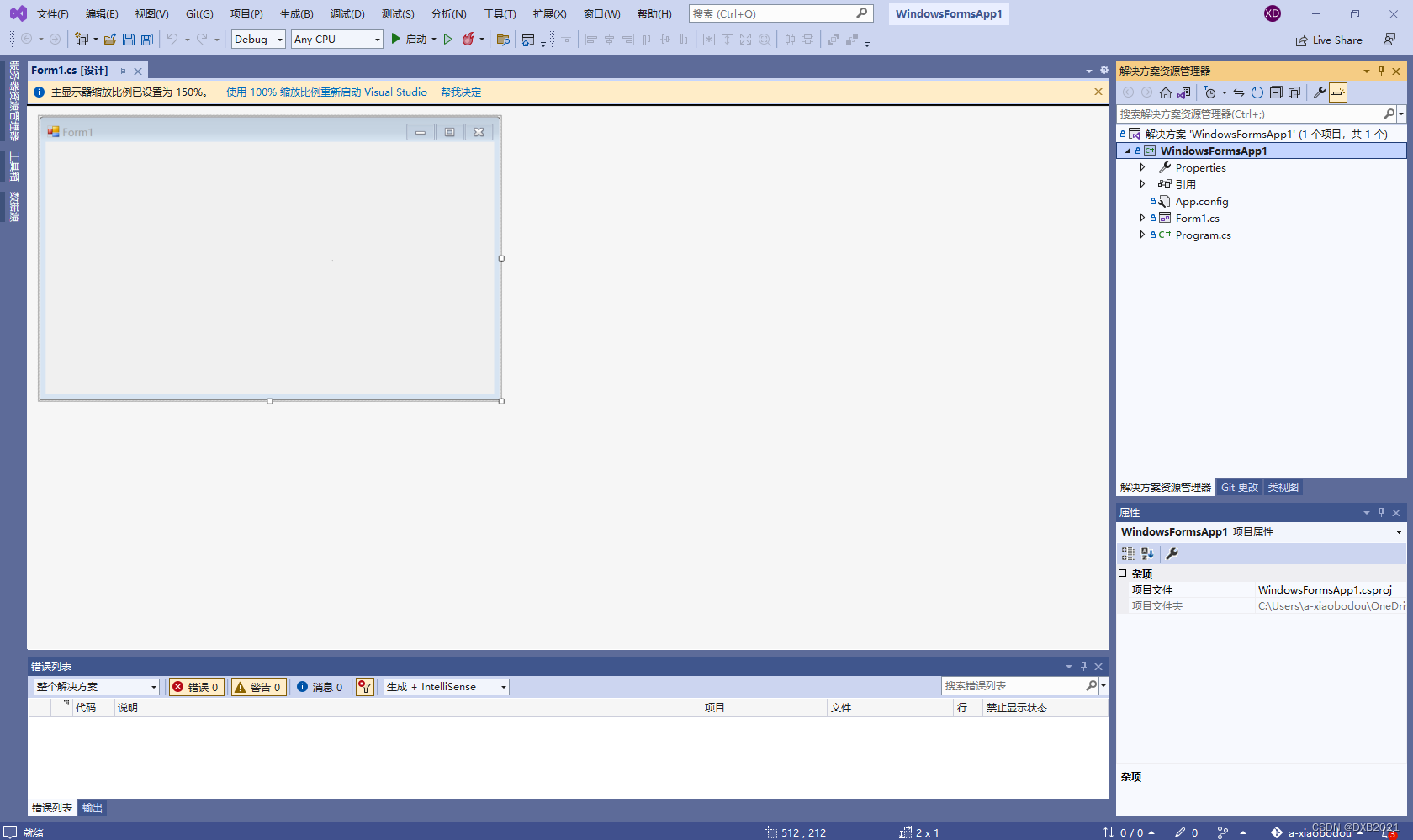
在解决方案资源管理器,双击Program.cs文件,会跳转到Windows控制台应用界面,在“编辑”窗口中是一段自动生成的WinForm程序.

代码如下:
using System;
using System.Collections.Generic;
using System.Linq;
using System.Threading.Tasks;
using System.Windows.Forms;

namespace WindowsFormsApp1
{
    internal static class Program
    {
        /// <summary>
        /// 应用程序的主入口点。
        /// </summary>
        [STAThread]
        static void Main()
        {
            Application.EnableVisualStyles();
            Application.SetCompatibleTextRenderingDefault(false);
            Application.Run(new Form1());
        }
    }
}
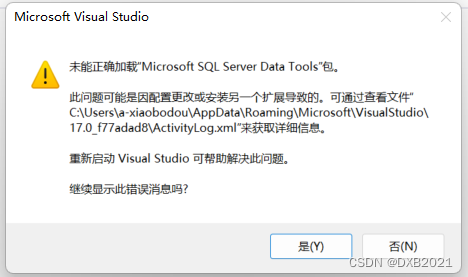
再单击“启动”按键,会弹出一个空白的窗体。
 创建窗体的实质
窗体的实质就是利用System.Windows.Forms.Form类或者是该类的派生类来创建。
右击“窗体”后,选择“查看代码”命令,就会跳转到Form1.cs文件。
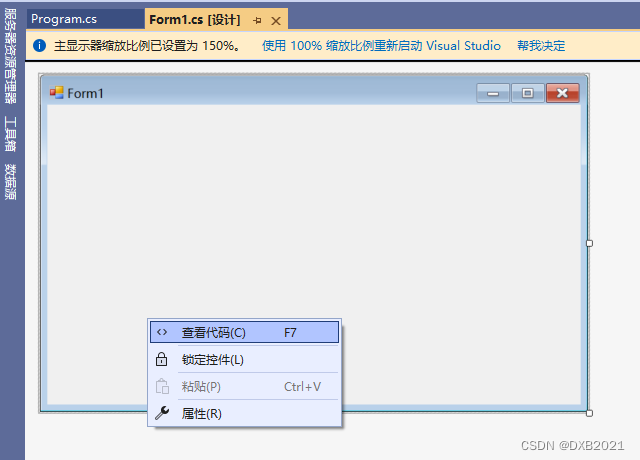

代码如下:
using System;
using System.Collections.Generic;
using System.ComponentModel;
using System.Data;
using System.Drawing;
using System.Linq;
using System.Text;
using System.Threading.Tasks;
using System.Windows.Forms;

namespace WindowsFormsApp1
{
    public partial class Form1 : Form
    {
        public Form1()
        {
            InitializeComponent();
        }
    }
}
窗体的添加与删除
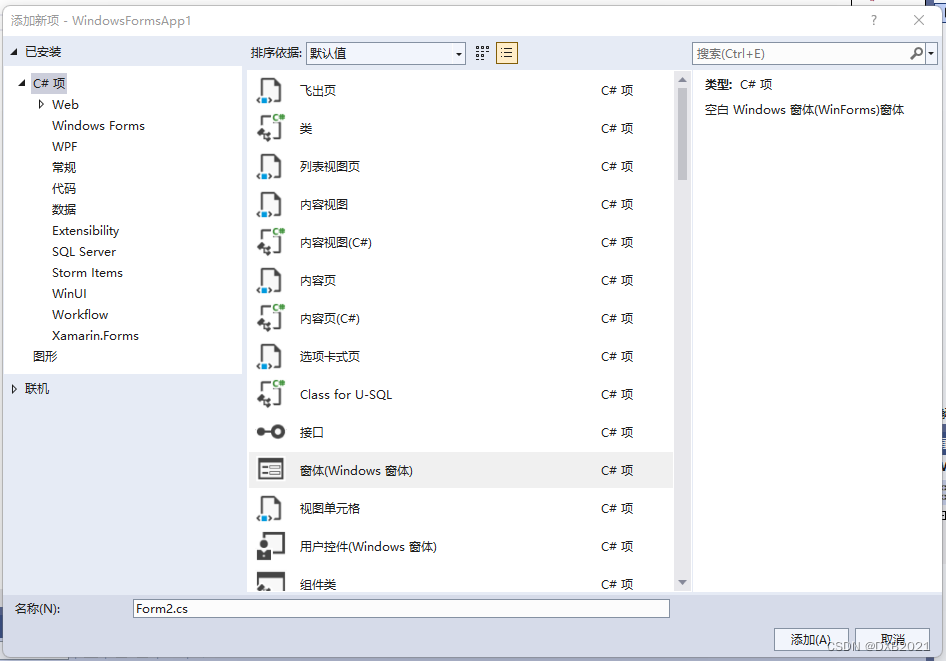
右击项目名称WindowsFormsApp1,在弹出的快捷菜单中选择“添加”-“Windows窗体”或者“添加”-“新建项”命令。

最后在“添加新项”圣诞框中选择“窗体(Windows窗体)”。
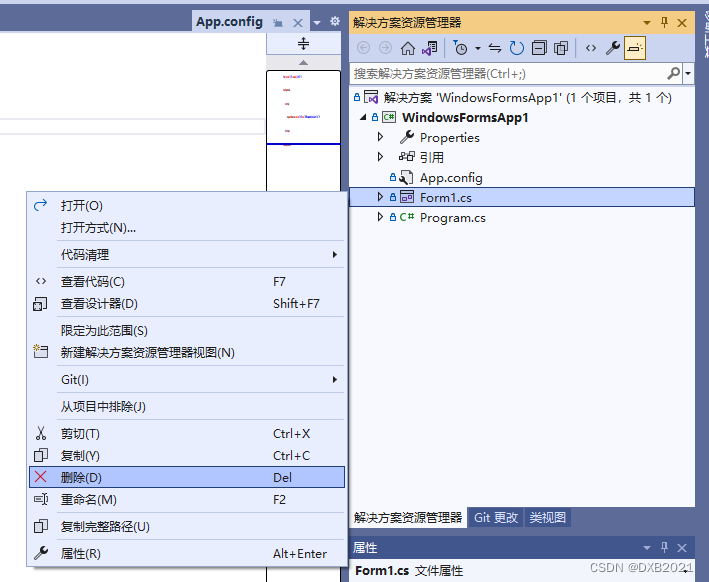
删除窗体,只需要在解决方案管理器中,选中要删除的窗体名称,右击,在弹出的快捷菜单选择“删除”命令即可。
窗体的属性
1、“属性”面板
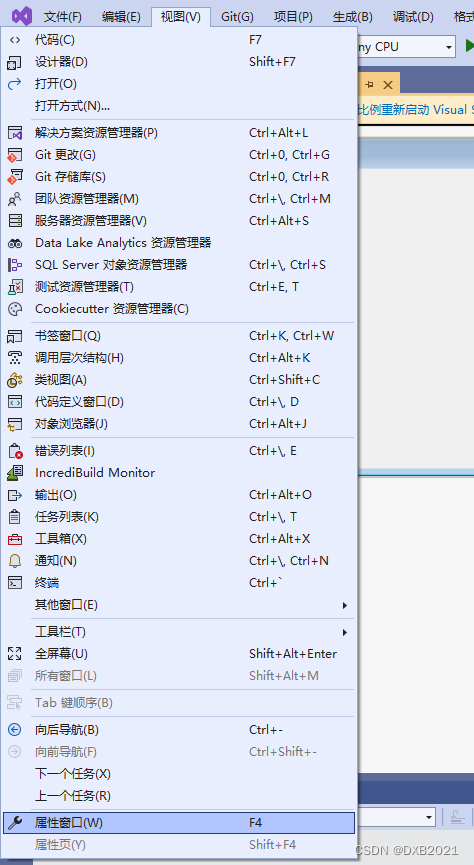
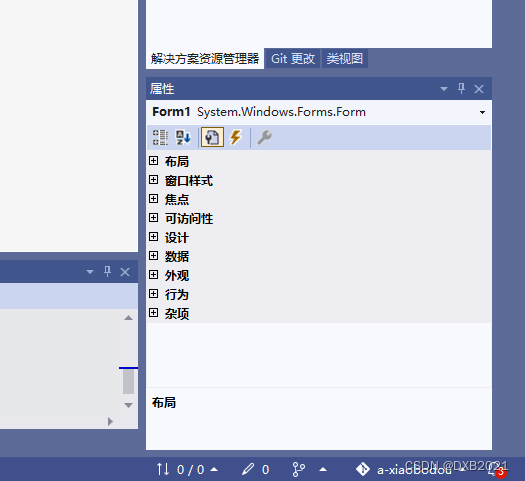
打开“属性”面板有以下三种方法:
(1)
右键命令

(2)
“视图”命令
(3)
右下角
2、C# WinForm窗体基础属性
(1)窗口样式中的属性值,可以用来更改图标、最大化窗口透明度。
| 属性值 | 说明 |
| Icon | 更改图标样式(左上角图标) |
| MaximizeBox:true; | 显示右上角最大化按钮 |
| MinimizeBox:true; | 显示右上角最小化按钮 |
| ShowInco:true; | 显示左上角小图标 |
| ShowInTaskbar:ture; | 窗体显示在任务栏 |
| TopMost:ture; | 窗口置顶显示 |
| Opacity:100% | 整个窗口透明度 |
(2)布局中的属性值,可以用来改变窗体的大小以及启动程序后窗体的显示位置。
| 属性值 | 说明 |
| AutoScroll:true/false; | 如果控件超出窗口是否自动显示滚动条 |
| AutoSize:true/false; | 窗口的范围是否会超出控件的大小 |
| MaximumSize:0,0; | 窗口可以拖曳的最大的大小 |
| MinimumSize:0,0; | 窗口可以拖曳的最小的大小 |
| Size:300,300; | 窗口打开时默认的大小 |
| StartPosition:centerScreen; | 窗口打开时默认桌面位置,居中 |
| WindowState:Maximized; | 默认打开窗口最大化。 |
(3)外观的属性值,主要用来更改窗体颜色、字体和标题等。
| 属性值 | 说明 |
| Font:宋体,9pt; | 可以修改字体大小,字体越大控件越大 |
| Text; | 输入文本 |
| TextAlign; | 文字位置 |
| FormBorderStyle:FixedSingle; | 窗口不可拖曳大小 |
| FormBorderStyle:None; | 隐藏窗口的边框 |
| DropDownStyle:DropDownList; | 让下拉框无法输入文本 |
3、设置窗体属性
窗体的图标是系统 默认的图标。

更改图标,在“属性”面板中,选择Icon性格

窗体的颜色 和背景,通过BackgroundImage属性进行设置。选择“属性”面板中的BackgroundImage属性。

窗体的常用事件
所谓事件,就是指要发生的事情,可以简单地理解为用户的操作,它是由对象引发的。窗体的所有事件,都可以在“属性”面板中进行查看。
1、添加事件
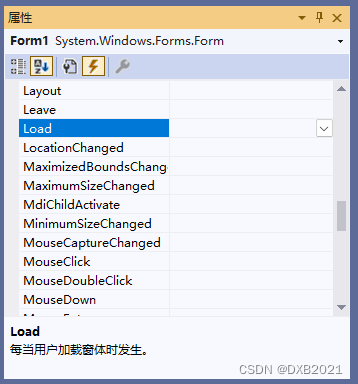
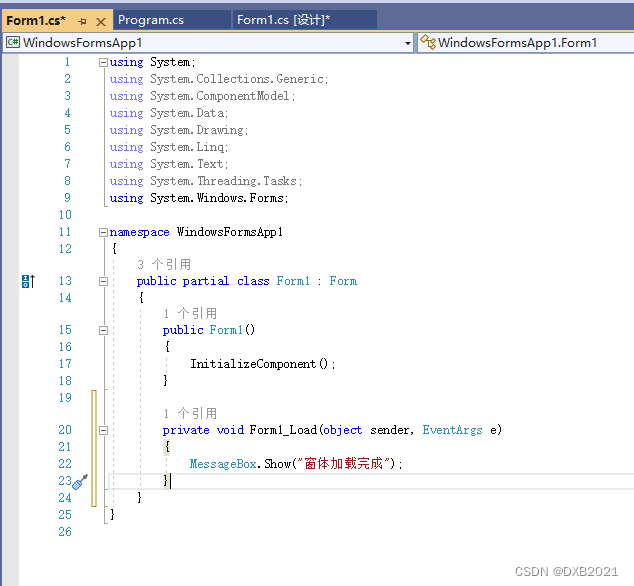
为窗体添加一件事件,只要在事件面板里选择要添加的事件,Load后面的空格里双击,相应的事件将会自动生成。
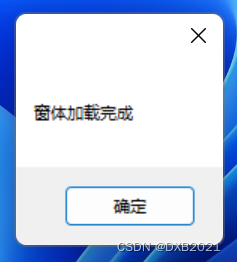
(1)窗体在加载时,就会触发一个窗体加载事件Load。
using System;
using System.Collections.Generic;
using System.ComponentModel;
using System.Data;
using System.Drawing;
using System.Linq;
using System.Text;
using System.Threading.Tasks;
using System.Windows.Forms;

namespace WindowsFormsApp1
{
    public partial class Form1 : Form
    {
        public Form1()
        {
            InitializeComponent();
        }

        private void Form1_Load(object sender, EventArgs e)
        {
            MessageBox.Show("窗体加载完成");
        }
    }
}
(2)单击窗体时,触发Click(单击)事件。

Click双击。

代码如下:
using System;
using System.Collections.Generic;
using System.ComponentModel;
using System.Data;
using System.Drawing;
using System.Linq;
using System.Text;
using System.Threading.Tasks;
using System.Windows.Forms;

namespace WindowsFormsApp1
{
    public partial class Form1 : Form
    {
        public Form1()
        {
            InitializeComponent();
        }

        private void Form1_Load(object sender, EventArgs e)
        {
            MessageBox.Show("窗体加载完成");
        }

        private void Form1_Click(object sender, EventArgs e)
        {
            MessageBox.Show("单击窗体");
        }
    }
}

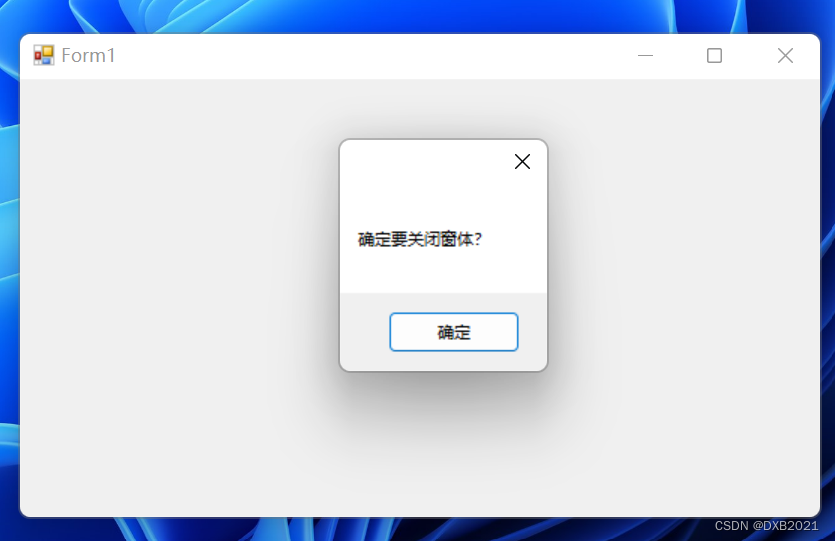
(3)关闭窗体时,触发FormClosing(关闭)事件

代码如下:
using System;
using System.Collections.Generic;
using System.ComponentModel;
using System.Data;
using System.Drawing;
using System.Linq;
using System.Text;
using System.Threading.Tasks;
using System.Windows.Forms;

namespace WindowsFormsApp1
{
    public partial class Form1 : Form
    {
        public Form1()
        {
            InitializeComponent();
        }

        private void Form1_Load(object sender, EventArgs e)
        {
            MessageBox.Show("窗体加载完成");
        }

        private void Form1_Click(object sender, EventArgs e)
        {
            MessageBox.Show("单击窗体");
        }

        private void Form1_FormClosing(object sender, FormClosingEventArgs e)
        {
            MessageBox.Show("确定要关闭窗体?");
        }
    }
}
2、删除事件
没看懂, 不掌握。
窗体的显示与隐藏
窗体标识符.Show()
窗体标识符.Hide()
MDI窗体
单文档界面(SDI)
多文档界面(MDI)
MDI窗体的概念
MDI窗体(Multiple-Document Interface,多文档界面)用于同时显示多个文档。
在项目中使用MDI窗体时,通常将一个MDI窗口窗体作为父窗体,父窗体可以将多个子窗体包容在它的工作区之中。
设置MDI窗体
1、MDI容器窗体
将某个窗体设置为窗口窗体,有两种方法:
1、在窗体的“属性”面板中,将IsMidContainer属性设置为True即可。

False:
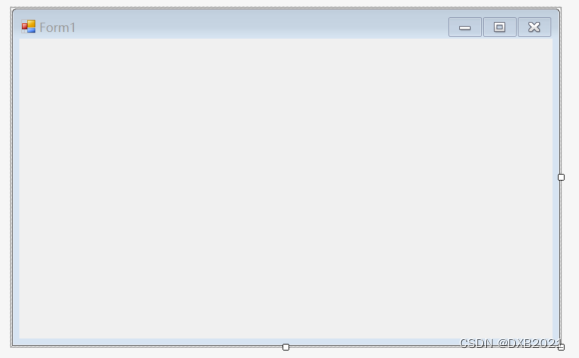
True:

2、在窗体的Load事件中加入以下语句

代码如下:
using System.ComponentModel;
using System.Data;
using System.Drawing;
using System.Linq;
using System.Text;
using System.Threading.Tasks;
using System.Windows.Forms;

namespace WindowsFormsApp1
{
    public partial class Form1 : Form
    {
        public Form1()
        {
            InitializeComponent();
        }

        private void Form1_Load(object sender, EventArgs e)
        {
            this.IsMdiContainer = true;
        }
    }
}
2、设置MDI子窗体
MDI子窗体就是一般的窗体。只需要将某个窗体实例的MdiParent属性设置到一个MDI父窗体,它就是那位父窗体的子窗体,语法格式如下:
窗体实例名.MdiParent=父窗体对象;
设置MDI容器:
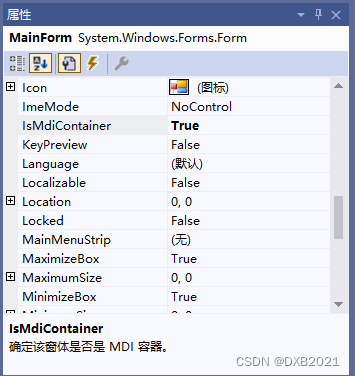
修改后:
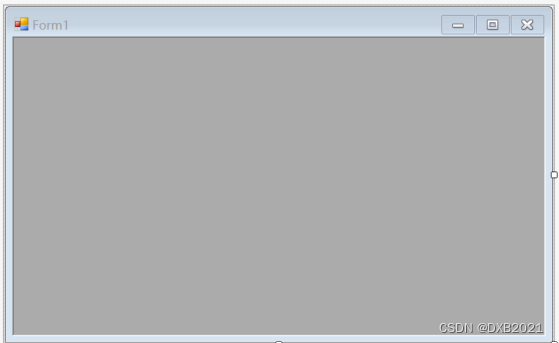
从Form5属性里,通过Name属性来进行修改为“MainForm”
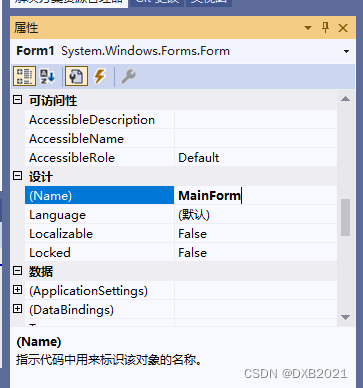
修改后:
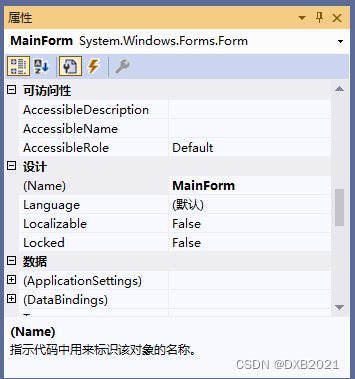
Text属性表示窗体标题,修改为“MDI窗体”

修改后:
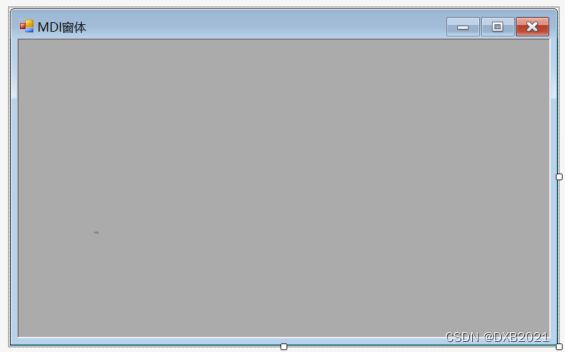
新建子窗体(Form1.cs、Form2.cs、Form3.cs、Form4.cs):

代码内容:
using System;
using System.Collections.Generic;
using System.ComponentModel;
using System.Data;
using System.Drawing;
using System.Linq;
using System.Text;
using System.Threading.Tasks;
using System.Windows.Forms;

namespace Form5
{
    public partial class MainForm : Form
    {
        public MainForm()
        {
            InitializeComponent();
        }

        private void MainForm_Load(object sender, EventArgs e)
        {
            Form1 form1 = new Form1();
            form1.Show();
            form1.MdiParent = this;
            Form2 form2 = new Form2();
            form2.Show();
            form2.MdiParent = this;
            Form3 form3 = new Form3();
            form3.Show();
            form3.MdiParent = this;
            Form4 form4 = new Form4();
            form4.Show();
            form4.MdiParent = this;
        }
    }
}
完成后:

运行结果如下:

排列MDI窗体
语法格式如下:
public void LayoutMdi(MdiLayout value)
value是MdiLayout的枚举值之一,用来定义MDI子窗体的布局。
| 枚举成员 | 说明 |
| Cascade | 层叠排列MDI子窗体 |
| TileHorizontal | 水平平铺MDI子窗体 |
| TileVertical | 垂直平铺MDI子窗体 |
新建一个Windows窗体应用程序,在Name属性中将窗体唯一标识符命名为MainForm,并且在Text属性中,将主窗体的标题命名为“MDI窗体”。
在菜单栏中选择“视图”命令 ,再选择“工具箱”命令,就会弹出工具箱。

在工具箱中选择MenuStrip控件,此时就会在窗体中出现一排菜单栏,并依次输入“新建窗体”、“层叠排列”、“水平平铺”、“垂直平铺”、“关闭”。


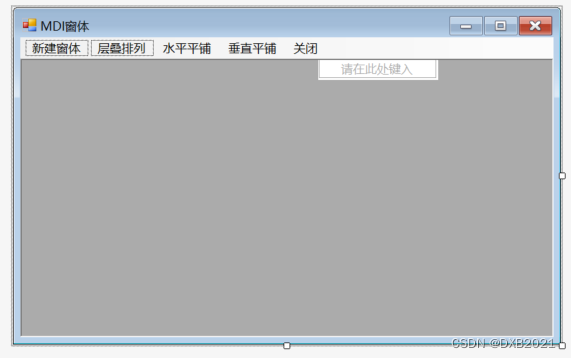
接着,再将IsMdiContainer属性设置为True。
再创建一个子窗体,并命名为“ChildForm”,下面就可以通过双击菜单项,进行添加事件。
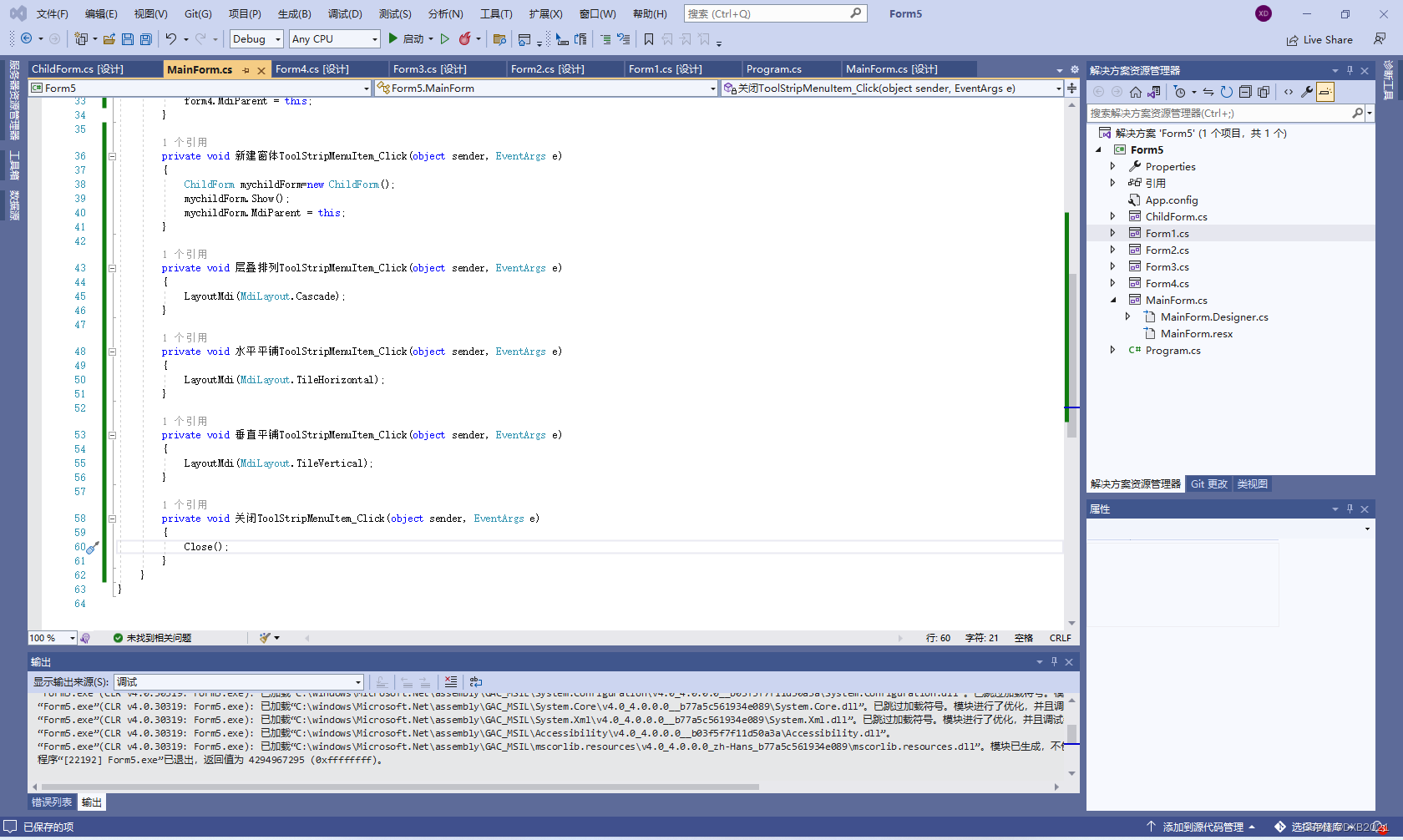
代码如下:
using System;
using System.Collections.Generic;
using System.ComponentModel;
using System.Data;
using System.Drawing;
using System.Linq;
using System.Text;
using System.Threading.Tasks;
using System.Windows.Forms;

namespace Form5
{
    public partial class MainForm : Form
    {
        public MainForm()
        {
            InitializeComponent();
        }

        private void MainForm_Load(object sender, EventArgs e)
        {
            Form1 form1 = new Form1();
            form1.Show();
            form1.MdiParent = this;
            Form2 form2 = new Form2();
            form2.Show();
            form2.MdiParent = this;
            Form3 form3 = new Form3();
            form3.Show();
            form3.MdiParent = this;
            Form4 form4 = new Form4();
            form4.Show();
            form4.MdiParent = this;
        }

        private void 新建窗体ToolStripMenuItem_Click(object sender, EventArgs e)
        {
            ChildForm mychildForm=new ChildForm();
            mychildForm.Show();
            mychildForm.MdiParent = this;
        }

        private void 层叠排列ToolStripMenuItem_Click(object sender, EventArgs e)
        {
            LayoutMdi(MdiLayout.Cascade);
        }

        private void 水平平铺ToolStripMenuItem_Click(object sender, EventArgs e)
        {
            LayoutMdi(MdiLayout.TileHorizontal);
        }

        private void 垂直平铺ToolStripMenuItem_Click(object sender, EventArgs e)
        {
            LayoutMdi(MdiLayout.TileVertical);
        }

        private void 关闭ToolStripMenuItem_Click(object sender, EventArgs e)
        {
            Close();
        }
    }
}
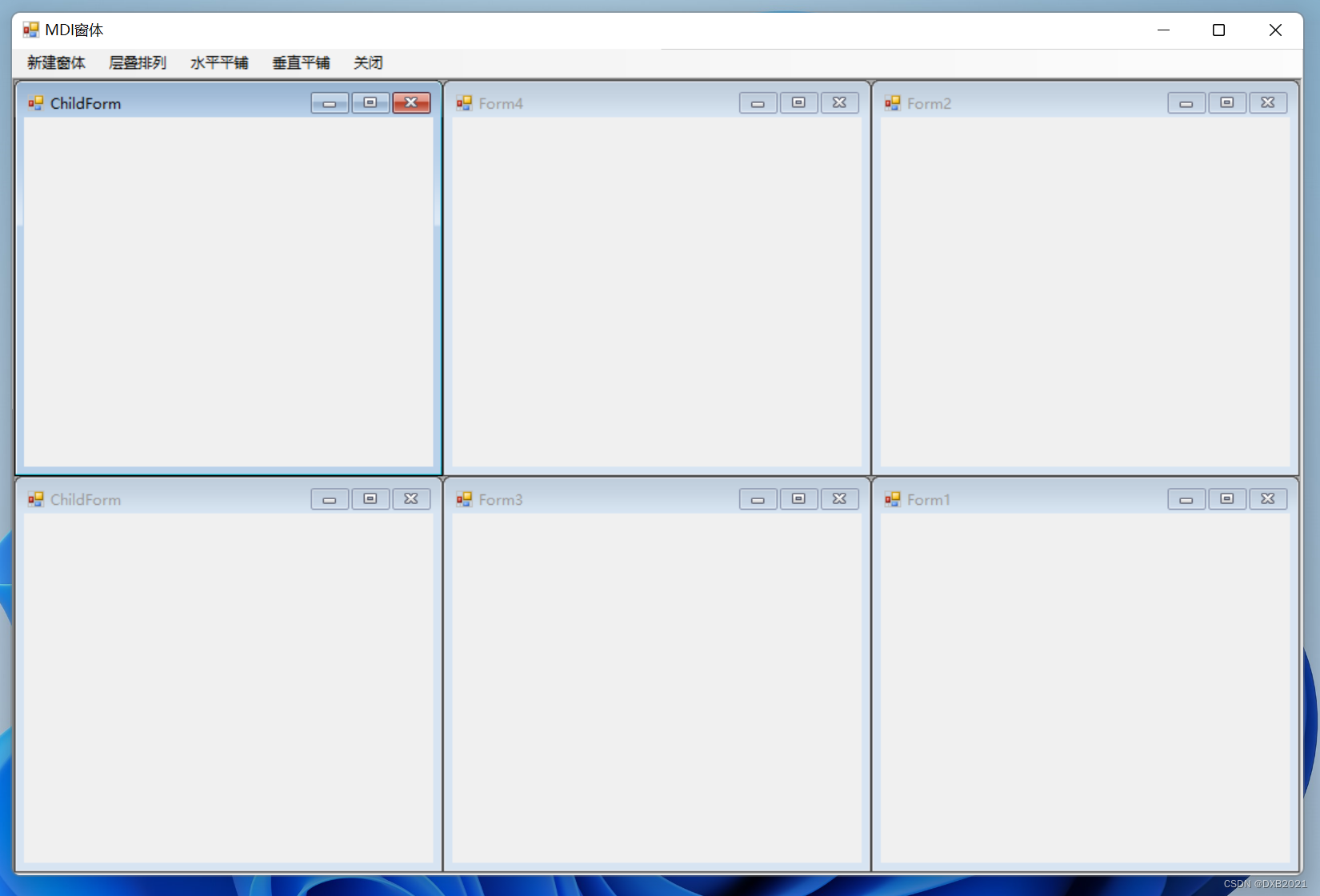
运行结果如下:
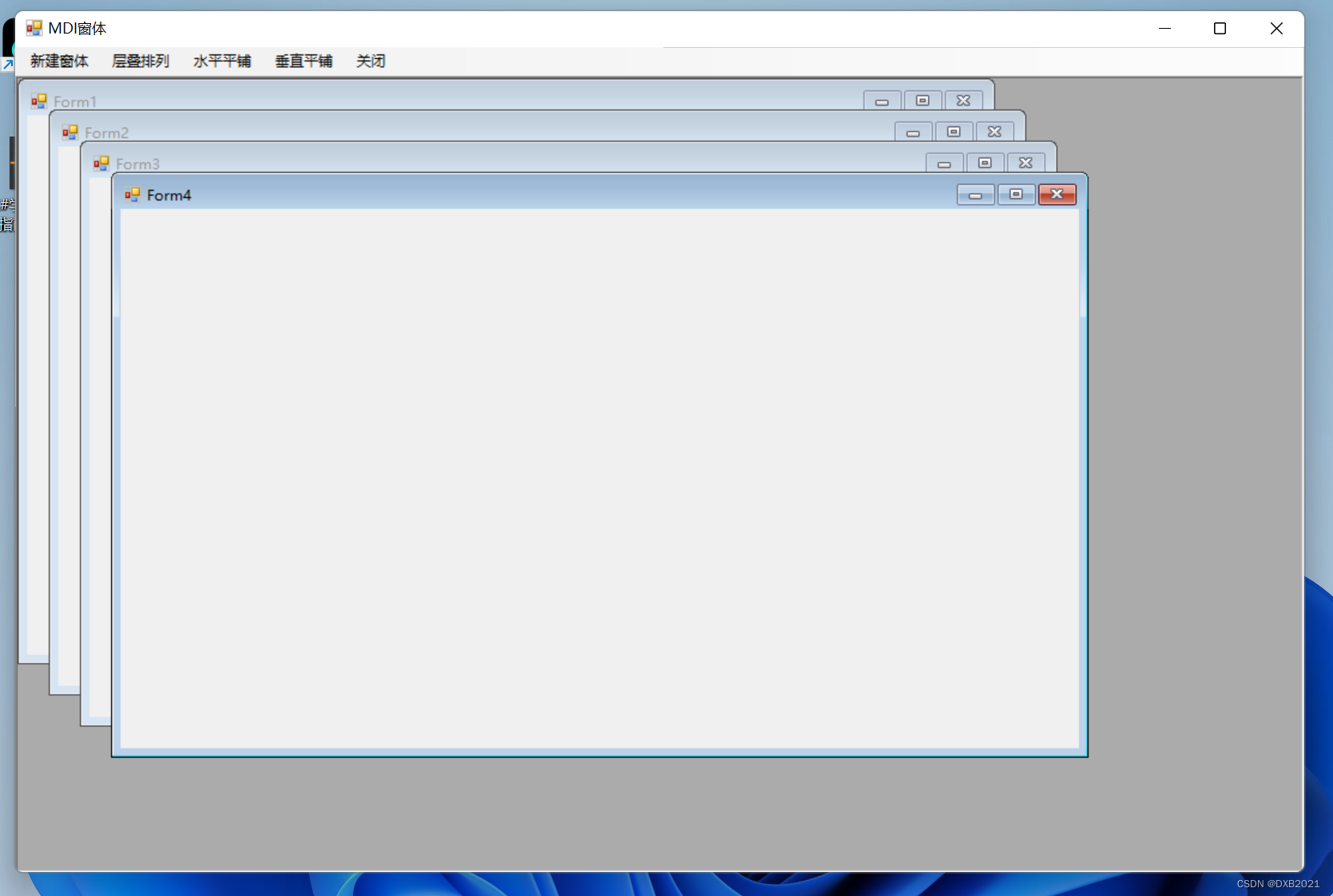
点击新建窗体:
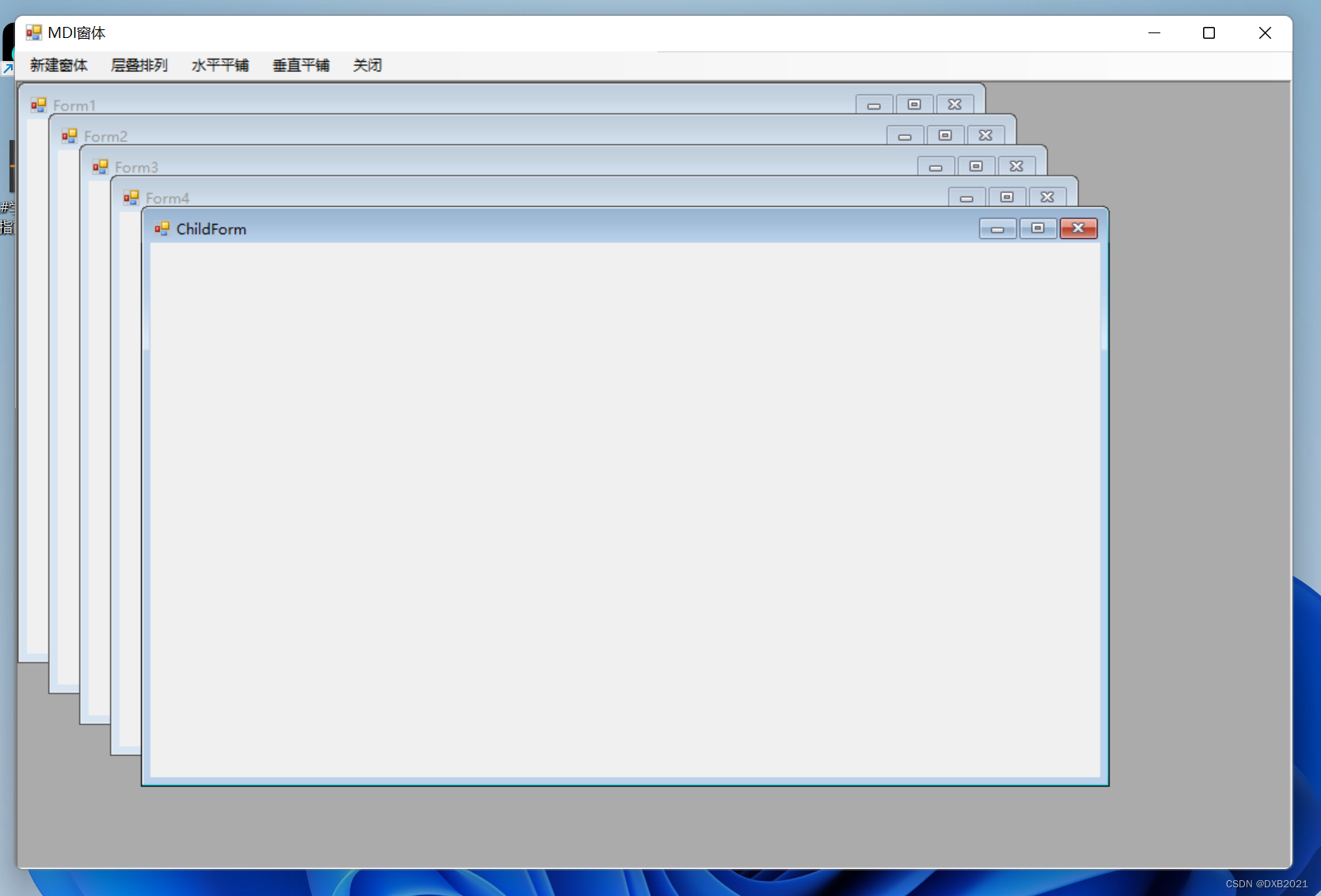

层叠排列:
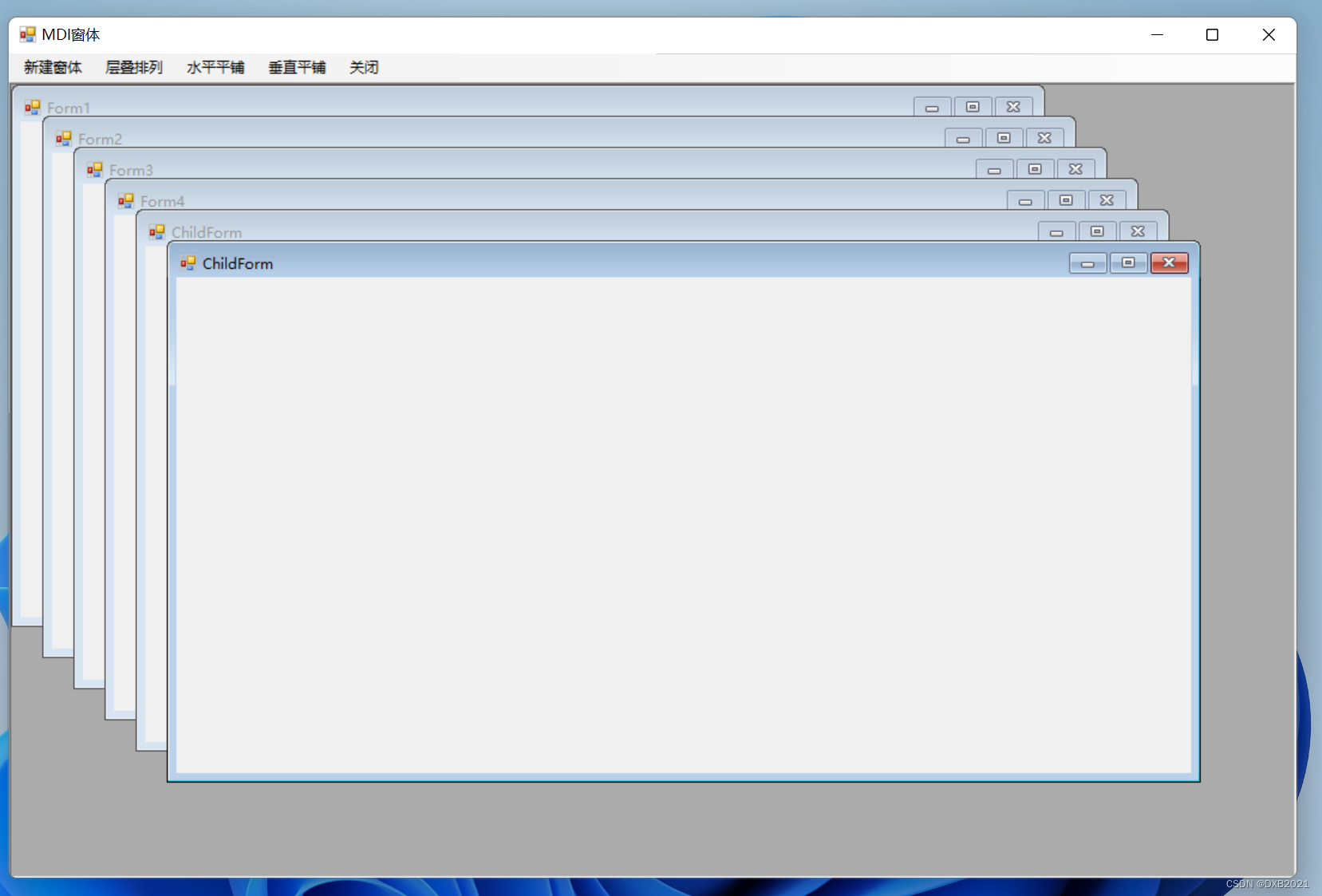
水平平铺:
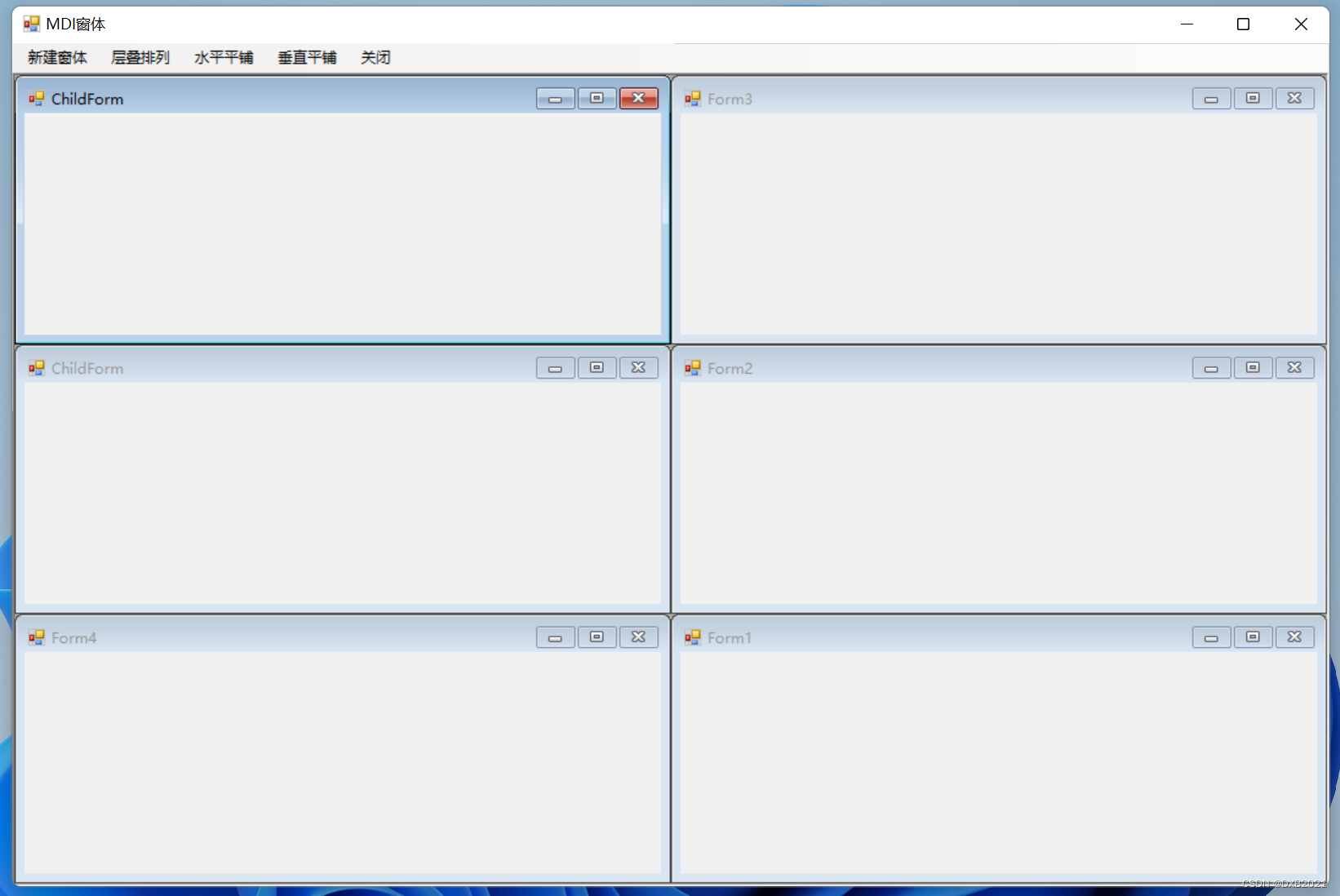
垂直平铺:
文件类控件
选择类控件
分组类控件
菜单栏、工具栏和状态栏控件
边栏推荐
- 在arm版本rk3399中搭建halo博客
- 智能计算系统3 Plugin 集成开发的demo
- MDM data analysis function description
- How to learn JS through w3school / how to use the JS reference manual of w3school
- Find out the users who log in for 7 consecutive days and 30 consecutive days
- Build halo blog in arm version rk3399
- Try except add auxiliary new column
- matlab 二维或三维三角剖分
- R language GLM generalized linear model: logistic regression, Poisson regression fitting mouse clinical trial data (dose and response) examples and self-test questions
- 变分自编码器 (Variational Autoencoders, VAEs)
猜你喜欢

大火的虚拟人在哪些产业开始发力?
math_证明常用等价无穷小&案例&代换
行业分析| 快对讲,楼宇对讲

小白创业做电商,选对商城系统很重要!

Group programming TIANTI competition exercise - continuously updating

i人事HR系统上架企业微信ISV,增强企微在服务连锁零售等行业深度应用

电脑如何检查驱动程序是否正常

Variable autoencoders (vaes)

High performance and high availability computing architecture scheme commented by Weibo

让企业数字化砸锅和IT主管背锅的软件供应链安全风险指南
随机推荐
The amazing nanopc-t4 (rk3399) is used as the initial configuration and related applications of the workstation
C语言局部变量与全局变量重名时的优先级问题(当局部变量和全局变量同时存在的时候,优先引用局部变量,而不去引用全局变量)
matlab 受约束的 Delaunay 三角剖分
《数字经济全景白皮书》消费金融数字化篇 重磅发布
微信小程序_8,视图与逻辑
NanoPC-T4(RK3399) game1 oled(I2C)显示时间天气温度
Full MySQL solution ubuntu/win10
释放互联网价值的 Web3
事实/论断/断言/结论/断定/判定
R language GLM generalized linear model: logistic regression, Poisson regression fitting mouse clinical trial data (dose and response) examples and self-test questions
数据库学习笔记(SQL04)
秋招经验分享 | 银行笔面试该怎么准备
视差js特效js轮播图插件
严重性 代码 说明 项目 文件 行 禁止显示状态 错误 C1047 对象或库文件“.lib”是使用与其他对象(如“x64\Release\main.obj”)不同的
F(x)构建方程 ,梯度下降求偏导,损失函数确定偏导调整,激活函数处理非线性问题
2280.Cupboards
math_ Proving common equivalent infinitesimal & Case & substitution
阿里开源(EasyExcel)
SQL calculates daily new users and retention rate indicators
MDM数据分析功能说明