当前位置:网站首页>WSL 2 的安装过程(以及介绍)
WSL 2 的安装过程(以及介绍)
2022-06-21 21:13:00 【萌褚】
镜像下载、域名解析、时间同步请点击 阿里云开源镜像站
什么是WSL2
WSL全称为Windows Subsystem for Linux,官网译为:适用于 Linux 的 Windows 子系统 (WSL)。
官方文档直达:适用于 Linux 的 Windows 子系统文档 | Microsoft Docs
WSL1和WSL2的比较:

为什么要WSL2
官方解释:可让开发人员直接在 Windows 上按原样运行 GNU/Linux 环境(包括大多数命令行工具、实用工具和应用程序),且不会产生传统虚拟机或双启动设置开销。
我的观点:日常生活中程序的开发离不开Linux,而Windows的GUI界面又是我们常用的(微信、Office等)。我们可以有很多种方式使用Linux,如:

重点:Windows与Linux子系统将共用同一文件系统!!! 我们可以在WSL中使用三剑客命令查询分析windows文档、日志、使用shell命令或者bash脚本运行存储在windows中的linux程序、甚至在WSL中创建docker容器,在windows下使用docker desktop进行可视化管理。
总结:WSL2让我们既拥有Windows的操作界面又拥有Linux的命令行工具。
启用“虚拟机平台”
WSL 2 需要启用 Windows 10 的 “虚拟机平台” 特性。它独立于 Hyper-V,并提供了一些在 Linux 的 Windows 子系统新版本中可用的更有趣的平台集成。
要在 **Windows 10(2004)**上启用虚拟机平台,请以管理员身份打开 PowerShell 或 cmd 并运行:
dism.exe /online /enable-feature /featurename:VirtualMachinePlatform /all /norestart要在 **Windows 10(1903,1909)**上启用虚拟机平台,请以管理员身份打开 PowerShell或 cmd 并运行:
Enable-WindowsOptionalFeature -Online -FeatureName VirtualMachinePlatform -NoRestart为了确保所有相关部件都整齐到位,您应该在此时重启系统,否则可能会发现事情没按预期进行。

安装WSL2
本次安装环境
处理器 Intel Core i5-10210U CPU @ 1.60GHz 2.11 GHz
机带 RAM 8.00 GB (7.79 GB 可用)
系统类型 64 位操作系统, 基于 x64 的处理器
操作系统 Windows 10 家庭中文版
注意:本次安装之前没安装过WSL和Ubuntu,只运行过VMware虚拟机。
检查是否可以安装
您的电脑需要以下配置:
- Windows 10 2020年5月(2004) 版, Windows 10 2019年5月(1903) 版,或者 Windows 10 2019年11月(1909) 版
- 一台支持 Hyper-V 虚拟化的计算机
查看是否支持Hyper-V的方法:
- 打开cmd,输入
systeminfo- 查看Hyper-V信息
比如我的电脑就可以支持

安装WSL
用管理员身份运行PowerShell
wsl --install–install 命令执行以下操作:
- 启用可选的 WSL 和虚拟机平台组件
- 下载并安装最新 Linux 内核
- 将 WSL 2 设置为默认值
- 下载并安装 Ubuntu Linux 发行版(可能需要重新启动)
注意: 上述命令仅在完全未安装 WSL 时才有效,如果运行 wsl --install 并查看 WSL 帮助文本,请尝试运行 wsl --list --online 以查看可用发行版列表并运行 wsl --install -d <DistroName> 以安装发行版。

等待一会会,去打局游戏再回来…
顺便查看了一下可以支持的linux系统,大便、Kali、OpenSUSE、乌班图都有,默认安装Ubuntu。
wsl --list --online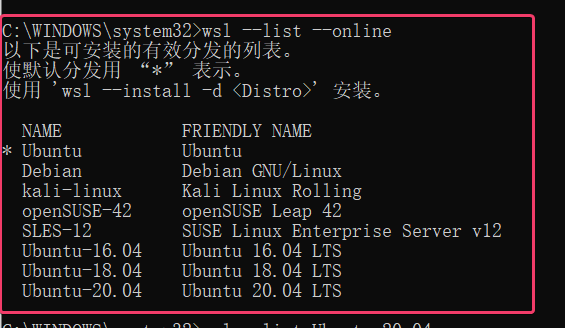
安装了好一会儿了。。。。发现还是在85.7%,等不下去了CTRL+C了。
重新安装,这次安装指定的系统
wsl --install -d Ubuntu-20.04
重启,然后成功了!
配置Linux
接下来打开已安装的Ubuntu,这时候会提示你配置用户和密码
配置完毕!即可享用
测试一下,用命令 cd / && ls -la 查看所有文件,如下(是不是很熟悉)

更新一下镜像源:
sudo vim /etc/apt/sources.list将官方的源都注释掉,换成的下面即可(我的是Ubuntu20.04,别的版本或者源可以自行网上搜)
- 阿里源
deb https://mirrors.aliyun.com/ubuntu/ focal main restricted universe multiversedeb-src http://mirrors.aliyun.com/ubuntu/ focal main restricted universe multiversedeb https://mirrors.aliyun.com/ubuntu/ focal-security main restricted universe multiversedeb-src https://mirrors.aliyun.com/ubuntu/ focal-security main restricted universe multiversedeb https://mirrors.aliyun.com/ubuntu/ focal-updates main restricted universe multiversedeb-src http://mirrors.aliyun.com/ubuntu/ focal-updates main restricted universe multiversedeb https://mirrors.aliyun.com/ubuntu/ focal-proposed main restricted universe multiversedeb-src https://mirrors.aliyun.com/ubuntu/ focal-proposed main restricted universe multiversedeb https://mirrors.aliyun.com/ubuntu/ focal-backports main restricted universe multiversedeb-src https://mirrors.aliyun.com/ubuntu/ focal-backports main restricted universe multiverseDebian系统分好几种,wheezy、jessie、stretch、buster,它们分别对应:

Debian 11(Bullseye)国内镜像源:
阿里
deb https://mirrors.aliyun.com/debian/ bullseye main non-free contribdeb-src https://mirrors.aliyun.com/debian/ bullseye main non-free contribdeb https://mirrors.aliyun.com/debian-security/ bullseye-security maindeb-src https://mirrors.aliyun.com/debian-security/ bullseye-security maindeb https://mirrors.aliyun.com/debian/ bullseye-updates main non-free contribdeb-src https://mirrors.aliyun.com/debian/ bullseye-updates main non-free contribdeb https://mirrors.aliyun.com/debian/ bullseye-backports main non-free contribdeb-src https://mirrors.aliyun.com/debian/ bullseye-backports main non-free contrib遇到问题:
Certificate verification failed: The certificate is NOT trusted——更新Ubuntu20.04、Debian11的过程中遇到的证书验证失败问题。
解决办法:
- 更改源文件,将所有的https改成http
sudo nano /etc/apt/sources.list- 重新更新源
sudo apt update- 安装/更新证书ca-certificates
sudo apt install --reinstall ca-certificates参照步骤一将镜像源文件改回https
再次更新源
sudo apt update && sudo apt upgrade- 大功告成
安装Windows Terminal
Windows Terminal能帮助我们管理命令行工具、PowerShell和WSL等Shell用户的工具,能为我们提供最佳的 WSL 体验。
下载方式
- https://www.microsoft.com/store/productId/9N0DX20HK701
- MicroSoft Store (微软商店)找关键字 Windows Terminal

下载安装即可。功能确实很多哈哈哈,效果:

遇到的问题:过程中下载失败了好多次我不断点击重新下载才成功。
查看Linux版本信息
- cat /etc/os-release
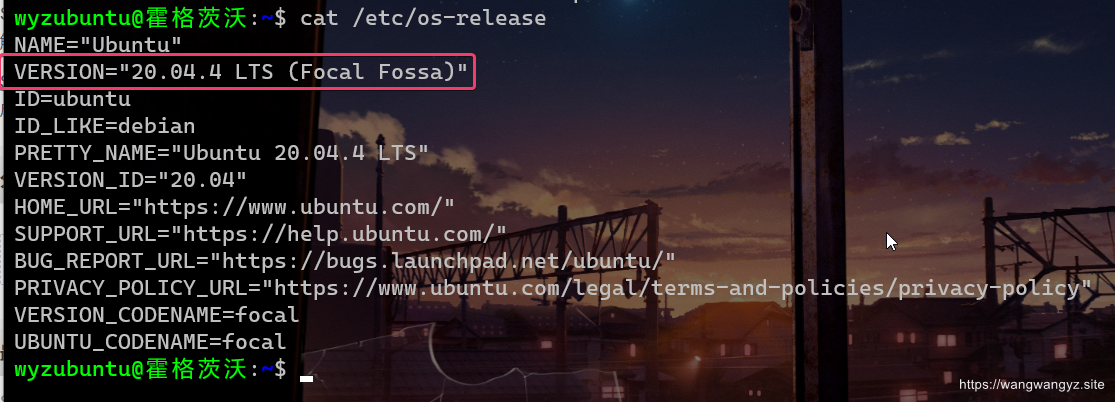
- cat /proc/version

- uname -a

- lsb_release -a

本文转自:https://blog.csdn.net/weixin_51245887/article/details/124393376
边栏推荐
猜你喜欢

左手代码,右手开源,开源路上的一份子

The way of FPGA -- project scheme and FPGA design scheme of FPGA development process

流式细胞分析Flowjo 10介绍以及超详细图文安装激活教程
Project process management tool OmniPlan Pro 4

js 监听和移除监听事件
Left hand code, right hand open source, part of the open source road
Flow cytometry flowjo 10 introduction and ultra detailed graphic installation activation tutorial

Electronic bidding procurement mall system: optimize traditional procurement business and speed up enterprise digital upgrading

. File header parsing of BMP pictures

WPF dependent properties
随机推荐
uni-app进阶之样式框架/生产环境【day10】
实践 DevOps 时,可能面临的六大挑战
大佬们, 2.2.1 的 StarRocks 主键模型的部分字段更新依旧不支持 sql 的方式是么?
WPF routing
必读书籍
Required books
WPF tablet
Text text associated with scroll scroll bar in Tkinter
小程序如何关联微信小程序二维码,并实现二码合一聚合
Better manage all kinds of music, professional DJ music management software pioneer DJ rekordbox
Migration of stm32f407 program to stm32f429
tkinter中text文本与scroll滚动条关联
Flow cytometry flowjo 10 introduction and ultra detailed graphic installation activation tutorial
jupyter-lab安装扩展后无法使用
The way of FPGA -- interface level standard between digital systems
WPF 路由
Go服务平台项目(一)数据库表的设计与Gendry库的使用
Games101 job 7- detailed explanation of implementation steps of multi thread speed up
在小程序的 wxml 文件中使用 js 函数
promise错误捕获处理——Promisifying技术