当前位置:网站首页>Opencv learning notes II
Opencv learning notes II
2022-06-26 08:26:00 【Cloudy_ to_ sunny】
opencv Study note 2
- grayscale
- HSV
- Image threshold
- Image smoothing
- morphology - Corrosion operation
- morphology - Expansion operation
- Open operation and closed operation
- Gradient operation
- Hats and black hats
- Image gradient -Sobel operator
- Image gradient -Scharr operator
- Image gradient -laplacian operator
- Canny edge detection
- Image pyramid
- Image outline
- The Fourier transform
- The role of Fourier transform
- wave filtering
grayscale
import cv2 #opencv The reading format is BGR
import numpy as np
import matplotlib.pyplot as plt#Matplotlib yes RGB
%matplotlib inline

img=cv2.imread('cat.jpg')
img_gray = cv2.cvtColor(img,cv2.COLOR_BGR2GRAY)
img_gray.shape
(414, 500)
cv2.imshow("img_gray", img_gray)
cv2.waitKey(0)
cv2.destroyAllWindows()
HSV
- H - tonal ( Main wavelength ).
- S - saturation ( The purity / The shadow of color ).
- V value ( Strength )
hsv=cv2.cvtColor(img,cv2.COLOR_BGR2HSV)

cv2.imshow("hsv", hsv)
cv2.waitKey(0)
cv2.destroyAllWindows()

b,g,r = cv2.split(hsv)
hsv_rgb = cv2.merge((r,g,b))
plt.imshow(hsv_rgb)
plt.show()

Image threshold
ret, dst = cv2.threshold(src, thresh, maxval, type)
src: Input diagram , Only single channel images can be input , It's usually grayscale
dst: Output chart
thresh: threshold
maxval: When the pixel value exceeds the threshold ( Or less than the threshold , according to type To decide ), The value assigned to
type: The type of binarization operation , Contains the following 5 Types : cv2.THRESH_BINARY; cv2.THRESH_BINARY_INV; cv2.THRESH_TRUNC; cv2.THRESH_TOZERO;cv2.THRESH_TOZERO_INV
cv2.THRESH_BINARY The part exceeding the threshold is taken as maxval( Maximum ), Otherwise take 0
cv2.THRESH_BINARY_INV THRESH_BINARY The reversal of
cv2.THRESH_TRUNC The part greater than the threshold is set as the threshold , Otherwise unchanged
cv2.THRESH_TOZERO Parts larger than the threshold do not change , Otherwise, it is set to 0
cv2.THRESH_TOZERO_INV THRESH_TOZERO The reversal of
ret, thresh1 = cv2.threshold(img_gray, 127, 255, cv2.THRESH_BINARY)
ret, thresh2 = cv2.threshold(img_gray, 127, 255, cv2.THRESH_BINARY_INV)
ret, thresh3 = cv2.threshold(img_gray, 127, 255, cv2.THRESH_TRUNC)
ret, thresh4 = cv2.threshold(img_gray, 127, 255, cv2.THRESH_TOZERO)
ret, thresh5 = cv2.threshold(img_gray, 127, 255, cv2.THRESH_TOZERO_INV)

titles = ['Original Image', 'BINARY', 'BINARY_INV', 'TRUNC', 'TOZERO', 'TOZERO_INV']
images = [img, thresh1, thresh2, thresh3, thresh4, thresh5]

for i in range(6):
    plt.subplot(2, 3, i + 1), plt.imshow(images[i], 'gray')
    plt.title(titles[i])
    plt.xticks([]), plt.yticks([])
plt.show()

Image smoothing
img = cv2.imread('lenaNoise.png')

cv2.imshow('img', img)
cv2.waitKey(0)
cv2.destroyAllWindows()

b,g,r = cv2.split(img)
img_rgb = cv2.merge((r,g,b))
plt.imshow(img_rgb)
plt.show()

#  Mean filtering
#  Simple average convolution operation
blur = cv2.blur(img, (3, 3))

cv2.imshow('blur', blur)
cv2.waitKey(0)
cv2.destroyAllWindows()

b,g,r = cv2.split(blur)
blur_rgb = cv2.merge((r,g,b))
plt.imshow(blur_rgb)
plt.show()

#  Box filtering
#  It's basically the same as the average , You can choose to normalize
box = cv2.boxFilter(img,-1,(3,3), normalize=True)  #-1 Indicates that the number of color channels is consistent with the number of previously entered image color channels

cv2.imshow('box', box)
cv2.waitKey(0)
cv2.destroyAllWindows()

b,g,r = cv2.split(box)
box_rgb = cv2.merge((r,g,b))
plt.imshow(box_rgb)
plt.show()
#  Box filtering
#  It's basically the same as the average , You can choose to normalize , Easy to cross the border  , That is, the pixel value is greater than 255
box = cv2.boxFilter(img,-1,(3,3), normalize=False)

cv2.imshow('box', box)
cv2.waitKey(0)
cv2.destroyAllWindows()

b,g,r = cv2.split(box)
box_rgb = cv2.merge((r,g,b))
plt.imshow(box_rgb)
plt.show()

#  Gauss filtering
#  The values in the convolution kernel of Gaussian blur satisfy the Gaussian distribution , It's equivalent to paying more attention to the middle , That is, the weight of the middle pixel value of the core is relatively large
aussian = cv2.GaussianBlur(img, (5, 5), 1)

cv2.imshow('aussian', aussian)
cv2.waitKey(0)
cv2.destroyAllWindows()

b,g,r = cv2.split(aussian)
aussian_rgb = cv2.merge((r,g,b))
plt.imshow(aussian_rgb)
plt.show()

#  median filtering
#  It's equivalent to using the median instead of
median = cv2.medianBlur(img, 5)  #  median filtering

cv2.imshow('median', median)
cv2.waitKey(0)
cv2.destroyAllWindows()

b,g,r = cv2.split(median)
median_rgb = cv2.merge((r,g,b))
plt.imshow(median_rgb)
plt.show()

#  Show all of them
res = np.hstack((blur,aussian,median)) # They are stitched together horizontally
#res = np.vstack((blur,aussian,median)) # Vertically spliced together
#print (res)
cv2.imshow('median vs average', res)
cv2.waitKey(0)
cv2.destroyAllWindows()

b,g,r = cv2.split(res)
res_rgb = cv2.merge((r,g,b))
plt.imshow(res_rgb)
plt.show()

morphology - Corrosion operation
img = cv2.imread('cloudytosunny1.png')

cv2.imshow('img', img)
cv2.waitKey(0)
cv2.destroyAllWindows()

b,g,r = cv2.split(img)
img_rgb = cv2.merge((r,g,b))
plt.imshow(img_rgb)
plt.show()

kernel = np.ones((4,4),np.uint8)
erosion = cv2.erode(img,kernel,iterations = 1)

cv2.imshow('erosion', erosion)
cv2.waitKey(0)
cv2.destroyAllWindows()

b,g,r = cv2.split(erosion)
erosion_rgb = cv2.merge((r,g,b))
plt.imshow(erosion_rgb)
plt.show()

pie = cv2.imread('pie.png')

cv2.imshow('pie', pie)
cv2.waitKey(0)
cv2.destroyAllWindows()

b,g,r = cv2.split(pie)
pie_rgb = cv2.merge((r,g,b))
plt.imshow(pie_rgb)
plt.show()

kernel = np.ones((30,30),np.uint8)
erosion_1 = cv2.erode(pie,kernel,iterations = 1)
erosion_2 = cv2.erode(pie,kernel,iterations = 2)
erosion_3 = cv2.erode(pie,kernel,iterations = 3)
res = np.hstack((erosion_1,erosion_2,erosion_3))
cv2.imshow('res', res)
cv2.waitKey(0)
cv2.destroyAllWindows()

b,g,r = cv2.split(res)
res_rgb = cv2.merge((r,g,b))
plt.imshow(res_rgb)
plt.show()

morphology - Expansion operation
img = cv2.imread('cloudytosunny1.png')
cv2.imshow('img', img)
cv2.waitKey(0)
cv2.destroyAllWindows()

b,g,r = cv2.split(img)
img_rgb = cv2.merge((r,g,b))
plt.imshow(img_rgb)
plt.show()
kernel = np.ones((5,5),np.uint8)
sunny_erosion = cv2.erode(img,kernel,iterations = 1)

cv2.imshow('erosion', sunny_erosion)
cv2.waitKey(0)
cv2.destroyAllWindows()

b,g,r = cv2.split(sunny_erosion)
sunny_erosion_rgb = cv2.merge((r,g,b))
plt.imshow(sunny_erosion_rgb)
plt.show()

kernel = np.ones((5,5),np.uint8)
sunny_dilate = cv2.dilate(sunny_erosion,kernel,iterations = 1)

cv2.imshow('dilate', sunny_dilate)
cv2.waitKey(0)
cv2.destroyAllWindows()

b,g,r = cv2.split(sunny_dilate)
sunny_dilate_rgb = cv2.merge((r,g,b))
plt.imshow(sunny_dilate_rgb)
plt.show()

pie = cv2.imread('pie.png')

kernel = np.ones((30,30),np.uint8)
dilate_1 = cv2.dilate(pie,kernel,iterations = 1)
dilate_2 = cv2.dilate(pie,kernel,iterations = 2)
dilate_3 = cv2.dilate(pie,kernel,iterations = 3)
res = np.hstack((dilate_1,dilate_2,dilate_3))
cv2.imshow('res', res)
cv2.waitKey(0)
cv2.destroyAllWindows()

b,g,r = cv2.split(res)
res_rgb = cv2.merge((r,g,b))
plt.imshow(res_rgb)
plt.show()

Open operation and closed operation
#  open : Corrode first , Re expansion
img = cv2.imread('cloudytosunny1.png')

kernel = np.ones((5,5),np.uint8)
opening = cv2.morphologyEx(img, cv2.MORPH_OPEN, kernel)

cv2.imshow('opening', opening)
cv2.waitKey(0)
cv2.destroyAllWindows()

b,g,r = cv2.split(opening)
opening_rgb = cv2.merge((r,g,b))
plt.imshow(opening_rgb)
plt.show()
#  close : Inflate first , Corrode again
img = cv2.imread('cloudytosunny1.png')

kernel = np.ones((5,5),np.uint8)
closing = cv2.morphologyEx(img, cv2.MORPH_CLOSE, kernel)

cv2.imshow('closing', closing)
cv2.waitKey(0)
cv2.destroyAllWindows()

b,g,r = cv2.split(closing)
closing_rgb = cv2.merge((r,g,b))
plt.imshow(closing_rgb)
plt.show()

Gradient operation
#  gradient = inflation - corrosion
pie = cv2.imread('pie.png')
kernel = np.ones((7,7),np.uint8)
dilate = cv2.dilate(pie,kernel,iterations = 5)
erosion = cv2.erode(pie,kernel,iterations = 5)

res = np.hstack((dilate,erosion))

b,g,r = cv2.split(res)
res_rgb = cv2.merge((r,g,b))
plt.imshow(res_rgb)
plt.show()

gradient = cv2.morphologyEx(pie, cv2.MORPH_GRADIENT, kernel)

b,g,r = cv2.split(gradient)
gradient_rgb = cv2.merge((r,g,b))
plt.imshow(gradient_rgb)
plt.show()

Hats and black hats
- formal hat = Raw input - The result of the open operation is
- Black hat = Closed operation - Raw input
# formal hat
img = cv2.imread('cloudytosunny1.png')
tophat = cv2.morphologyEx(img, cv2.MORPH_TOPHAT, kernel)

b,g,r = cv2.split(tophat)
tophat_rgb = cv2.merge((r,g,b))
plt.imshow(tophat_rgb)
plt.show()

# Black hat
img = cv2.imread('cloudytosunny1.png')
blackhat  = cv2.morphologyEx(img,cv2.MORPH_BLACKHAT, kernel)

b,g,r = cv2.split(blackhat)
blackhat_rgb = cv2.merge((r,g,b))
plt.imshow(blackhat_rgb)
plt.show()

Image gradient -Sobel operator

img = cv2.imread('pie.png',cv2.IMREAD_GRAYSCALE)

# b,g,r = cv2.split(img)
# img_rgb = cv2.merge((r,g,b))
plt.imshow(img)
plt.show()

cv2.imshow("img",img)
cv2.waitKey()
cv2.destroyAllWindows()

dst = cv2.Sobel(src, ddepth, dx, dy, ksize)
- ddepth: The depth of the image
- dx and dy Horizontal and vertical directions respectively
- ksize yes Sobel The size of the operator
def cv_show(img,name):
    b,g,r = cv2.split(img)
    img_rgb = cv2.merge((r,g,b))
    plt.imshow(img_rgb)
    plt.show()
def cv_show1(img,name):
    plt.imshow(img)
    plt.show()
    cv2.imshow(name,img)
    cv2.waitKey()
    cv2.destroyAllWindows()
sobelx = cv2.Sobel(img,cv2.CV_64F,1,0,ksize=3)

cv_show1(sobelx,'sobelx')

White to black is a positive number , Black to white is negative , All negative numbers are truncated to 0, So take the absolute value
sobelx = cv2.Sobel(img,cv2.CV_64F,1,0,ksize=3)
sobelx = cv2.convertScaleAbs(sobelx)
cv_show1(sobelx,'sobelx')

sobely = cv2.Sobel(img,cv2.CV_64F,0,1,ksize=3)
sobely = cv2.convertScaleAbs(sobely)
cv_show1(sobely,'sobely')

Separate calculation x and y, And then sum up
sobelxy = cv2.addWeighted(sobelx,0.5,sobely,0.5,0)
cv_show1(sobelxy,'sobelxy')

Direct calculation is not recommended
sobelxy=cv2.Sobel(img,cv2.CV_64F,1,1,ksize=3)
sobelxy = cv2.convertScaleAbs(sobelxy)
cv_show1(sobelxy,'sobelxy')

img = cv2.imread('lena.jpg',cv2.IMREAD_GRAYSCALE)
cv_show1(img,'img')
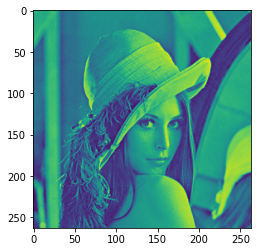
img = cv2.imread('lena.jpg',cv2.IMREAD_GRAYSCALE)
sobelx = cv2.Sobel(img,cv2.CV_64F,1,0,ksize=3)
sobelx = cv2.convertScaleAbs(sobelx)
sobely = cv2.Sobel(img,cv2.CV_64F,0,1,ksize=3)
sobely = cv2.convertScaleAbs(sobely)
sobelxy = cv2.addWeighted(sobelx,0.5,sobely,0.5,0)
cv_show1(sobelxy,'sobelxy')

img = cv2.imread(‘lena.jpg’,cv2.IMREAD_GRAYSCALE)
sobelxy=cv2.Sobel(img,cv2.CV_64F,1,1,ksize=3)
sobelxy = cv2.convertScaleAbs(sobelxy)
cv_show(sobelxy,‘sobelxy’)
Image gradient -Scharr operator

Image gradient -laplacian operator

# The difference between different operators
img = cv2.imread('lena.jpg',cv2.IMREAD_GRAYSCALE)
sobelx = cv2.Sobel(img,cv2.CV_64F,1,0,ksize=3)
sobely = cv2.Sobel(img,cv2.CV_64F,0,1,ksize=3)
sobelx = cv2.convertScaleAbs(sobelx)
sobely = cv2.convertScaleAbs(sobely)
sobelxy =  cv2.addWeighted(sobelx,0.5,sobely,0.5,0)

scharrx = cv2.Scharr(img,cv2.CV_64F,1,0)
scharry = cv2.Scharr(img,cv2.CV_64F,0,1)
scharrx = cv2.convertScaleAbs(scharrx)
scharry = cv2.convertScaleAbs(scharry)
scharrxy =  cv2.addWeighted(scharrx,0.5,scharry,0.5,0)

laplacian = cv2.Laplacian(img,cv2.CV_64F) # It is not used alone , Will be used in conjunction with other methods
laplacian = cv2.convertScaleAbs(laplacian)

res = np.hstack((sobelxy,scharrxy,laplacian))
cv_show1(res,'res')

img = cv2.imread('lena.jpg',cv2.IMREAD_GRAYSCALE)
cv_show1(img,'img')

Canny edge detection
Using a Gaussian filter , To smooth the image , Filter out noise .
Calculate the gradient intensity and direction of each pixel in the image .
Apply non maxima (Non-Maximum Suppression) Inhibition , To eliminate the spurious response brought by edge detection .
Apply double thresholds (Double-Threshold) Detection to determine real and potential edges .
Finally, the edge detection is completed by suppressing the isolated weak edge .
1: Gauss filter

2: Gradient and direction

3: Non maximum suppression


4: Double threshold detection

img=cv2.imread("lena.jpg",cv2.IMREAD_GRAYSCALE)

v1=cv2.Canny(img,80,150)
v2=cv2.Canny(img,50,100)

res = np.hstack((v1,v2))
cv_show1(res,'res')

img=cv2.imread("car.png",cv2.IMREAD_GRAYSCALE)

v1=cv2.Canny(img,120,250)
v2=cv2.Canny(img,50,100)

res = np.hstack((v1,v2))
cv_show1(res,'res')

Image pyramid
- The pyramid of Gauss
- The pyramid of Laplace

The pyramid of Gauss : Down sampling method ( narrow )

The pyramid of Gauss : Up sampling method ( Zoom in )

img=cv2.imread("AM.png")
cv_show(img,'img')
print (img.shape)

(442, 340, 3)
up=cv2.pyrUp(img)
cv_show(up,'up')
print (up.shape)

(884, 680, 3)
down=cv2.pyrDown(img)
cv_show(down,'down')
print (down.shape)

(221, 170, 3)
up2=cv2.pyrUp(up)
cv_show(up2,'up2')
print (up2.shape)

(1768, 1360, 3)
up=cv2.pyrUp(img)
up_down=cv2.pyrDown(up)
cv_show(up_down,'up_down')

cv_show(np.hstack((img,up_down)),'up_down')

up=cv2.pyrUp(img)
up_down=cv2.pyrDown(up)
cv_show(img-up_down,'img-up_down')

The pyramid of Laplace

down=cv2.pyrDown(img)
down_up=cv2.pyrUp(down)
l_1=img-down_up
cv_show(l_1,'l_1')

Image outline
cv2.findContours(img,mode,method)
mode: Contour retrieval mode
- RETR_EXTERNAL : Retrieve only the outermost outline ;
- RETR_LIST: Retrieve all the contours , And save it in a linked list ;
- RETR_CCOMP: Retrieve all the contours , And organize them into two layers : The top layer is the outer boundary of the parts , The second layer is the boundary of the void ;
- RETR_TREE: Retrieve all the contours , And reconstruct the entire hierarchy of nested profiles ;
method: Contour approximation method
- CHAIN_APPROX_NONE: With Freeman Chain code output outline , All other methods output polygons ( The sequence of vertices ).
- CHAIN_APPROX_SIMPLE: Compressed horizontal 、 The vertical and oblique parts , That is to say , Functions keep only the end part of them .

For higher accuracy , Use binary images .
img = cv2.imread('contours.png')
gray = cv2.cvtColor(img, cv2.COLOR_BGR2GRAY)
ret, thresh = cv2.threshold(gray, 127, 255, cv2.THRESH_BINARY)
cv_show1(thresh,'thresh')

binary, contours, hierarchy = cv2.findContours(thresh, cv2.RETR_TREE, cv2.CHAIN_APPROX_NONE)
Draw the outline
cv_show(img,'img')

# Pass in the drawing image , outline , Outline index , Color mode , Line thickness
#  Pay attention to the need for copy, Or the original picture will change ...
draw_img = img.copy()
res = cv2.drawContours(draw_img, contours, -1, (0, 0, 255), 2)
cv_show(res,'res')

draw_img = img.copy()
res = cv2.drawContours(draw_img, contours, 0, (0, 0, 255), 2)
cv_show(res,'res')

Contour feature
cnt = contours[0]
# area
cv2.contourArea(cnt)
8500.5
# Perimeter ,True It means closed
cv2.arcLength(cnt,True)
437.9482651948929
The outline is approximate

img = cv2.imread('contours2.png')

gray = cv2.cvtColor(img, cv2.COLOR_BGR2GRAY)
ret, thresh = cv2.threshold(gray, 127, 255, cv2.THRESH_BINARY)
binary, contours, hierarchy = cv2.findContours(thresh, cv2.RETR_TREE, cv2.CHAIN_APPROX_NONE)
cnt = contours[0]

draw_img = img.copy()
res = cv2.drawContours(draw_img, [cnt], -1, (0, 0, 255), 2)
cv_show(res,'res')

epsilon = 0.1*cv2.arcLength(cnt,True)
approx = cv2.approxPolyDP(cnt,epsilon,True)

draw_img = img.copy()
res = cv2.drawContours(draw_img, [approx], -1, (0, 0, 255), 2)
cv_show(res,'res')

Border rectangle
img = cv2.imread('contours.png')

gray = cv2.cvtColor(img, cv2.COLOR_BGR2GRAY)
ret, thresh = cv2.threshold(gray, 127, 255, cv2.THRESH_BINARY)
binary, contours, hierarchy = cv2.findContours(thresh, cv2.RETR_TREE, cv2.CHAIN_APPROX_NONE)
cnt = contours[0]

x,y,w,h = cv2.boundingRect(cnt)
img = cv2.rectangle(img,(x,y),(x+w,y+h),(0,255,0),2)
cv_show(img,'img')

area = cv2.contourArea(cnt)
x, y, w, h = cv2.boundingRect(cnt)
rect_area = w * h
extent = float(area) / rect_area
print (' The ratio of contour area to boundary rectangle ',extent)
The ratio of contour area to boundary rectangle 0.5154317244724715
Circumcircle
(x,y),radius = cv2.minEnclosingCircle(cnt)
center = (int(x),int(y))
radius = int(radius)
img = cv2.circle(img,center,radius,(0,255,0),2)
cv_show(img,'img')

The Fourier transform
We live in a world of time , morning 7:00 Get up for breakfast ,8:00 To squeeze the subway ,9:00 Start to work ... Time reference is time domain analysis .
But in the frequency domain everything is still !
https://zhuanlan.zhihu.com/p/19763358
The role of Fourier transform
high frequency : The grayscale components that change dramatically , For example, borders
Low frequency : Slowly changing gray components , For example, a sea
wave filtering
low pass filter : Keep only the low frequencies , It will blur the image
High pass filter : Keep only the high frequencies , Will enhance the image details
opencv The main thing is cv2.dft() and cv2.idft(), The input image needs to be converted into np.float32 Format .
The frequency of the result is 0 It's going to be in the upper left corner , It's usually a shift to a central position , Can pass shift Transform to achieve .
cv2.dft() The result returned is dual channel ( Real component , Imaginary part ), Usually it needs to be converted to image format to display (0,255).
import numpy as np
import cv2
from matplotlib import pyplot as plt

img = cv2.imread('lena.jpg',0)

img_float32 = np.float32(img)

dft = cv2.dft(img_float32, flags = cv2.DFT_COMPLEX_OUTPUT)
dft_shift = np.fft.fftshift(dft)
#  Get the form that the gray image can express
magnitude_spectrum = 20*np.log(cv2.magnitude(dft_shift[:,:,0],dft_shift[:,:,1]))

plt.subplot(121),plt.imshow(img, cmap = 'gray')
plt.title('Input Image'), plt.xticks([]), plt.yticks([])
plt.subplot(122),plt.imshow(magnitude_spectrum, cmap = 'gray')
plt.title('Magnitude Spectrum'), plt.xticks([]), plt.yticks([])
plt.show()

import numpy as np
import cv2
from matplotlib import pyplot as plt

img = cv2.imread('lena.jpg',0)

img_float32 = np.float32(img)

dft = cv2.dft(img_float32, flags = cv2.DFT_COMPLEX_OUTPUT)
dft_shift = np.fft.fftshift(dft)

rows, cols = img.shape
crow, ccol = int(rows/2) , int(cols/2)     #  Center position

#  Low pass filtering
mask = np.zeros((rows, cols, 2), np.uint8)
mask[crow-30:crow+30, ccol-30:ccol+30] = 1

# IDFT
fshift = dft_shift*mask
f_ishift = np.fft.ifftshift(fshift)
img_back = cv2.idft(f_ishift)
img_back = cv2.magnitude(img_back[:,:,0],img_back[:,:,1])

plt.subplot(121),plt.imshow(img, cmap = 'gray')
plt.title('Input Image'), plt.xticks([]), plt.yticks([])
plt.subplot(122),plt.imshow(img_back, cmap = 'gray')
plt.title('Result'), plt.xticks([]), plt.yticks([])

plt.show()

img = cv2.imread('lena.jpg',0)

img_float32 = np.float32(img)

dft = cv2.dft(img_float32, flags = cv2.DFT_COMPLEX_OUTPUT)
dft_shift = np.fft.fftshift(dft)

rows, cols = img.shape
crow, ccol = int(rows/2) , int(cols/2)     #  Center position

#  High pass filtering
mask = np.ones((rows, cols, 2), np.uint8)
mask[crow-30:crow+30, ccol-30:ccol+30] = 0

# IDFT
fshift = dft_shift*mask
f_ishift = np.fft.ifftshift(fshift)
img_back = cv2.idft(f_ishift)
img_back = cv2.magnitude(img_back[:,:,0],img_back[:,:,1])

plt.subplot(121),plt.imshow(img, cmap = 'gray')
plt.title('Input Image'), plt.xticks([]), plt.yticks([])
plt.subplot(122),plt.imshow(img_back, cmap = 'gray')
plt.title('Result'), plt.xticks([]), plt.yticks([])

plt.show()

边栏推荐
- MySQL practice: 1 Common database commands
- See which processes occupy specific ports and shut down
- swift 代码实现方法调用
- Batch execute SQL file
- Introduction to uni app grammar
- h5 localStorage
- Win10 mysql-8.0.23-winx64 solution for forgetting MySQL password (detailed steps)
- 51 single chip microcomputer project design: schematic diagram of timed pet feeding system (LCD 1602, timed alarm clock, key timing) Protues, KEIL, DXP
- MySQL practice: 2 Table definition and SQL classification
- loading view时,后面所有东西屏蔽
猜你喜欢
1. error using XPath to locate tag

Vs2019-mfc setting edit control and static text font size

opencv學習筆記三

Calculation of decoupling capacitance

Apple motherboard decoding chip, lightning Apple motherboard decoding I.C

Diode voltage doubling circuit

JMeter performance testing - Basic Concepts
opencv学习笔记三

"System error 5 occurred when win10 started mysql. Access denied"

Leetcode22 summary of types of questions brushing in 2002 (XII) and collection search
随机推荐
opencv學習筆記三
Listview control
Interview for postgraduate entrance examination of Baoyan University - machine learning
[postgraduate entrance examination] group planning exercises: memory
Pychart connects to Damon database
MySQL insert Chinese error
First character that appears only once
(2) Buzzer
STM32 project design: smart door lock PCB and source code based on stm32f1 (4 unlocking methods)
opencv学习笔记二
批量修改文件名
MySQL practice: 1 Common database commands
(1) Turn on the LED
Relevant knowledge of DRF
MySQL practice: 2 Table definition and SQL classification
Apple motherboard decoding chip, lightning Apple motherboard decoding I.C
Fabrication of modulation and demodulation circuit
STM32 encountered problems using encoder module (library function version)
MySQL practice: 3 Table operation
Learn signal integrity from zero (SIPI) - (1)