当前位置:网站首页>Install redis database and download redis Desktop Manager in win11
Install redis database and download redis Desktop Manager in win11
2022-07-01 01:17:00 【·Startle the goose】
Win11 install redis Database and redis desktop manager The download
install
Download url :https://github.com/microsoftarchive/redis/tags
1、 First go to the website , Pictured :
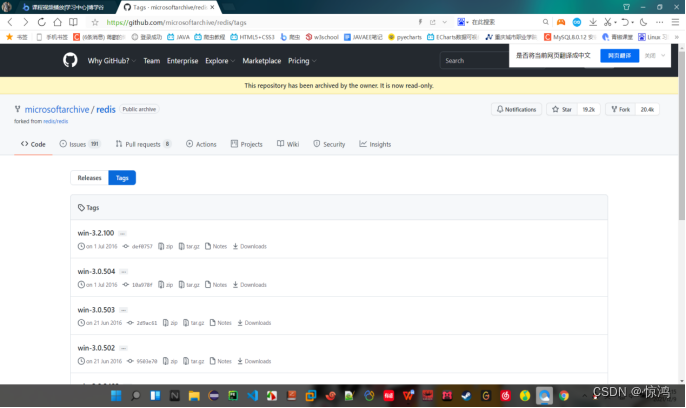
2、 Click on Releases, Switch display interface
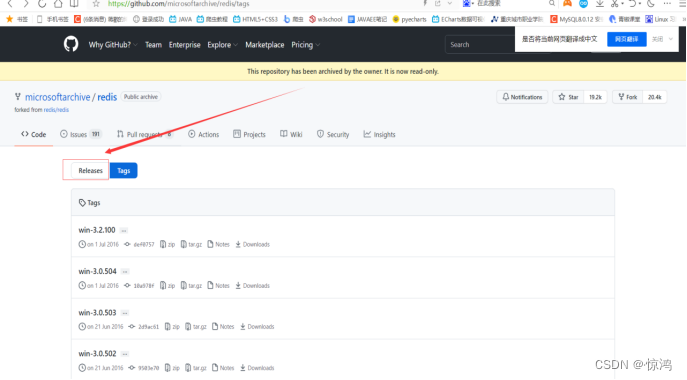
3、 Download the latest version (zip Format , Put it anywhere No path requirements )

4、 Unzip after download , Pictured :

debugging
5、 Start the server side
5.1 Copy our extracted file path ( This is me D:Scrapy-redis database )
5.2 WIN Add R Open a command window , Switch the current directory to We unzip the path by ourselves ( Let's take my directory as an example )
5.3 Enter... In the command window :redis-server redis.windows.conf
There's a picture The server is started successfully !
Bear in mind Do not shut down. ! Do not shut down. ! Current command window To keep the server connected !
also Remember the port number !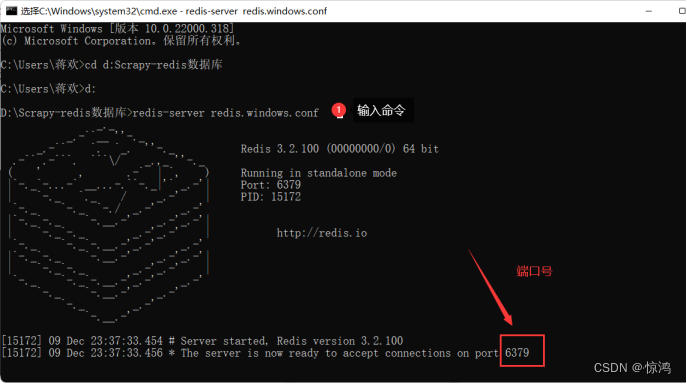
6、 Start customer service
6.1 Reopen a Command window ( Don't turn off the original and this )
Again , Switch the current directory to the path we extracted
Input :redis-cli -h 127.0.0.1 -p 6379( Your own port number )
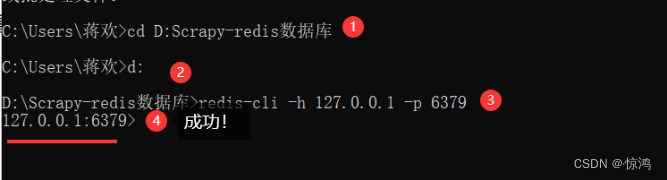
7、 Configure environment variables
7.1 stay Path Add our unzipped directory to it , Pictured :
After setting this way You don't need to input commands in the future Every time you switch directories !
8. Restart the server and client
8.1 Restart the server
control+c close Server port
Open the command window again and enter :redis-server, Pictured :
8.2 Restart the customer service terminal
control+c close Customer service terminal port
Open the command window again and enter :redis-cli, Pictured :
9、 test
9.1 Enter... On the customer service side :set Appear as shown in figure :
Never mind It can't be deleted We just need to enter the command This string is equivalent to a comment Of course set Keep it !
Input set name ‘huanhuan’
set Data name ‘ Data values ’ Pictured :
9.2 Continue to input get name name Is that we get the data name
Pictured :
Modify file
10、 modify redis.conf The configuration file ( You can use other ip Address for remote connection )
10.1 Find our decompression path , find
redis.windows.conf file , Choose Notepad to open , And modify the following two-step diagram :
bind 0.0.0.0 It means not limited IP!
Turn off protected mode 
10.2 Connect to server
Open a new command window
Input :redis-server The path of the configuration file we just modified

Test remote connection
10.3 Test the remote connection of the client
Open a command window , Input ipconfig Check out your ip Address ( The original 127.0.0.1 It's local our ip The address can also be regarded as a remote connection, so use our ip To test Remote connection )
If the mobile glacier customer service network card page is used, there should be a glacier. This description is equivalent to that here Netkeepr You may be like a glacier
If you use hot spots That's usually the first
It can't be our two virtual machine network cards 
And then input :redis-cli -h Their own ip Address -p Server port number , Pictured :
Redis Desktop Manager Desktop tools
11、 download Redis Desktop Manager Desktop tools
11.1 Click the installation package in my folder next I agree with Select installation path Again next Last finish Very simple single !!!
11.2 Enter interface Test as shown in the figure !
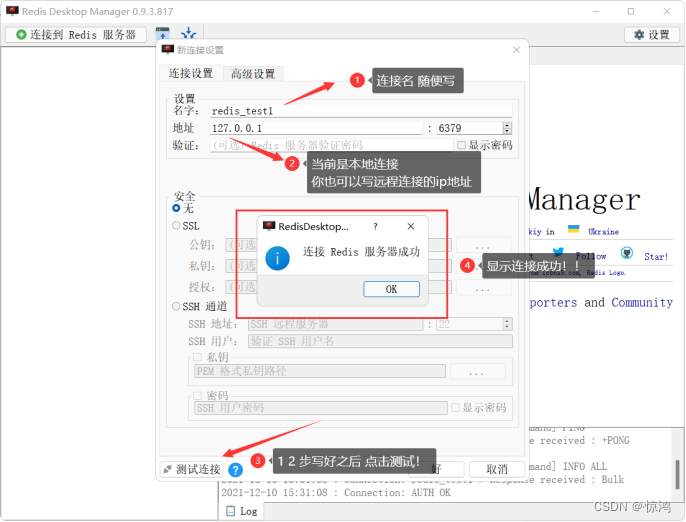
After successful connection Click on the good
And go to the following figure :


This is just our visual management tool Keep the connection between the server and customer service !
Last
Start the server side :
1、redis-server( If you don't need a remote connection )
2、redis-server We 10 The name of the configuration file modified in step
Start customer service :
1、redis-cli ( Default local 127.0.0.1)
2、redis-cli -h ip Address -p Port number ( Remote connection )
Exit both ends :control+c ( Press two times. )
New data :set Data name ‘ Data values ’
Display value :get Data name
If you encounter other mistakes halfway
Please go to Baidu or CSDN Search for
I've been squeezed dry ! willing to help but unable to do so !
Baidu :https://www.baidu.com/
CSDN:https://www.csdn.net/
边栏推荐
猜你喜欢
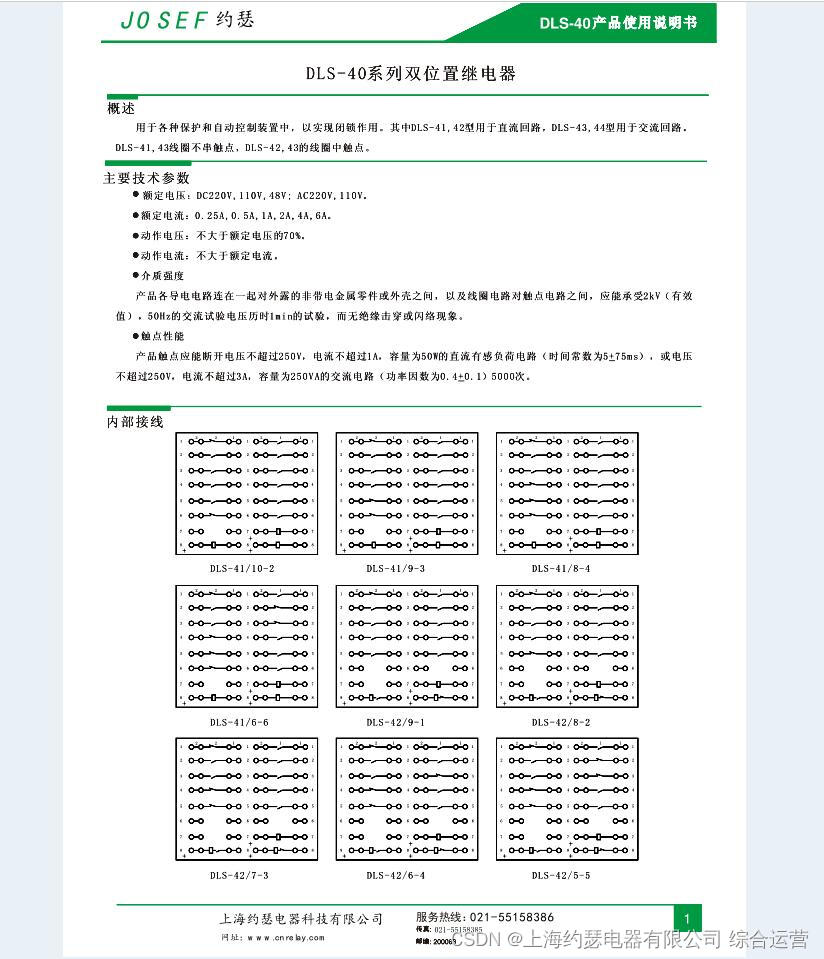
Dls-42/6-4 dc110v double position relay

fluttertoast

解析融合学科本质的创客教育路径

HDU 2488 A Knight's Journey(DFS)

DLS-20型双位置继电器 220VDC

A letter to 5000 fans!
![[go] go implements row column conversion of sets](/img/d9/6272e55b2d9c6b6fbdf2537773bb83.png)
[go] go implements row column conversion of sets

Vnctf 2022 cm CM1 re reproduction

PHP online confusion encryption tutorial sharing + basically no solution

机器人编程的培训学科类原理
随机推荐
Sword finger offer 18 Delete the node of the linked list
二十多年来第一次!CVPR最佳学生论文授予中国高校学生!
双位置继电器DLS-5/2 DC220V
Inspire students' diversified thinking with steam Education
Service
运动与健康
闭锁继电器YDB-100、100V
(学习力+思考力) x 行动力,技术人成长的飞轮效应总结
[daily record] - bug encountered in BigDecimal division operation
Oracle data integrity
写给 5000 粉丝的一封信!
CSDN common complex formula template record
HDU 2488 A Knight's Journey(DFS)
mustache语法
Double linked list: initialize insert delete traversal
DLS-20型双位置继电器 220VDC
K210 access control complete
解读创客教育所蕴含的科技素养
History of deep learning
初识 Flutter 的绘图组件 — CustomPaint