当前位置:网站首页>Pyqt5 rapid development and practice 4.9 dialog controls
Pyqt5 rapid development and practice 4.9 dialog controls
2022-07-27 22:56:00 【Ding Jiaxiong】
PyQt5 Rapid development and actual combat
List of articles
4. The first 4 Chapter PyQt5 Basic window control
4.9 Dialog class control
4.9.1 QDialog
stay PyQt 5 A series of standard dialog box classes are defined in , Users can easily and quickly complete the font size through various classes 、 Font color and file selection .
QDialog The subclasses of class mainly include QMessageBox.QFileDialog,QFontDialog ,QInputDialog etc. .
QDialog Common methods in class
| Method | describe |
|---|---|
| setWindowTitle() | Set dialog title |
| setWindowModality() | Set window mode . The values are as follows : - Qt.NonModal, Modeless , It can interact with other windows of the program ;Qt.WindowModal, Window mode , The program does not finish processing the current dialog , Interaction with the parent window of the dialog box will be blocked ;Qt.ApplicationModal, Application mode , Block interaction with any other window |
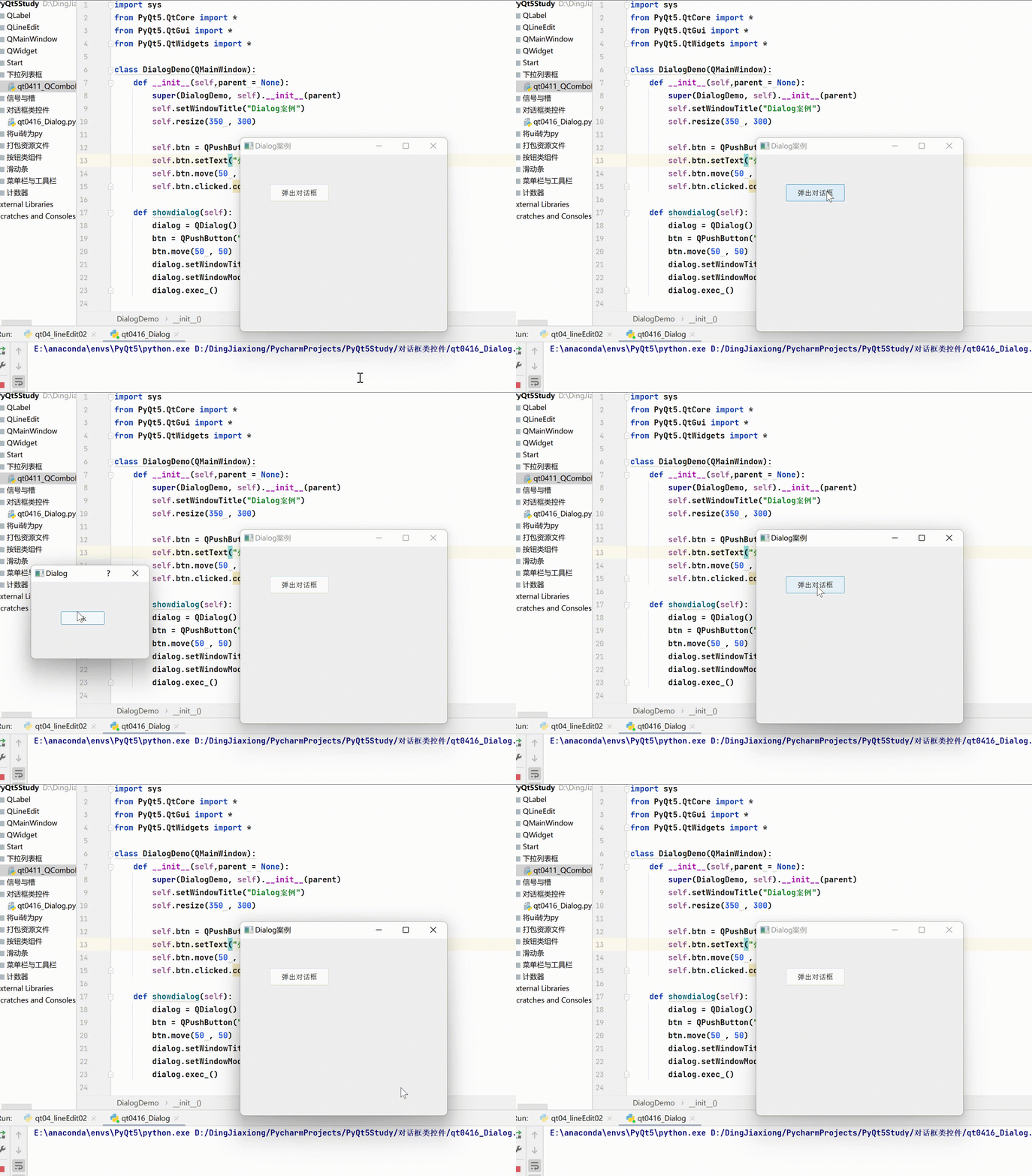
QDialog Use
import sys
from PyQt5.QtCore import *
from PyQt5.QtGui import *
from PyQt5.QtWidgets import *

class DialogDemo(QMainWindow):
    def __init__(self,parent = None):
        super(DialogDemo, self).__init__(parent)
        self.setWindowTitle("Dialog Case study ")
        self.resize(350 , 300)

        self.btn = QPushButton(self)
        self.btn.setText(" Pop-up dialog box ")
        self.btn.move(50 , 50)
        self.btn.clicked.connect(self.showdialog)

    def showdialog(self):
        dialog = QDialog()
        btn = QPushButton("ok",dialog)
        btn.move(50 , 50)
        dialog.setWindowTitle("Dialog")
        dialog.setWindowModality(Qt.ApplicationModal)
        dialog.exec_()

if __name__ == '__main__':
    from pyqt5_plugins.examples.exampleqmlitem import QtCore
    QtCore.QCoreApplication.setAttribute(QtCore.Qt.AA_EnableHighDpiScaling)
    app = QApplication(sys.argv)
    win = DialogDemo()
    win.show()
    sys.exit(app.exec_())
4.9.2 QMessageBox
QMessageBox It's a general pop-up dialog box , Used to display messages , Allows users to feed back messages by clicking on different standard buttons . Each standard button has a predefined text 、 Roles and hexadecimal numbers .
QMessageBox Class provides many common pop-up dialog boxes , As a reminder 、 Warning 、 error 、 inquiry 、 About waiting dialog . These different types of QMessageBox The dialog box just displays different icons , Other functions are the same .
QMessageBox Common methods in class
| Method | describe |
|---|---|
| information(QWidget,parent,title,text,buttons,defaultButton) | Pop up message dialog box , The parameters are explained as follows : parent, Specified parent window control ;title, Dialog title text, Dialog text ;buttons: Multiple standard buttons , The default is OK Button ;defaultButton: The standard button selected by default , The default is the first standard button |
| question(Qwidget parent,title, text, buttons, defaultButton) | A question and answer dialog box will pop up ( The parameters are explained as above ) |
| waming(QWidget parent,title, text, buttons, defaultButton) | A warning dialog box will pop up ( The parameters are explained as above ) |
| ctitical(QWidget parent,title, text, buttons , defaultButton) | A serious error dialog box will pop up ( The parameters are explained as above ) |
| about(QWidget parent,titIe, text) | Pop up the dialog about ( The parameters are explained as above ) |
| setTitle() | Set title |
| setText() | Set the message body |
| setIcon() | Set the picture of the pop-up dialog |
QMessageBox The standard button type
| type | describe |
|---|---|
| QMessage.Ok | Agree to operate |
| QMessage.Cancel | Cancel operation |
| QMessage.Yes | Agree to operate |
| QMessage.No | Cancel operation |
| QMessage.About | Termination operation |
| QMessage.Retry | Retrying the operation |
| QMessage.Ignore | Ignore action |
5 Common message dialog box and its display effect

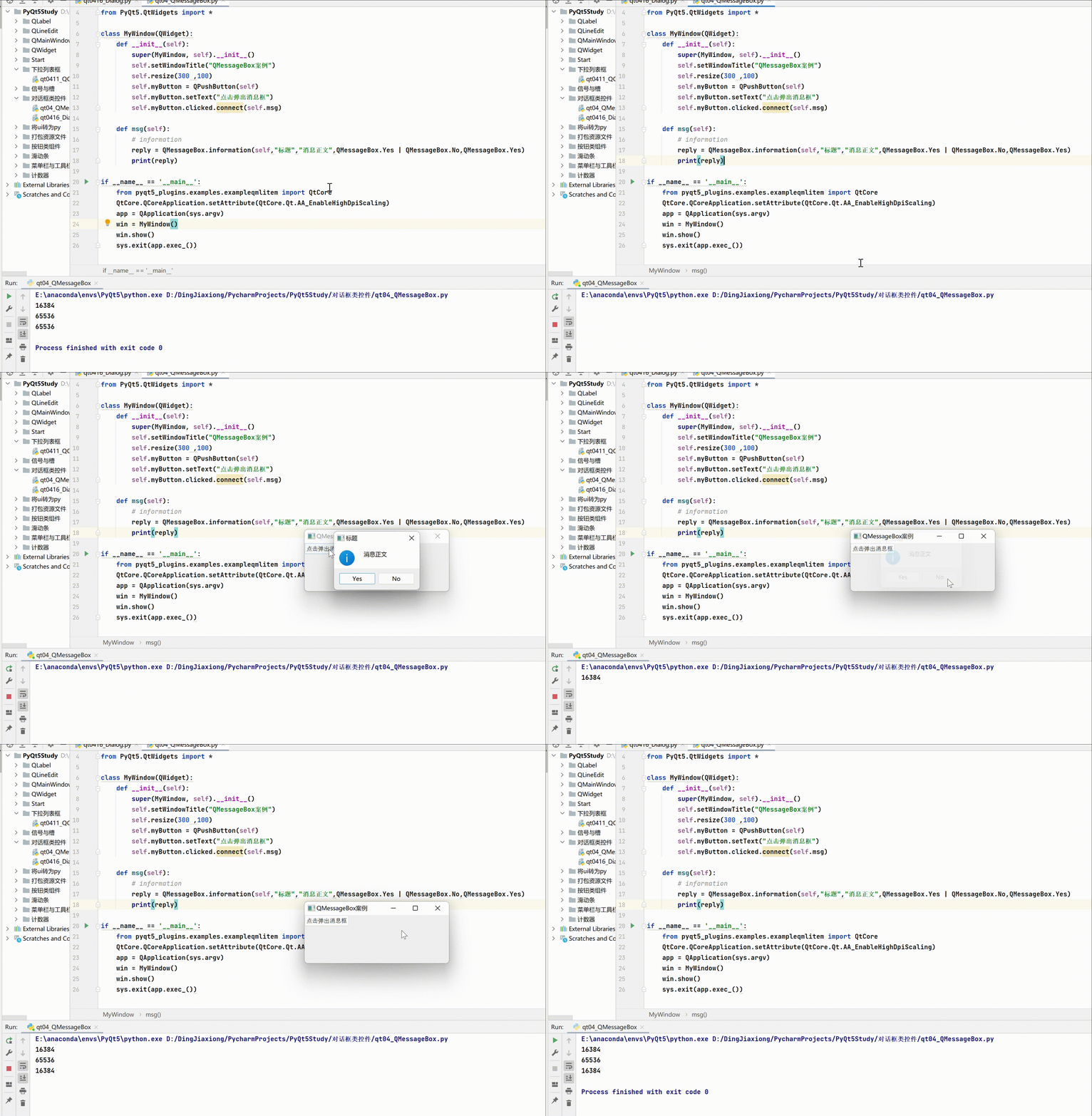
QMessageBox Use cases
import sys
from PyQt5.QtCore import *
from PyQt5.QtGui import *
from PyQt5.QtWidgets import *

class MyWindow(QWidget):
    def __init__(self):
        super(MyWindow, self).__init__()
        self.setWindowTitle("QMessageBox Case study ")
        self.resize(300 ,100)
        self.myButton = QPushButton(self)
        self.myButton.setText(" Click to pop up the message box ")
        self.myButton.clicked.connect(self.msg)

    def msg(self):
        # information
        reply = QMessageBox.information(self," title "," Message body ",QMessageBox.Yes | QMessageBox.No,QMessageBox.Yes)
        print(reply)

if __name__ == '__main__':
    from pyqt5_plugins.examples.exampleqmlitem import QtCore
    QtCore.QCoreApplication.setAttribute(QtCore.Qt.AA_EnableHighDpiScaling)
    app = QApplication(sys.argv)
    win = MyWindow()
    win.show()
    sys.exit(app.exec_())
4.9.3 QInputDialog
QInputDialog Control is a standard dialog box , It consists of a text box and two buttons (OK Button and Cancel Button ) form . When the user clicks OK Button or press Enter Post key , The parent window can be collected through QInputDialog Control .QInputDialog Control is QDialog Part of the standard dialog .
stay QInputDialog Control can enter numbers 、 Options in string or list . The tag is used to prompt the necessary information .
QInputDialog Common methods in class
| Method | describe |
|---|---|
| getInt() | Get standard integer input from control |
| getDouble() | Get standard floating-point input from control |
| getText() | Get the standard string input from the control |
| getItem() | Get the option input in the list from the control |
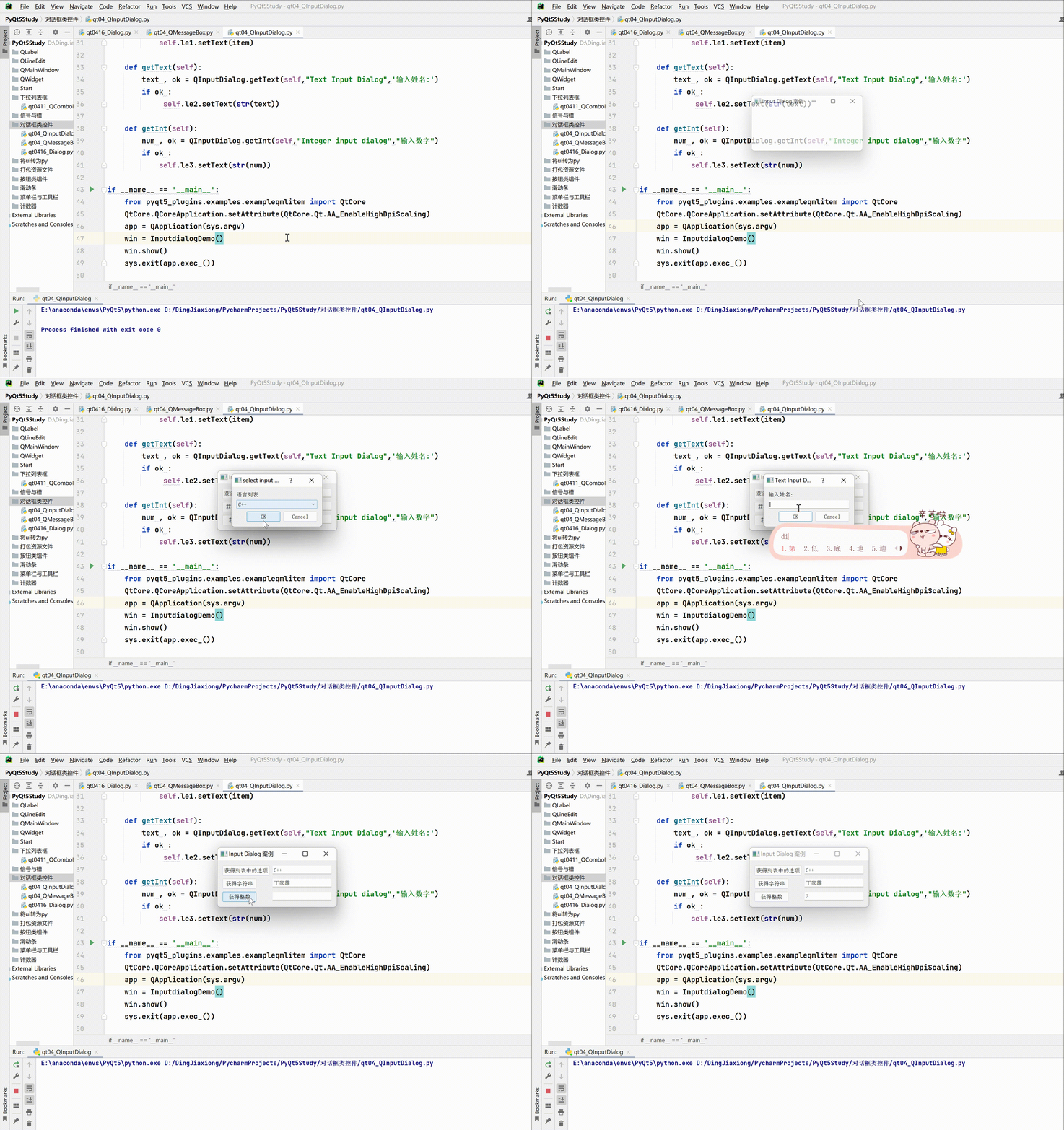
QInputDialog Use case of
import sys
from PyQt5.QtCore import *
from PyQt5.QtGui import *
from PyQt5.QtWidgets import *

class InputdialogDemo(QWidget):
    def __init__(self,parent = None):
        super(InputdialogDemo, self).__init__(parent)
        layout = QFormLayout()
        self.btn1 = QPushButton(" Get the options in the list ")
        self.btn1.clicked.connect(self.getItem)
        self.le1 = QLineEdit()
        layout.addRow(self.btn1,self.le1)

        self.btn2 = QPushButton(" Get string ")
        self.btn2.clicked.connect(self.getText)
        self.le2 = QLineEdit()
        layout.addRow(self.btn2,self.le2)

        self.btn3 = QPushButton(" Get an integer ")
        self.btn3.clicked.connect(self.getInt)
        self.le3 = QLineEdit()
        layout.addRow(self.btn3,self.le3)
        self.setLayout(layout)
        self.setWindowTitle("Input Dialog  Case study ")

    def getItem(self):
        items = ("C","C++","Java","Python")
        item , ok = QInputDialog.getItem(self,"select input dialog"," Language list ",items,0,False)
        if ok and item:
            self.le1.setText(item)

    def getText(self):
        text , ok = QInputDialog.getText(self,"Text Input Dialog",' Enter a name :')
        if ok :
             self.le2.setText(str(text))

    def getInt(self):
        num , ok = QInputDialog.getInt(self,"Integer input dialog"," Input number ")
        if ok :
            self.le3.setText(str(num))

if __name__ == '__main__':
    from pyqt5_plugins.examples.exampleqmlitem import QtCore
    QtCore.QCoreApplication.setAttribute(QtCore.Qt.AA_EnableHighDpiScaling)
    app = QApplication(sys.argv)
    win = InputdialogDemo()
    win.show()
    sys.exit(app.exec_())
4.9.4 QFontDialog
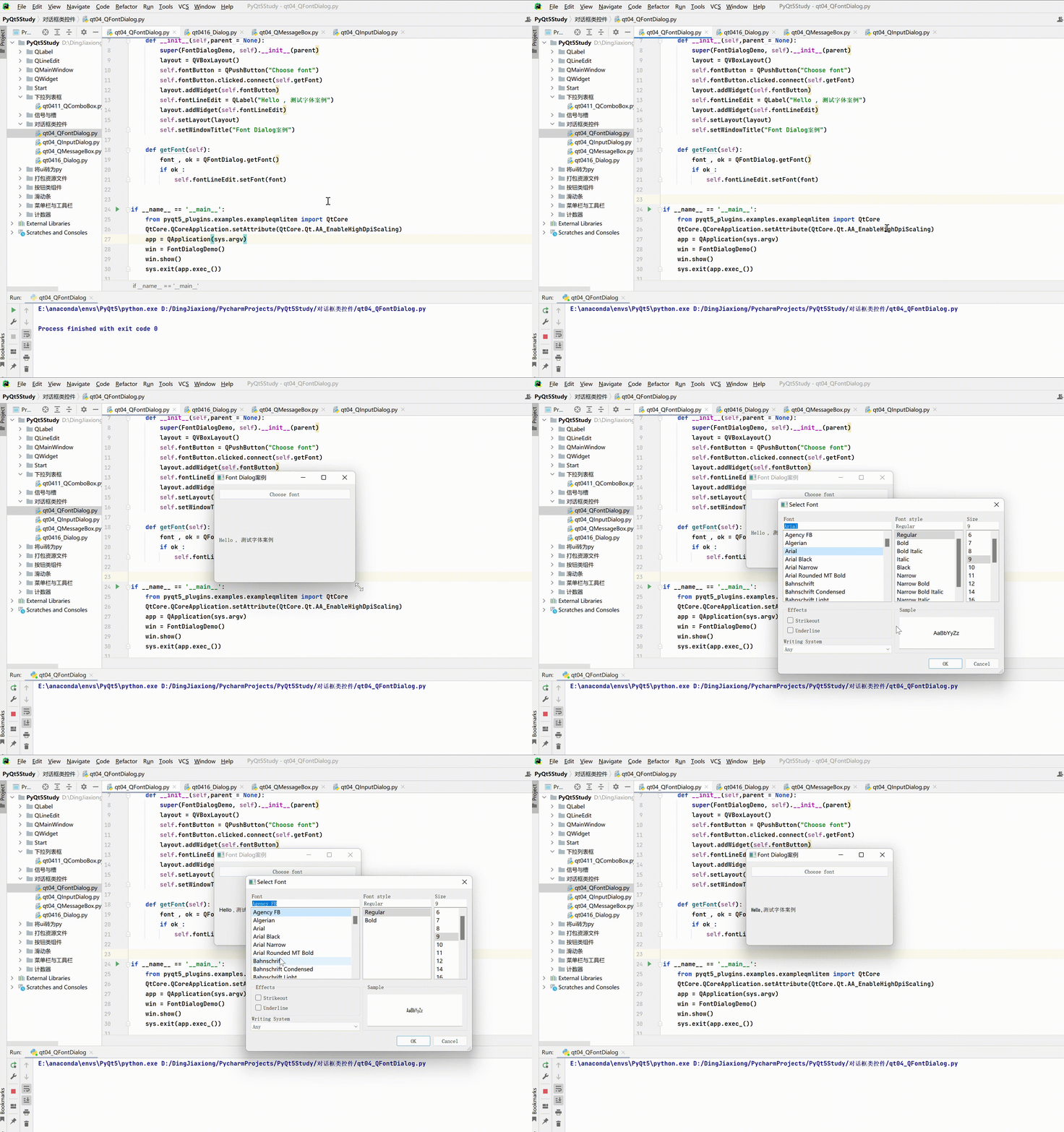
QFontDialog Control is a common font selection dialog box , Allows the user to select the font size of the displayed text 、 Style and format .QFontDialog yes QDialog Part of the standard dialog . Use QFontDialog Class static methods getFont(), You can select the display font size of the text from the font selection dialog box 、 Style and format .
QFontDialog Use
import sys
from PyQt5.QtCore import *
from PyQt5.QtGui import *
from PyQt5.QtWidgets import *

class FontDialogDemo(QWidget):
    def __init__(self,parent = None):
        super(FontDialogDemo, self).__init__(parent)
        layout = QVBoxLayout()
        self.fontButton = QPushButton("Choose font")
        self.fontButton.clicked.connect(self.getFont)
        layout.addWidget(self.fontButton)
        self.fontLineEdit = QLabel("Hello ,  Test font case ")
        layout.addWidget(self.fontLineEdit)
        self.setLayout(layout)
        self.setWindowTitle("Font Dialog Case study ")

    def getFont(self):
        font , ok = QFontDialog.getFont()
        if ok :
            self.fontLineEdit.setFont(font)


if __name__ == '__main__':
    from pyqt5_plugins.examples.exampleqmlitem import QtCore
    QtCore.QCoreApplication.setAttribute(QtCore.Qt.AA_EnableHighDpiScaling)
    app = QApplication(sys.argv)
    win = FontDialogDemo()
    win.show()
    sys.exit(app.exec_())
4.9.5 QFileDialog
QFileDialog Is a standard dialog for opening and saving files .QFileDialog Class inherits from QDialog class .
QFileDialog The file filter is used when opening the file , Used to display the file with the specified extension . Can also be set to use OFileDialog The starting directory when opening the file and the file with the specified extension .
QFileDialog Common methods in class
| Method | describe |
|---|---|
| getOpenFileName() | Returns the name of the file selected by the user , And open the file |
| getSaveFileName() | Use the file name selected by the user and save the file |
| setFileMode() | File types that can be selected , Enumeration constants are : QFileDialog.AnyFile, Any document QFileDialog.ExistingFile, Existing files . QFileDialog.Directory, File directory QFileDialog.ExistingFiles, Multiple files already exist |
| setFilter() | catalog filter , Only the file types allowed by the filter are displayed |
QFileDialog Use
import sys
from PyQt5.QtCore import *
from PyQt5.QtGui import *
from PyQt5.QtWidgets import *


class filedialogdemo(QWidget):
   def __init__(self, parent=None):
      super(filedialogdemo, self).__init__(parent)
      layout = QVBoxLayout()
      self.btn = QPushButton(" Loading pictures ")
      self.btn.clicked.connect(self.getfile)
      layout.addWidget(self.btn)
      self.le = QLabel("")
      layout.addWidget(self.le)
      self.btn1 = QPushButton(" Load text file ")
      self.btn1.clicked.connect(self.getfiles)
      layout.addWidget(self.btn1)
      self.contents = QTextEdit()
      layout.addWidget(self.contents)
      self.setLayout(layout)
      self.setWindowTitle("File Dialog  Example ")

   def getfile(self):
      fname, _ = QFileDialog.getOpenFileName(self, 'Open file', 'd:\\', "Image files (*.jpg *.gif)")
      self.le.setPixmap(QPixmap(fname))

   def getfiles(self):
      dlg = QFileDialog()
      dlg.setFileMode(QFileDialog.AnyFile)
      dlg.setFilter(QDir.Files)

      if dlg.exec_():
         filenames = dlg.selectedFiles()
         f = open(filenames[0], 'r',encoding='UTF-8')

         with f:
            data = f.read()
            self.contents.setText(data)

if __name__ == '__main__':
    # from pyqt5_plugins.examples.exampleqmlitem import QtCore
    # QtCore.QCoreApplication.setAttribute(QtCore.Qt.AA_EnableHighDpiScaling)
    app = QApplication(sys.argv)
    win = filedialogdemo()
    win.show()
    sys.exit(app.exec_())


边栏推荐
- Two dimensional code generation based on MCU and two dimensional code display on ink screen
- It is said that Intel will adopt TSMC 6nm EUV process next year
- Quartus:Instantiation of ‘sdram_ model_ plus‘ failed. The design unit was not found.
- 传华为再度砍单!供应链厂商更难了
- 我与消息队列的八年情缘
- Direct insertion sort of seven sorts
- 4 轮拿下字节 Offer,面试题复盘
- [noi2018] return (Kruskal reconstruction tree / persistent and search set)
- Jumpserver learning
- Take you to master makefile analysis
猜你喜欢

It's time to say goodbye gracefully to nullpointexception

Chrome realizes automated testing: recording and playback web page actions

Understanding and use of third-party library

干货|语义网、Web3.0、Web3、元宇宙这些概念还傻傻分不清楚?(中)

2022年软件开发的趋势

2022年五大网络管理趋势

云计算服务主要安全风险及应对措施

MySQL的B+Tree索引到底是咋回事?聚簇索引到底是如何长高的?

Cy3荧光标记抗体/蛋白试剂盒 (10~100mg标记量)

If there is no reference ground at all, guess if you can control the impedance?
随机推荐
Parameter transmission of components
2022/5/31考试总结
紫光FPGA解决口罩难题!助力口罩生产全面提速
Bluetooth framework summary
IELTS Listening - Jianya 5 - text1
八大排序之冒泡、快排、堆排、基数排序
2022/6/9 exam summary
Do you want to be dismissed? Let's take a look at the "exit tips" of programmers
[noi2018] bubble sort (combination + Cartland number +dp+ tree array)
多肽KC2S修饰白蛋白纳米粒/靶向肽GX1修饰人血清白蛋白纳米粒探针的研究制备
51单片机内部外设:实时时钟(SPI)
C语言详解系列——函数的认识(5)函数递归与迭代
MediaTek and Samsung launched the world's first 8K TV that supports Wi Fi 6
Markdown extended syntax
知乎数据分析训练营全能班
初中三年回忆录
可能导致索引失效的原因
2022/6/9 考试总结
UDF and analysis cases of sparksql, 220726,,
Jeninkins离线部署