当前位置:网站首页>手把手教你开发微信小程序自定义底部导航栏
手把手教你开发微信小程序自定义底部导航栏
2022-07-31 06:27:00 【EOPG】
手把手教你开发微信小程序自定义底部导航栏
一.创建微信小程序

二.配置底部菜单
1. 配置app.json文件,增加底部菜单
{

  "pages":[
    "pages/index/index",
    "pages/logs/logs"
  ],
  "window":{

    "backgroundTextStyle":"light",
    "navigationBarBackgroundColor": "#fff",
    "navigationBarTitleText": "Weixin",
    "navigationBarTextStyle":"black"
  },
  "tabBar": {

    "list": [{

      "pagePath": "pages/index/index",
      "text": "首页"
    }, {

      "pagePath": "pages/logs/logs",
      "text": "日志"
    }]
  },
  "style": "v2",
  "sitemapLocation": "sitemap.json"
}
三.增加自定义底部菜单
1. app.json配置文件 tabBar,增加"custom": true,
  "tabBar": {
    "custom": true,
    "list": [{
      "pagePath": "pages/index/index",
      "text": "首页"
    }, {
      "pagePath": "pages/logs/logs",
      "text": "日志"
    }]
  }
2. 添加导航图标
根目录创建image文件夹,并添加导航图标
3. 添加 tabBar 代码文件夹
在项目根目录创建custom-tab-bar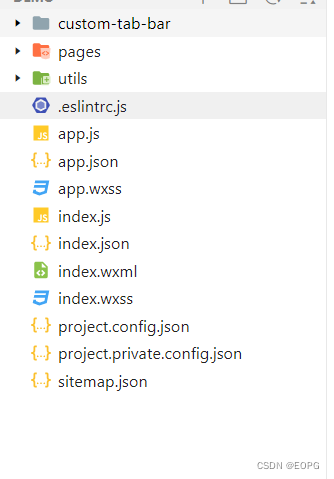

新建custom-tab-bar/index.js文件
Component({
  data: {
    selected: 0,
    color: "#7A7E83",
    selectedColor: "#3cc51f",
    list: [{
      pagePath: "/pages/index/index",
      iconPath: "/image/icon_component.png",
      selectedIconPath: "/image/icon_component_HL.png",
      text: "首页"
    }, {
      pagePath: "/pages/logs/logs",
      iconPath: "/image/icon_API.png",
      selectedIconPath: "/image/icon_API_HL.png",
      text: "日志"
    }]
  },
  attached() {
  },
  methods: {
    switchTab(e) {
      const data = e.currentTarget.dataset
      const url = data.path
      wx.switchTab({url})
      this.setData({
        selected: data.index
      })
    }
  }
})
新建custom-tab-bar/index.json文件
{
  "component": true
}
新建custom-tab-bar/index.wxml文件
<!--miniprogram/custom-tab-bar/index.wxml-->
<cover-view class="tab-bar">
  <cover-view class="tab-bar-border"></cover-view>
  <cover-view wx:for="{
   {list}}" wx:key="index" class="tab-bar-item" data-path="{
   {item.pagePath}}" data-index="{
   {index}}" bindtap="switchTab">
    <cover-image src="{
   {selected === index ? item.selectedIconPath : item.iconPath}}"></cover-image>
    <cover-view style="color: {
   {selected === index ? selectedColor : color}}">{
   {item.text}}</cover-view>
  </cover-view>
</cover-view>
新建custom-tab-bar/index.wxss文件
.tab-bar {
  position: fixed;
  bottom: 0;
  left: 0;
  right: 0;
  height: 48px;
  background: white;
  display: flex;
  padding-bottom: env(safe-area-inset-bottom);
}

.tab-bar-border {
  background-color: rgba(0, 0, 0, 0.33);
  position: absolute;
  left: 0;
  top: 0;
  width: 100%;
  height: 1px;
  transform: scaleY(0.5);
}

.tab-bar-item {
  flex: 1;
  text-align: center;
  display: flex;
  justify-content: center;
  align-items: center;
  flex-direction: column;
}

.tab-bar-item cover-image {
  width: 27px;
  height: 27px;
}

.tab-bar-item cover-view {
  font-size: 10px;
}
此时虽然可以导航了,但是还有导航栏闪动问题
四. 解决导航栏闪动
1. 安装全局数据状态包
在项目根目录右击在外部终端打开,输入一下命令
命令如下
npm install --save [email protected] [email protected]
安装完成之后,点击开发者工具选择工具,点击构建npm
2. 配置全局数据
项目根目录创建common文件夹,创建store.js文件
//在这个js中专门创建Store的实例对象,引入要使用的初始化方法
import {

  action,
  observable
} from 'mobx-miniprogram'

//创建Store对象并导出
export const store = observable({

  //在此处填写共享的数据
  active: 0,
  menulist: [{

      "pagePath": "pages/index/index",
      "text": "首页",
      "iconPath": "/image/icon_component.png",
      "selectedIconPath": "/image/icon_component_HL.png"
    },
    {

      "pagePath": "pages/logs/logs",
      "text": "日志",
      "iconPath": "/image/icon_API.png",
      "selectedIconPath": "/image/icon_API_HL.png"
    }
  ],
  //action 方法,用来修改store中的数据
  updateActive: action(function (step) {

    this.active = step
    return this.active
  })
})
3. 修改自定义custom-tab-bar的文件
修改indec.js 文件
import {

  storeBindingsBehavior
} from 'mobx-miniprogram-bindings'
import {

  store
} from '../common/store.js'

Component({

  data: {
    },
  // 通过 storeBindingsBehavior 来实现自动绑定
  behaviors: [storeBindingsBehavior],
  storeBindings: {

    //数据源 指定要绑定的 store
    store,
    //属性 指定要绑定的字段数据
    fields: {

      active: "active", //左侧为组件中属性的名字 右侧为Store中属性的名字
      menulist: "menulist"
    },
    //方法 指定要绑定的方法
    actions: {

      updateActive: 'updateActive', //左侧为组件中方法的名字 右侧为Store中方法的名字
    }
  },
  attached() {
    },
  methods: {

    switchTab(e) {

      this.updateActive(e.currentTarget.dataset.index);
      this.setData({

        selected: e.currentTarget.dataset.index
      })
      wx.switchTab({

        url: `/${
      e.currentTarget.dataset.path}`
      })
    },

  }
})
修改indec.wxml 文件
<!--miniprogram/custom-tab-bar/index.wxml-->
<cover-view class="tab-bar">
  <cover-view class="tab-bar-border"></cover-view>
  <cover-view wx:for="{
   {menulist}}" wx:key="index" class="tab-bar-item" data-path="{
   {item.pagePath}}" data-index="{
   {index}}" bindtap="switchTab">
    <cover-image src="{
   {active === index ? item.selectedIconPath : item.iconPath}}"></cover-image>
    <cover-view style="color: {
   {active === index ? selectedColor : color}}">{
   {item.text}}</cover-view>
  </cover-view>
</cover-view>
到此为止自定义底部导航栏算是基本完成,但是如果定义的是自定义动态菜单栏还差一丢丢!
五. 自定义动态底部导航栏
懒得敲代码了,提供一种思路!
用户登录之后,把用户的菜单存储到本地缓冲中,在app.js 的onLaunch 方法的读取本地存储的菜单。
示例代码:下载地址
粉丝喜欢的话,留言后续更新
边栏推荐
- Core Tower Electronics won the championship in the Wuhu Division of the 11th China Innovation and Entrepreneurship Competition
- 解决win11/win10在登陆界面(解锁界面)点击获取每日壁纸无效的问题 - get Daily Lockscreen and Wallpaper - Win11/10的登录界面背景图片在哪里?
- SQL Server Datetime2数据类型
- 讲解实例+详细介绍@Resource与@Autowired注解的区别(全网最全)
- Postgresql source code learning (34) - transaction log ⑩ - full page write mechanism
- 2022.07.18 _ a day
- 2022.07.29_每日一题
- 2022.07.18_每日一题
- 【并发编程】ReentrantLock的lock()方法源码分析
- leetcode 406. Queue Reconstruction by Height 根据身高重建队列(中等)
猜你喜欢
什么是半波整流器?半波整流器的使用方法

Zabbix6.2惊喜发布!特别优化中大型环境部署的性能!

Conditional statements of shell (test, if, case)

2. (1) Chained storage of stack, operation of chain stack (illustration, comment, code)
【科普向】5G核心网架构和关键技术
2022.07.14_Daily Question
零样本学习&Domain-aware Visual Bias Eliminating for Generalized Zero-Shot Learning
解决win11/win10在登陆界面(解锁界面)点击获取每日壁纸无效的问题 - get Daily Lockscreen and Wallpaper - Win11/10的登录界面背景图片在哪里?
双倍数据速率同步动态随机存储器(Double Data Rate Synchronous Dynamic Random Access Memory, DDR SDRAM)- 逻辑描述部分
基于交替迭代法的交直流混合系统潮流计算matlab程序iEEE9节点系统算例

随机推荐
[PSQL] 复杂查询
简单谈谈Feign
2022.07.12_Daily Question
SCI写作指南
线程唤醒机制
2022.07.18 _ a day
Zabbix6.2惊喜发布!特别优化中大型环境部署的性能!
DAY18:XSS 漏洞
Zabbix6.2 Surprise Release!Especially optimize the performance of medium and large environment deployment!
【微服务】(十六)—— 分布式事务Seata
van-uploader uploads images, and cannot preview the image using base64 echo
剑指offer(一)
leetcode 406. Queue Reconstruction by Height
tidyverse笔记——管道函数
Yu Mr Series 】 【 2022 July 022 - Go Go teaching course of container in the dictionary
Web浏览器工作流程解析
毫米波技术基础
2022.07.20_每日一题
LeetCode brush # 376 # Medium - swing sequence
服务器和客户端信息的获取