A good programmer can locate the root cause of the error and find the right solution immediately after the system has a problem , A better programmer can predict future problems based on the current running state , And strangle the problem in the cradle . Diagnostic tracking can help us correct and troubleshoot errors effectively 《 Several basic diagnostic trace programming methods 》 Provides 7 An example demonstrates TraceSource、EventSource and DiagnosticSource The basic usage of , In fact, they also have a more “ senior ” How to use .( The examples provided in this article have been summarized to 《ASP.NET Core 6 The framework reveals - Example Demo 》)
[S708]DefaultTraceListener Log output for file ( Source code )
[S709] utilize DelimitedListTraceListener Output log to CSV file ( Source code )
[S710] More complete EventListener The type definition ( Source code )
[S711] utilize EventSource Event log output call chain ( Source code )
[S712]AnonymousObserver<T> Application ( Source code )
[S713] Strongly typed diagnostic event subscriptions ( Source code )
[S708]DefaultTraceListener Log output for file
In the trace log framework , We use registered TraceListener Object to persist and store trace log messages ( Such as saving formatted log messages in files or databases ) Or visual display ( If output to console ), Or send them to a remote service for further processing . The trace logging system defines several native TraceListener type . The default is as follows DefaultTraceListener type . Created TraceSource Object will automatically register with the following definitions DefaultTraceListener object , The latter will send the log message to the debugger as debugging information .DefaultTraceListener Object can also help us write the log contents to the specified file , The path of the file can be through LogFileName Property to specify .
public class DefaultTraceListener: TraceListener
{
    public string LogFileName { get; set; }

    public override void Write(string message);
    public override void WriteLine(string message);
    ...
}
We use a simple program to demonstrate DefaultTraceListener Log output for file . As the code snippet shows , Creating a TraceSource After object , We will register by default TraceListener eliminate , Then registered according to the specified log file (trace.log) Created DefaultTraceListener object , Then a log is output for each event type .
using System.Diagnostics;

var source = new TraceSource("Foobar", SourceLevels.All);
source.Listeners.Clear();
source.Listeners.Add(new DefaultTraceListener { LogFileName = "trace.log" });
var eventTypes = (TraceEventType[])Enum.GetValues(typeof(TraceEventType));
var eventId = 1;
Array.ForEach(eventTypes, it => source.TraceEvent(it, eventId++, $"This is a {it} message."));
After running the program, we will find that a... Will be generated in the compiled output directory trace.log file , Generated in the program 10 Trace logs will be written to the file one by one ( See the picture 1).DefaultTraceListener When performing log output for files , Just append the formatted log message to (Append) Is written to the specified file .
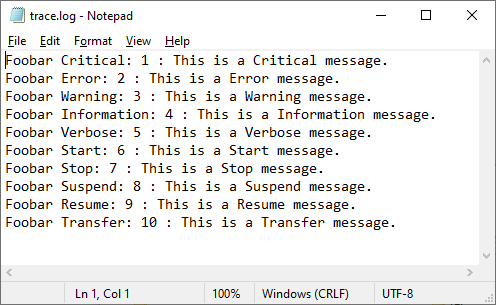
chart 1 For static types Trace Tracking event distribution processing mechanism
[S709] utilize DelimitedListTraceListener Output log to CSV file
DelimitedListTraceListener yes TextWriterTraceListener Subclasses of , It will use the specified separator when formatting the trace log information . Semicolons are used by default (“;”) As a separator . Because of the content of the trace log, the payload will eventually be formatted into a string , The output of a string can be generated by a TextWriter Object to complete . One TextWriterTraceListener Objects take advantage of encapsulated TextWriter Object to complete the output of the trace log content . This is shown in the following code snippet , This TextWriter The object is embodied in TextWriterTraceListener Of Writer Attribute .
public class DelimitedListTraceListener : TextWriterTraceListener
{
    public string Delimiter { get; set; }

    public DelimitedListTraceListener(Stream stream);
    public DelimitedListTraceListener(TextWriter writer);
    public DelimitedListTraceListener(string fileName);
    public DelimitedListTraceListener(Stream stream, string name);
    public DelimitedListTraceListener(TextWriter writer, string name);
    public DelimitedListTraceListener(string fileName, string name);

    public override void TraceData(TraceEventCache eventCache, string source, TraceEventType eventType, int id, object data);
    public override void TraceData(TraceEventCache eventCache, string source, TraceEventType eventType, int id, params object[] data);
    public override void TraceEvent(TraceEventCache eventCache, string source, TraceEventType eventType, int id, string message);
    public override void TraceEvent(TraceEventCache eventCache, string source, TraceEventType eventType, int id, string format, params object[] args);
}
Separator based formatting is implemented in rewritten TraceData Methods and TraceEvent In the method , So call TraceSource Object's Write perhaps WriteLine Method, the output will not be separated by a separator . For the second TraceData Method overloading , If the incoming content load object is an array , Then each element will also be separated by a separator . The separator used by default is comma (“,”), But if Delimiter The main delimiter represented by the attribute is comma , This separator will choose a semicolon (“;”). The code snippet shown below shows that the default delimiter is selected by TraceData Methods and TraceEvent Method output text format .
TraceData 1:
{SourceName};{EventType};{EventId};{Data};{ProcessId};{LogicalOperationStack};{ThreadId};{DateTime};{Timestamp};TraceData 2:
{SourceName};{EventType};{EventId};{Data1},{Data2},...,{DataN};{ProcessId};{LogicalOperationStack};{ThreadId};{DateTime};{Timestamp};TraceEvent
{SourceName};{EventType};{EventId};{Message};;{ProcessId};{LogicalOperationStack};{ThreadId};{DateTime};{Timestamp};Placeholders in the trace log output format shown above “{LogicalOperationStack}” Represents the call stack of the current logical operation . The above code snippet also reveals another detail , That's right. TraceEvent Method , In the... That represents the body of the log message “{Message}” And represent processes ID Of “{ProcessId}” Two separators appear between , This may be a loophole (Bug). If we use commas (“,”) As a separator , Then the final output is one CSV(Comma Separated Value) file . For example, in the example demonstration shown below , We will name the current directory as trace.csv As a log file , Then according to the of this file FileStream Created a DelimitedListTraceListener Object and register it with the TraceSource On the object , Finally, for each event type 10 Logs .
using System.Diagnostics;

var fileName = "trace.csv";
File.AppendAllText(fileName, @$"SourceName,EventType,EventId,Message,N/A,ProcessId,LogicalOperationStack, hreadId, DateTime, Timestamp,{ Environment.NewLine}");

using (var fileStream = new FileStream(fileName, FileMode.Append))
{
    var options = TraceOptions.Callstack | TraceOptions.DateTime |TraceOptions.LogicalOperationStack | TraceOptions.ThreadId | TraceOptions.Timestamp;
    var listener = new DelimitedListTraceListener(fileStream){ TraceOutputOptions = options, Delimiter = "," };
    var source = new TraceSource("Foobar", SourceLevels.All);
    source.Listeners.Add(listener);
    var eventTypes = (TraceEventType[])Enum.GetValues(typeof(TraceEventType));
    for (int index = 0; index < eventTypes.Length; index++)
    {
        var enventType = eventTypes[index];
        var eventId = index + 1;
        Trace.CorrelationManager.StartLogicalOperation($"Op{eventId}");
        source.TraceEvent(enventType, eventId, $"This is a {enventType} message.");
    }
    source.Flush();
}
In order to demonstrate the call stack of the logical operation mentioned above , We make use of Trace Type gets a CorrelationManager object , And call it StartLogicalOperation Method starts a to “Op{EventId}” Logical operation of format naming . because DelimitedListTraceListener The buffer mechanism is used inside the object , So we artificially called TraceSource Object's Flush Method to force the trace log in the output buffer . Output after the program runs 10 All trace logs will be recorded in trace.csv In file , If directly used Excel Open this file , You will see the picture 2 What is shown .
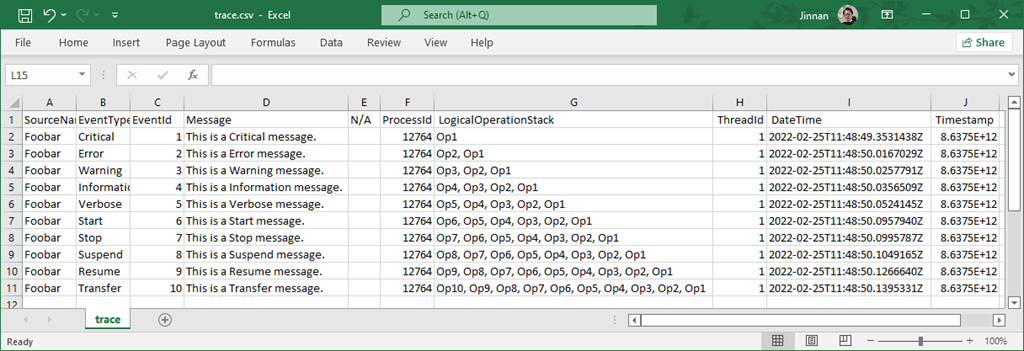
chart 2 adopt DelimitedListTraceListener Output log file
[S710] More complete EventListener The type definition
The last one already demonstrated EventSource and EventListener Simple usage , Let's do a more complete demonstration . Let's predefine several in the form of constants EventTask and EventTags object , The former indicates the application level where the operation is executed , The latter represents three typical relational database types .
public class Tasks
{
    public const EventTask UI 		= (EventTask)1;
    public const EventTask Business 	= (EventTask)2;
    public const EventTask DA 		= (EventTask)3;
}

public class Tags
{
    public const EventTags MSSQL 	= (EventTags)1;
    public const EventTags Oracle 	= (EventTags)2;
    public const EventTags Db2 	= (EventTags)3;
}
We still follow the implementation of SQL Command application scenarios , To this end, we have a review of the previously defined DatabaseSource Make some simple changes to the type . As the code snippet shows , We are in the log method OnCommandExecute Marked on EventAttribute Feature sets all its properties accordingly , among Task and Tags Property uses the constants defined above . It is worth noting that , We are Message Property sets a template containing placeholders .OnCommandExecute Method is calling WriteEvent Method before sending log events , First use of IsEnabled Method validation EventSource Object has been subscribed to for the specified level and output channel .
[EventSource(Name = "Artech-Data-SqlClient")]
public sealed class DatabaseSource : EventSource
{
    public static DatabaseSource Instance = new DatabaseSource();
    private DatabaseSource() {}

    [Event(1, Level = EventLevel.Informational, Keywords = EventKeywords.None, Opcode = EventOpcode.Info, Task = Tasks.DA, Tags = Tags.MSSQL, Version = 1, Message = "Execute SQL command. Type: {0}, Command Text: {1}")]
    public void OnCommandExecute(CommandType commandType, string commandText)
    {
        if (IsEnabled(EventLevel.Informational, EventKeywords.All, EventChannel.Debug))
        {
            WriteEvent(1, (int)commandType, commandText);
        }
    }
}
We use the following code for the log event subscriber DatabaseSourceListener Type has been redefined . To verify whether the received log events are consistent with OnCommandExecute The subscriptions in the method are consistent , We are rewriting OnEventWritten Method outputs EventWrittenEventArgs All properties of the object .
public class DatabaseSourceListener : EventListener
{
    protected override void OnEventSourceCreated(EventSource eventSource)
    {
        if (eventSource.Name == "Artech-Data-SqlClient")
        {
            EnableEvents(eventSource, EventLevel.LogAlways);
        }
    }

    protected override void OnEventWritten(EventWrittenEventArgs eventData)
    {
        Console.WriteLine($"EventId: {eventData.EventId}");
        Console.WriteLine($"EventName: {eventData.EventName}");
        Console.WriteLine($"Channel: {eventData.Channel}");
        Console.WriteLine($"Keywords: {eventData.Keywords}");
        Console.WriteLine($"Level: {eventData.Level}");
        Console.WriteLine($"Message: {eventData.Message}");
        Console.WriteLine($"Opcode: {eventData.Opcode}");
        Console.WriteLine($"Tags: {eventData.Tags}");
        Console.WriteLine($"Task: {eventData.Task}");
        Console.WriteLine($"Version: {eventData.Version}");
        Console.WriteLine($"Payload");
        var index = 0;
        if (eventData.PayloadNames != null)
        {
            foreach (var payloadName in eventData.PayloadNames)
            {
                Console.WriteLine($"\t{payloadName}:{eventData.Payload?[index++]}");
            }
        }
    }
}
In the demonstration program shown above , We created one DatabaseSourceListener object . After extracting the single example form DatabaseSource After the object , We called its OnCommandExecute Sent a message about SQL Log events of command execution .
using App;
using System.Data;

_ = new DatabaseSourceListener();
DatabaseSource.Instance.OnCommandExecute(CommandType.Text, "SELECT * FROM T_USER");
After the program runs , The details of log events are shown in the figure 3 Output to the console in the form shown in . We can find from the output results EventWrittenEventArgs Of Message Property still returns the raw information without any formatting , I think this is something worth improving .
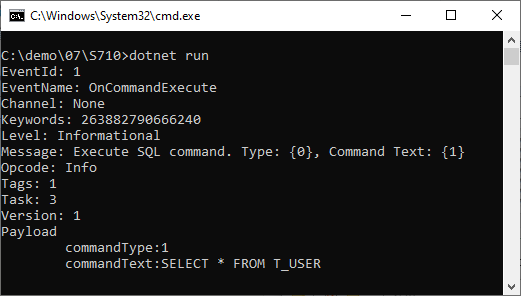
chart 3 For static types Trace Tracking event distribution processing mechanism
[S711] utilize EventSource Event log output call chain
Next, let's demonstrate how to use custom EventSource and EventListener To complete the tracking of activities . Suppose a complete call chain consists of Foo、Bar、Baz and Qux These four activities make up , For this purpose, we define the following FoobarSource, Four groups of corresponding event methods are defined for the four activities , among “{Op}Start” and “{Op}Stop” Methods correspond to the start and end events of the activity respectively , The load information of the former includes the time stamp of the start of the activity , The load information of the latter includes the operation time .
[EventSource(Name = "Foobar")]
public sealed class FoobarSource : EventSource
{
    public static readonly FoobarSource Instance = new();

    [Event(1)]
    public void FooStart(long timestamp) => WriteEvent(1, timestamp);
    [Event(2)]
    public void FooStop(double elapsed) => WriteEvent(2, elapsed);

    [Event(3)]
    public void BarStart(long timestamp) => WriteEvent(3, timestamp);
    [Event(4)]
    public void BarStop(double elapsed) => WriteEvent(4, elapsed);

    [Event(5)]
    public void BazStart(long timestamp) => WriteEvent(5, timestamp);
    [Event(6)]
    public void BazStop(double elapsed) => WriteEvent(6, elapsed);

    [Event(7)]
    public void QuxStart(long timestamp) => WriteEvent(7, timestamp);
    [Event(8)]
    public void QuxStop(double elapsed) => WriteEvent(8, elapsed);
}
As shown below FoobarListener Will subscribe to the above events , And save the received call chain information to a .csv In file (log.csv). In rewriting OnEventSourceCreated In the method , We're based on EventSource The name of the subscription is by FoobarSource Out of eight events , You also need to subscribe TplEtwProvider Event sent to save activity flow information . In line with the principle of minimizing the scope of subscription , We're calling EnableEvents Method uses log level and keyword to filter subscription events . In rewriting OnEventWritten In the method , Event information we will capture ( name 、 Activity start timestamp and elapsed time 、ActivityId and RelatedActivityId) Write the specified after formatting .csv In file .
public sealed class FoobarListener : EventListener
{
    protected override void OnEventSourceCreated(EventSource eventSource)
    {
        if (eventSource.Name == "System.Threading.Tasks.TplEventSource")
        {
            EnableEvents(eventSource, EventLevel.Informational, (EventKeywords)0x80);
        }

        if (eventSource.Name == "Foobar")
        {
            EnableEvents(eventSource, EventLevel.LogAlways);
        }
    }

    protected override void OnEventWritten(EventWrittenEventArgs eventData)
    {
        if (eventData.EventSource.Name == "Foobar")
        {
            var timestamp = eventData.PayloadNames?[0] == "timestamp"? eventData.Payload?[0]: "";
            var elapsed = eventData.PayloadNames?[0] == "elapsed"? eventData.Payload?[0]: "";
            var relatedActivityId = eventData.RelatedActivityId == default? "": eventData.RelatedActivityId.ToString();
            var line = @$"{eventData.EventName},{timestamp},{elapsed},{ eventData.ActivityId},{ relatedActivityId}";
            File.AppendAllLines("log.csv", new string[] { line });
        }
    }
}
The code snippet shown below can be simulated by Foo、Bar、Baz and Qux These four activities form a call chain . The control of these activities is implemented in InvokeAsync In the method , Parameters of this method start and stop The provided delegate object is used to send the start event and end event of the activity respectively , As for parameters body Back to Task Object represents the operation of the activity itself . In order to simulate the activity, it takes time , We waited artificially for a random time .
using App;
using System.Diagnostics;

var random = new Random();
File.AppendAllLines("log.csv",  new string[] { @"EventName,StartTime,Elapsed,ActivityId,RelatedActivityId" });
var listener = new FoobarListener();
await FooAsync();

Task FooAsync() => InvokeAsync(FoobarSource.Instance.FooStart, FoobarSource.Instance.FooStop, async () =>
{
    await BarAsync();
    await QuxAsync();
});

Task BarAsync() => InvokeAsync(FoobarSource.Instance.BarStart, FoobarSource.Instance.BarStop, BazAsync);
Task BazAsync() => InvokeAsync(FoobarSource.Instance.BazStart,FoobarSource.Instance.BazStop, () => Task.CompletedTask);
Task QuxAsync() => InvokeAsync(FoobarSource.Instance.QuxStart, FoobarSource.Instance.QuxStop, () => Task.CompletedTask);

async Task InvokeAsync(Action<long> start, Action<double> stop, Func<Task> body)
{
    start(Stopwatch.GetTimestamp());
    var sw = Stopwatch.StartNew();
    await Task.Delay(random.Next(10, 100));
    await body();
    stop(sw.ElapsedMilliseconds);
}
The four activities are implemented in four corresponding methods (FooAsync、BarAsync、BazAsync and QuxAsync), In order to simulate based on Task Asynchronous programming , We let the four methods return one Task object . From the definition of these four methods, we can see , The call chain they embody is shown in the figure below 4 Shown .
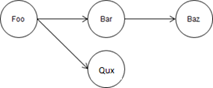
chart 4 Call chain constructed by related activities
We called in the demo program. FooAsync Method , And created one before that FoobarListener Object to subscribe to log events , Then, the formatted event information is written into the specified .csv In file . After the program runs , We will be in .csv In the file 8 Corresponding log event records . Pictured 5 Shown ,Start Events and Stop The event records the start timestamp and time consumption of the activity respectively , and ActivityId and RelatedActivityId It can clearly reflect the flow of the whole call chain .
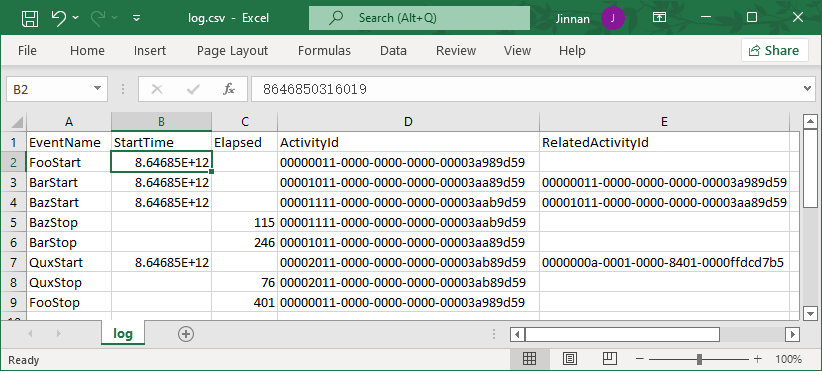
chart 5 Recorded in the .csv Call chain information in the file
[S712]AnonymousObserver<T> Application
Whether it's on behalf of the publisher DiagnosticListener object , Or is it defined on this type to represent all DiagnosticListener Object's static properties AllListeners, They are all embodied in a IObservable<T> object . To complete the subscription for them , We need to create a corresponding IObserver<T> object ,AnonymousObserver<T> That's right IObserver<T> A simple implementation of the interface .AnonymousObserver<T> It's defined in NuGet package “System.Reactive.Core” in , It uses the... Provided by the opening demonstration example Observer<T> The same implementation , That is, through the specified delegate object (Action<T> and Action<Exception>) To achieve IObservable<T> Three methods of interface . The code snippet shown below shows Web The server is for one time HTTP Log output of request processing , After receiving the request, the server outputs the request context information and current timestamp in the form of log , After the response is successfully sent, the response message is output and the time-consuming of the whole request processing .
using System.Diagnostics;
using System.Net;

DiagnosticListener.AllListeners.Subscribe(listener =>
{
    if (listener.Name == "Web")
    {
        listener.Subscribe(eventData =>
        {
            if (eventData.Key == "ReceiveRequest" && eventData.Value != null)
            {
                dynamic payload = eventData.Value;
                var request = (HttpRequestMessage)(payload.Request);
                var timestamp = (long)payload.Timestamp;
                Console.WriteLine(@$"Receive request. Url: {request.RequestUri};Timstamp:{ timestamp}");
            }
            if (eventData.Key == "SendReply" && eventData.Value != null)
            {
                dynamic payload = eventData.Value;
                var response = (HttpResponseMessage)(payload.Response);
                var elaped = (TimeSpan)payload.Elaped;
                Console.WriteLine($"Send reply. Status code: {response.StatusCode}; Elaped: {elaped}");
            }
        });
    }
});

var source = new DiagnosticListener("Web");
var stopwatch = Stopwatch.StartNew();
if (source.IsEnabled("ReceiveRequest"))
{
    var request = new HttpRequestMessage(HttpMethod.Get, "https://www.artech.top");
    source.Write("ReceiveRequest", new
    {
        Request 	= request,
        Timestamp 	= Stopwatch.GetTimestamp()
    });
}
await Task.Delay(100);
if (source.IsEnabled("SendReply"))
{
    var response = new HttpResponseMessage(HttpStatusCode.OK);
    source.Write("SendReply", new
    {
        Response 	= response,
        Elaped 	= stopwatch.Elapsed
    });
}
For the published part of the diagnostic log , We need to create a file named Web Of DiagnosticListener object , And use the open Stopwatch To calculate the request processing time . We use manually created HttpRequestMessage Object to simulate the received request , Calling Write Method sends a message named “ReceiveRequest” Log events for , The HttpRequestMessage Object, together with the current timestamp, is used as the content load object of the log in the form of an anonymous object . Waiting artificially 100 Milliseconds to simulate the time taken for request processing , We call DiagnosticListener Object's Write The method emits a call called “SendReply” Log events for , Indicates that the processing of the current request has ended , Anonymous objects as content loads contain a manually created HttpResponseMessage Objects and simulations are time consuming .
The subscription to log events in the first half of the program is through the call Subscribe Implemented by extension method , At the designated Action<DiagnosticListener> In the delegate object , We filter out the subscription targets by name DiagnosticListener object , Then subscribe to its ReceiveRequest and SendReply event . For subscribed ReceiveRequest event , We use dynamic types (dynamic) The way to get the... On behalf of the current request HttpRequestMessage Object and timestamp , And will request URL And time stamp print out .SendReply Events extract the information representing the response message in the same way HttpResponseMessage Object and time consuming , And print out the response status code and time-consuming . After the program runs , The output results seen on the console are shown in the figure 6 Shown .

chart 6 Tracking of requests
[S713] Strongly typed diagnostic event subscriptions
In order to reduce the coupling between log event publishers and subscribers , In many cases, the content load of log events will be represented by anonymous objects . Because of that , In the examples shown at the beginning of this chapter and earlier , We can only use dynamic Keyword the required members can be extracted only after the load object is converted to dynamic type . Because anonymous types are not public types , Therefore, the above method is only used when the publisher and subscriber are in the same assembly . When you cannot extract data members using dynamic types , We have to use reflection or expression tree to solve this problem , Although feasible, it will become cumbersome .
Strongly typed log event subscriptions are used in a very simple way “ grace ” The way to solve this problem . Simply speaking , The so-called strong type log event subscription is to define the log subscription processing logic in the method corresponding to a certain type , This method can define the corresponding parameters according to the member structure of the log content load object . To implement strongly typed log event subscription, you need to implement two “ binding ”, That is, the binding between log events and methods , And the binding between the data member of the load and the subscription method parameters .
Parameter binding is realized by the mapping between the attribute name and parameter name of the load member , Therefore, the subscription method only needs to determine the type and name of the corresponding parameters according to the attribute members of the load object . The mapping between log events and methods can take advantage of the following DiagnosticNameAttribute Features to achieve , We only need to mark this method on the subscription method and specify the name of the mapped log event .
public class DiagnosticNameAttribute : Attribute
{
    public string Name { get; }
    public DiagnosticNameAttribute(string name);
}
The subscription object of strongly typed diagnostic log events can be through DiagnosticListener The following extension methods are used to complete , They are defined in NuGet package “Microsoft.Extensions.DiagnosticAdapter” in . these SubscribeWithAdapter Method overload adapts between the specified object and the standard subscription object , Converts the specified object to a IObserver<KeyValuePair<string, object>> object .
public static class DiagnosticListenerExtensions
{
    public static IDisposable SubscribeWithAdapter(this DiagnosticListener diagnostic, object target);
    public static IDisposable SubscribeWithAdapter(this DiagnosticListener diagnostic, object target, Func<string, bool> isEnabled);
    public static IDisposable SubscribeWithAdapter(this DiagnosticListener diagnostic, object target, Func<string, object, object, bool> isEnabled);
}
Next, we will transform the previous example into a strongly typed log event subscription . First define the following DiagnosticCollector As log event subscription type . It can be seen that this is just a common without implementing any interface or inheriting any base class POCO type . We defined OnReceiveRequest and OnSendReply Two log event methods , Applied to them DiagnosticNameAttribute Property sets the corresponding event name . In order to automatically obtain the log content , You can define parameters for these two methods according to the data structure of the load object .
public sealed class DiagnosticCollector
{
    [DiagnosticName("ReceiveRequest")]
    public void OnReceiveRequest(HttpRequestMessage request, long timestamp)
        => Console.WriteLine($"Receive request. Url: {request.RequestUri}; Timstamp:{timestamp}");

    [DiagnosticName("SendReply")]
    public void OnSendReply(HttpResponseMessage response, TimeSpan elaped)
        => Console.WriteLine($"Send reply. Status code: {response.StatusCode}; Elaped: {elaped}");
}
Next, we just need to change the previous log event subscription method . This is shown in the following code snippet , Find the target of the subscription by name DiagnosticListener After object , Let's create DiagnosticCollector object , And call it as a parameter SubscribeWithAdapter Extension method to register . After the modified program runs , The diagram will also be output on the console 6 The results shown .
using App;
using System.Diagnostics;
using System.Net;

DiagnosticListener.AllListeners.Subscribe(listener =>
{
    if (listener.Name == "Web")
    {
        listener.SubscribeWithAdapter(new DiagnosticCollector());
    }
});

...


![Jerry's interface for obtaining ble broadcast package and profile data [chapter]](/img/ae/70cde8684fa536c37387ce819a36eb.png)

