当前位置:网站首页>Export configuration to FTP or TFTP server
Export configuration to FTP or TFTP server
2022-06-11 15:41:00 【51CTO】
Simple file transfer protocol (Trivial File Transfer Protocol,TFTP) yes TCP/IP A protocol used for simple file transfer between client and server , Provide uncomplicated 、 Low cost file transfer service , The port number is 69. This protocol is designed for the transmission of small files . So it doesn't have FTP Many functions of , It can only get or write files from the file server , Can't list the contents , No authentication .
The following operation will demonstrate how to back up the router configuration file to TFTP. Run on a physical machine TFTP, Pictured 1 Shown , single click “ see ”→“ Options ”. Pictured 2 Shown , In the presence of “ Options ” Specify... In the dialog box TFTP root directory , The uploaded file is saved in the root directory .
Make sure R1 The network between the router and the physical machine is smooth . Upload the configuration file to by executing the following command TFTP.
<R1>tftp 192.168.1.11 put vrpcfg.zip vrpcfg.zip -- Upload the configuration file to TFTP
<R1>tftp 192.168.1.11 get vrpcfg.zip backup.zap -- from TFTP Download profile
put and get The command is followed by the source and destination file names .
TFTP The security of the is poor , Any user can access TFTP Upload and download files . While using FTP Authentication is required , Therefore, the ratio of TFTP Security .


chart 1 single click “ see ”→“ Options ” chart 2 “ Options ” Dialog box
The following is Windows 10 Installation on FTP service .
Open the control panel , single click “ Program ”, Pictured 4-21 Shown , In the presence of “ Program ” Dialog box, click “ Enable or close Windows function ” Options .

chart 2 install FTP service
appear “Windows function ” Dialog box , Pictured 4-22 Shown , Choose “FTP The server ” Under the “FTP service ”, single click “ determine ” Button .
open IIS Manager , Pictured 3 Shown , Right click “ Website ”, single click “ add to FTP Site ”.
Pictured 4-24 Shown , Specify... In the set site information dialog box that appears FTP Site name and physical path , single click “ next step ” Button .

chart 3 Choose FTP service
Pictured 6 Shown , In the presence of “ The binding and SSL Set up ” In the dialog box , by IP Address selection “ All unassigned ”, Choose “ Auto start FTP Site ”, by SSL choice “ nothing ”, single click “ next step ” Button .
Pictured 7 Shown , In the presence of “ Authentication and authorization information ” In the dialog box , Choose “ basic ”, Settings allow all users to read and write , single click “ complete ”. Visit... In the future FTP The account of the site can use the computer account .
open Windows Command prompt , Input wf.msc, After pressing enter , open Windows Advanced firewall setting interface . Pictured 8 Shown , You can see that the public profile is active , single click “Windows Defender Firewall properties ”.
Pictured 8 Shown , In the firewall Properties dialog box that appears , stay “ Public profile ” Under tabs , by “ Firewall status ” choice “ close ”.
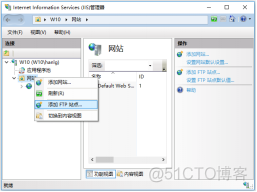
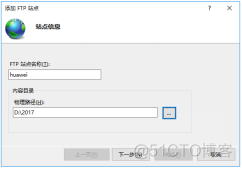
chart 4-23 add to FTP Site chart 5-24 Set up FTP Site information
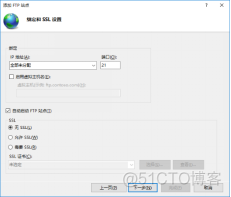

chart 6-25 Specify the address to use chart 7-26 Set authentication and authorization information

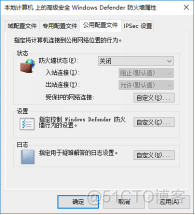
chart 8-27 Open firewall properties chart 4-28 Turn off firewall
In the router R1 Upload the configuration to FTP The server .
<R1>ftp 192.168.1.11
Trying 192.168.1.11 ...
Press CTRL+K to abort
Connected to 192.168.1.11.
220 Microsoft FTP Service
User(192.168.1.11:(none)):han -- enter one user name
331 Password required -- Input password
Enter password:
230 User logged in.
[R1-ftp]put vrpcfg.zip vrpcfg.zip.bak -- Upload vrpcfg.zip To FTP The server
[R1-ftp]dir -- see ftp Contents of the catalog
200 PORT command successful.
125 Data connection already open; Transfer starting.
05-01-18 11:50PM 872 vrpcfg.zip.bak -- Uploaded files
226 Transfer complete.
FTP: 55 byte(s) received in 0.020 second(s) 2.75Kbyte(s)/sec.
[R1-ftp]get vrpcfg.zip.bak vrpcfg2.zip -- from FTP Server downloads files vrpcfg.zip.bak
This article comes from 《 Huawei HCIA-Datacom authentication (2021 new edition HCIA The teaching material )》
Jingdong buys this book
https://item.jd.com/13706744.html
Learn computer network Huawei network engineer Contact Mr. Han if you have any questions in the H3C network engineer course
Mr. Han Ligang wx hanligangdongqing
Mr. hanlihui wx 13073172070
Huawei HCIA-Datacom authentication (2021 new edition HCIA The teaching material ) Course link https://edu.51cto.com/course/28956.html
Mr. Han enrolls formal students 、 Discipleship set meal
边栏推荐
- Can we really make money by doing we media editing?
- [creation mode] factory method mode
- Qcustomplot 1.0.1 learning (3) - plotting quadratic functions
- [system safety] XLII PowerShell malicious code detection series (4) paper summary and abstract syntax tree (AST) extraction
- NVIDIA R & D director: how does AI improve chip design?
- See from the minute, carve on the details: Exploration of SVG generated vector format website icon (favicon)
- ASEMI的MOS管25N120在不同应用场景的表现
- 03 _ 事务隔离:为什么你改了我还看不见?
- uniapp滚动条置顶实现
- Let me tell you the benefits of code refactoring
猜你喜欢
拿到20K我用了5年,面了所有大厂,这些高频面试问题都帮你们划出来啦
![[system safety] XLII PowerShell malicious code detection series (4) paper summary and abstract syntax tree (AST) extraction](/img/d9/67ad40ba63de8006b67e51b0c82a84.png)
[system safety] XLII PowerShell malicious code detection series (4) paper summary and abstract syntax tree (AST) extraction

Hot seek tiger, a list of eco economic models

05 _ In simple terms index (Part 2)

Cf662b graph coloring problem solution
![[creation mode] single instance mode](/img/80/b90c7358de9670e9b07d28752efee5.png)
[creation mode] single instance mode

03 _ Transaction isolation: why can't I see it after you change it?
CF662B Graph Coloring题解--zhengjun
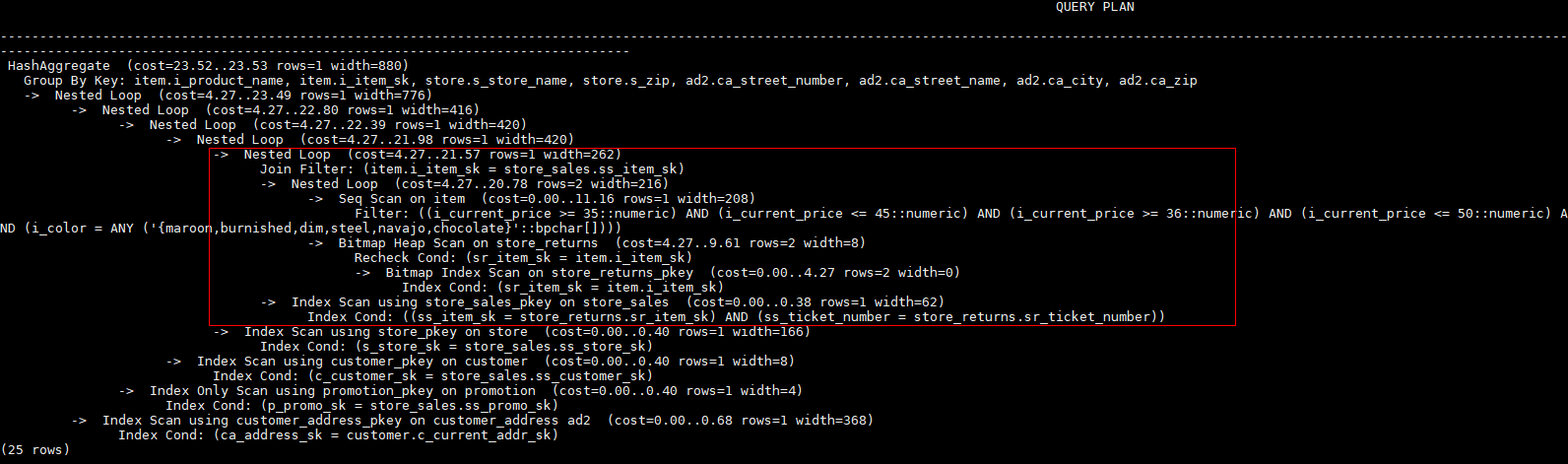
码农必备SQL调优(下)
![[azure application service] nodejs express + msal realizes the authentication experiment of API Application token authentication (AAD oauth2 idtoken) -- passport authenticate()](/img/11/7262211654680512dae0a9a696740e.png)
[azure application service] nodejs express + msal realizes the authentication experiment of API Application token authentication (AAD oauth2 idtoken) -- passport authenticate()
随机推荐
Flower shop window (linear DP)
[multi thread performance tuning] what operations cause context switching?
将配置导出到FTP或TFTP服务器
leetcode 120. 三角形最小路径和
CF662B Graph Coloring题解--zhengjun
06 _ 全局锁和表锁 :给表加个字段怎么有这么多阻碍?
Microservices - use of Nacos
河北 黄金寨景区新增“AED自动除颤器”保障游客生命安全!
[process blocks and methods of SystemVerilog] ~ domain, always process block, initial process block, function, task, life cycle
如何做好自媒体?这几个步骤你做对了吗?
Arthas实践操作文档记录
C interface of learning notes
使用gsql连接数据库
19. 二叉搜索树的插入删除修剪
With a loss of 13.6 billion yuan in three years, can listing revive Weima?
Dynamically set the layoutinflater of the layout
The most egregious error set of tone codes
Shuttle-- common commands
了解下openGauss的密态支持函数/存储过程
[SystemVerilog interface] ~ interface