当前位置:网站首页>QT realization tray
QT realization tray
2022-06-12 07:22:00 【Big 1234 grass】
List of articles
Preface
I was looking for a job , It took me a few days to get to know Qt. at that time , The training document is here :QT A little experiment - Turn gold coin games .
Some time ago , Modified the company's pallet code , The original code structure design is very technical .
lately , I also saw the tray code written by another colleague , He separates the interface from the function , The overall quality of the code is pretty good .
My hands itch , So in my spare time, I wrote a Qt Tray demo.
See warehouse for complete code :Qt/tray. This code is written with reference to :Qt Official tray code example 、feiyangqingyun-QWidgetDemo-trayicon
The results are shown in the following figure :
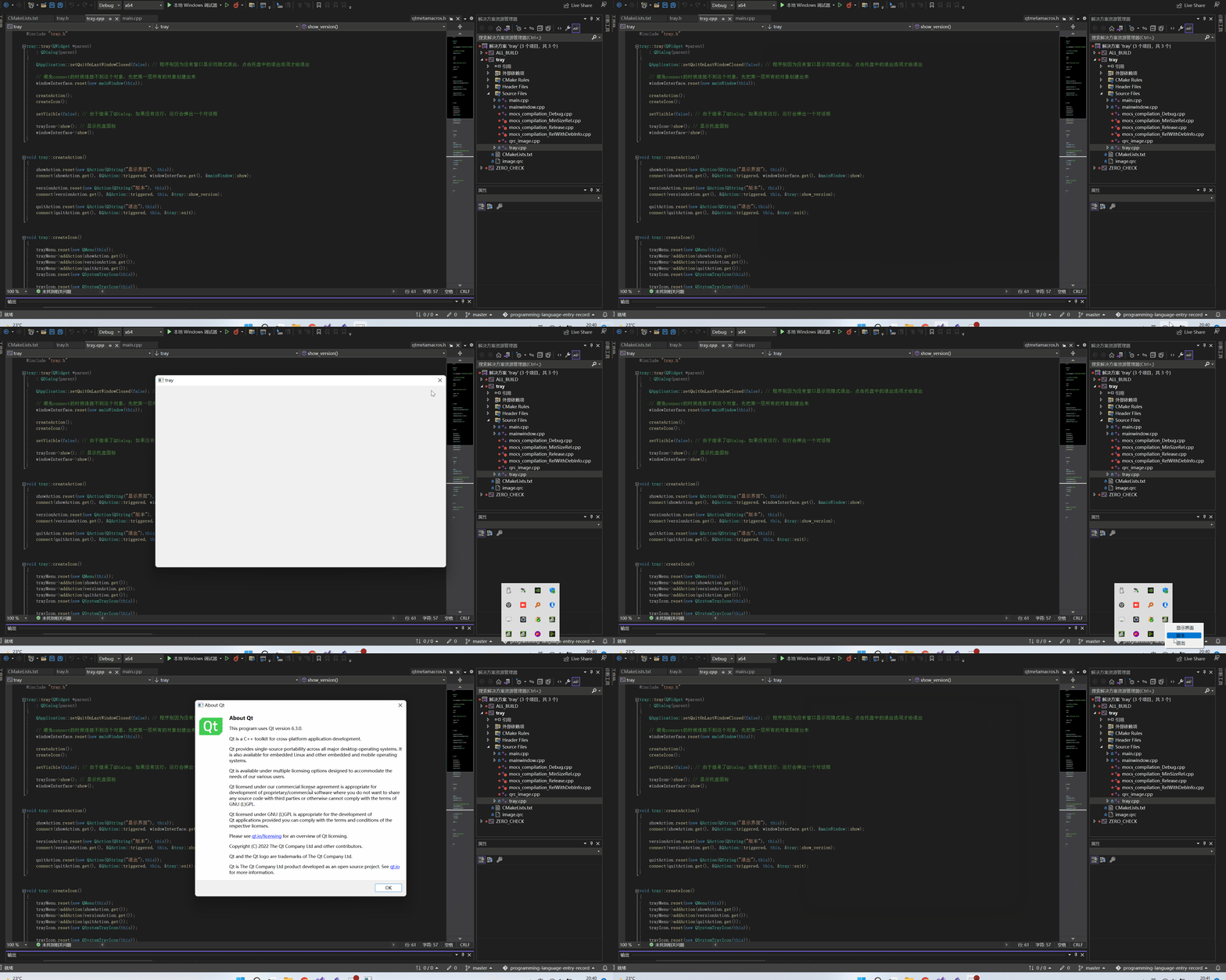
overall design
- The tray has a right-click menu .
- The tray has an icon .
- The tray is associated with an interface .
Detailed design
There are sample codes to refer to , The rest is to call API, Difficulty is not great . Key codes are shown below .
Writing pallets may be the following three key points :
- Setting of the tray itself . Including icon switching , Tips, etc .
- Right-click menu .
- Code structure relationship between interface and tray .
// tray.h

class tray : public QDialog
{
    Q_OBJECT

private:
    std::shared_ptr<QSystemTrayIcon> trayIcon; //  Menu icons
    std::shared_ptr<QMenu> trayMenu; //  Menu context
    std::shared_ptr<QAction> showAction; //  Display options
    std::shared_ptr<QAction> versionAction; //  Version options in the menu
    std::shared_ptr<QAction> quitAction; //  Exit options in the menu

    std::shared_ptr<mainWindow> windowInterface; //  Main window interface
    bool isShowVersion = false; //  Currently, the version interface is being displayed

private slots:
    void show_version(void);
    void exit(void);

public:
    tray(QWidget *parent = nullptr);
    void createAction(void);
    void createIcon(void);
    ~tray();
};
// tray.cpp
#include "tray.h"

tray::tray(QWidget *parent)
    : QDialog(parent)
{
    QApplication::setQuitOnLastWindowClosed(false); //  Don't exit the program implicitly because there is no window , Click the exit option in the tray to exit

    //  avoid connect Cannot connect to this object when , First, create all the objects in the first layer
    windowInterface.reset(new mainWindow(this));

    createAction();
    createIcon();

    setVisible(false); //  By inheritance QDialog, If there is no such line , A dialog box will pop up when running

    trayIcon->show(); //  Display tray icon
    windowInterface->show();
}


void tray::createAction()
{
    showAction.reset(new QAction(QString(" display "), this));
    connect(showAction.get(), &QAction::triggered, windowInterface.get(), &mainWindow::show);

    versionAction.reset(new QAction(QString(" edition "), this));
    connect(versionAction.get(), &QAction::triggered, this, &tray::show_version);

    quitAction.reset(new QAction(QString(" sign out "),this));
    connect(quitAction.get(), &QAction::triggered, this, &tray::exit);
}


void tray::createIcon()
{
    trayMenu.reset(new QMenu(this));
    trayMenu->addAction(showAction.get());
    trayMenu->addAction(versionAction.get());
    trayMenu->addAction(quitAction.get());
    trayIcon.reset(new QSystemTrayIcon(this));

    trayIcon.reset(new QSystemTrayIcon(this));
    trayIcon->setIcon(QIcon(":/image/flow.ico"));
    trayIcon->setContextMenu(trayMenu.get());
}


void tray::show_version()
{
    if(isShowVersion) {
        return;
    }

    isShowVersion = true;
    QMessageBox versionInterface = QMessageBox(this);
    versionInterface.setText("Tray's version is 0.0.0");

    //  If there is only one button , Shut down and escap key This button will also be used by default . So let's add another one that doesn't show no Button
    versionInterface.setStandardButtons(QMessageBox::Ok);
    versionInterface.button(QMessageBox::Ok)->setText("Qt edition ");
    versionInterface.addButton(QMessageBox::No)->hide();

    int ret = versionInterface.exec(); //  Use the modal dialog
    if(ret == QMessageBox::Ok) {
        QApplication::aboutQt();
    }
    isShowVersion = false;
}


void tray::exit()
{
    trayIcon->hide(); // QSystemTrayIcon No, close function , call hide
    QApplication::quit(); //  Exit procedure
}


tray::~tray()
{
}
Qt Some small points of
At present, there is no established system for Qt Face recognition of , Check it when you use it .
At present, there is no system to see Qt Books , It doesn't seem necessary . because , I don't care about the details of a dialog box or icon , Just check these contents when you use them . What I need is a strategic view of Qt Introduction to its structure .( It doesn't seem necessary , If only the tool could be used .)
Recommended information :feiyangqingyun/QWidgetDemo
below , Let me introduce the code details above .
- I used a lot of smart pointers in the above code . stay C++ in , Objects created on the heap , Manage with smart pointers , It's a good habit . But in Qt in , It doesn't seem to have to be exactly so . We can use more Object tree .
- To write
trayClass time , We let it inheritQDialogclass . Turn around and think about , If we don't inheritQDialogClass ? What we write is the tray code , There seems to be no need for dialog functions . We really don't need the dialog function , But we need toQObjectThe function of . You can refer to QObject Detailed explanation Q_OBJECTMacros must appear in declaring their own signals and slots or using Qt In the private part of the class definition of other services provided by the meta object system . If you use cmake As a building system , We'll seeset(CMAKE_AUTOMOC ON). We went to install Qt Can also be found in the directory ofmoc.exeExecutable program . You can refer to Qt Meta object systemQMessageBoxin , I use theexecMethod , Instead of usingshowMethod . The difference between the two is blocking and non blocking . You can refer to : modal dialog. And about theQMessageBoxUse , I don't like reading English , You can refer to Qt QMessageBox Usage details- For programs with trays , When the last page closes , The program does not exit , Need to set up setQuitOnLastWindowClosed by
false. - When using signals and slot functions , We need to make sure that the object of the slot function has been created , Otherwise, it defaults to null pointer . Introduction to signals and slot functions , You can refer to Signals & Slots
- Set up
QMessageBoxButton time , withoutQMessageBox::NoButton time , It is recommended to add a hidden button . This is also a helpless way . because , When there is no setting QMessageBox::escapeButton Function , Press downesckey , If only one button is set at this time , This button function will be used by default . close button , Tested under , So it is with .
边栏推荐
猜你喜欢

Construction of running water lamp experiment with simulation software proteus

私有协议的解密游戏:从秘文到明文

Principle and application of PWM
![[Li Kou] curriculum series](/img/eb/c46a6b080224a71367d61f512326fd.jpg)
[Li Kou] curriculum series
LED lighting experiment with simulation software proteus

Imx6q pwm3 modify duty cycle

Junior high school education, less than 3k, to 30k+ monthly salary, how wonderful life is without restrictions

Adaptive personalized federated learning paper interpretation + code analysis

Day 5 of pyhon

Demonstrate "topic communication, action communication, service communication and parameter server" with a small turtle case
随机推荐
libprint2
晶闸管,它是很重要的,交流控制器件
Keil installation of C language development tool for 51 single chip microcomputer
Federated reconnaissance: efficient, distributed, class incremental learning paper reading + code analysis
Unable to load bean of class marked with @configuration
“我被大厂裁员了”
12.13-12.19 summary
Static coordinate transformation in ROS (analysis + example)
C language queue implementation
Kotlin plug-ins kotlin Android extensions
Explain ADC in stm32
GD32F4(5):GD32F450时钟配置为200M过程分析
Go common usage
"I was laid off by a big factory"
D cannot use a non CTFE pointer
我人生中的第一个需求——Excel数据批量上传到数据库
AcWing——4268. 性感素
LVDS drive adapter
Detailed explanation of addressing mode in 8086
[college entrance examination] prospective college students look at it, choose the direction and future, and grasp it by themselves