当前位置:网站首页>Pyqt5 rapid development and practice 4.12 calendar and time
Pyqt5 rapid development and practice 4.12 calendar and time
2022-07-28 10:45:00 【Ding Jiaxiong】
PyQt5 Rapid development and actual combat
List of articles
4. The first 4 Chapter PyQt5 Basic window control
4.12 Calendar and time
4.12.1 QCalendar
QCalendar Is a calendar control , It provides a month based view , Allows the user to select a date through the mouse or keyboard , Today's date is selected by default . You can also specify the date range of the calendar .
QCalendar Common methods in class
| Method | describe |
|---|---|
| setDataRange() | Set the date range for selection |
| setFirstDayOfWeek() | Reset the first day of the week , The default is Sunday . The parameter enumeration values are as follows :Qt.Monday, Monday ;Qt.Tuesday, Tuesday ;Qt.Wednesday, Wednesday ;Qt.Thursday, Thursday ;Qt.Friday, Friday ;Qt.Saturday, Saturday ;Qt.Sunday, Sunday |
| setMinimumDate() | Set minimum date |
| setMaximumDate() | Set the maximum date |
| setSelectedDate() | Set up a QDate object , The date selected as the date control |
| maximumDate | Get the maximum date of the calendar control |
| minimumDate | Get the minimum date of the calendar control |
| selectedDate() | Returns the currently selected date |
| setGridvisible() | Sets whether the calendar control displays a grid |
Case study ——QCalendar Use
import sys
from PyQt5 import QtCore
from PyQt5.QtWidgets import *
from PyQt5.QtCore import QDate

class CalendarExample(QWidget):
    def __init__(self):
        super(CalendarExample, self).__init__()
        self.initUI()

    def initUI(self):
        self.cal = QCalendarWidget(self)
        self.cal.setMinimumDate(QDate(1980 , 1, 1))
        self.cal.setMaximumDate(QDate(3000 , 1, 1,))
        self.cal.setGridVisible(True)
        self.cal.move(20 , 20)
        self.cal.clicked[QtCore.QDate].connect(self.showDate)
        self.lb1 = QLabel(self)
        date = self.cal.selectedDate()
        self.lb1.setText(date.toString("yyyy-MM-dd dddd"))
        self.lb1.move(20 , 300)
        self.setGeometry(100 , 100 , 400 , 350)
        self.setWindowTitle("Calendar Case study ")

    def showDate(self,date):
        self.lb1.setText(date.toString("yyyy-MM-dd dddd"))

if __name__ == '__main__':
    from pyqt5_plugins.examples.exampleqmlitem import QtCore
    QtCore.QCoreApplication.setAttribute(QtCore.Qt.AA_EnableHighDpiScaling)
    app = QApplication(sys.argv)
    win = CalendarExample()
    win.show()
    sys.exit(app.exec_())
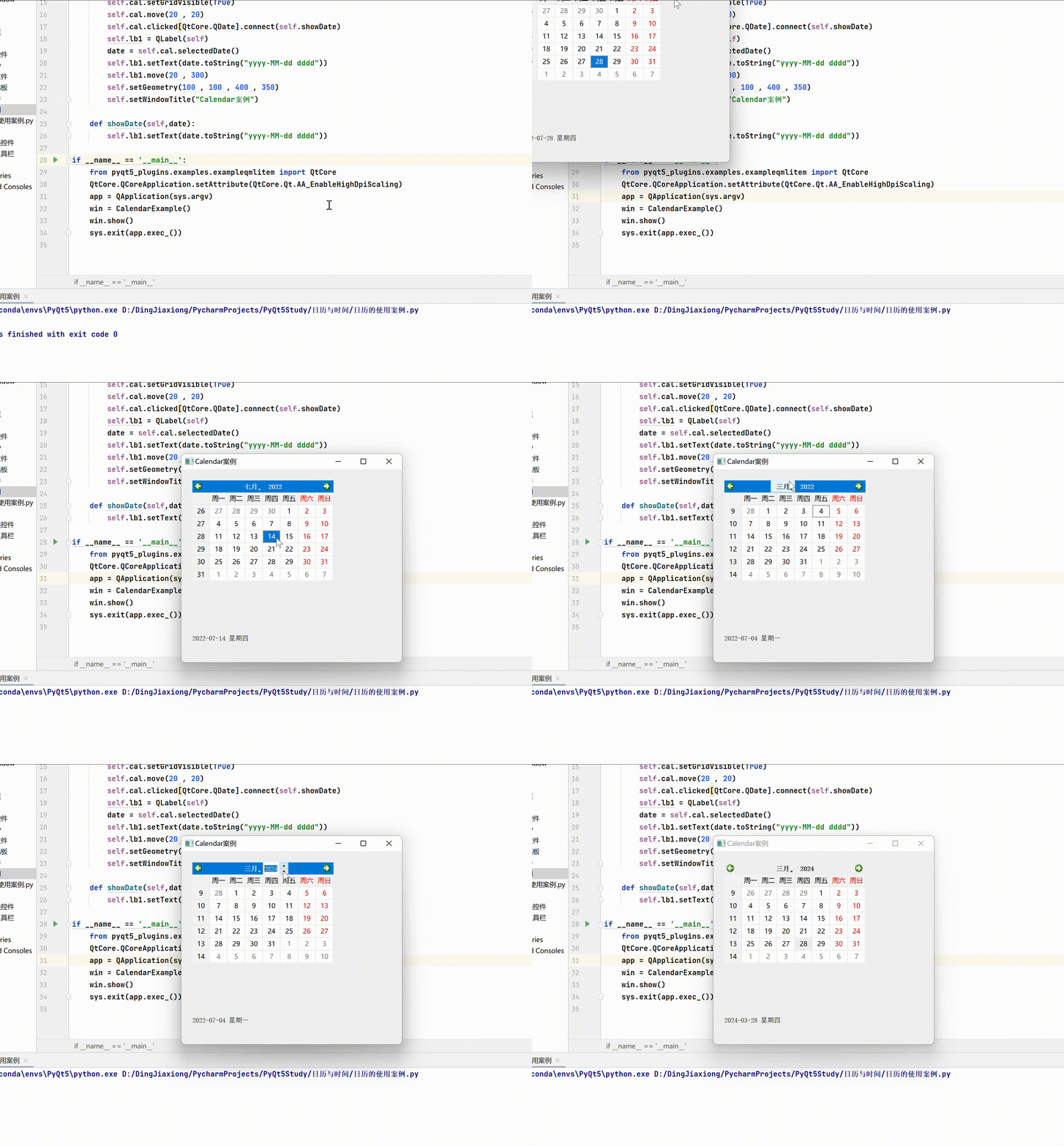
4.12.2 QDateTimeEdit
QDateTimeEdit Is a control that allows users to edit date and time , You can use the keyboard and 、 Use the down arrow button to increase or decrease the date time value . such as , When using the mouse to select QDateTimeEdit The year in , You can use the on the keyboard 、 Press the key to change the value .
ODateTimeEdit adopt setDisplavFormat() Function to set the displayed date and time format .
QDateTimeEdit Common methods in class .
| Method | describe |
|---|---|
| setDisplayFormat() | Format date and time : yyyy, Represents the year , use 4 Digit representation ;MM, Represents the month , The value range is 01~12; dd, On behalf of the day , The value range is 0131;HH, For hours , The value range is 00-23; mm, For minutes , The value range is 0059;ss, On behalf of the second , The value range is 0059; |
| setMinimumDate() | Set the minimum date of the control |
| setMaximumDate() | Set the maximum date of the control |
| time() | Return to the editing time |
| date() | Return to the edited date |
QDateTimeEdit Class
| The signal | meaning |
|---|---|
| dateChanged | Send this signal when the date changes |
| dateTimeChanged | Send this signal when the date and time change |
| timeChanged | Transmit this signal when time changes |
QDateTimeEdit Subclasses of
QDateEdit and QTimeEdit Classes inherit from QDateTimeEdit class , Many of their features and functions are provided by QDateTimeEdit Class provides .
QWidget → QAbstractSpinBox → QDateTimeEdit → QDateEdit → QTimeEdit
Pay attention to when setting the display format :QDateEdit The date used to edit the control , Year only 、 Month and day ;QTimeEdit Time used to edit the control , Hours only 、 Minutes and seconds .
Do not use QDateEdit To set or get the time , Don't use QTimeEdit To set or get the date . If you want to operate date and time at the same time , Use QDateTimeEdit.
When setting the pop-up calendar, pay attention to : The only class used to pop up the calendar is QDateTimeEdit and QDateEdit, and QTimeEdit Class can set the pop-up calendar in Syntax , But it doesn't work .
initialization QDateTimeEdit class
By default , If QDateTimeEdit Class is constructed without specifying a date time , Then the system will set the same date and time format as the local , And the value of 2000 year 1 month 1 Japan 0 when 0 branch 0 second . You can also manually specify the date and time displayed by the control .
In addition to specifying the displayed date and time through the constructor , It can also be based on QDateTimeEdit Provided slot function to set , such as setDate Time()、setDate()、setTime() function .
Format date and time
If you don't want to use the system default format , You can use the setDisplayFormat() Customize date time format .
Set the date time range
dateEdit = QDateTimeEdit (QDateTime.currentDateTime (),self)
dateEdit.setDisplayFormat("yyyy-MM-dd HH:mm:ss")
# Set minimum date
dateEdit.setMinimumDate (QDate.currentDate().addDays (-365))
# Set the maximum date
dateEdit.setMaximumDate (QDate.currentDate().addDays (365))
Pop up calendar
By default , You can only change the date and time through the up and down arrows . If you want to pop up the calendar control , Just call setCalendarPopup(True) that will do .
Get date time
Can pass date()、 dateTime() And other methods to get the date time object , If you want to get years 、 month 、 Japan and other information , You can call QDate Of year()、month()、day() Such as function .
Signal and slot function
QDateTimeEdit The commonly used signal of the control is dateChanged 、 dateTimeChanged and ·timeChanged, Change the date 、 Date time 、 Time emission .
QDateTimeEdit Use case of
import sys
from PyQt5.QtGui import *
from PyQt5.QtWidgets import *
from PyQt5.QtCore import QDate, QDateTime, QTime


class DateTimeEditDemo(QWidget):
    def __init__(self):
        super(DateTimeEditDemo, self).__init__()
        self.initUI()

    def initUI(self):
        self.setWindowTitle('QDateTimeEdit Example ')
        self.resize(300, 90)

        vlayout = QVBoxLayout()
        self.dateEdit = QDateTimeEdit(QDateTime.currentDateTime(), self)
        self.dateEdit.setDisplayFormat("yyyy-MM-dd HH:mm:ss")
        #  Set minimum date
        self.dateEdit.setMinimumDate(QDate.currentDate().addDays(-365))
        #  Set the maximum date
        self.dateEdit.setMaximumDate(QDate.currentDate().addDays(365))
        self.dateEdit.setCalendarPopup(True)

        self.dateEdit.dateChanged.connect(self.onDateChanged)
        self.dateEdit.dateTimeChanged.connect(self.onDateTimeChanged)
        self.dateEdit.timeChanged.connect(self.onTimeChanged)

        self.btn = QPushButton(' Get the date and time ')
        self.btn.clicked.connect(self.onButtonClick)

        vlayout.addWidget(self.dateEdit)
        vlayout.addWidget(self.btn)
        self.setLayout(vlayout)

    #  Execute when the date changes
    def onDateChanged(self, date):
        print(date)

    #  No matter the date or time changes , It will be carried out
    def onDateTimeChanged(self, dateTime):
        print(dateTime)

    #  Execute when time changes
    def onTimeChanged(self, time):
        print(time)

    def onButtonClick(self):
        dateTime = self.dateEdit.dateTime()
        #  Maximum date
        maxDate = self.dateEdit.maximumDate()
        #  Maximum date time
        maxDateTime = self.dateEdit.maximumDateTime()
        #  Maximum time
        maxTime = self.dateEdit.maximumTime()
        #  Minimum date
        minDate = self.dateEdit.minimumDate()
        #  Minimum date time
        minDateTime = self.dateEdit.minimumDateTime()
        #  Minimum time
        minTime = self.dateEdit.minimumTime()

        print('\n Choose the date and time ')
        print('dateTime=%s' % str(dateTime))
        print('maxDate=%s' % str(maxDate))
        print('maxDateTime=%s' % str(maxDateTime))
        print('maxTime=%s' % str(maxTime))
        print('minDate=%s' % str(minDate))
        print('minDateTime=%s' % str(minDateTime))
        print('minTime=%s' % str(minTime))

if __name__ == '__main__':
    from pyqt5_plugins.examples.exampleqmlitem import QtCore
    QtCore.QCoreApplication.setAttribute(QtCore.Qt.AA_EnableHighDpiScaling)
    app = QApplication(sys.argv)
    win = DateTimeEditDemo()
    win.show()
    sys.exit(app.exec_())

边栏推荐
- Particle swarm optimization to solve the technical problems of TSP
- GKNoiseSource
- GKObstacle
- An example of SQL trace in MySQL
- Read write separation standby backup error
- 两年CRUD,二本毕业,备战两个月面试阿里,侥幸拿下offer定级P6
- SQL Server 2016 learning records - set query
- django-celery-redis异步发邮件
- gcc: error trying to exec 'as': execvp: No such file or directory
- Lucene query syntax memo
猜你喜欢

markdown转成word或者pdf

Machine learning -- handwritten English alphabet 1 -- classification process

django-celery-redis异步发邮件
PyQt5快速开发与实战 4.12 日历与时间

Yarn报错:Exception message: /bin/bash: line 0: fg: no job control
c语言进阶篇:指针(一)

SQL Server 2016 learning record - Data Definition

Aike AI frontier promotion (7.28)

gcc: error trying to exec 'as': execvp: No such file or directory

ACM寒假集训#5

随机推荐
ACM寒假集训#6
AP AUTOSAR platform design 1-2 introduction, technical scope and method
QT generation Exe file and run without QT environment (enigma virtual box for green executable software packaging) graphic tutorial
GKLinearCongruentialRandomSource
How to write Ogg with multiple filter syntax?
[application of stack] - infix expression to suffix expression
Andorid development
机器人技术(RoboCup 2D)如何进行一场球赛
10_ue4进阶_添加倒地和施法动作
GKBillowNoiseSource
粒子群解决tsp的技术问题
GKCylindersNoiseSource
OCR knowledge summary
Attention attention mechanism flow chart
Machine learning -- handwritten English alphabet 1 -- classification process
GKObstacle
SQL Server 2016 learning record - Data Definition
8. Detailed explanation of yarn system architecture and principle
ICML 2022 | 图表示学习的结构感知Transformer模型
Install mysql5.7 under centos7