当前位置:网站首页>Swing UI container (I)
Swing UI container (I)
2022-06-27 23:24:00 【Stuttering Guy】
Catalog
JScrollPane: Provide a pane with scroll bars
JSplitPane: Provide a pane with split function
JTabbedPane: Provides a category pane with several tabs ( tab )
JInternalFrame: Create embedded in JFrame The internal framework of
A container is an object that holds and manages a set of interface elements . Basic components must be arranged in a container , Otherwise, you can't use .
1. Top containers
Create the initial interface , Provide a container for other components , To build an operation interface that meets the needs of users
JFrame: Top containers
| Construction method | describe |
| JFrame f = new JFrame(); | Constructor without parameters |
| JFrame f = new JFrame(String str); | str Is the window title |
| Common methods | function |
| setTitle(String title) | Set up JFrame Title Text |
| get/ setSize() | obtain / Set up JFrame Size |
| add(Object a) | Add components to JFrame in |
| dispose( ) | close JFrame And recycle any resources used to create the window |
| setVisible(boolean b) | Set up JFrame The visibility of |
| setLocation(x,y) | Set up JFrame In the position of the screen |
| setBounds(x,y,w,h) | Set up JFrame The location and size of |
| setExtendedState(int); | Set the extended status , Value : NORMAL ICONIFIED MAXIMIZED_HORIZ MAXIMIZED_VERT MAXIMIZED_BOTH |
| setDefaultCloseOperation(int)); | Set the default closing action , Value : DO_NOTHING_ON_CLOSE HIDE_ON_CLOSE DISPOSE_ON_CLOSE EXIT_ON_CLOSE / |
| setResizable() | Set whether the form can be resized |
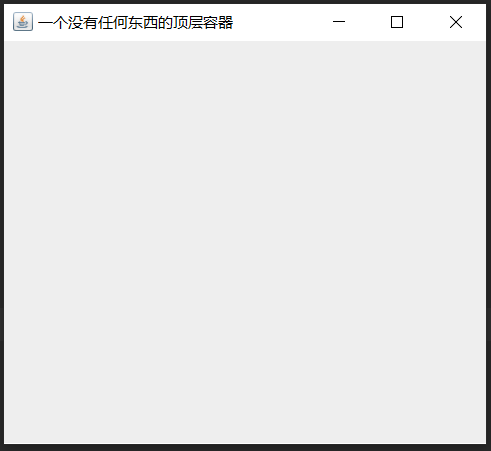
import javax.swing.*;

public class JFrame_MainClass  {
    public static void main(String[] args) {
        new MyJFrame();
    }
}
class MyJFrame extends JFrame{
    public MyJFrame(){
        super(" A top-level container without anything ");     //  Set the title of the top-level form
        this.setSize(400,360);                 //  Set the window size
        this.setLocation(300,200);             //  Set window position
        this.setDefaultCloseOperation(JFrame.EXIT_ON_CLOSE); //  Set the default closing mode of the form
        this.setVisible(true);                               //  Set whether the form is visible
    }
}
2. Intermediate vessel
These containers provide the ability to group related components together in a certain layout , Then put the function of intermediate container or top container
Container: Content panel
- A complete form is composed of an external frame and a content panel ;
- The outer frame is a hollow frame composed of a title block and four sides , It is mainly used to control the size and appearance of forms ;
- What we actually operate is the content panel , Such as setting the background color of the form , Set the layout of the form , Add other components to the form, and so on ;
- Use getContentPane Method to get the content panel of the current form , The return value of this method is Container( Containers ) Class object , Such as :
- Container contentPane = getContentPane();
- Container Class is usually used to operate JFrame Content panel for , The common methods are :
Fang Law primary type | say bright |
void setBackground(Color bg) | Set container background color , By the parameter bg Assign colors |
void setLayout(LayoutManager mgr) | Set the layout of the container , The parameter is the layout manager |
Component add(Component comp) | Add a component to the container |
Component add(Component comp, int index) | Add the specified component to the specified location in the container |
void remove(Component comp) | Remove the specified component from the container |
void removeAll() | Remove all components from container |
void repaint() | Redraws the current container |
import javax.swing.*;
import java.awt.*;

class ContentPane_MainClass {
    public static void main(String[] args) {
        MyContentPane msp = new MyContentPane();
    }
}

class MyContentPane extends JFrame{
    private JLabel label;
    private JButton button;
    private Container container;
    public MyContentPane() {
        super(" I am a JFrame A content panel of " );
        container = this.getContentPane();            //  obtain JFrame Content panel for
        container.setLayout(new BorderLayout());      //  Set the layout of the content panel
        label = new JLabel(" A small tab on the content panel ");
        button = new JButton(" A small button on the content panel ");
        container.add(label,BorderLayout.NORTH);      //  Add components to the content panel
        container.add(button,BorderLayout.SOUTH);
     //   this.add(container);                        //  There is no need to add the content panel to the top-level form
        this.setSize(400, 360);
        this.setLocation(300, 200);
        this.setDefaultCloseOperation(JFrame.EXIT_ON_CLOSE);
        this.setVisible(true);
    }
} 
JPanel: Middle panel
| Construction method | describe |
| JPanel p = new JPanel(); | Default FlowLayout Layout panel |
| JPanel p = new JPanel(LayoutManager layout); | Specify the panel of the layout |
| Common methods | function |
| void setBackground(Color bg) | Sets the background color of the panel , By the parameter bg Assign colors |
| void setLayout(LayoutManager mgr) | Set the layout of the panel , The parameter is the layout manager |
| Component add(Component comp) | Add a component to the panel |
| Component add(Component comp, int index) | Add the specified component to the specified position in the panel |
| void remove(Component comp) | Remove the specified component from the panel |
| void removeAll() | Remove all components from the panel |
| void repaint() | Redraws the current panel |
public class JPanel_MainClass {
    public static void main(String[] args) {
        new MyJPanel();
    }
}
class MyJPanel extends JFrame {
    private JPanel panel;
    public MyJPanel() {
        super(" My middle panel ");
        panel = new JPanel(new BorderLayout()); //  Create the middle panel of the specified layout
        panel.setBackground(Color.red);         //  Set the background color of the middle panel
        this.add(panel);                        //  Place the middle panel panel Put in the top panel JFrame
         this.setSize(400,360);                 //  Set the window size
        this.setLocation(300,200);              //  Set window position
        this.setDefaultCloseOperation(JFrame.EXIT_ON_CLOSE); //  Set the default closing mode of the form
        this.setVisible(true);                               //  Set whether the form is visible
    }
}
JScrollPane: Provide a pane with scroll bars
| Construction method | describe |
| new JScrollPane() | Nonparametric construction method |
| new JScrollPane(Component comp) | Specify the construction method of the component |
| JScrollPane(int vsbPolicy,int hsbPolicy): | Build a new one JScrollPane object , There is no display component in it , But setting the timing of the roll axis . |
| Common methods | function |
void setHorizontalScrollBarPolicy() | Set the horizontal scroll block : HORIZONTAL_SCROLLBAR_ALAWAYS: Show horizontal scroll axis
HORIZONTAL_SCROLLBAR_NEVER: The horizontal scroll axis is not displayed |
void setVerticalScrollBarPolicy() | Set the vertical scroll block : VERTICAL_SCROLLBAR_ALWAYS: Show the vertical scroll axis
|
| void setCorner(String, Component) | Sets or gets the specified angle .int Parameter specifies which corner , And must be ScrollPaneConstants One of the following constants defined in : UPPER_LEFT_CORNER, UPPER_RIGHT_CORNER, LOWER_LEFT_CORNER,LOWER_RIGHT_CORNER,LOWER_LEADING_CORNER,LOWER_TRAILING_CORNER, UPPER_LEADING_PER,NERPER. |
import javax.swing.*;

public class JScrollPane_MainClass {
    public static void main(String[] args) {
        MyJScrollPane msp = new MyJScrollPane();
    }
}
class MyJScrollPane extends JFrame{
    private JScrollPane scrollPane;
    private JTextArea textArea;
    public MyJScrollPane() {
        super(" My scroll panel " );
        textArea = new JTextArea(20,20);
        scrollPane = new JScrollPane(textArea);      //  The text field component textArea Put in the scroll panel
        scrollPane.setHorizontalScrollBarPolicy(JScrollPane.HORIZONTAL_SCROLLBAR_ALWAYS); //  Set the horizontal scroll block
        scrollPane.setVerticalScrollBarPolicy(JScrollPane.VERTICAL_SCROLLBAR_ALWAYS);     //  Set the vertical scroll block
        this.add(scrollPane);                        //  Place the scroll panel in the top panel
        this.setSize(400, 360);
        this.setLocation(300, 200);
        this.setDefaultCloseOperation(JFrame.EXIT_ON_CLOSE);
        this.setVisible(true);
    }
}
JSplitPane: Provide a pane with split function
| Construction method | describe |
| JSplitPane() | Build a new one JSplitPane, It contains two default buttons , And arranged horizontally , And there's no Continuous Layout function Continuous Layout It means that when you drag the dividing line of the cutting surface , Whether the components in the window will be dynamically resized as the separation line is dragged |
| JSplitPane(int newOrientation) | Create a specified horizontal or vertical cut JSplitPane, But there is no Continuous Layout function Continuous Layout It means that when you drag the dividing line of the cutting surface , Whether the components in the window will be dynamically resized as the separation line is dragged |
| JSplitPane(int newOrientation, boolean newContinuousLayout) | Create a horizontal or vertical cut JSplitPane, And specify whether there is Continuous Layout function . 1.Continuous Layout It means that when you drag the dividing line of the cutting surface , Whether the components in the window will be dynamically resized as the separation line is dragged 2.newContinuousLayout It's a boolean value , Set up as true, The component size will change with the drag of the separation line ; Set up as false, Then the component size is determined when the separation line stops changing . You can also use JSplitPane Medium setContinuousLayout() Method to set this item |
| Common methods | function |
| setDividerLocation(double proportionalLocation) | Set the position of the separator , Expressed as a percentage |
| setContinuousLayout(boolean newContinuousLayout) | Set up continuousLayout The value of the property , When the user wants to make the sub components continuously redisplay and layout the sub components , This value must be true |
| setDividerLocation(int location) | Set the position of the separator |
| setDividerSize(int size) | Set the size of the separator |
| getDividerLocation() | Get the position of the separator |
| getDividerSize() | Get the size of the separator |
| setOneTouchExpandable(boolean val) | Set up oneTouchExpandable The value of the property is true, be JSplitPane On the separator bar, a will be displayed for quick expansion / The arrow that folds the divider bar |
import javax.swing.*;

public class JSplitPane_MainClass {
    public static void main(String[] args) {
        MyJSplitPane msp = new MyJSplitPane();
    }
}

class MyJSplitPane extends JFrame{
    private JSplitPane jsp;
    private JLabel label;
    private JButton button;
    public MyJSplitPane() {
        super(" One of my panes with split function " );
        jsp = new JSplitPane ();
        label = new JLabel(" I'm a label ");
        button = new JButton(" I'm a button ");
        jsp.setDividerLocation(200);         //  Set the position of the split line
        jsp.add(label,JSplitPane.LEFT);      //  Add a component and set its position in the split pane
        jsp.add(button,JSplitPane.RIGHT);
        System.out.println(" The size of the current separator :"+jsp.getDividerSize());
        System.out.println(" The current position of the separator bar :"+jsp.getDividerLocation());
        this.add(jsp);                       //  Place the split pane in the top panel
        this.setSize(400, 360);
        this.setLocation(300, 200);
        this.setDefaultCloseOperation(JFrame.EXIT_ON_CLOSE);
        this.setVisible(true);
    }
}
JTabbedPane: Provides a category pane with several tabs ( tab )
| Construction method | describe |
| JTabbedPane() | Create an empty TabbedPane , The default label location is JTabbedPane.TOP |
| JTabbedPane(int tabPlacement) | Create an empty Of TabbedPane And any specified tab layout The tab layout can be : JTabbedPane.TOP JTabbedPane.BOTTOM JTabbedPane.LEFT JTabbedPane.RIGHT |
| JTabbedPane(int tabPlacement,int tabLayoutPolicy) | Create an empty TabbedPane With the specified tab layout and tab layout policy The label layout strategy can be :
|
| Common methods | function |
| void addChangeListener(ChangeListener event) | Add one ChangeListener event |
| void removeChangeListener(ChangeListenerevent) | Remove a ChangeListener event |
| int getTabPlacement() | Returns the location of the tabs in this tab pane |
| setTabPlacement(int tabPlacement) | Set the label position for this tab pane ( The default value is ——JTabbedPane.TOP ) |
| int getSelectedIndex() | Returns the currently selected index of this tab pane |
| void setSelectedIndex(int index) | Set the selected index for this tab pane |
| Component getSelectedComponent() | Returns to the currently selected component in this tab pane |
| void setSelectedComponent(Component c) | Set the selected components of this tab pane |
| void insertTab(String title,Icon icon,Component component, String tip, int index) | Inserts a new tab for a given component on a given index , By the given title / Or icon indicates , Either of them may be null |
| void addTab(String title, Icon icon, Component component, String tip) | Add the given title 、 Components 、 New tabs like icons , Which can be null |
| void removeTabAt(int index) | Delete index Label of position |
| void remove(Component component) | from JTabbedPane Delete specified Component, If component by null, This method does nothing |
| void removeAll() | Delete all tabs |
| int getTabCount() | Back here tabbedpane Number of tabs in |
| int getTabRunCount() | Returns the number of tab runs currently used to display tabs |
| Color getBackgroundAt(int index) | return index Label background color |
| Color getForegroundAt(int index) | return index The foreground color of the label is |
| void setBackgroundAt(int index, Color background) | Set up index Background color background It can be null , In this case, the background color of the tab defaults to the background color tabbedpane . If there are no tabs in the index , Internal exception will be thrown |
| void setForegroundAt(int index, Color foreground) | take index The foreground color is set to foreground , It can be for null |
| void setEnabledAt(int index,boolean enabled) | Set whether to enable index The tab of |
| void setComponentAt(int index, Component component) | stay index Tab to place this component |
| void setMnemonicAt(int tabIndex, int mnemonic) | Set shortcut key |
| Set the font of the tab name |
import javax.swing.*;

class MyJTabbedPane_MainClass {
    public static void main(String[] args) {
        MyJTabbedPane msp = new MyJTabbedPane();
    }
}

class MyJTabbedPane extends JFrame{
    private JLabel label1,label2;
    private JPanel panel1,panel2;
    private JTabbedPane tabbedPane1;
    public MyJTabbedPane() {
        super(" I am a category pane with several labels " );
        label1 = new JLabel(" I am a panel1 Label of the panel ");
        label2 = new JLabel(" I am a panel2 Label of the panel ");
        panel1 = new JPanel();
        panel2 = new JPanel();
        panel1.add(label1);                          //  Add the label to the corresponding panel
        panel2.add(label2);

        tabbedPane1 = new JTabbedPane();
        tabbedPane1.add(panel1," tab 1");           //  take JPnael Add panel to tab panel
        tabbedPane1.add(panel2," tab 2");

        this.add(tabbedPane1);                      //  Add a tab panel to the top-level form
        this.setSize(400, 360);
        this.setLocation(300, 200);
        this.setDefaultCloseOperation(JFrame.EXIT_ON_CLOSE);
        this.setVisible(true);
    }
}
JInternalFrame: Create embedded in JFrame The internal framework of
| Construction method | describe |
| JInternalFrame() | Create one that cannot be changed in size 、 Don't close it 、 Cannot be maximized or minimized 、 There is no title JInternalFrame |
| JInternalFrame(String title) | Create one that cannot be changed in size 、 Don't close it 、 Cannot be maximized or minimized 、 But with a title JInternalFrame |
| JInternalFrame(String title,boolean resizable) | Create a non closeable 、 Cannot be maximized or minimized 、 But it can be resized and has a title JInternalFrame |
| JInternalFrame(String title,boolean resizable,boolean closable) | Create a closeable 、 You can change the size 、 And has a title , But it can not be maximized or minimized JInternalFrame |
| JInternalFrame(String title,boolean resizable,boolean closable,boolean maximizable) | Create a closeable 、 You can change the size 、 With title 、 Maximize , But it cannot be minimized JInternalFrame |
| JInternalFrame(String title,boolean resizable,boolean closable,boolean maximizable,boolean iconifiable) | Create a closeable 、 You can change the size 、 With title 、 Maximizable and minimized JInternalFrame |
| Common methods | function |
setLocation(int x, int y) | Set the built-in form size |
setSize(int width, int height) | Set the built-in form position |
setVisible(boolean bool) | Set whether the built-in form is visible |
import javax.swing.*;
import java.awt.*;
import java.awt.event.ActionEvent;
import java.awt.event.ActionListener;

class JInternalFrame_MainClass {
    public static void main(String[] args) {
        MyJInternalFrame msp = new MyJInternalFrame();
    }
}

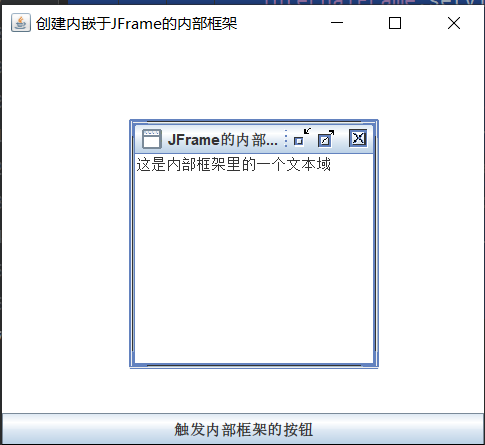
class MyJInternalFrame extends JFrame{
    private Container container;
    private JDesktopPane desktopPane;
    private JButton button;

    private JInternalFrame internalFrame;
    private Container icontentPane;
    private JTextArea internalTextArea;
    public MyJInternalFrame() {
        super(" Create embedded in JFrame The internal framework of " );
        container = this.getContentPane();             //  Get a content panel
        desktopPane = new JDesktopPane();              //  Create a virtual desktop . It can display and manage many JInternalFrame The hierarchical relationship between
        button = new JButton(" Button that triggers the internal frame ");     //  establish JFrame A button for
        button.addActionListener(new ActionListener() {//  Add an event to the button
            public void actionPerformed(ActionEvent e) {
                internalFrame = new JInternalFrame("JFrame The internal framework of ",true,
                        true,true,true);
                icontentPane = internalFrame.getContentPane();
                internalTextArea = new JTextArea();
                icontentPane.add(internalTextArea);
                desktopPane.add(internalFrame);   //  take internalFrame Add to desktopPane in
                internalFrame.setLocation(20, 20);//  Set the relevant parameters of the built-in framework
                internalFrame.setSize(200, 200);
                internalFrame.setVisible(true);
            }
        });
        container.add(desktopPane);
        container.add(button,BorderLayout.SOUTH);
        this.setSize(400, 360);
        this.setLocation(300, 200);
        this.setDefaultCloseOperation(JFrame.EXIT_ON_CLOSE);
        this.setVisible(true);
    }
}
边栏推荐
- The most illusory richest man in China is even more illusory
- Using the cucumber automated test framework
- Discuz taobaoke website template / Dean taobaoke shopping style commercial version template
- 实践torch.fx:基于Pytorch的模型优化量化神器
- pytorch基础(1)
- Sentinel
- EasyCVR平台路由日志功能的技术实现过程【附代码】
- Fsnotify interface of go language to monitor file modification
- PHP connects to database to realize user registration and login function
- 未能加载文件或程序集“CefSharp.Core.Runtime.dll”或它的某一个依赖项。 不是有效的 Win32 应用程序。 (异常来自 HRESULT:0x800700C1)
猜你喜欢

Discuz small fish game wind shadow legend business gbk+utf8 version template /dz game website template
Swing UI——容器(一)
![[Blue Bridge Cup training 100 questions] scratch digital calculation Blue Bridge Cup competition special prediction programming question collective training simulation exercise question No. 16](/img/7c/d4ea8747ce45fd2eb59a8f968653db.png)
[Blue Bridge Cup training 100 questions] scratch digital calculation Blue Bridge Cup competition special prediction programming question collective training simulation exercise question No. 16

Workflow automation low code is the key

Ice cream or snow "high"?

Mysql database experiment report (I)
Discuz小鱼游戏风影传说商业GBK+UTF8版模板/DZ游戏网站模板

Summary of solutions to cross system data consistency problems

Discuz taobaoke website template / Dean taobaoke shopping style commercial version template

【IDEA】IDEA 格式化 代码技巧 idea 格式化 会加 <p> 标签
随机推荐
Spark bug practice (including bug:classcastexception; connectexception; NoClassDefFoundError; runtimeException, etc.)
C# Winform 读取Resources图片
Spark BUG实践(包含的BUG:ClassCastException;ConnectException;NoClassDefFoundError;RuntimeExceptio等。。。。)
Batch processing - Excel import template 1.1- support multiple sheet pages
打造南沙“强芯”,南沙首届IC Nansha大会召开
游戏手机平台简单介绍
[随笔]ME53N 增加按钮,调用URL
Azure Kinect DK 实现三维重建 (PC非实时版)
Follow the archiving tutorial to learn rnaseq analysis (IV): QC method for de analysis using deseq2
小程序referer
[electron] 基础学习
To build a "strong core" in Nansha, the first IC Nansha conference was held in Nansha
Is the dog virtue training with a monthly salary of 30000 a good business?
Zabbix6.0升级指南-数据库如何同步升级?
Aggregation and index optimization of mongodb basic operations
个人TREE ALV 模版-加快你的开发
Vivado FFT IP的使用说明
6G显卡显存不足出现CUDA Error:out of memory解决办法
[从零开始学习FPGA编程-48]:视野篇 - 智能传感器的发展与应用
Introduction to quantitative trading