当前位置:网站首页>Installation series of ROS system (I): installation steps
Installation series of ROS system (I): installation steps
2022-06-12 08:12:00 【Here comes the classmate】
1、 To configure Ubuntu Software and updates for
To configure Ubuntu Software and updates for , Allow installation of non certified software . open “ Software and updates ” Dialog box , The details can be found in Ubuntu Search... In the search button .
After opening, configure according to the following figure .
2、 Set installation source
Due to the domestic wall and other reasons , Tsinghua University is recommended 、 China University of science and technology and other domestic resources , Faster installation .
Official default installation source :
sudo sh -c 'echo "deb http://packages.ros.org/ros/ubuntu $(lsb_release -sc) main" > /etc/apt/sources.list.d/ros-latest.list'
Tsinghua University installation source :
sudo sh -c '. /etc/lsb-release && echo "deb http://mirrors.tuna.tsinghua.edu.cn/ros/ubuntu/ `lsb_release -cs` main" > /etc/apt/sources.list.d/ros-latest.list'
Installation source of University of science and technology of China :
sudo sh -c '. /etc/lsb-release && echo "deb http://mirrors.ustc.edu.cn/ros/ubuntu/ `lsb_release -cs` main" > /etc/apt/sources.list.d/ros-latest.list'
3、 Add key
sudo apt-key adv --keyserver 'hkp://keyserver.ubuntu.com:80' --recv-key C1CF6E31E6BADE8868B172B4F42ED6FBAB17C654
4、 Update source list
sudo apt-get update
5、 install ROS Kinetic Full version
sudo apt-get install ros-kinetic-desktop-full
6、 initialization rosdep
sudo rosdep init
rosdep update
7、 Configure environment variables
For convenience, it can be used in any terminal ROS, Configure the following environment variables .
echo "source /opt/ros/kinetic/setup.bash" >> ~/.bashrc
source ~/.bashrc
8、 Install dependencies
sudo apt-get install python-rosinstall python-rosinstall-generator python-wstool build-essential
9、 verification ROS Is the installation successful
(1) First open the terminal Termial( Shortcut key :Ctrl + Alt + T), Enter the following command , Start a node manager :
roscore
As shown in the figure below , Indicates that the opening is successful .
(2) Open a terminal again (Termial), Enter the following command , Pop up a little turtle window :
rosrun turtlesim turtlesim_node


(3) Open a terminal (Termial), Enter the following command
rosrun turtlesim turtle_teleop_key
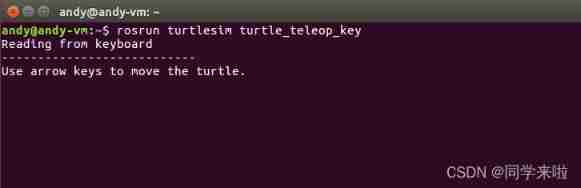
Use the direction keys on the keyboard to control the movement of the little turtle , As shown in the figure below 
(4) Reopen a Termial, Enter the following command , You can further view ROS Node details :
rosrun rqt_graph rqt_graph
thus , Little Turtle program can be used normally , Express ROS Successfully installed .
边栏推荐
- Summary of structured slam ideas and research process
- Debug debugging cmake code under clion, including debugging process under ROS environment
- Conda創建虛擬環境報錯,問題解决
- 记录谷粒商城踩坑(一)
- ERP的生产管理与MES管理系统有什么差别?
- vm虛擬機中使用NAT模式特別說明
- Explain the basic working principle of Ethernet
- 2.1 链表——移除链表元素(Leetcode 203)
- S-msckf/msckf-vio technical route and code details online blog summary
- Map the world according to the data of each country (take the global epidemic as an example)
猜你喜欢

Map the world according to the data of each country (take the global epidemic as an example)
(P36-P39)右值和右值引用、右值引用的作用以及使用、未定引用类型的推导、右值引用的传递

Final review of Discrete Mathematics (predicate logic, set, relation, function, graph, Euler graph and Hamiltonian graph)

Cookies and sessions

(P19-P20)委托构造函数(代理构造函数)和继承构造函数(使用using)

数据库基础——规范化、关系模式

Face recognition using BP neural network of NNET in R language

Introduction to SDI video data stream format (frequency, rate, YUV, EAV, SAV)

工厂的生产效益,MES系统如何提供?

(P17-P18)通过using定义基础类型和函数指针别名,使用using和typedef给模板定义别名
随机推荐
Strvec class mobile copy
Convolutional neural network CNN based cat dog battle picture classification (tf2.1 py3.6)
vscode 下载慢解决办法
Leetcode notes: Weekly contest 276
MYSQL中的锁的机制
MES系统是什么?MES系统的操作流程是怎样?
模型压缩 | TIP 2022 - 蒸馏位置自适应:Spot-adaptive Knowledge Distillation
Conda crée un environnement virtuel pour signaler les erreurs et résoudre les problèmes
APS软件有哪些排程规则?有何异常处理方案?
CMAKE 里PRIVATE、PUBLIC、INTERFACE属性示例详解
Detailed explanation of Google open source sfmlearner paper combining in-depth learning slam -unsupervised learning of depth and ego motion from video
Asp Net project add log function
PPP agreement
Introduction to SDI video data stream format (frequency, rate, YUV, EAV, SAV)
AJ project: online bank project summary
Vins technical route and code explanation
Leetcode notes: Weekly contest 279
(p33-p35) lambda expression syntax, precautions for lambda expression, essence of lambda expression
StrVec类 移动拷贝
APS究竟是什么系统呢?看完文章你就知道了