当前位置:网站首页>爬虫——selenium基本使用、无界面浏览器、selenium的其他用法、selenium的cookie、爬虫案例
爬虫——selenium基本使用、无界面浏览器、selenium的其他用法、selenium的cookie、爬虫案例
2022-08-04 13:53:00 【山上有个车】
系列文章目录
第二章 代理搭建、爬取视频网站、爬取新闻、BeautifulSoup4介绍、bs4 遍历文档树、bs4搜索文档树、bs4使用选择器
第三章 selenium基本使用、无界面浏览器、selenium的其他用法、selenium的cookie、爬虫案例
文章目录
一、selenium基本使用
由于requests不能执行js,有的页面内容,我们在浏览器中可以看到,但是响应中并没有对应数据,这个时候可以使用selenium模块。
selenium:模拟人操作浏览器,完成人的行为
selenium最初是一个自动化测试工具,而爬虫中使用它主要是为了解决requests无法直接执行JavaScript代码的问题
selenium本质是通过驱动浏览器,完全模拟浏览器的操作,比如跳转、输入、点击、下拉等,来拿到网页渲染之后的结果,可支持多种浏览器
1.安装selenium
pip install selenium
2.下载浏览器驱动
由于selenium需要操作浏览器,所以我们还需要准备浏览器驱动
此处以谷歌为例:
谷歌浏览器驱动由于墙的原因无法访问,所以可以使用淘宝提供的镜像站
谷歌浏览器驱动镜像站
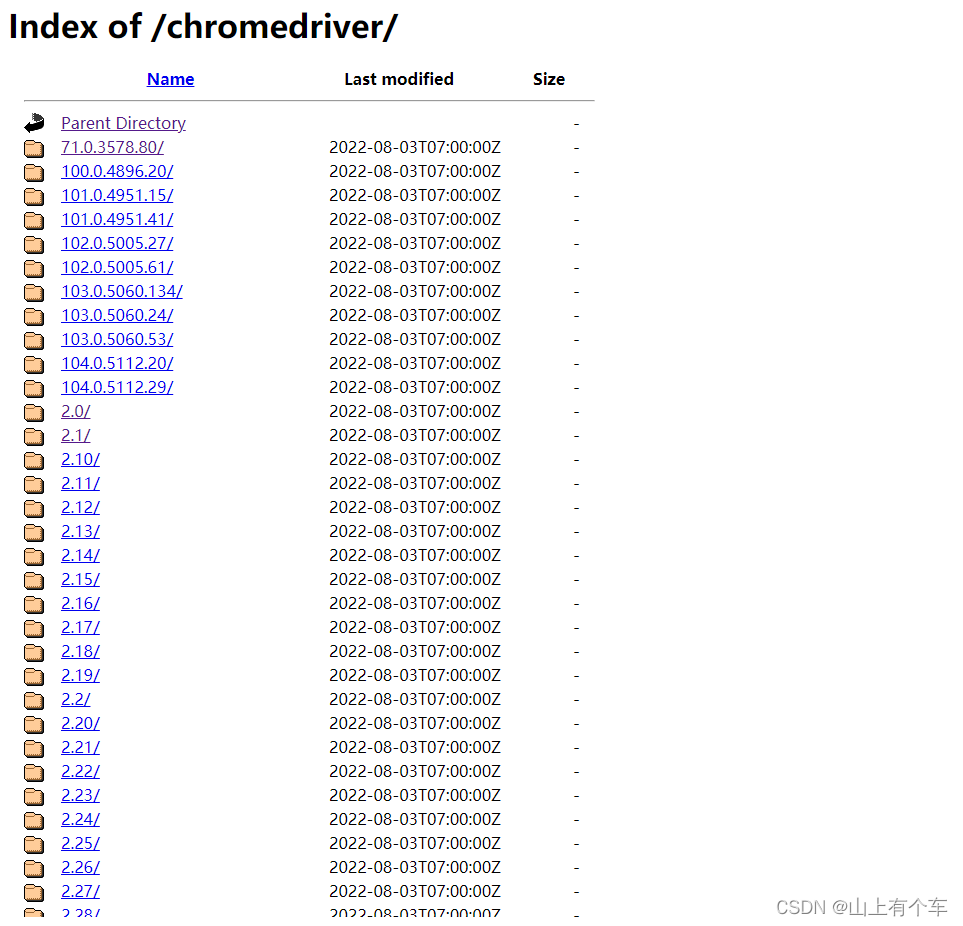
查看谷歌浏览器版本
第一种:在设置中找到关于浏览器即可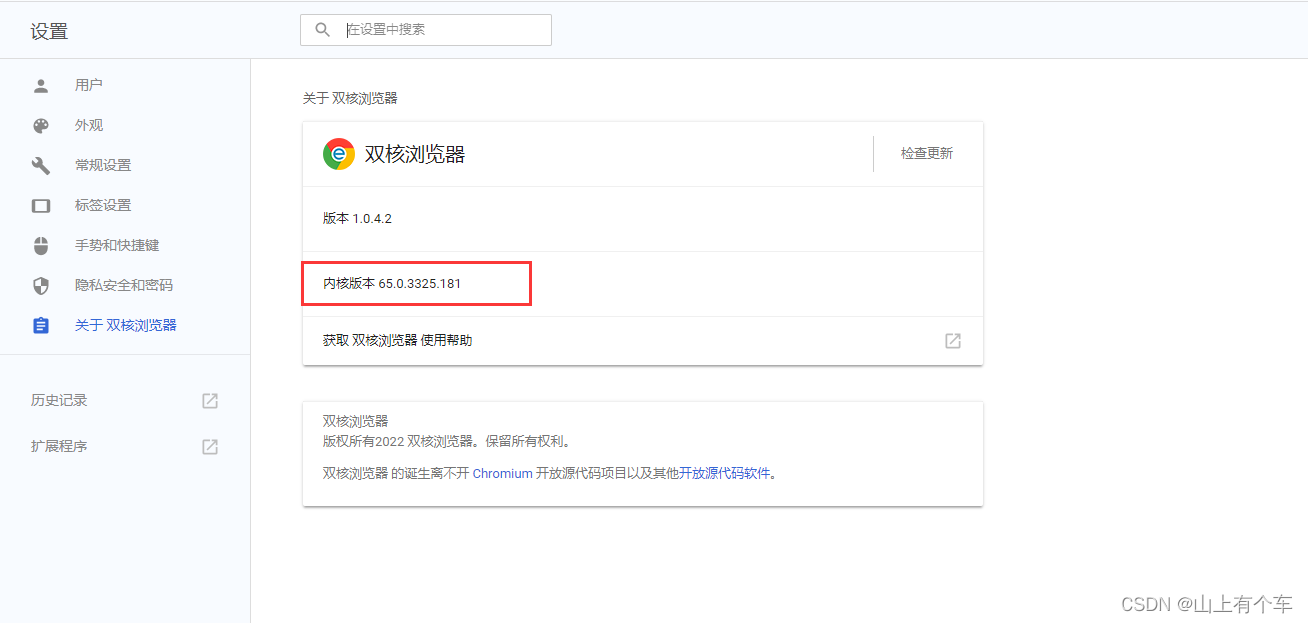
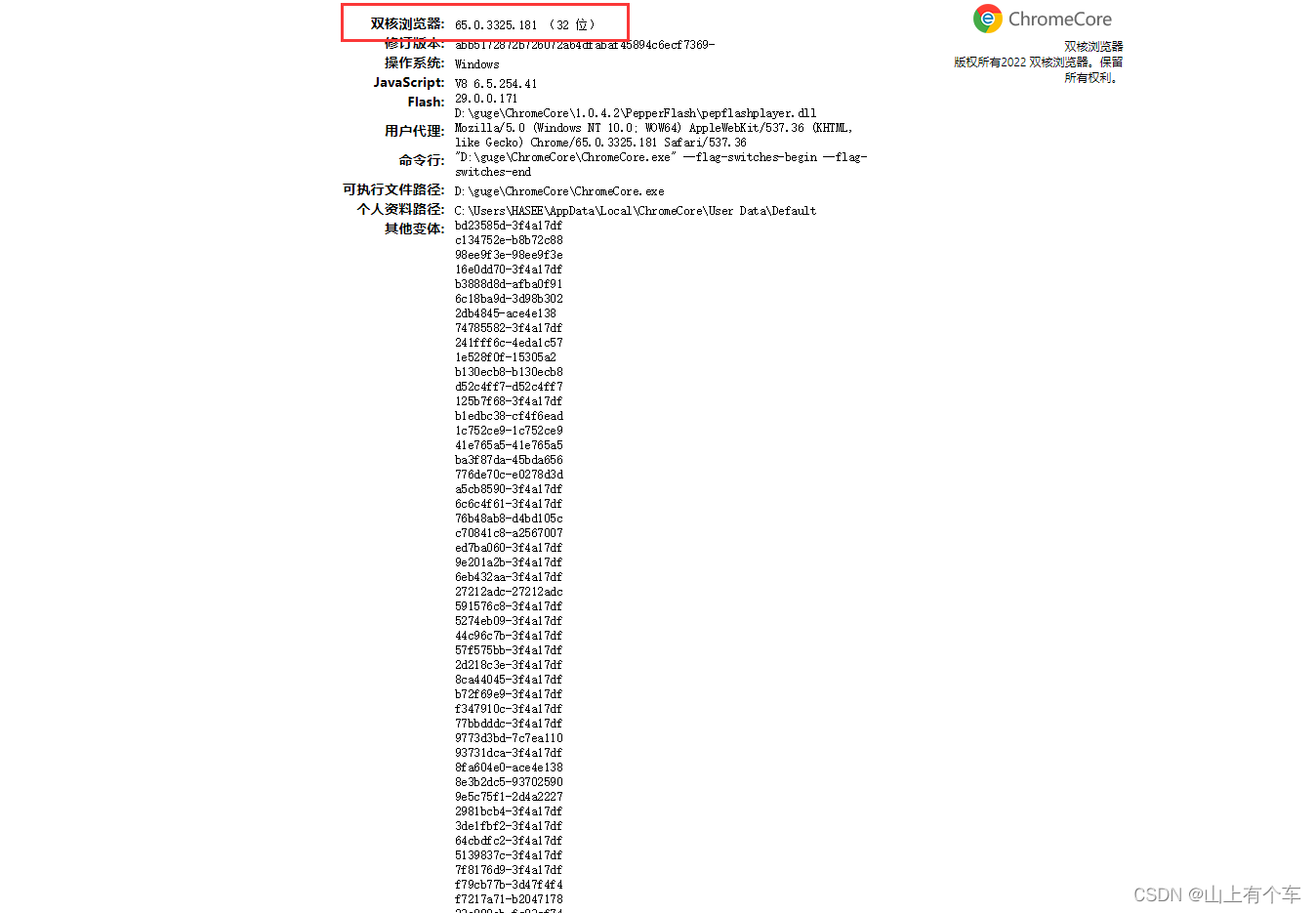
第二种:
在地址栏输入
chrome://version/
3.selenium的基础使用
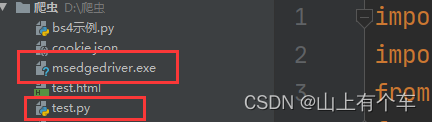
驱动程序放在项目路径下或者环境变量中
from selenium import webdriver
# 首先创建一个webdriver实例对象
bro=webdriver.Edge() # 此处以edge浏览器为例 可以使用参数executable_path指定浏览器驱动exe位置(已弃用)
# 或者使用谷歌等,都有对应的方法 bro=webdriver.Chrome()
bro.implicitly_wait(10) # 通常都会使用该函数,打开浏览器进入网站会等待固定的秒数再进行操作
bro.get('https://www.baidu.com')# 调用get方法,相当于输入url进入对应网站

bro.close()# 关闭该标签页
bro.quite()# 关闭浏览器
# 操作完毕,一般都需要关闭标签页或者浏览器
模拟登陆百度
from selenium import webdriver
from selenium.webdriver.common.by import By
import time

bro = webdriver.Chrome()
bro.implicitly_wait(10)  # 隐士等待,无论找页面中那个标签,如果找不到,会等待最多10s钟
bro.get('https://www.baidu.com/')
# 点击登录有多种方案如:
# 1 根据标签id号,获取标签
# btn=bro.find_element_by_id('s-top-loginbtn') # 老版本
# btn=bro.find_element(by=By.ID, value='s-top-loginbtn') # 新版本
# 2 根据文字找标签:a标签的文字
btn = bro.find_element(by=By.LINK_TEXT, value='登录')

# 点击一下按钮
btn.click()
# 用户名,密码输入框
username = bro.find_element(by=By.ID, value='TANGRAM__PSP_11__userName')
password = bro.find_element(by=By.ID, value='TANGRAM__PSP_11__password')
# 写入文字
username.send_keys('百度账号')

password.send_keys('百度密码')

btn_login=bro.find_element(by=By.ID,value='TANGRAM__PSP_11__submit')
btn_login.click()

bro.close()  # 关闭标签
4.selenium的基础方法
4.1 查找控件
find_element_by_id   # 根据id

find_element_by_link_text # 根据a标签的文字

find_element_by_partial_link_text # 根据a标签的文字模糊匹配

find_element_by_tag_name    # 根据标签名

find_element_by_class_name  # 根据类名

find_element_by_name        # 根据name属性


find_element_by_css_selector  # css选择器

find_element_by_xpath     # xpath

## 上面的为老语法,下面的是新语法,只需要修改by参数即可根据文字、name、css等进行查找
bro.find_element(by=By.ID,value='TANGRAM__PSP_11__submit')
4.2 点击某个按钮
标签对象.click()
submit_btn = bro.find_element(by=By.ID,value='TANGRAM__PSP_11__submit')
submit_btn.click()# 点击注册按钮
4.3 向输入框中写内容
标签对象.send_keys(内容)
username_input = bro.find_element(by=By.ID,value='username')
username_input.send_keys('kkkk23123')# 输入用户名
二、selenium无界面浏览器
使用selenium操作浏览器时,并不是时时刻刻都需要观看图形化界面的,这个时候可以设置我界面浏览器,并且可以获取当前html内容
# 首先引入设置模块,每个浏览器都对应有自己的设置模块
# from selenium.webdriver.chrome.options import Options
from selenium.webdriver.edge.options import Options

edge_options = Options()

edge_options.add_argument('window-size=1920x3000') #指定浏览器分辨率
# edge_options.add_argument('--disable-gpu') #谷歌文档提到需要加上这个属性来规避bug
edge_options.add_argument('--hide-scrollbars') #隐藏滚动条, 应对一些特殊页面
edge_options.add_argument('blink-settings=imagesEnabled=false') #不加载图片, 提升速度
edge_options.add_argument('--headless') #浏览器不提供可视化页面. linux下如果系统不支持可视化不加这条会启动失败

driver=webdriver.Edge(options=edge_options)
driver.get('https://www.cnblogs.com/')
print(driver.page_source)  # 当前页面的内容(html内容)
driver.close()
三、selenium的其他用法
1. 获取位置属性大小,文本
标签.location 该标签在浏览器中的位置,以该标签左上角为基准
标签.size 该标签的大小
标签.id 不是标签的id号,而是该标签在整个html中的唯一标识
标签.tag_name 该标签的名字
标签.get_attribute(‘src’) 获取该标签的属性例如:width、src、height、css、id等
接下来以12306为例,获取扫码登录时的二维码的信息,并且将该二维码作为图片保存下来
import time
import base64
from selenium import webdriver
from selenium.webdriver.common.by import By
bro=webdriver.Edge()
bro.get('https://kyfw.12306.cn/otn/resources/login.html')
bro.implicitly_wait(10)
btn=bro.find_element(By.LINK_TEXT,'扫码登录')

btn.click()
time.sleep(1)
img=bro.find_element(By.ID,'J-qrImg')
print(img.location) # 该标签在浏览器中的位置,以该标签左上角为基准 {'x': 782, 'y': 254}
print(img.size) # 该标签的大小 {'height': 158, 'width': 158}
print(img.id)  # 不是标签的id号,而是该标签在整个html中的唯一标识 9e2e6caf-d8bf-480b-b3dc-706b7fcc784e
print(img.tag_name)  # 该标签的名字 img
s=img.get_attribute('src')# 通过get_attribute来获取该标签的属性例如width、src、height、css、id等
with open('code.png','wb') as f:
    res=base64.b64decode(s.split(',')[-1])
    f.write(res)

bro.close()
2. 等待元素被加载
程序操作页面非常快,所以在取每个标签的时候,标签可能没有加载号,需要设置等待
等待有俩种:
- 强制等待:使用time.sleep(),无论什么情况一定会等待
- 显式等待:当等待的条件满足后(一般用来判断需要等待的元素是否加载出来),就继续下一步操作。等不到就一直等,如果在规定的时间之内都没找到,那么就跳出Exception。
- 隐式等待:selenium对象.implicitly_wait(10)
2.1强制等待
直接在代码中调用time.sleep即可
2.2显式等待
#显式等待模块
from selenium.webdriver.support.ui import WebDriverWait
#显式等待条件
from selenium.webdriver.support import expected_conditions as EC
from selenium import webdriver
from selenium.webdriver.common.by import By
from selenium.webdriver.support.ui import WebDriverWait
from selenium.webdriver.support import expected_conditions as EC

wd = webdriver.Edge()
wd.get('https://www.baidu.com')
#wd是webdriver对象,10是最长等待时间,0.5是每0.5秒去查询对应的元素。until后面跟的等待具体条件,EC是判断条件,检查元素是否存在于页面的 DOM 上。
login_btn=WebDriverWait(wd,10,0.5).until(EC.presence_of_element_located((By.ID, "s-top-loginbtn")))
#点击元素
login_btn.click()
2.3隐式等待
隐式等待是全局设置,一次设置后全局生效
隐式等待设置了一个最长等待时间,在规定时间内网页加载完成(也就是一般情况下你看到浏览器标签栏那个小圈不再转就代表加载完成),则执行下一步,否则一直等到时间结束,然后执行下一步。
from selenium import webdriver
from selenium.webdriver.common.by import By

bro=webdriver.Edge()
bro.implicitly_wait(10)

bro.get('https://www.baidu.com')
3. 元素操作
3.1搜索标签
| 方法 | 作用 |
|---|---|
| find_element | 找第一个,搭配By可以实现下面的其他方法 |
| find_elements | 找所有,搭配By可以实现下面的其他方法 |
| find_element_by_id | 根据id |
| find_element_by_link_text | 根据a标签的文字 |
| find_element_by_partial_link_text | 根据a标签的文字模糊匹配 |
| find_element_by_tag_name | 根据标签名 |
| find_element_by_class_name | 根据类名 |
| find_element_by_name | 根据name属性 |
| find_element_by_css_selector | css选择器 |
| find_element_by_xpath | xpath |
find_element与find_elements如下:
selenium对象.find_element(by=By.ID,value=‘TANGRAM__PSP_11__submit’)
selenium对象.find_elements(By.LINK_TEXT, ‘美好的一天’)
3.2 点击
标签.click()
3.3 写入文字
标签.send_keys(value)
3.4 清空
标签.clear()
3.5 滑动屏幕到底部
selenium对象.execute_script('scrollTo(0,document.body.scrollHeight)')
4. 执行js代码
selenium对象.execute_script(js代码)
5. 切换选项卡
selenium对象.execute_script('window.open()') # 打开新的选项卡
selenium对象.switch_to.window(selenium对象.window_handles[1]) # 选择选项卡从0开始
6. 浏览器前进后退
selenium对象.back() # 后退
selenium对象.forward() # 前进
7. 异常处理
在进行浏览器操作时使用try except来进行
import time
from selenium import webdriver
from selenium.webdriver.common.by import By
from selenium.common.exceptions import TimeoutException,NoSuchElementException,NoSuchFrameException
bro=webdriver.Edge()

try:
    bro.get('https://www.pearvideo.com/category_8')
    time.sleep(1)
    bro.get('https://www.baidu.com')
    raise Exception('报错了')
except Exception as e:
    print(e)
finally: # 无论如何一定要在finally中关闭浏览器
    bro.quit()
四、selenium的cookie
selenium对象.get_cookies() # 获取浏览器中cookie 获取到的格式为列表中套字典
selenium对象.add_cookie() # 将cookie写入浏览器中 加入的格式为字典
五、爬虫案例
使用selenium对博客园任意页全部进行点赞
import json
from selenium import webdriver
from selenium.webdriver.common.by import By
import requests

bro = webdriver.Edge()
bro.implicitly_wait(10)


def login():
    bro.get('https://account.cnblogs.com/')
    # 查找用户名和密码框
    username = bro.find_element(By.ID, 'mat-input-0')
    password = bro.find_element(By.ID, 'mat-input-1')
    username.send_keys('')
    password.send_keys('')
    input() # 手动在打开的浏览器中登录
    cookie = bro.get_cookies() # 将登录的cookie保存下来
    with open('./cookie.json', 'w', encoding='utf-8') as f:
        json.dump(cookie, f)


def is_login():
    bro.get('https://account.cnblogs.com/')
    # 读取保存的cookie添加到网页,进入登录状态
    with open('cookie.json', 'r', encoding='utf-8') as f:
        res = json.load(f)
    for item in res:
        bro.add_cookie(item)
    bro.get('https://account.cnblogs.com/')
    bro.refresh()


def aricte_dig_up(start, stop):
    home = bro.find_element(By.CSS_SELECTOR,
                            'body > app-root > app-main-layout > app-navbar > mat-toolbar > mat-toolbar-row > div:nth-child(1) > a.mat-tooltip-trigger.logo')
    home.click()
    for i in range(start, stop+1):
        # 跳转到对应页
        pag = bro.find_element(By.CSS_SELECTOR, '#paging_block > div > a.p_%s.current'%i)
        pag.click()
        #获取文章id
        arictes = bro.find_elements(By.CSS_SELECTOR, '#post_list article')
        aricte_ids = []
        for aricte in arictes:
            aricte_ids.append(aricte.get_attribute('data-post-id'))
        #对获取的文章进行点赞
        for post_id in aricte_ids:
            up_btn = bro.find_element(By.ID, 'digg_control_%s'%post_id)
            up_btn.click()


if __name__ == '__main__':
    key = False # False 将进行半自动登录,登陆成功后请在控制台按一下回车,程序结束后将key更改为True对博客园指定页进行点赞
    if key:
        login()
    else:
        is_login()
        aricte_dig_up(1, 1) # 第一个参数为开始页码,第二个参数为结束页码
    bro.close()
边栏推荐
- Interviewer: How to view files containing abc string in /etc directory?
- LM2596有没有可以替代的?LM2576可以
- How to stress the MySQL performance indicators TPS\QPS\IOPS?
- Is the code more messy?That's because you don't use Chain of Responsibility!
- 考研上岸又转行软件测试,从5k到13k完美逆袭,杭州校区小哥哥拒绝平庸终圆梦!
- Interviewer: Tell me the difference between NIO and BIO
- router---动态路由匹配
- k8s上安装mysql
- Programmer Qixi Gift - How to quickly build an exclusive chat room for your girlfriend in 30 minutes
- 错误 AttributeError type object 'Callable' has no attribute '_abc_registry' 解决方案
猜你喜欢

国家安全机关对涉嫌危害国家安全犯罪嫌疑人杨智渊实施刑事拘传审查
用过Apifox这个API接口工具后,确实感觉postman有点鸡肋......
相似文本聚类与调参

考研上岸又转行软件测试,从5k到13k完美逆袭,杭州校区小哥哥拒绝平庸终圆梦!
SLAM 04.视觉里程计-1-相机模型
zabbix自定义图形

nVisual secondary development - Chapter 2 nVisual API operation guide Swagger use
如何通过使用“缓存”相关技术,解决“高并发”的业务场景案例?
This article sorts out the development of the main models of NLP

How to play the Tower of Hanoi
随机推荐
第四讲 SVN
异步编程概览
ssm学习心得(完结篇
C# 复制列表
Oracle RAC环境下vip/public/private IP的区别
第六届未来网络发展大会,即将开幕!
Why don't young people like to buy Mengniu and Yili?
如何才能有效、高效阅读?猿辅导建议“因材因时施教”
汉诺塔怎么玩
LeetCode 1403 Minimum subsequence in non-increasing order [greedy] HERODING's LeetCode road
JSX使用
router---路由守卫
sqlplus报错ORA-12547: TNS:lost contact解决
Convolutional Neural Network Basics
Redis 复习计划 - Redis主从数据一致性和哨兵机制
SCA兼容性分析工具(ORACLE/MySQL/DB2--->MogDB/openGauss/PostgreSQL)
PAT甲级:1040 Longest Symmetric String
AlphaFold 如何实现 AI 在结构生物学中的全部潜力
一文梳理NLP主要模型发展脉络
从理论到实践:MySQL性能优化和高可用架构,一次讲清