当前位置:网站首页>El upload upload file
El upload upload file
2022-06-12 02:11:00 【Red blue purple】
el-upload Upload files
Preface
Both company and school projects use the function of uploading files , Make a note of .
Get ready
express Implemented upload interface
const express = require('express');
// File upload module
const multiparty = require('multiparty')
// Provide cross domain resource requests
const cors = require('cors')
// File operations
const fs = require('fs')
const app = express();
app.use(cors());
app.get('/policy', (req, res) => {
res.json({
code: 200,
msg: ' success ',
url: '/upload',
filename: 'clz'
})
});
app.post('/upload', (req, res) => {
let form = new multiparty.Form()
// Configuration file storage path
form.uploadDir = './upload'
form.parse(req, (err, fields, files) => {
// analysis formData
for (const file of files.file) {
const newPath = form.uploadDir + '/' + file.originalFilename
// renameSync(oldPath, newPath): Sync rename file ,oldPath Use the default upload path ,newPath Is the path you want to save to
fs.renameSync(file.path, newPath);
}
res.json({
code: 200,
msg: ' Upload successful '
})
})
});
app.listen(8088, () => {
console.log('http://localhost:8088/');
});
If needed , Self access express usage , You can also go to My blog View a simple tutorial in .
Start
Easy to use version
<template>
<el-upload
action="http://localhost:8088/upload"
:show-file-list="true"
:on-success="handleSuccess"
:on-error="handleError"
>
<el-button type="primary"> To upload pictures </el-button>
</el-upload>
</template>
<script setup>
import { ElMessage } from "element-plus";
const handleSuccess = (res, file, files) => {
console.log(res);
console.log(file, files);
new ElMessage({
type: "success",
message: " Upload successful ",
});
};
const handleError = (error, file, files) => {
console.log(error);
console.log(file, files);
ElMessage.error(" Upload failed ");
};
</script>
<style lang="less" scoped>
</style>
Explain the properties above :
action: request URLshow-file-list: Whether to expand the document list ( If the upload fails , Will flash , Disappear again )on-success: File upload successful hook- Parameters :
- res: The successful response data returned by the backend ( When the response status is success )
- file: Uploaded files
- files: List of successfully uploaded files
on-success: File upload failed hook- Parameters :
- error: Error object , The content is the response data returned by the backend ( When the response status is failed , If the status code is 500)
- file: Uploaded files
- files: List of successfully uploaded files
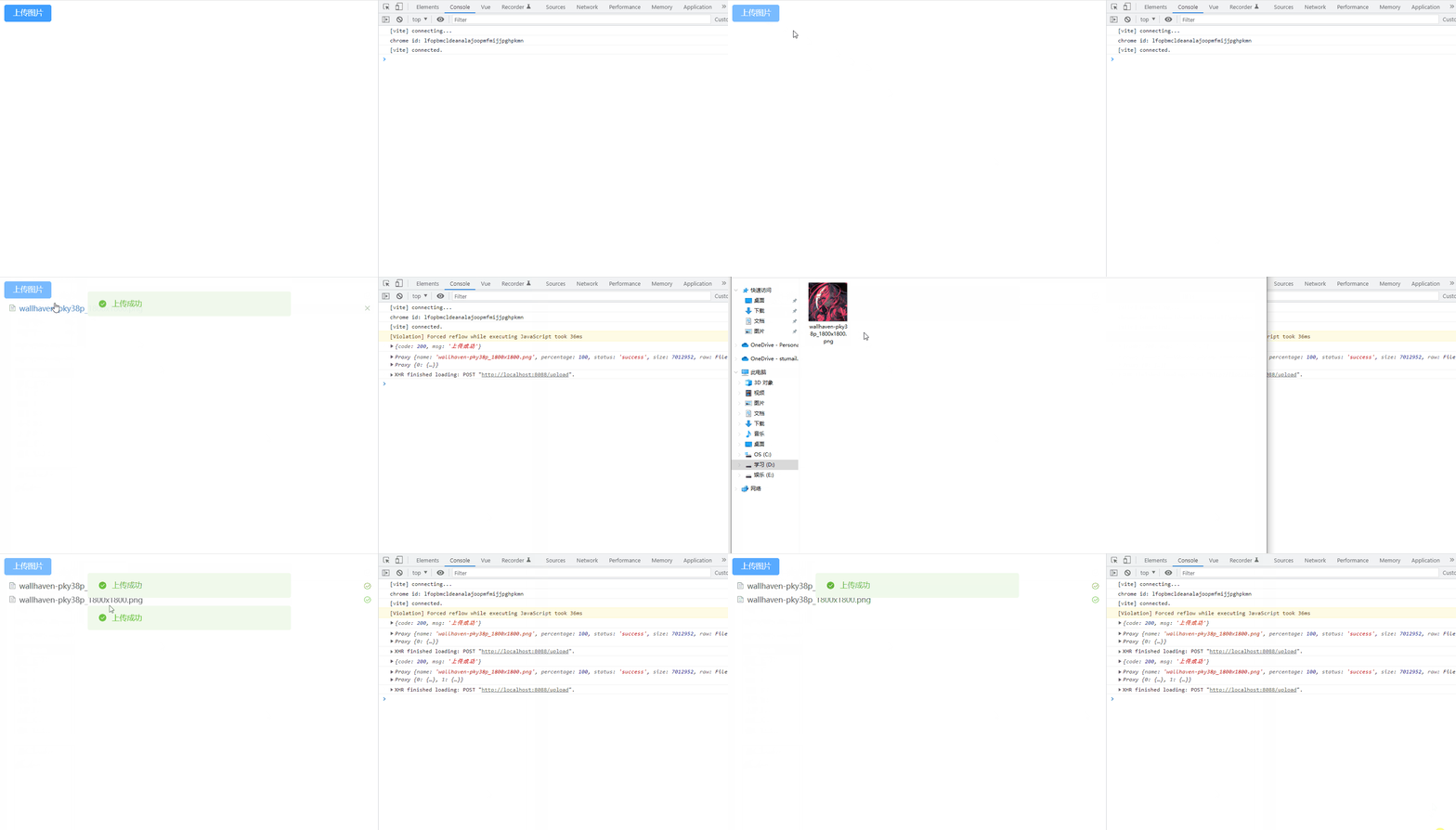
Next , Go to the path set at the back end to see if the uploaded file has been saved successfully .

add to token
This is simpler , because element-plus It's also sealed , Just use headers attribute , Set the request header
<el-upload
  action="http://localhost:8088/upload"
  :headers="{ token: '12345' }"
>
  <el-button type="primary"> To upload pictures </el-button>
</el-upload>

Get the signature before uploading
Sometimes you can't just upload it directly , For example, there was no upload path at first , You need to call the get signature interface to get the upload path . At this time, you can use our hook before uploading files before-upload. Call the interface to get the signature before uploading , Use what you get url To modify , Upload path , You can upload .
<template>
<el-upload :action="url" :before-upload="getPolicy">
<el-button type="primary"> To upload pictures </el-button>
</el-upload>
</template>
<script setup>
import axios from "axios";
import { reactive, ref } from "vue";
const url = ref("");
const getPolicy = () => {
return new Promise((resolve, reject) => {
axios
.get("http://localhost:8088/policy")
.then((res) => {
const { data } = res;
if (data.code === 200) {
url.value = `http://localhost:8088${data.url}`;
resolve();
}
})
.catch((error) => {
reject(error);
});
});
};
</script>
<style lang="less" scoped>
</style>

Manually upload
In the above examples, the file is selected , Will upload , But sometimes we need to click the button to upload , This time we need to combine auto-upload and submit To realize manual uploading . First set up auto-upload by false, Cancel automatic upload , At this time, the selected image will not be uploaded , So we are in the click event of the button , You have to use DOM To call submit Methods to upload manually .
<template>
<el-upload
ref="upload"
action="http://localhost:8088/upload"
:auto-upload="false"
>
<el-button type="primary"> To upload pictures </el-button>
</el-upload>
<el-button type="primary" @click="confirm"> determine </el-button>
</template>
<script setup>
import { getCurrentInstance } from "vue";
const { proxy } = getCurrentInstance();
const confirm = () => {
proxy.$refs.upload.submit();
};
</script>
<style lang="less" scoped>
</style>
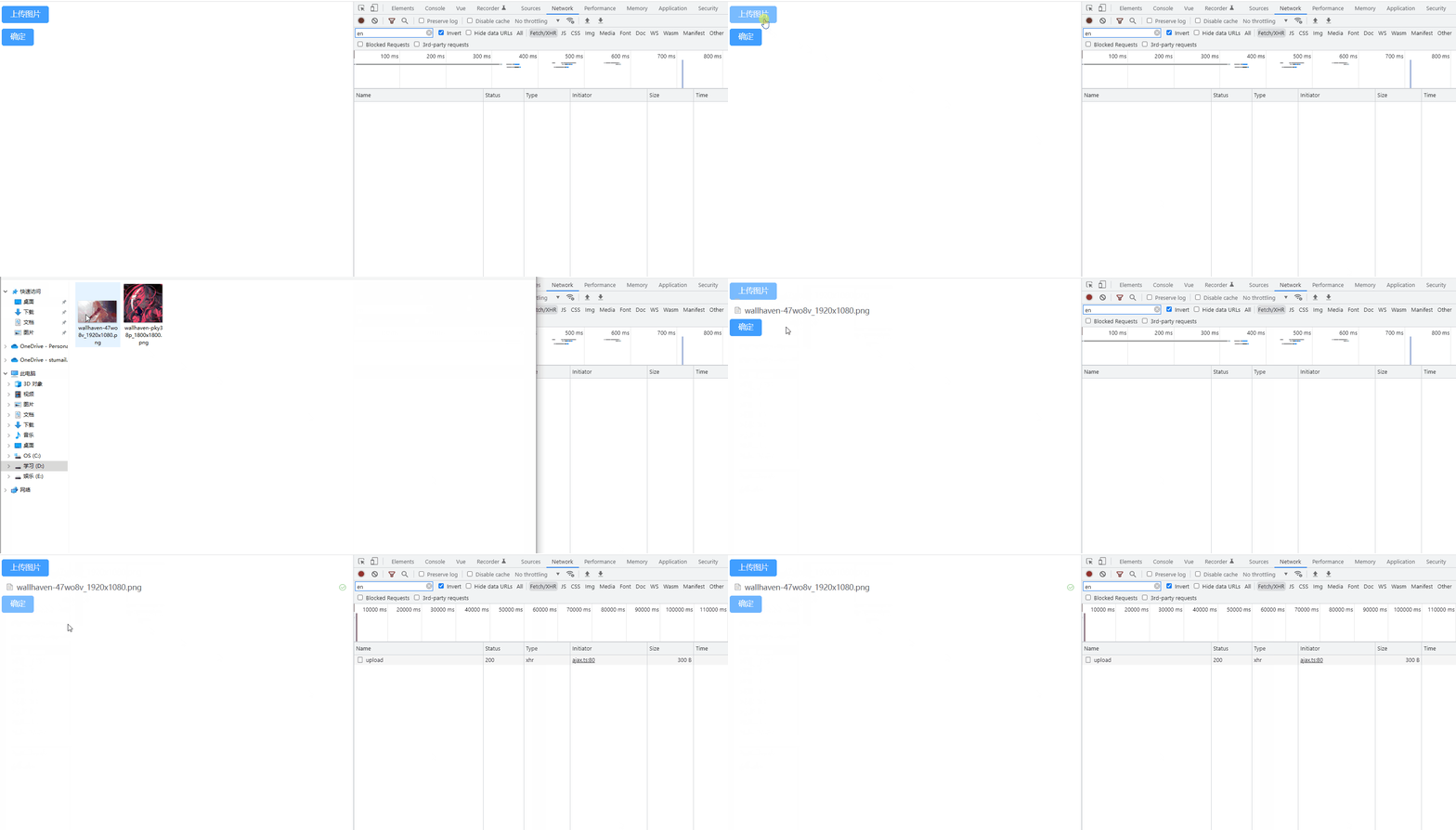
Modify the file name when uploading
situation : When calling the signature interface, a file name will also be returned , The front end needs to change the file name before uploading , Let the server save the standard file name .
First , Let's start with the conclusion : Cannot modify File Object's name attribute , Implement rename
Modify in the hook before uploading File Object's name attribute
<template>
<el-upload
action="http://localhost:8088/upload"
:before-upload="getPolicy"
>
<el-button type="primary"> To upload pictures </el-button>
</el-upload>
</template>
<script setup>
// Pre upload hook
const getPolicy = (file) => {
console.log(file);
file.name = "clz.png"; // If the file is checked in the hook before uploading name Property to modify , It will not upload . And don't make a mistake , It is difficult to find the problem .
console.log(file.name);
};
</script>
<style lang="less" scoped>
</style>
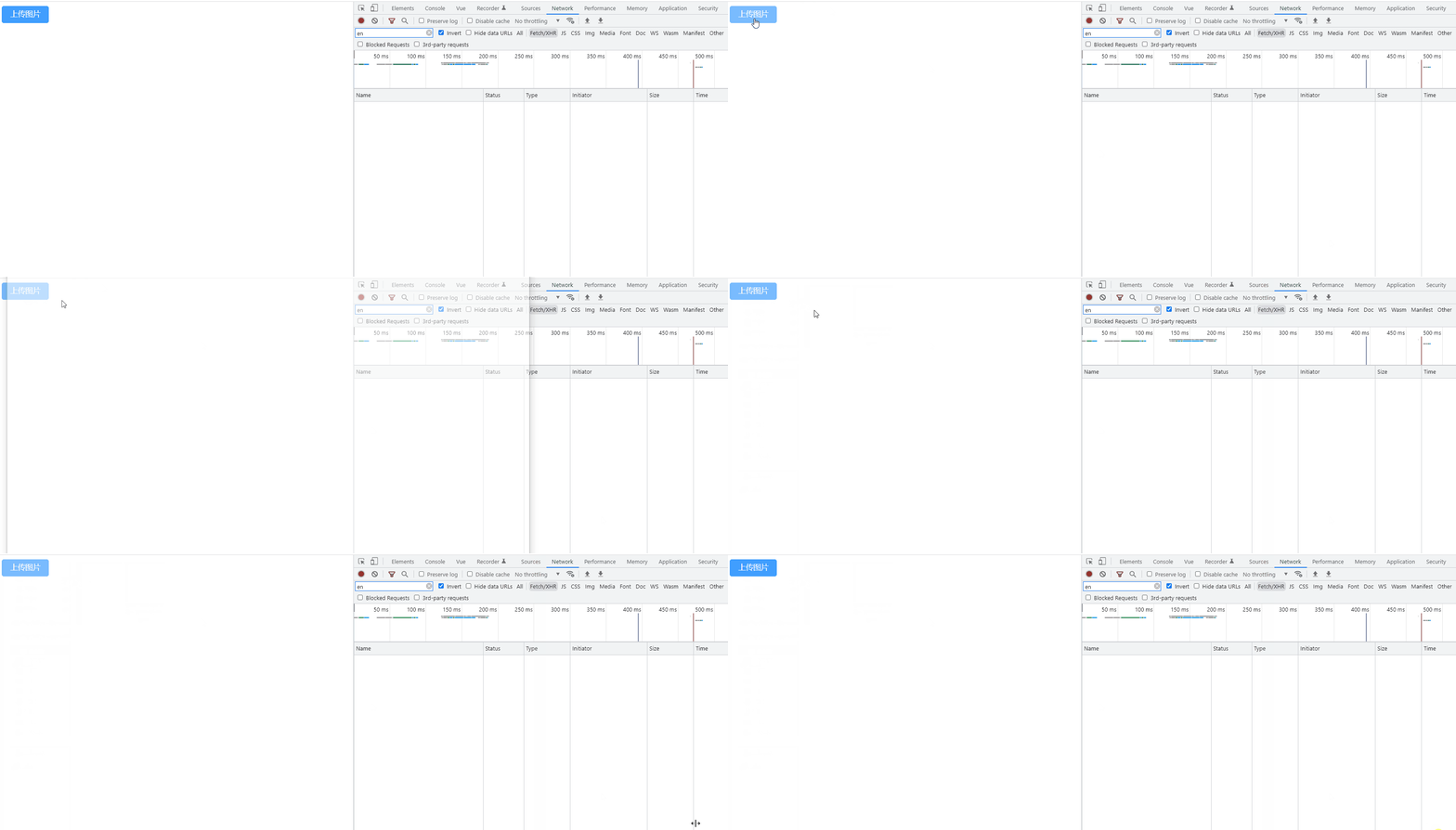
Without waves .
Modify when uploading files
adopt http-request attribute , Override the default upload behavior .
<template>
<el-upload action="http://localhost:8088/upload" :http-request="httpRequest">
<el-button type="primary"> To upload pictures </el-button>
</el-upload>
</template>
<script setup>
const httpRequest = ({ file }) => {
console.log(file);
file.name = "clz.png";
};
</script>
<style lang="less" scoped>
</style>

Direct error
Solution
Since it cannot be modified directly File Object's name Property to implement the rename operation , So what should I do ?
This is the time to pass new File Constructor to create another file , Change the name while creating .
<template>
<el-upload action="http://localhost:8088/upload" :http-request="httpRequest">
<el-button type="primary"> To upload pictures </el-button>
</el-upload>
</template>
<script setup>
const httpRequest = ({ file }) => {
console.log(file);
const cloneFile = new File([file], "clz.png");
console.log(cloneFile);
};
</script>
<style lang="less" scoped>
</style>
Be careful : If you change the file name of a file ,File The first argument to the constructor of should be to enclose file Array of

But at this point , There's another problem , We've used http-request Overwrite the default upload behavior , So we have to upload again .
Uploading a file first requires formData object , And then to formData Add upper data , In the formData Send it through the interface .
<template>
<el-upload action="#" :http-request="httpRequest">
<el-button type="primary"> To upload pictures </el-button>
</el-upload>
</template>
<script setup>
import axios from "axios";
import { ElMessage } from "element-plus";
const httpRequest = ({ file }) => {
console.log(file);
const cloneFile = new File([file], "clz.png");
const formData = new FormData();
formData.append("file", cloneFile);
axios.post("http://localhost:8088/upload", formData).then((res) => {
if (res === 200) {
new ElMessage({
type: "success",
message: " Upload successful ",
});
}
});
};
</script>
<style lang="less" scoped>
</style>

Tips:
The solution has been mentioned above , however , Renaming doesn't usually help you change the file suffixes . So you can get the suffix through regular expression at this time .
const houzhui = file.name.replace(/.+./, "");
const newFile = new File([file], filename+houzhui);
Request to upload multiple files at once
el-upload By default, one file is uploaded per request . To upload multiple files, you must first add multiple attribute .
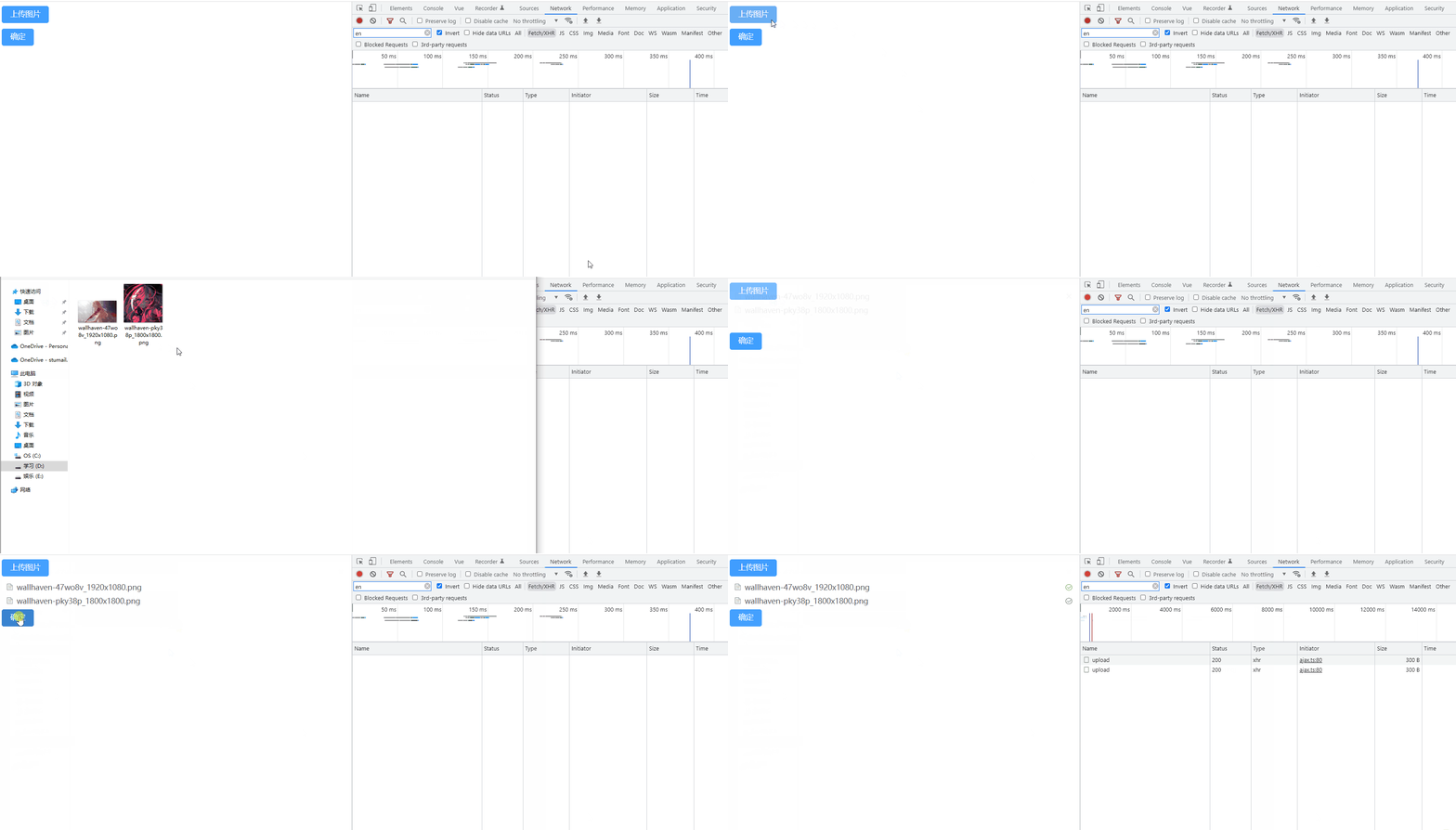
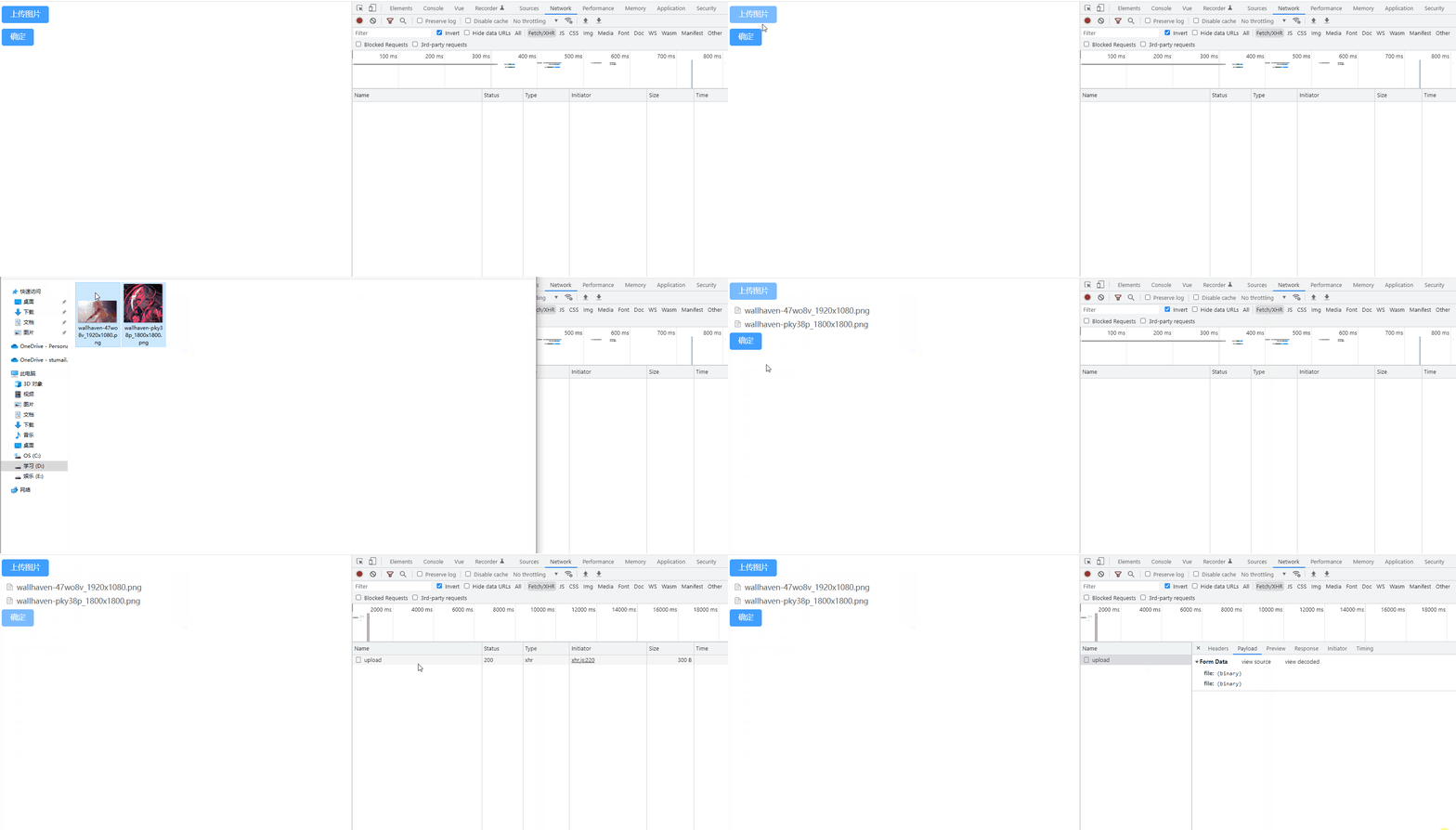
In the example above , We can find out , We selected two files above , Click ok , The upload interface is called twice when uploading pictures .
since el-upload By default, one file is uploaded per request , Then let's not use el-upload The upload method is OK . When you click the OK button , To call an upload file method .
Because when we click OK , You need to get the selected file , So there needs to be file-list attribute , Save the selected file .
<template>
<el-upload
ref="upload"
action="#"
multiple
:file-list="fileList"
:auto-upload="false"
>
<el-button type="primary"> To upload pictures </el-button>
</el-upload>
<el-button type="primary" @click="confirm"> determine </el-button>
</template>
Click the OK button , Will trigger confirm event , This is the key to implementing a request to upload multiple files , This is the time to create a formData object , Traverse the selected file list , adopt append Add to formData On . Finally, I call uploadFile function , Actually upload the file .
const fileList = reactive([]);
const confirm = () => {
const formData = new FormData();
console.log(fileList);
for (const file of fileList) {
formData.append("file", file.raw);
}
uploadFiles(formData);
};
function uploadFiles(data) {
axios.post("http://localhost:8088/upload", data).then((res) => {
if (res === 200) {
new ElMessage({
type: "success",
message: " Upload successful ",
});
}
});
}
Small skills
Get the width and height pixels of the picture
// establish Image object
const img = new Image();
// Set up the src
img.src = 'https://www.clzczh.top/medias/featureimages/19.png';
// add to load event , Execute after the picture is loaded
img.onload = () => {
// Get the width and height pixels of the picture
console.log(img.width, img.height);
};
边栏推荐
- Explore performance optimization! Performance improvement from 2 months to 4 hours!
- PHP security development 13 column module of blog system
- 商城开发知识点
- What is SAP c/4hana Foundation
- Summary of concrete (ground + wall) + Mountain crack data set (classification and target detection)
- Modification of system module information of PHP security development 12 blog system
- MySQL advanced knowledge points
- 力扣解法汇总450-删除二叉搜索树中的节点
- Summary of force deduction method 417- Pacific Atlantic current problems
- serialization and deserialization
猜你喜欢

Why do we use Google search ads?

Add sequence number column to MySQL query result set

Is there a female Bluetooth headset suitable for girls? 38 Bluetooth headsets worth getting started

ozzanimation-基于sse的动作系统

Is the bidding price fixed for each click?

leetcode:6. Zigzag transformation

MySQL高级部分知识点

Alicloud OSS file upload system

Oracle 11g graphic download installation tutorial (step by step)

MySQL table common operation mind map
随机推荐
力扣解法汇总965-单值二叉树
SwiftyJSON解析本地JSON文件
Does the virtual host have independent IP
Summary of force deduction solution 436- finding the right interval
What insurance products can you buy at the age of 60?
matplotlib. pyplot. Bar chart (II)
Force deduction solution summary 668- the smallest number k in the multiplication table
Advantages of Google ads
Linux(CentOS7)安裝MySQL-5.7版本
力扣解法汇总433-最小基因变化
Leetcode 1005 maximized array sum after K negations
Force deduction solution summary - Sword finger offer II 114 Alien dictionary
【无标题】2022煤矿安全检查考题及在线模拟考试
“中国东信杯”广西大学第四届程序设计竞赛(同步赛)
virsh创建/关闭/停止虚拟机常用的几条指令
代理与反射(二)
A mystery of the end of vagrant up
力扣解法汇总675-为高尔夫比赛砍树
The release of star ring kundb 2.2 provides a new choice for business systems with high concurrent transactions and queries
力扣解法汇总面试题 17.11-单词距离