Portainer
Portainer summary
Portainer It's a Docker Visual management tools , by Docker Provide status prompt panel 、 Rapid configuration deployment 、 Data volume management and other functions , Basically, it can meet the needs of small and medium-sized container management .
I feel, too Portainer It is very convenient to use
Portainer edition
Portainer The Community Edition currently has two mirrors .portainer/portainer and portainer/portainer-ce.

portainer/portainer
portainer/portainer yes 1.X edition ( The old version ) Mirror image . Officials have now abandoned this image .
However, the current online tutorials are based on this image . I didn't notice at first , As a result, it was hit by .
This mirrored version is for non SWARM Cloud connected Docker Compose The Syntax version only supports up to 2.X, And create named Volume There was a problem mounting the directory ( I was hit by this hole ).

portainer/portainer-ce
portainer/portainer-ce yes 2.X A new version of the image .
Fully support Docker Compose3.X Syntax version .
Portainer Deploy
Here it is Portainer adopt Docker Compose Deployment .Docker Compose Strong observability , And the configuration file can be saved All future deployment schemes adopt this form .
version: '3.9'

services:
  portainer:
    image: portainer/portainer-ce
    container_name: portainer
    restart: always
    ports:
      - 9000:9000
    volumes:
      - /var/run/docker.sock:/var/run/docker.sock
      - /volumes/portainer:/data
The above is the deployment Portainer Of YAML Format profile
- version:
YMALFormat version , The current version has 1、 2 、 2.X、 3.X, The syntax of each version is slightly different , But the difference is not big , There is no difference in general grammar . But different versions of the syntax are rightDockerVersion has certain requirements , Details can be referred to :https://docs.docker.com/compose/compose-file/compose-file-v3/ - services:
Container groupTo configure , according toYAMLThe format can be configured with multiple containers , At present, there is only oneportainerTo configure .servicesCan be configured between network, Dependency order, etc .- portainer: This is a
service (Service)name , Representing oneContainers (Container).- image: The image used by the container
- container_name: Container name
- restart: Container restart strategy . Namely
docker runSet when restart - ports: Map port number , The first port number is the host port number , You can set any unused port number ; The second port number is the port number provided in the container , Since the container is understood as a separate system environment , Then you need to provide some port numbers for external access .
PortainerThe port number provided is 9000 - volumes: Data volume mount , Container as a separate system environment , It is often necessary to specify the host directory to mount the directory in the container . For example, database application , If you do not mount the host Directory , When the data in the container is deleted, the data in the payment is gone .
Or mount the configuration file of the container , In this way, you don't need to enter the container to update the configuration every time .
The first can be avolumename perhaps Host Directory , When directly Host Directory when , When the container starts, it will use Host Directory Cover In-container directory This will be introduced later ;
The second is the directory in the container (PortainerData is stored in containers /data Catalog ).
- portainer: This is a
PS: Be careful :
VolumeWhen mounting directories and files , There are two situations . Catalog : This directory may not exist in the host ,DockerThe directory is automatically created when the container is started . file : When the mount path is a file , This file must exist on the host
Many parameters can also be set in the configuration properties , for example :environment, It will be used later , No more introduction .
/var/run/docker.sockIt's a special document , Some containers need to provide this file .
After writing the file, upload it to the server for execution
docker-compose -f /yml/docker-compose/portainer.yml -p portainer up -d

- -f:
YAMLThe address where the documents are stored , This file was uploaded to /yml/docker-compose/ Catalog , - -p: Set up current
Docker Composename - up: Rebuild the service according to the configuration file , Start the mirror . If the host does not have this mirror , The image will be downloaded by default ( You can configure whether the parameter allows downloading images ). When the host does not have this
portainer/portainer-ceThe image will be downloaded , All may be a little slow - -d: Set to run in the background , And
docker run -dParameters are consistent
After successful operation , Will automatically start the container .
And the data in the container can be seen under the mounting purpose



At this point, you can access Portainer page .
Be careful : If it's a virtual machine , Need to start the 9000 Port access policy , Otherwise it can't be accessed .

Portainer The first visit will jump to the setting administrator user page

After setting up , If the local has Docker , Will connect to the local network by default Docker
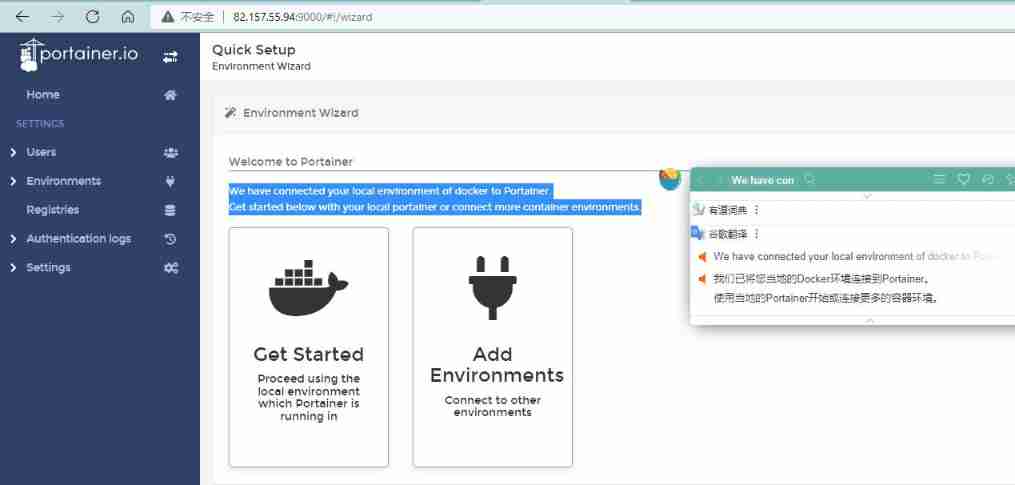
Portainer page
After entering the main page , The first is the automatic connection of local Docker , Click to see Docker All kinds of information
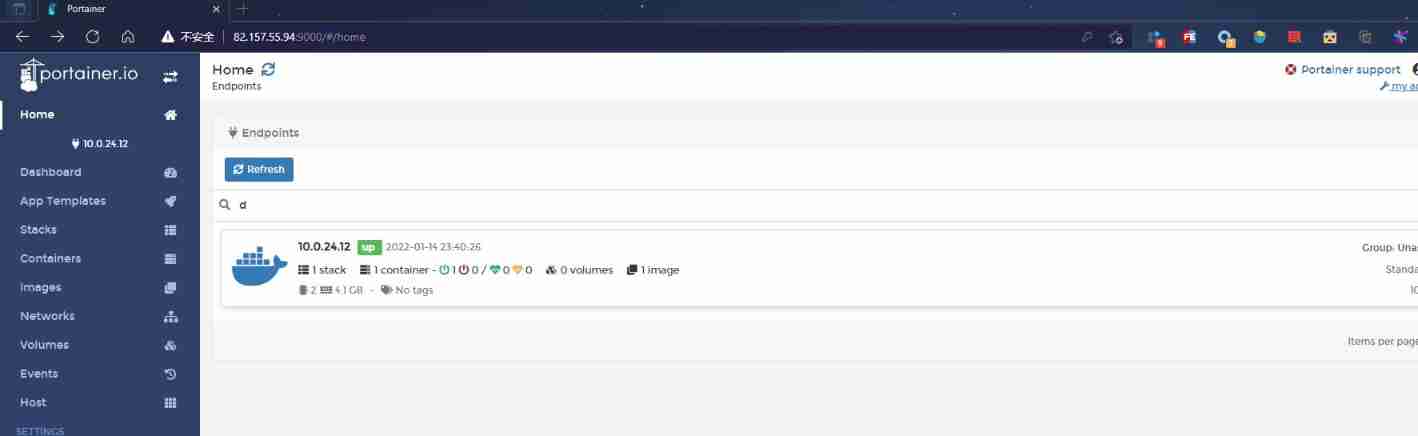
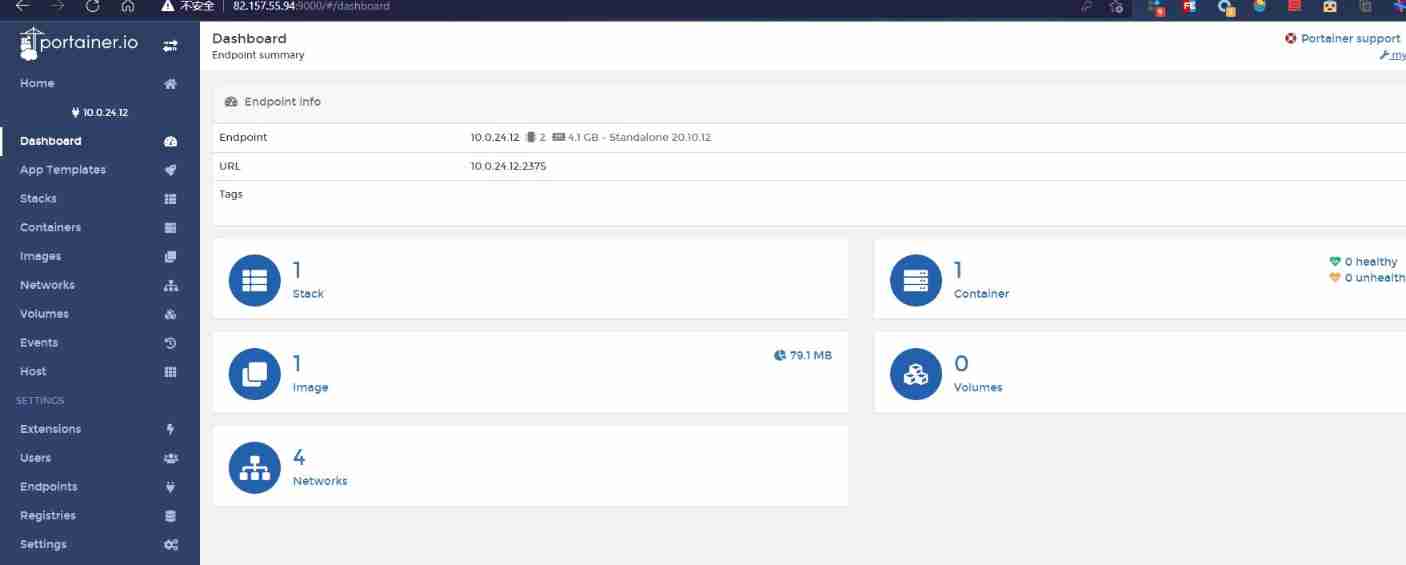
- Stack:
Docker Composemanagement , For the currentDocker ComposeConduct management , And you can upload it directly YAML File to build the container . There is only oneStack:portainer - Container:
DockerContainer management , All containers can be managed and set . At present, there is only oneContainers:portainer - Image:
DockerImage management , For the currentDockerManage all images , At present, there is only oneMirror image:portainer/portainer - Volumes:
DockerData volume management , - Networks:
Dockernetwork management , At present, there is only the default 4 individualNetwork
Stack modular
Stack Is to manage Docker Compose, There is only one , Deployment is Portainer
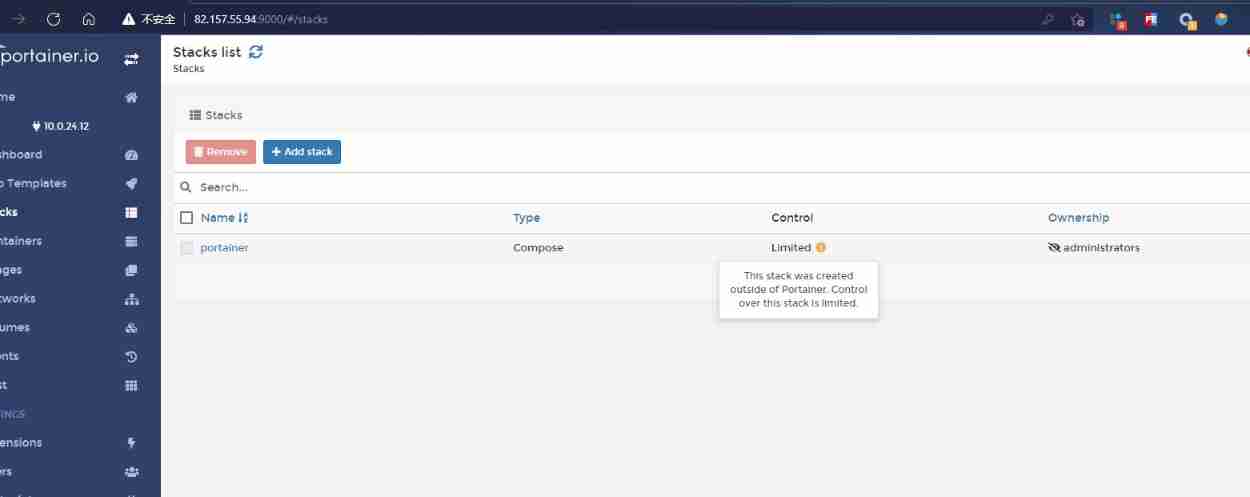
Limited
not used Portainer Visualization tool deployment Docker Compose, stay Portainer Operation is not allowed inside the visualizer .
for example Portainer, stay Portainer In the visualizer Control Property is displayed as Limited, This means that you are not allowed to operate this stack.
Add Stack
Click on Add Stack Button to add Docker Compose, Portainer Support four ways to add ;
- Web editor( Write the configuration directly on the current page )
- Upload( Provide local upload xxx.yml file )
- Repository( Provide a configuration file URL Address )
- Custom template Custom template (2.X Version newly added , I don't understand )
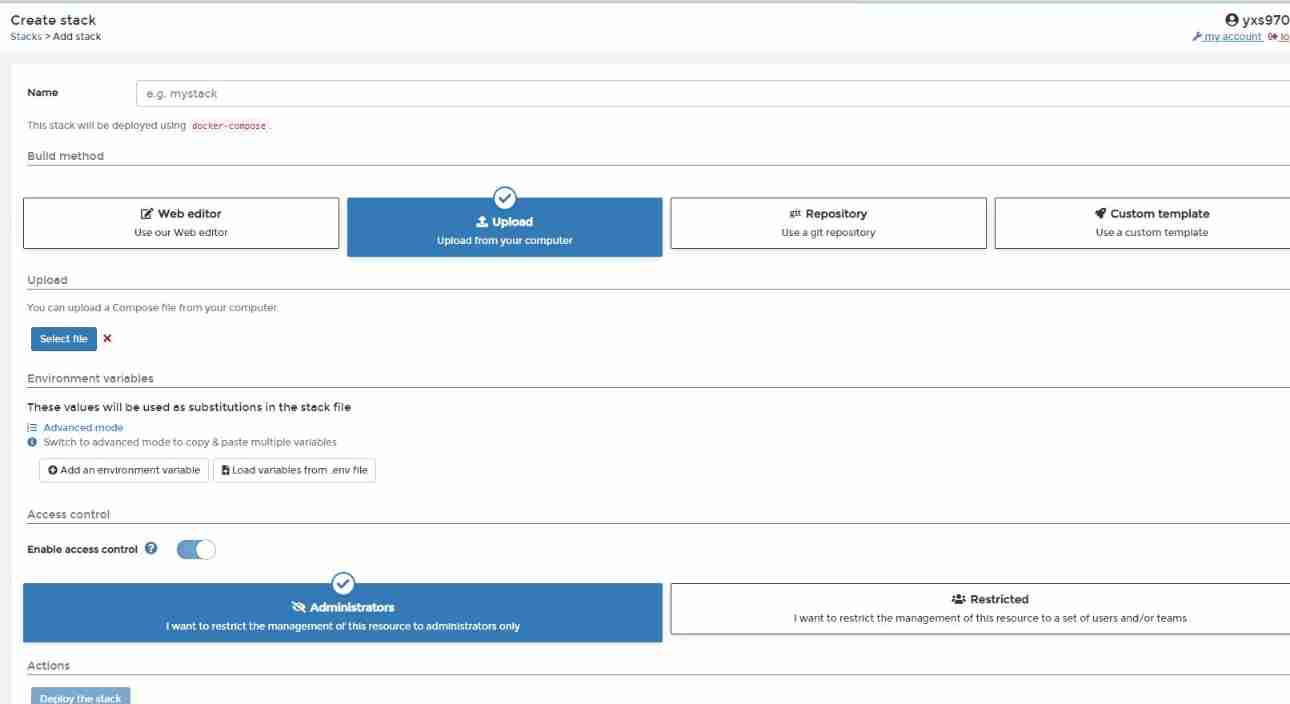
I prefer to use it Upload Upload after writing in the local editor . Of course, other methods can also be used . Look at the usage scenarios and personal preferences .
Portainer API How to connect
Portainer Support multiple connection modes . Introduce a method of using Docker API How to connect
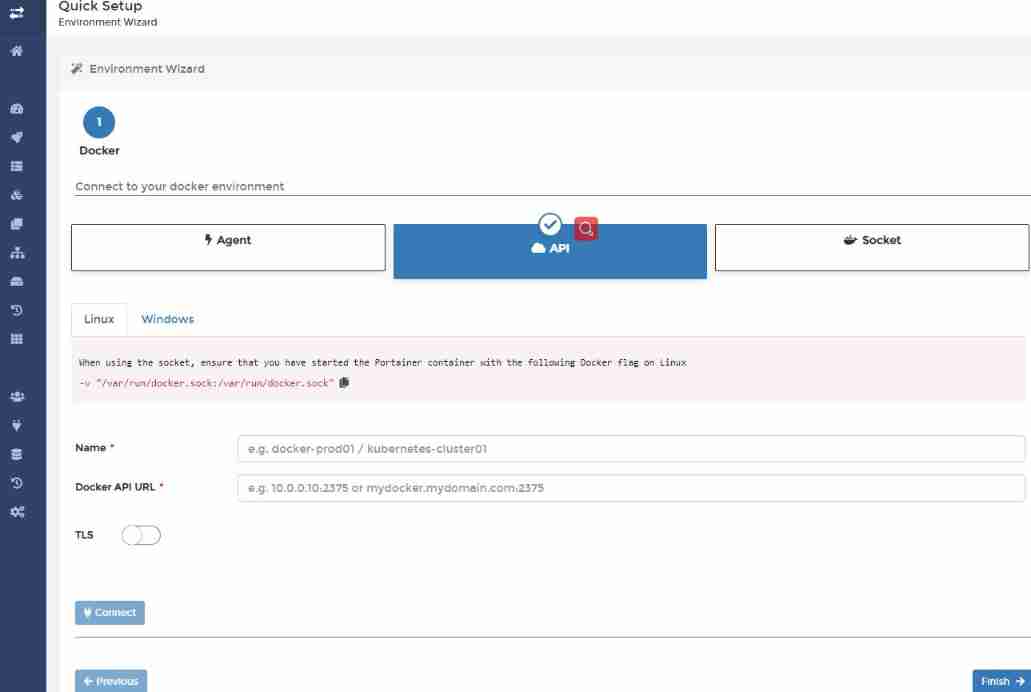
API The connection method is to use TCP Protocol accessible Docker API communicate , Need to set up Docker API, allow Docker To be accessed
Docker API Need to set up /lib/systemd/system/docker.service file ExecStart attribute

Only intranet access is allowed here , In fact, only local IP visit ( Simulate remote connection mode )
PS: Be careful : Set the connection host according to the actual situation , Never set it to tcp://0.0.0.0:2375, This is very likely to be infected with the virus , Personally tested the mining script virus .
After setting, you need to restart Docker service
sudo systemctl daemon-reload
sudo systemctl restart docker

Now? Portainer You can use API How to connect




![[advanced ROS] Lesson 6 recording and playback in ROS (rosbag)](/img/84/abde1c0d5441eb8dec2bacb60d19e9)