当前位置:网站首页>C WinForm series button easy to use
C WinForm series button easy to use
2022-07-06 17:27:00 【Heart blue 168】
This system example is suitable for beginners , Veteran please go straight Pass Well .
Last time I demonstrated 【 establish Windows project 】, I hope beginners can fall in love with C# WinForm Programming .
Just because I am a programmer , Limited documentation , Go straight to the subject . This section is simple WinForm in Button How to use or make use of others WinForm Control instead of Button Use .
Many beginners have simple ideas , I always think about the buttons in the textbook , Only use buttons , Not flexible , This is not feasible in actual development . Of course, you can also develop one by yourself Button class ( When you become a veteran ). In project development , You can use it directly Button, You can also use Panel,Label,PictureBox Wait for Button Use . Don't use pictures .
As shown in the figure below :
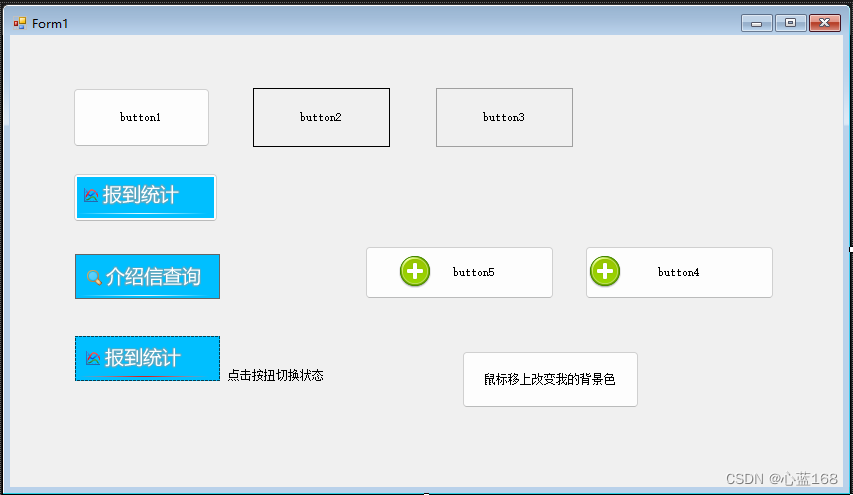
There is a common Button Control , They have also used Panel+ Background picture instead Button Practical use . After all C/S Programming with B/S Programming is different . stay WinForm in , Many controls have Click、MouseClick、MouseDown event . These events can enable us to achieve a good mouse click operation , That is Button like that .
Let's talk about :
Ordinary buttons :
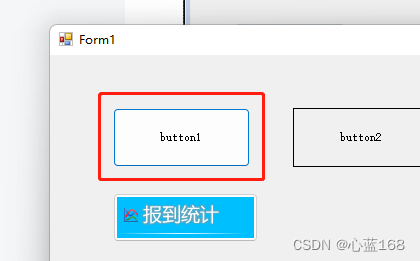
Direct will Button Control onto the window , Do not set any properties .
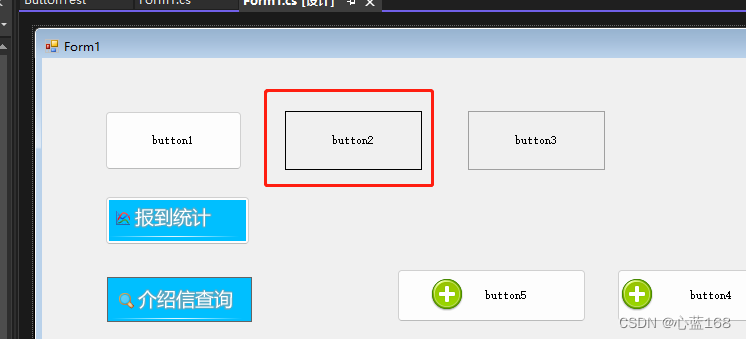
Set the button FlatStyle by Flat, This makes the button flat . This was done before XP Times are very common , But as people use Win7,Win8,Win10,Win11 after , This is not often done ( It seems that it is still very common on industrial computers ).
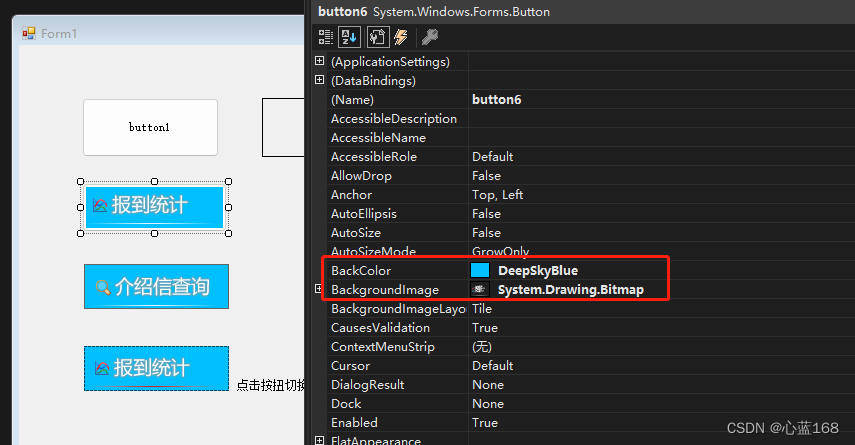
Button to add background picture , This sets the background image and background color for the picture . Mainly because the background picture is transparent . It's not a common practice , Because there is a blank space around the picture . Of course, you may rewrite Button Base class to handle ( an old hand ), Beginners can use the following methods .
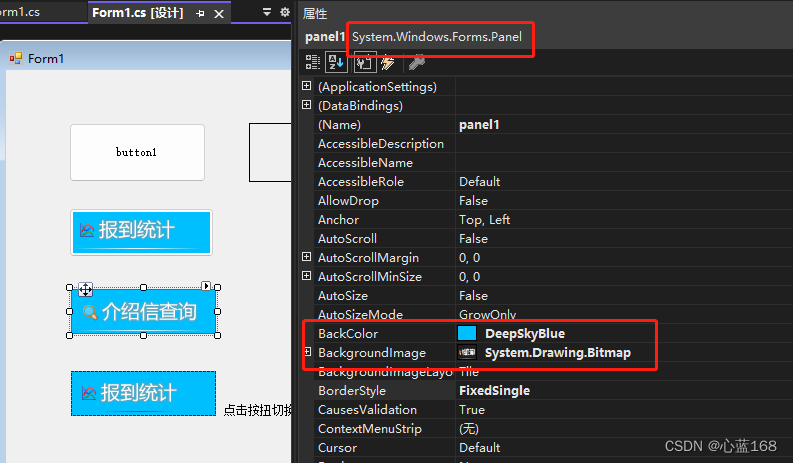
Use Panel( Or use Picture etc. ) Instead of Button, This practice can be removed Button White space in . Whether the buttons made by this method look good , It depends on your art background ( My bad , ha-ha ).
How to set the picture , Let users feel that I have clicked this function ( Button ) Well , There are a lot of ways , Change background image , Change the text and so on .
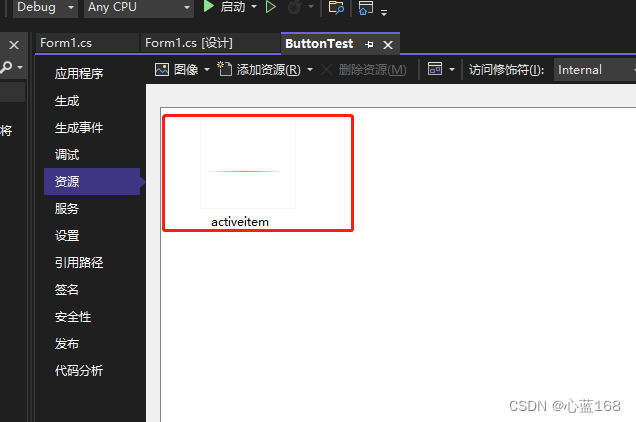
Here I introduce my practice , Like the one above 【 Check in Statistics 】, Everyone knows this is a picture , Generally, click , Just change a different color picture . This requires two 【 Check in Statistics 】 Pictures of the . My approach is to modify Panel Foreground picture of , The background image remains unchanged . The foreground picture is a picture with only one red bar ( Import into the resources of the project for standby ):
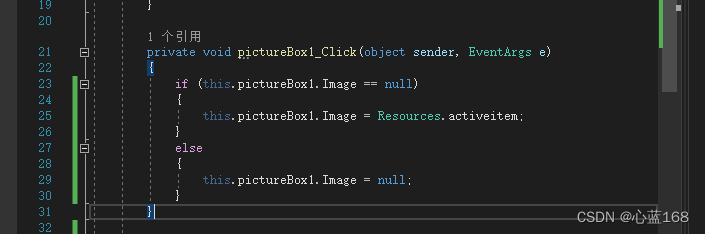
Switch code :
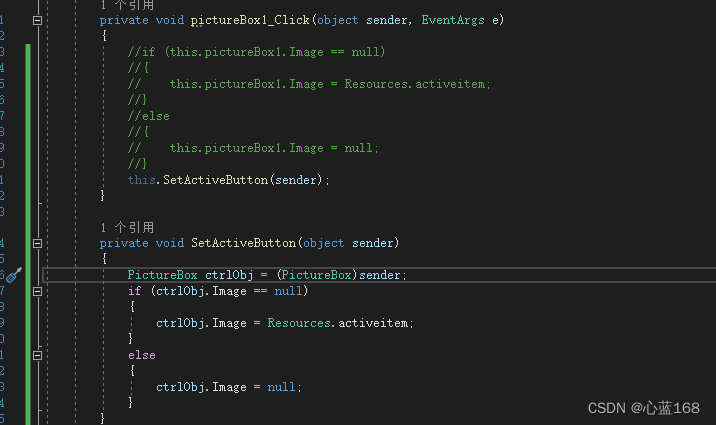
There are many such controls in the project , You can write a public method to implement it ( Remember to input the object of the current button ).
Icon button :
Engineers who have developed relevant systems know , Generally, we will add an icon to the button , This icon can better reflect the function of this button .
such as :
The plus sign indicates new , newly added , increase , Add, etc
A minus sign indicates deletion , Remove, etc
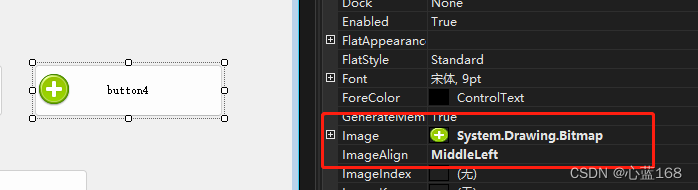
WinForm Of Button The position of this icon is very strange , Not on the left , To be in the middle is to be on the right . If the width of the button is too large , It just shows that it is very unfriendly . Many people don't know ( Too lazy to study ) How to set its properties to make the buttons look better . In fact, as long as you are willing to do more , Try more or try it out soon .
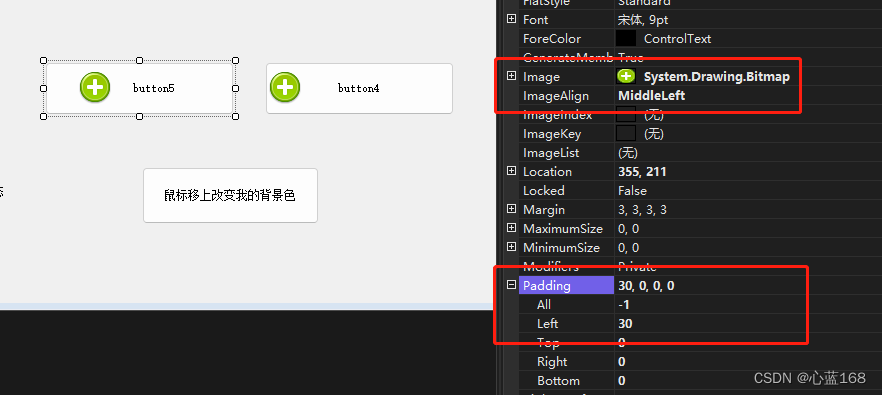
Does this icon look much better ???? The answer is yes
Just set a button Padding-Left Attribute is enough .
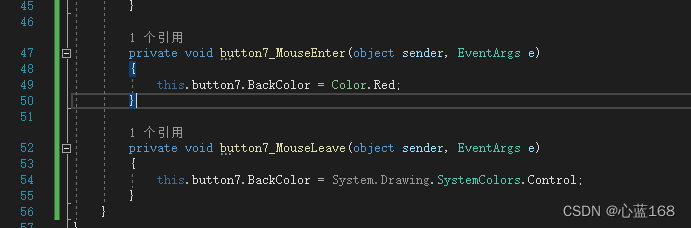
The last example , Talk about moving the mouse to change the background color of the button , Restore the background color of the button when moving out .
This requires two events , Namely MouseEnter and MouseLeave. As shown in the figure below :
Okay , That's all for a moment , Better and richer usage needs to be explored by ourselves , Learn advanced programs , You can also see 《C# Programmer's Manual 》, This book is right C# Base class library of 、 The properties of the control are introduced in detail .
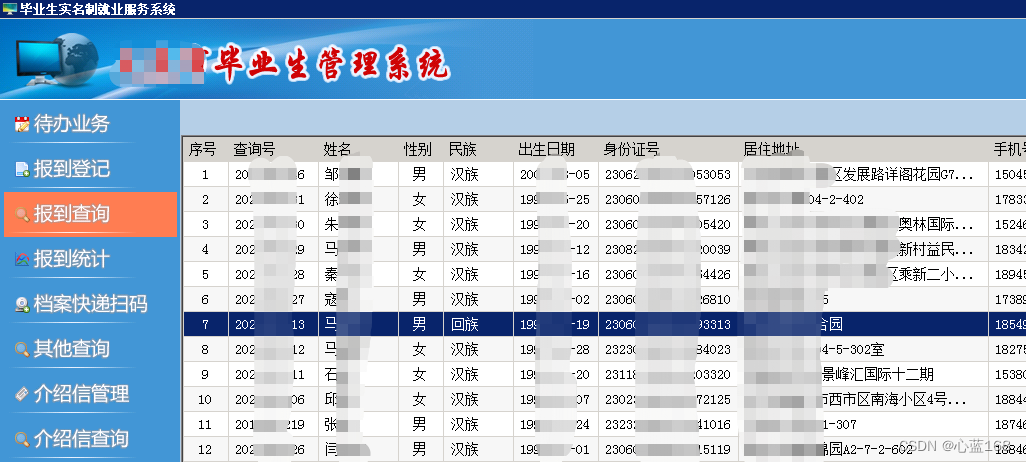
Attached are the renderings of the previously developed system , For your reference :
边栏推荐
猜你喜欢
MySQL string function
JVM之垃圾回收器上篇
arithmetic operation
![[reverse intermediate] eager to try](/img/5a/568533850ddfd1c41117da0df50e20.png)
[reverse intermediate] eager to try
ByteDance overseas technical team won the championship again: HD video coding has won the first place in 17 items
信息与网络安全期末复习(基于老师给的重点)

Shawshank's sense of redemption
Display picture of DataGridView cell in C WinForm
1. Introduction to JVM
【逆向中级】跃跃欲试
随机推荐
肖申克的救赎有感
MySQL digital function
In the command mode in the VI editor, delete the character usage at the current cursor__ Command.
List集合数据移除(List.subList.clear)
02 personal developed products and promotion - SMS platform
Use of mongodb in node
程序员定位解决问题方法论
Assembly language segment definition
How does wechat prevent withdrawal come true?
JS garbage collection mechanism and memory leakage
Final review of information and network security (full version)
1. JVM入门介绍
Redis快速入门
Based on infragistics Document. Excel export table class
MySQL string function
03个人研发的产品及推广-计划服务配置器V3.0
Jetpack compose 1.1 release, based on kotlin's Android UI Toolkit
【MMdetection】一文解决安装问题
mysql 基本增删改查SQL语句
DOS function call